You have a website. Some HTML, a stylesheet, maybe a little JavaScript. It works when you open it on your laptop, and now it needs an address other people can type — without renting a server, keeping it patched, or learning what a reverse proxy is.
Putting it in a container solves that. You describe the web server once in a small file, push it to a repository, and a host builds it and runs it for you. There is nothing to maintain afterwards, because there is no machine of yours in the picture.
This guide does it end to end: the site, the container file, the deploy, and a live address. It took 9 seconds from push to live — and the last section explains why most examples you will find online take considerably longer than that.
Watch it instead
The original walkthrough takes a page from a GitHub repository to a running container, start to finish.

What do you actually need?
Your files, and one more file beside them. That is the entire list — no server, no hosting account to configure, no web server to install on anything of yours.
The extra file is a Dockerfile. It names a web server, says where your pages go, and that is all it has to do. A host reads it, builds the result once, and runs it.
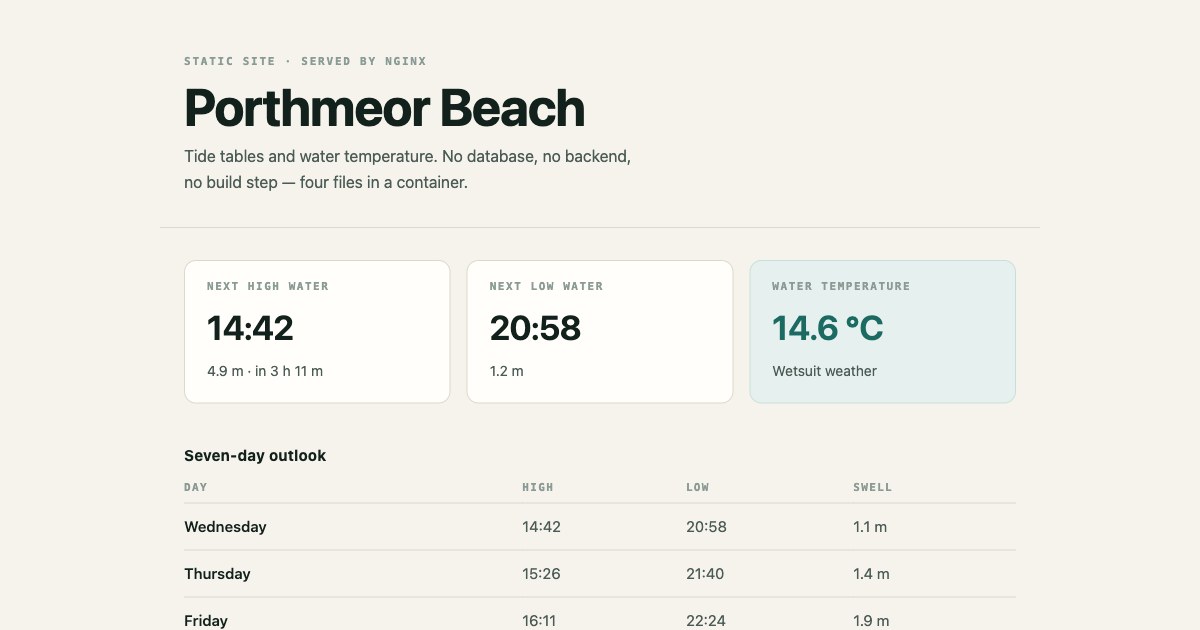
The example here is a four-file site: an HTML page, a stylesheet, a few lines of JavaScript, and the Dockerfile. Yours can be a thousand pages; nothing below changes.
How do you write the container file?
Three lines. Start from the official nginx image, copy your site into the folder it serves, and declare the port.
FROM nginx:1.27-alpine
COPY site/ /usr/share/nginx/html
EXPOSE 80
That is the whole file. There is no install step, because the image already contains nginx, and no start command, because the image already knows how to start it.
The one value worth knowing is /usr/share/nginx/html — the directory this image serves from. Put your index.html there and the site works; put it anywhere else and you get a 404.
Pin the version in the tag, as 1.27-alpine does here. It means the image you build next month is the image you built today, rather than whatever happens to be current.
How do you get it online?
Push the repository, then point a container app at it. In the dashboard, Web Deployment → choose the GitHub repository → branch and root directory → Create app.
There is nothing to fill in on the way. The platform finds the Dockerfile and marks the build as detected — no build command, no start command, no port, because all three are already answered by the file you wrote.
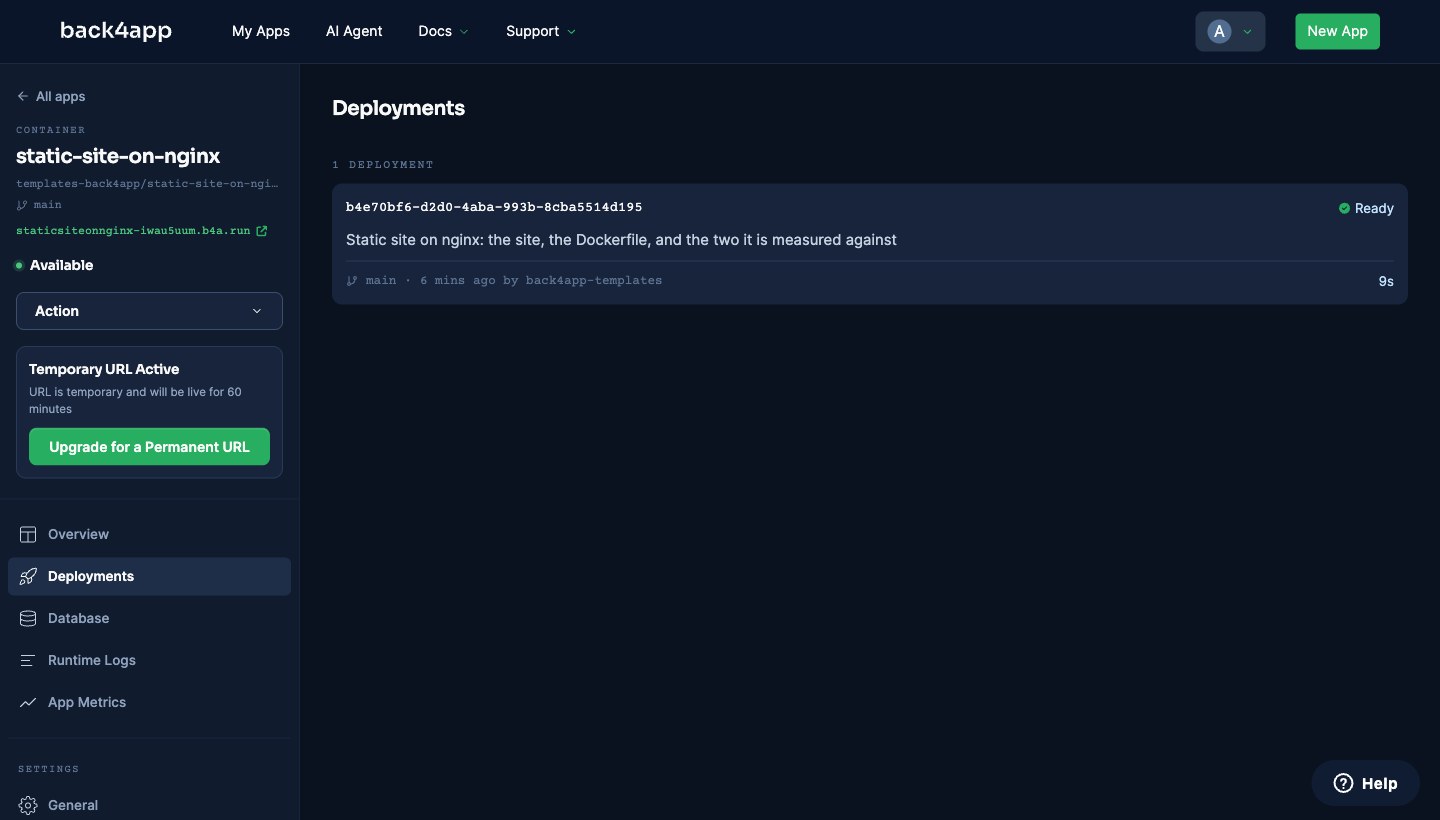
The deployment came back Ready in 9 seconds. That is the platform’s own figure, from push to a live HTTPS address, and it is the number the last section of this post explains.
Did it actually work?
Yes — the address serves the real site, not a placeholder. Every file came back at the exact byte size the repository holds, and the server header names the version pinned in the tag.
/            HTTP 200   text/html                2083 B
/style.css   HTTP 200   text/css                 2218 B
/app.js      HTTP 200   application/javascript    204 B

Server: nginx/1.27.5
The JavaScript runs, the stylesheet applies, and the page looks the way it looks on a laptop. A container is not doing anything clever here — that is the point of using one.
Why do most examples build something much bigger?
Because they install the web server instead of starting from one. Nearly every tutorial you will find, including the video above, begins from a general-purpose Linux image and uses the package manager.
FROM ubuntu:latest
RUN apt-get update
RUN apt-get -y install nginx
COPY index.html /var/www/html/index.html
EXPOSE 80
CMD nginx -g "daemon off;"
It works, and the page it serves is identical. What differs is what gets built, pushed and pulled every time you deploy — and the layer breakdown shows where that weight comes from.
Layer, as docker history reports it | Size |
|---|---|
| Ubuntu 26.04 base | 135 MB |
apt-get update | 43.1 MB |
apt-get -y install nginx | 3.62 MB |
COPY index.html | 20.5 kB |
The thing you wanted — a web server and your page — is 3.64 MB, inside an image docker images reports as 254 MB. The apt-get update step, which exists only so the next line can run, is more than ten times larger than the software it fetched.
The package index is a shopping list. There is no reason to ship it with the groceries.
Can you keep the distribution and still be small?
Mostly, yes — and it is worth knowing if you need a distribution for something else. The cost above is not really Ubuntu’s; it is that apt-get update writes its catalogue into a layer, and layers are immutable, so deleting it later reclaims nothing.
Do the install and the cleanup in one instruction and it never gets committed.
FROM ubuntu:26.04
RUN apt-get update \
 && apt-get install -y --no-install-recommends nginx \
 && rm -rf /var/lib/apt/lists/*
COPY site/ /var/www/html/
EXPOSE 80
CMD ["nginx", "-g", "daemon off;"]
That measures 181 MB — 73 MB smaller, same distribution, same nginx. It also pins the base instead of tracking latest, skips recommended packages, and writes CMD in exec form so nginx receives signals directly.
| Image size | Cold build | nginx version | |
|---|---|---|---|
| Distribution, as commonly written | 254 MB | 12s | 1.28.3, whatever apt has |
| Distribution, cleaned up | 181 MB | 9s | 1.28.3, whatever apt has |
| Official nginx Alpine | 75.9 MB | 1s | 1.27.5, pinned by tag |
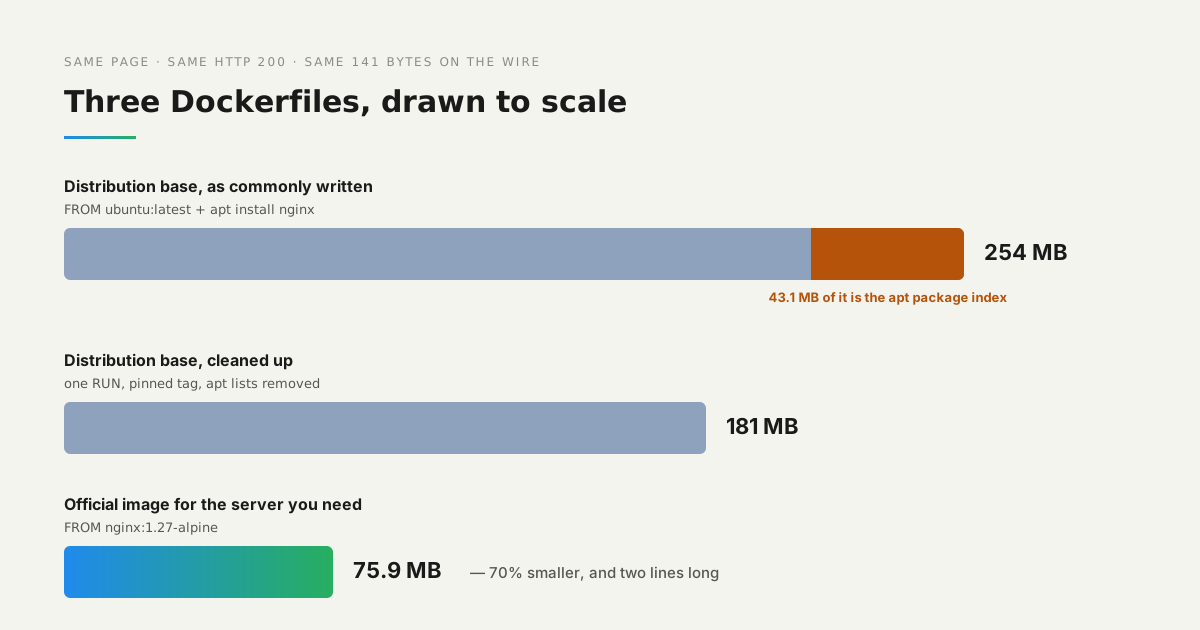
This is where the nine seconds came from. A three-line file has no install step to run, so deploying is a pull and a copy; a file that installs packages repeats that work on every release.
What does the free plan give you?
Enough to put something in front of someone, and not enough to leave running. The container gets 0.25 vCPU, 256 MB of memory and 100 GB of transfer, which is comfortable for a static site.
The limit that matters is the address: on the free plan it is temporary and expires 60 minutes after deployment. That makes it a sharing window rather than hosting — fine for showing a client, not for a site people bookmark. A permanent subdomain or your own domain needs a paid plan.
What should you do next?
Put your own files in site/, change nothing else, and deploy. The container file does not care whether it is carrying one page or a generated documentation site, so the same three lines cover almost every static thing you will build.
Keep the official image for the server you need and pin its tag. Reach for a distribution only when something genuinely requires it — an unusual module, a build step — and when you do, keep the install and its cleanup in a single instruction.