You described a page, Figma Make built it, and the preview looks right. Then you hit the wall every generated front end hits: it lives on Figma’s link, and the moment you want a database behind it, a login in front of it, or your own domain around it, you need the code somewhere you control.
Figma Make exports a plain React and Vite project, and an MCP server lets the assistant already open in your editor push that build straight onto your own backend — no CI, no FTP, no dashboard upload.
This guide takes a walk-logging app from an empty Figma Make prompt to a live HTTPS address. Measured on 23 September 2026, the whole deploy step — three files, from a local folder to a working URL — took 9.4 seconds.
Watch it instead
The same path on video: a prompt becomes a site in Figma Make, the code comes down, and the MCP server puts it on a live address. Five minutes, no deploy pipeline.

What does the MCP server actually give you?
It gives your editor’s assistant hands on your backend, so “deploy this” becomes a sentence instead of a pipeline. MCP — the Model Context Protocol — is the standard way an AI client talks to an external system, and Back4app publishes a server for it on npm.
Version 0.1.9 exposes 11 tools. Four of them matter here: deploy_web_hosting_files uploads a folder, list_cloud_code_and_web_hosting_files shows what is already up there, activate_web_hosting hands back a public subdomain, and get_parse_app tells the assistant which app it is working on.
The rest are what make this more than a file upload. call_parse_server_rest_api can create database classes and records, and deploy_cloud_code_files ships server-side functions. The same connection that publishes your front end can give it a backend later, without a second tool.
How do you generate the site in Figma Make?
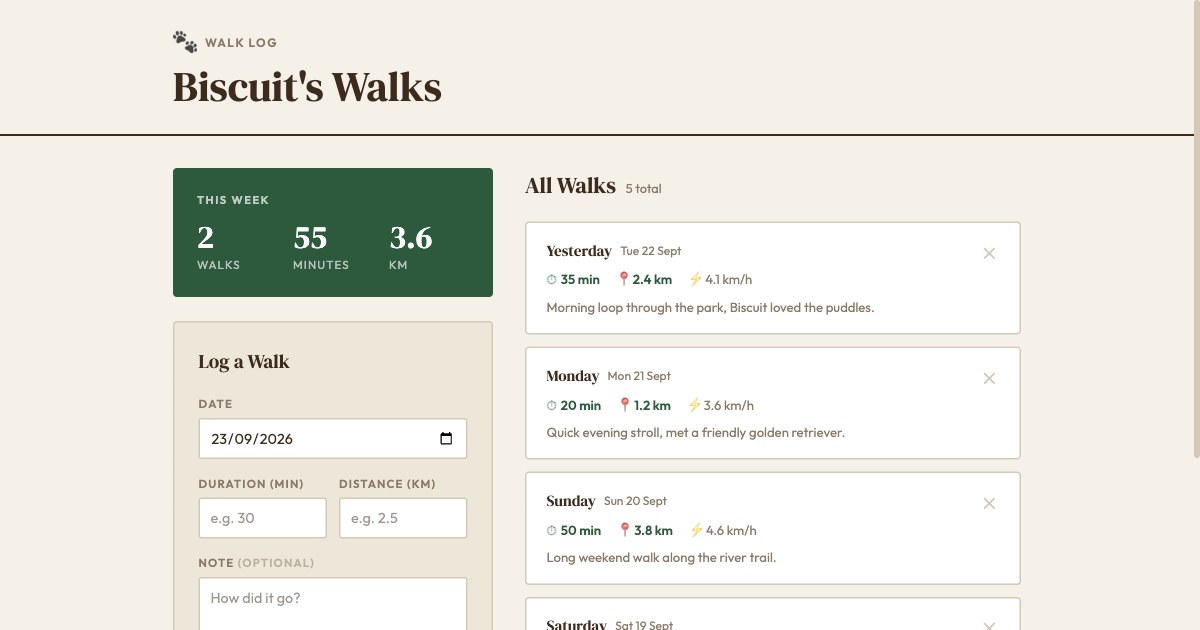
Type what you want into the prompt box on the Figma home screen and press Make a file. For this guide the prompt asked for a dog-walk tracker that logs date, duration, distance and a note, lists past walks and totals the week.
Make picked its own visual direction — a warm field-notebook palette, serif headings — wrote the React component, and pre-loaded five sample walks so the result is immediately legible. It took under two minutes from prompt to working preview.
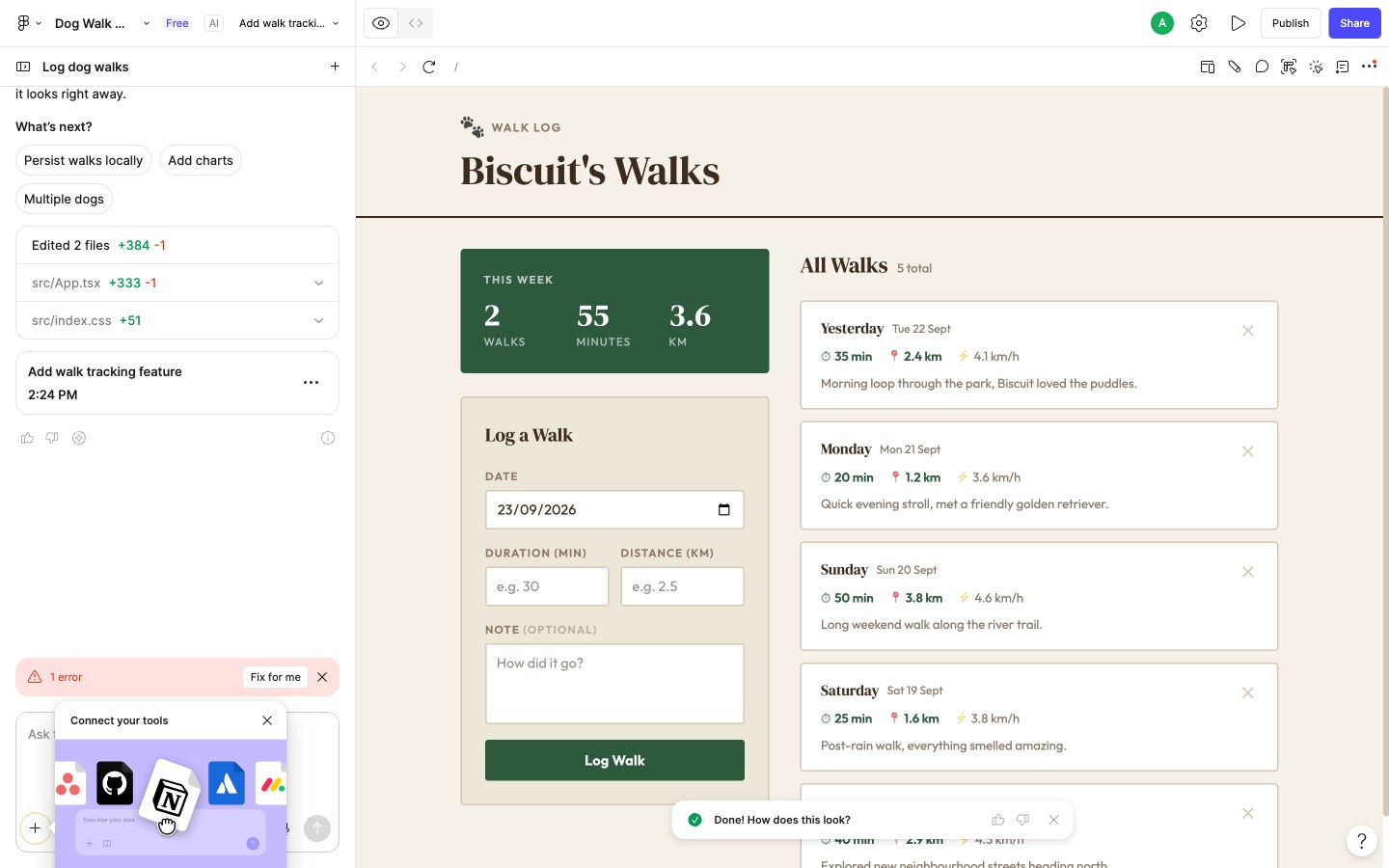
A red 1 error badge appeared under the chat. Clicking Fix for me is the honest move here, and in this case Make read its own output and reported the error was stale — the fix was already in the code and the preview’s hot reload had cached the old version.
Watch the credit counter while you work. Figma’s Starter plan allows 500 AI credits a month with a 150-a-day ceiling; the generation plus that one follow-up came to 38 credits, which leaves room for roughly four apps this size in a day.
How do you get the code out?
Switch the display toggle from Preview to Code and click the download icon above the file list. You get a zip of the whole project, not a bundle of HTML — this one was 28 KB.
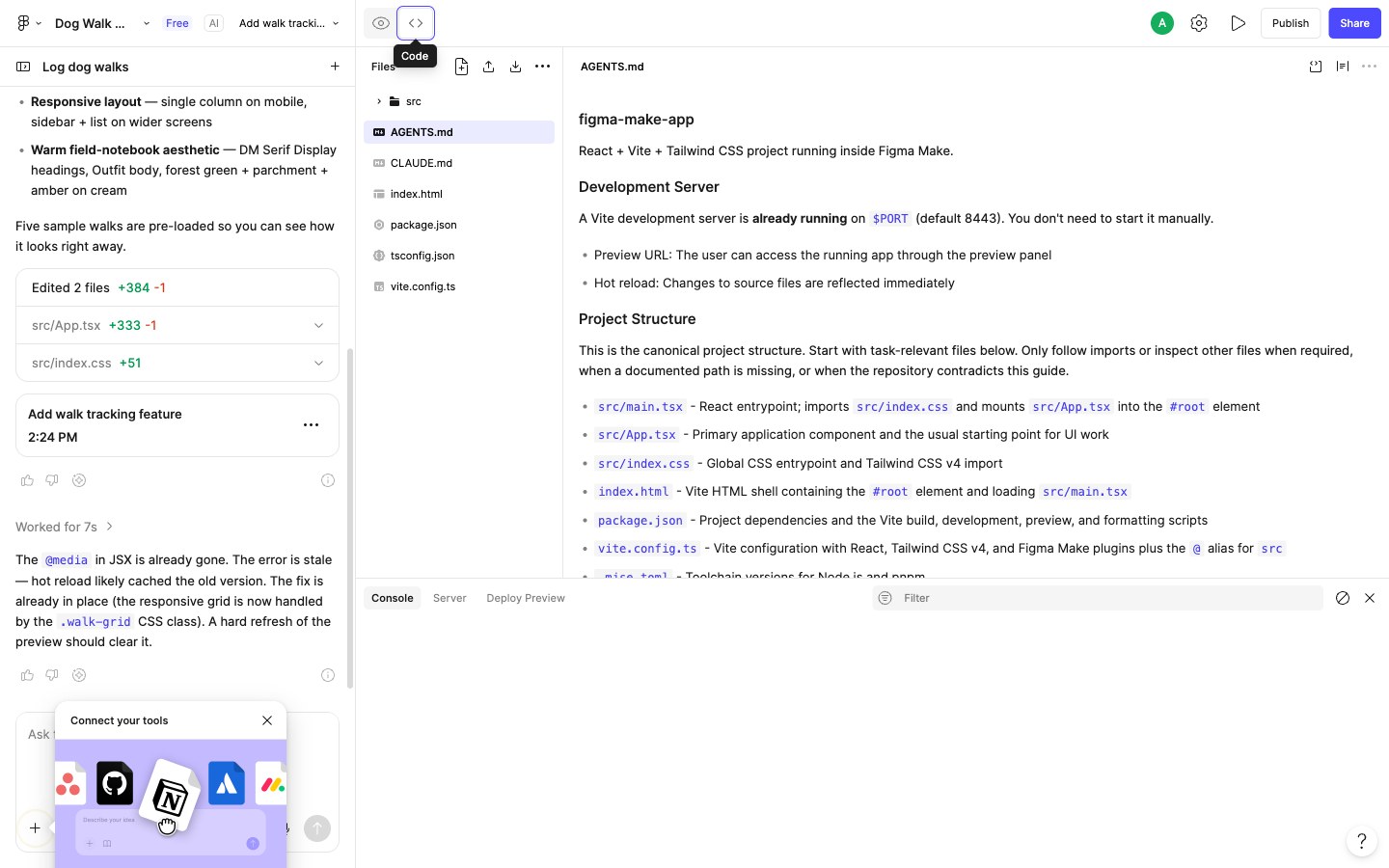
Inside is an ordinary front-end project: React 19, Vite 8 and Tailwind CSS v4, with the components in src/App.tsx. Figma’s own Vite plugins are almost all gated to apply: 'serve', so they run the dev server and vanish from production builds.
That is the part worth internalising. Nothing about the output is proprietary, which is exactly why it can be hosted anywhere, and why the rest of this guide is the same for a site you wrote by hand.
What should you change before you build?
Open .figma/make/site.json and check two fields, because the defaults will cost you. Every generated project ships with "robots": { "index": false }, and the page title falls back to the literal string Figma Make App.
Those are not cosmetic. With index left false, a production build emits a robots.txt reading Disallow: / and a <meta name="robots" content="noindex, nofollow"> — so a site you deploy expecting traffic quietly asks every crawler to ignore it.
{
  "title": "Biscuit's Walks",
  "description": "Track and log your dog's walks…",
  "robots": { "index": true }
}
With the title set and indexing enabled, the build drops robots.txt entirely and the served page comes back titled Biscuit's Walks. Set both before the first deploy, not after.
How do you build it?
Install and build with the two commands the project already expects. Node 22 is pinned in the project’s .mise.toml, and Vite handles the rest.
npm install
npm run build
The production build lands in dist/ and is small: index.html at 0.84 kB, one stylesheet at 8.81 kB, and a 229.49 kB JavaScript bundle that gzips to 71.57 kB. Three files, and nothing to configure — the Vite config already resolves the base path to /, which is what serving from a domain root needs.
How do you connect the MCP server?
You need an account key. In the Back4app dashboard, open the avatar menu, choose Account Settings, then the Account Keys tab, type a name and press Enter. The key appears in the list and is valid for two years.
Then point your editor at the server. The configuration is the same shape in every MCP client — Cursor, Claude Code, VS Code — and the package is fetched on demand, so there is nothing to install first.
{
  "mcpServers": {
    "back4app": {
      "command": "npx",
      "args": [
        "-y",
        "@back4app/mcp-server-back4app@latest",
        "--account-key",
        "YOUR_ACCOUNT_KEY"
      ]
    }
  }
}How do you deploy?
Ask. With the server connected and the build finished, the instruction is a sentence — name the folder and the app, and let the assistant call deploy_web_hosting_files.
Deploy the dist folder to my blog-demo app’s web hosting.
The tool uploads the files in batches of five, creates a release, and returns what it did. Three files went up as release v2 in 9.4 seconds, each with its checksum and version — index.html, the hashed stylesheet and the hashed bundle, with the assets/ structure preserved.
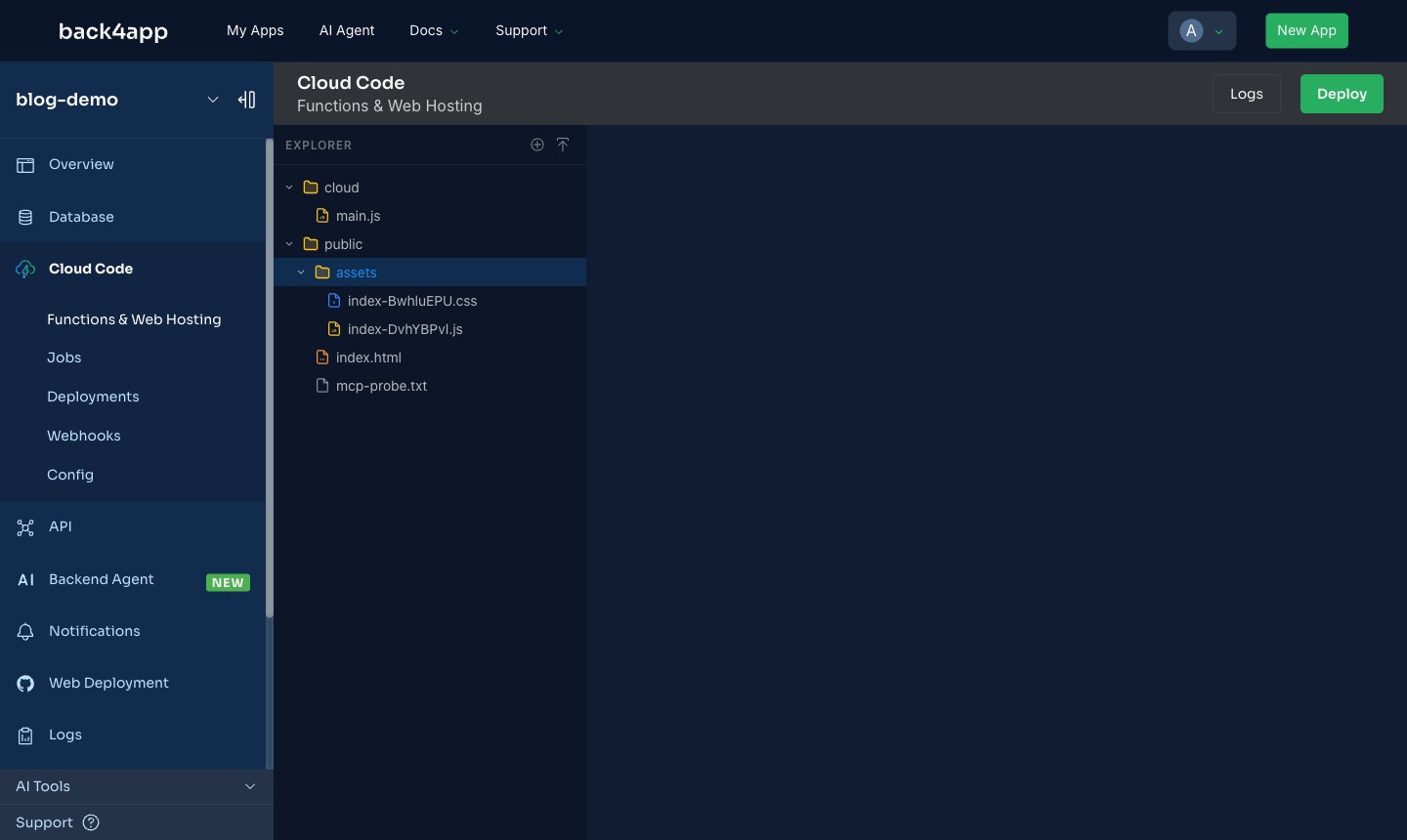
Then ask for the address. activate_web_hosting returned a subdomain in 813 ms, and that is the whole deployment: two sentences, no dashboard, no pipeline.
Did it actually work?
Yes — the deployed site serves correctly and behaves like the preview did. Every file came back over HTTPS at the exact byte size the build produced: 848 B of HTML, 229,499 B of JavaScript, 8,818 B of CSS, with the page titled Biscuit's Walks.
More to the point, it is a working application and not a screenshot. Logging a walk of 42 minutes and 3.1 km moved the list from five entries to six and recalculated the weekly panel from 55 to 97 minutes and from 3.6 to 6.7 km.
Reload the page, though, and it drops back to five. The state lives in React memory, which is exactly the boundary Figma Make stops at — and the reason the next section matters more than the deploy did.
What are the limits worth knowing?
Three, all of them checkable in a minute and none of them blocking. The free-plan subdomain is a preview: activate_web_hosting returns a name prefixed preview- alongside an expiresAt timestamp exactly 60 minutes out. That is a sharing window, not hosting — a permanent subdomain or your own domain needs a paid plan.
Second, there is no single-page-app fallback. A request for a path with no matching file returns HTTP 403 with the body {"error":"unauthorized"} rather than rewriting to index.html. One-view apps like this one are unaffected; a router needs hash routes or a rewrite layer in front.
Third, everything is served with cache-control: public, max-age=0 and a weak ETag, including content-hashed assets that could safely be cached for a year. Revalidation is cheap, but you are not getting the immutable-asset caching the filenames were designed for.
What comes next?
Give it a database, using the connection you already have. The app currently forgets every walk on reload because nothing is storing them, and the same MCP server that just deployed the front end can fix that without a second integration.
call_parse_server_rest_api creates a class and writes records; deploy_cloud_code_files ships server-side functions that run where a browser cannot reach them. From the assistant’s side it is the same conversation: ask for a Walk class, then ask for the app to read and write it.
That ordering is the real argument for deploying here rather than leaving the site on a generated link. The front end and the data end up in one place, behind one account, reachable from one editor — and the step from “a page that looks right” to “an app that remembers” stops being a migration.