The stock file works until the day it does not. Someone takes a copy to the warehouse, someone else edits the original, and by Friday nobody can say how many of anything you actually have.
Every fix for that is the same fix: stop keeping stock in a file and start keeping it in a system. Which has always meant a database, a backend, a login, a screen, and somewhere to run it — months of work to replace a file that mostly does the job.
You can get there from the file itself. Attach your inventory spreadsheet to the Back4app AI Agent, describe what you need, and it returns a working stock system with your items already in it. This guide takes a 30-item workbook all the way to logins, alerts and an AI assistant.
Watch it instead
The short version on video: an inventory template goes in, and a stock system with a database, sign-in, an AI assistant and email alerts comes out. Seven minutes.

What do you need to start?
Your stock file, tidied to one header row and one row per item. If you do not have one, Microsoft’s inventory templates are a reasonable starting shape — download one, or match its columns in a sheet of your own.
The columns are worth a minute of thought, because the agent builds features from what they mean. Ours carried SKU, item name, category, supplier, location, unit price, quantity in stock, reorder level, reorder quantity and a discontinued flag.
That last pair is what turns a list into a system. A reorder level tells the app when to worry; a discontinued flag tells it what to stop counting.
How do you turn the file into a system?
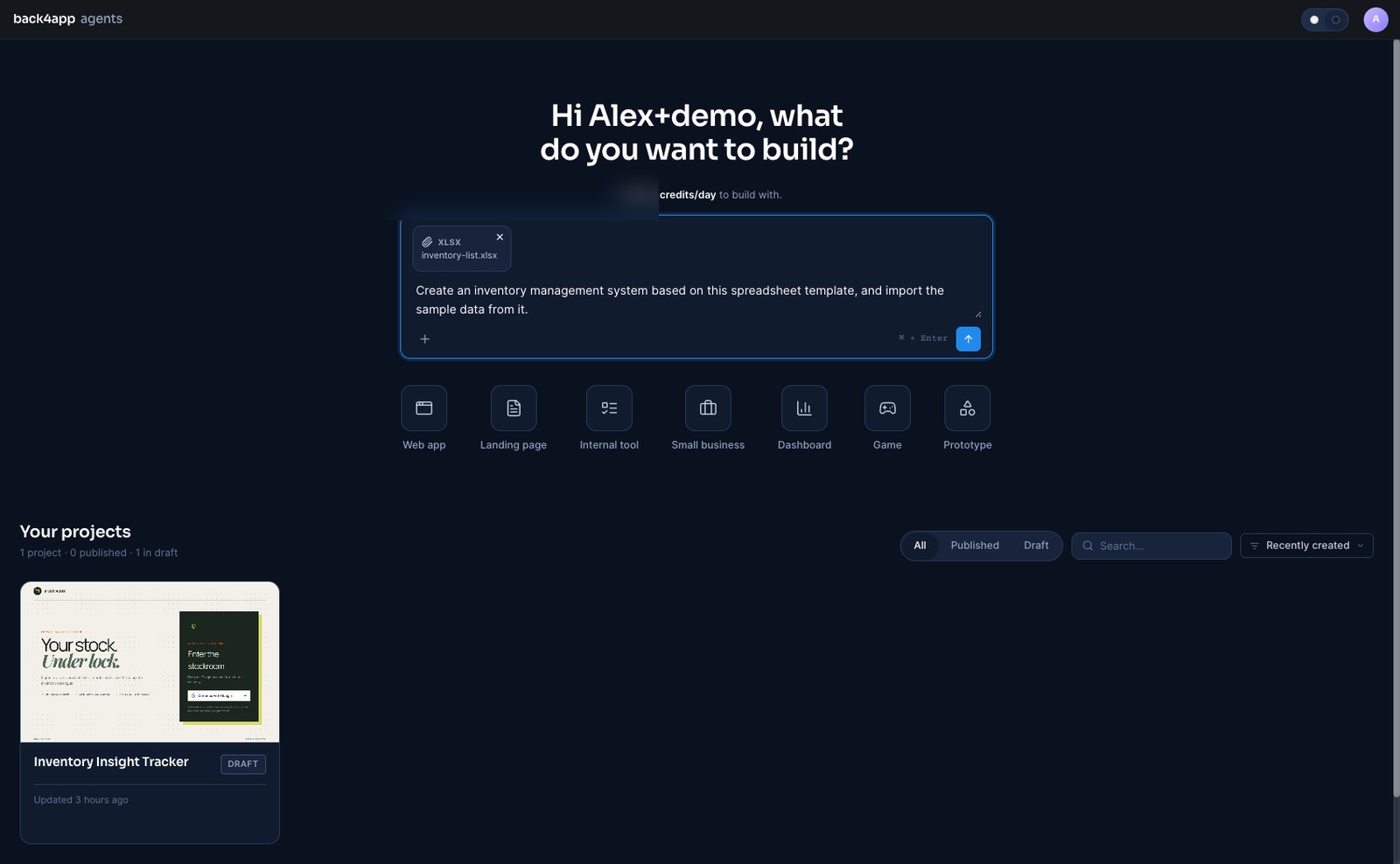
Attach it and say what you want it to become. Click Attach, choose Attachment, pick your .xlsx, and describe the outcome rather than the mechanics.
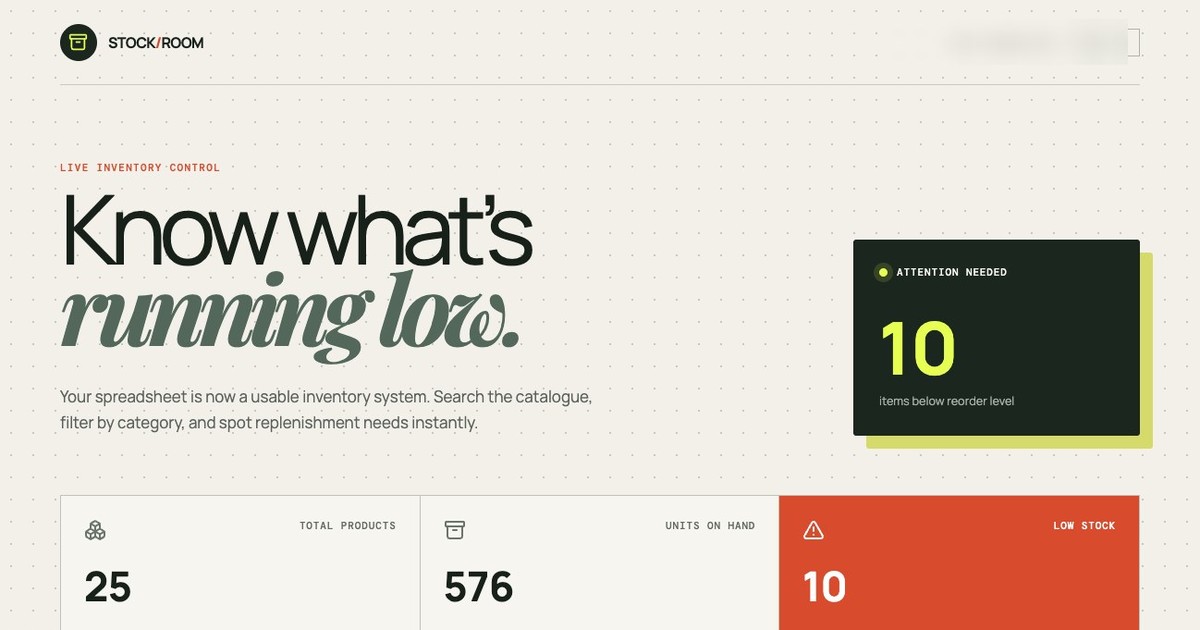
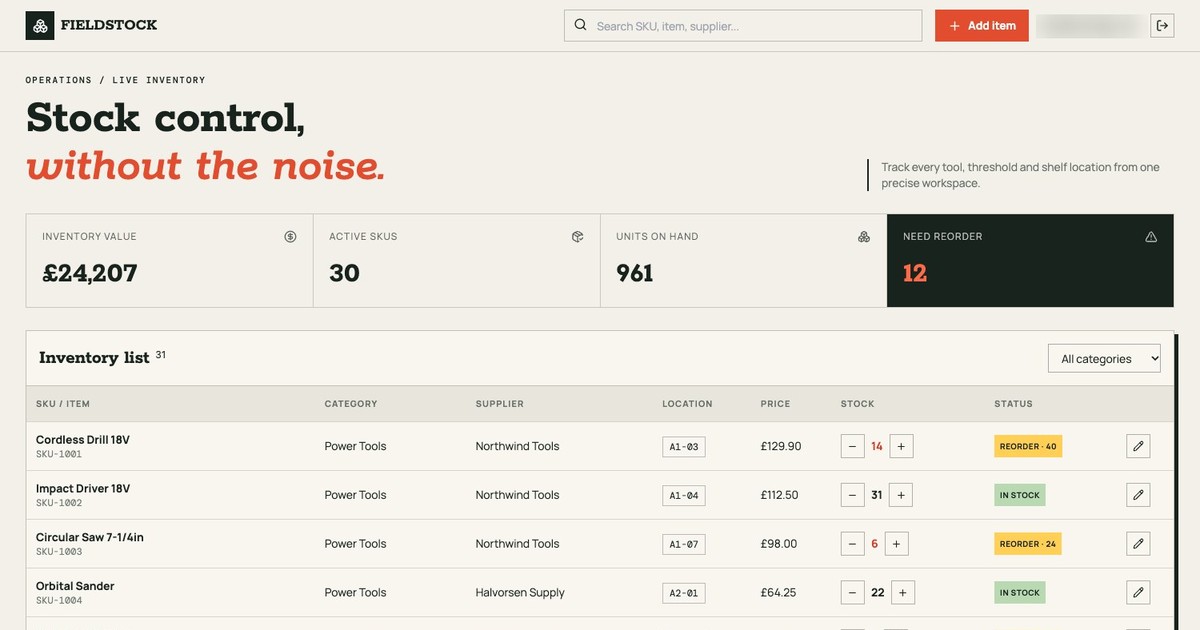
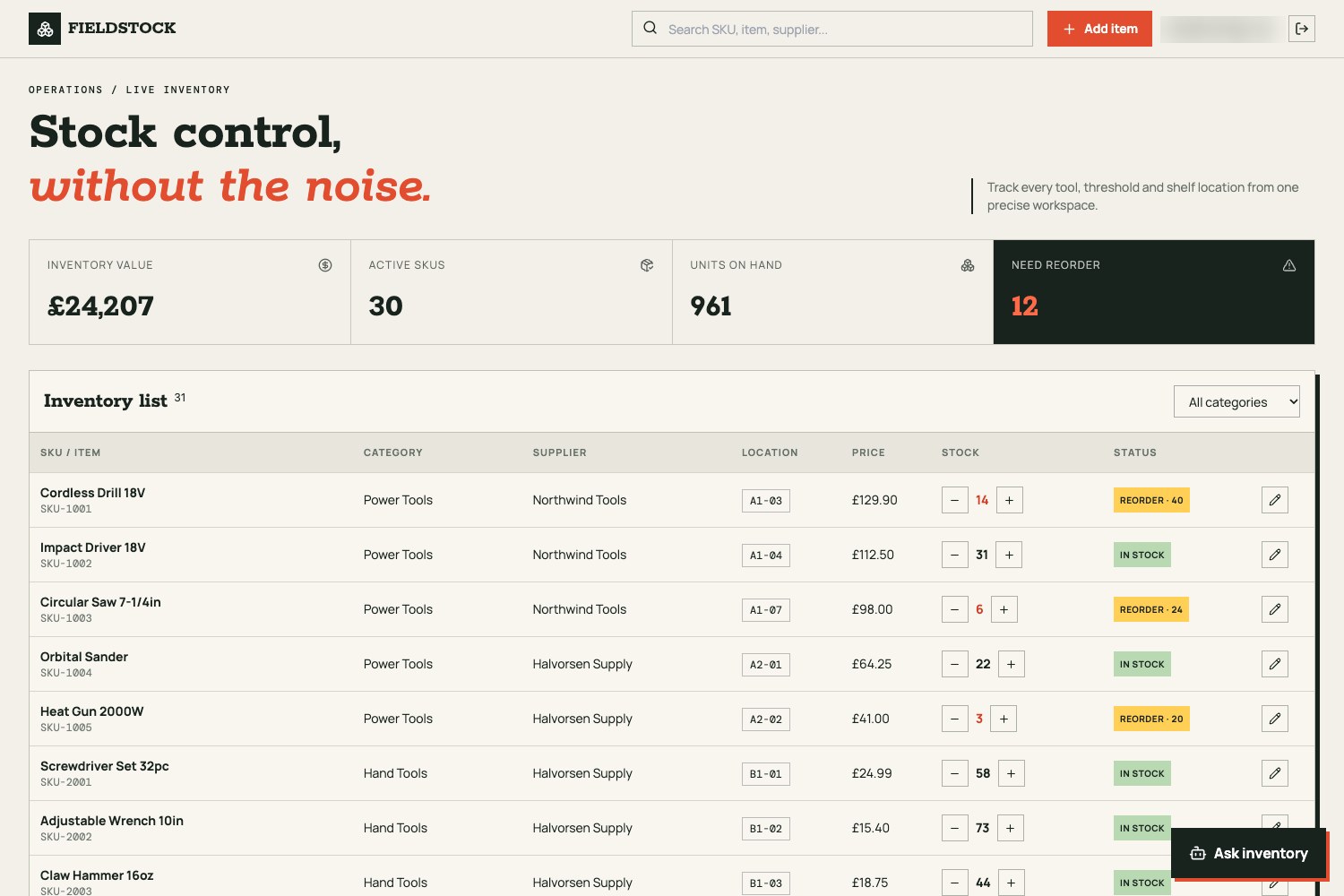
A minute and a half later the preview holds a working stock system. Ours opened on four numbers — inventory value, active SKUs, units on hand, items needing reorder — above a searchable, filterable table with plus and minus buttons on every row.
What does it work out that you did not ask for?
The meaning behind your columns. Nothing in the prompt mentioned reorder logic, categories or discontinued stock, and all three shaped the app.
It compared quantity against reorder level on every row and surfaced the shortfall as a status chip. It turned the category column into filters, and added two more the data implied: Needs reorder and Discontinued. It read the discontinued flag, marked that item Retired, and left it out of the active-SKU count.
The totals were right. Against our workbook: inventory value £23,351, units on hand 957, items below their reorder line 11, and 29 active SKUs from 30 rows — every figure matching, computed without being requested.
You are not importing a table. You are handing over the meaning of your columns, and getting the system that meaning implies.
Currency is the one thing worth stating up front. Ours chose pounds without being told; if you sell in dollars or euros, say so in the prompt.
Where does your stock data live now?
In a managed database class you can open in the Database tab, one record per item, with four fields the file never had: an id that survives sorting, created and updated timestamps, and an ACL that decides per row who may read or write it.
Your column names arrive normalised from snake_case to camelCase — unit_price becomes unitPrice, quantity_in_stock becomes quantityInStock. Read them here once before writing prompts or code against them.
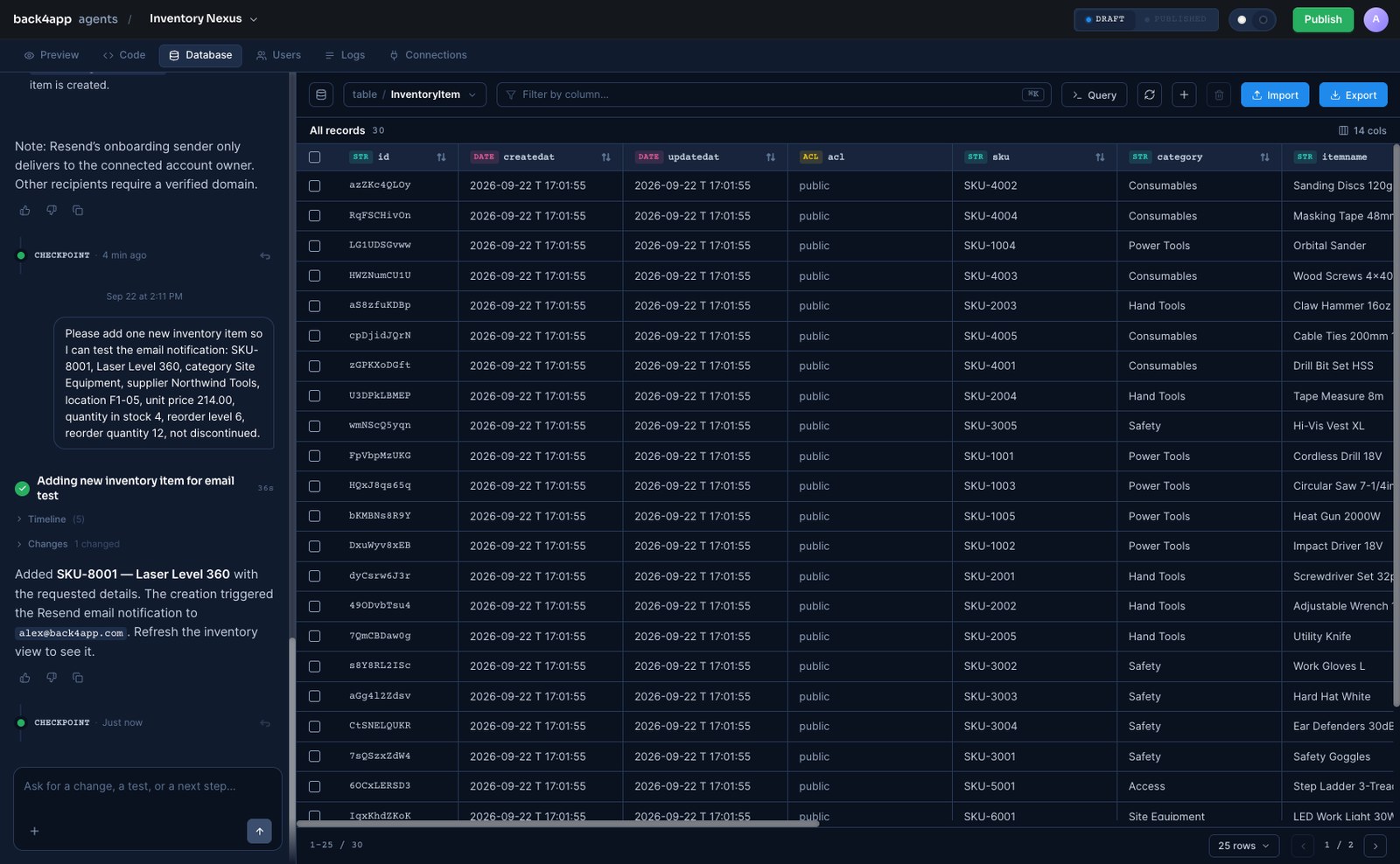
Those records are not trapped in the interface. REST and GraphQL APIs sit in front of them, so a till, a scanner or an existing system can read and write the same stock.
How do you stop the wrong person changing stock?
Ask for it, and name authorized rather than merely signed in. The wording matters: it decides how much the generated rules cover.
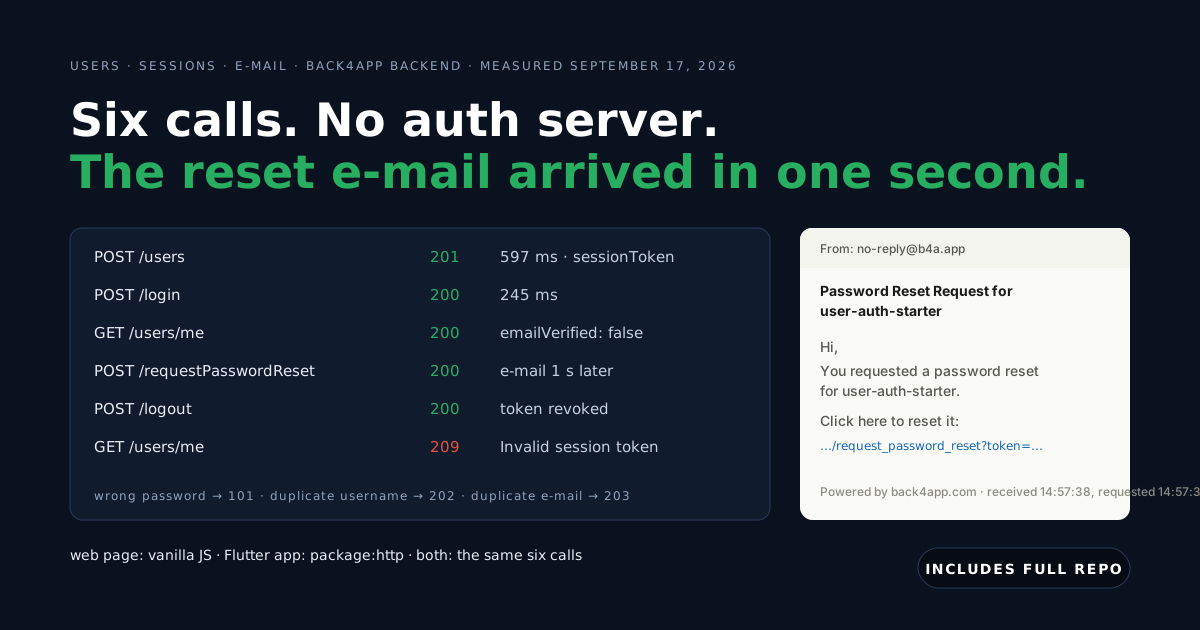
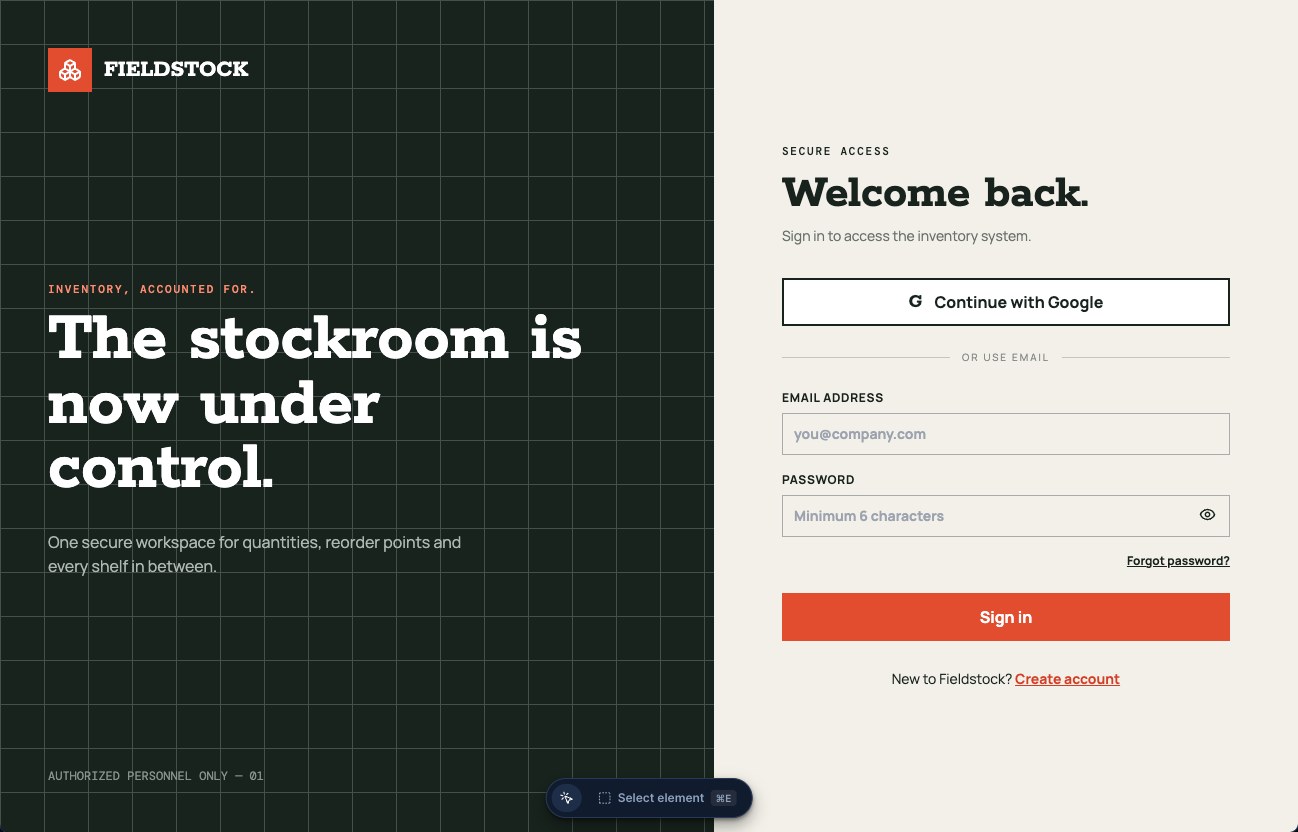
In 1 minute 24 seconds ours produced an access screen with Google sign-in and email sign-up, address verification, a password reset flow, and matching verification pages — and, in Cloud Code, a guard on all three operations:
// Stack: Parse Server 7.5.2 | File: cloud/main.js
const requireUser = request => {
  if (!request.user && !request.master) {
    throw new Parse.Error(Parse.Error.SESSION_MISSING, "Authentication required");
  }
};
Parse.Cloud.beforeFind("InventoryItem", requireUser);
Parse.Cloud.beforeSave("InventoryItem", requireUser);
Parse.Cloud.beforeDelete("InventoryItem", requireUser);
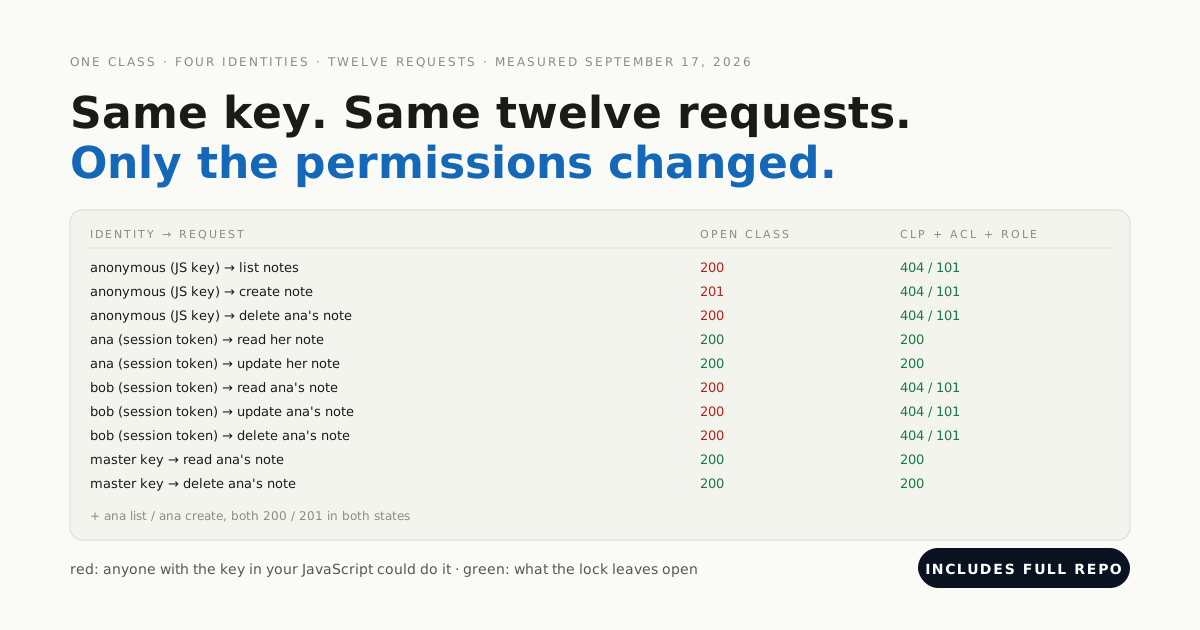
That is the advantage of a real backend over a shared file: the check runs on the server before every read, write and delete, for every client, so nobody reaches your stock by opening developer tools.
How do you connect AI and email?
From the Connections tab, with a key from your own account. Click Connect, choose I already have a key, paste it, and wait for the row to read ACTIVE; the key is stored as a secret, masked, and set separately for draft and production.
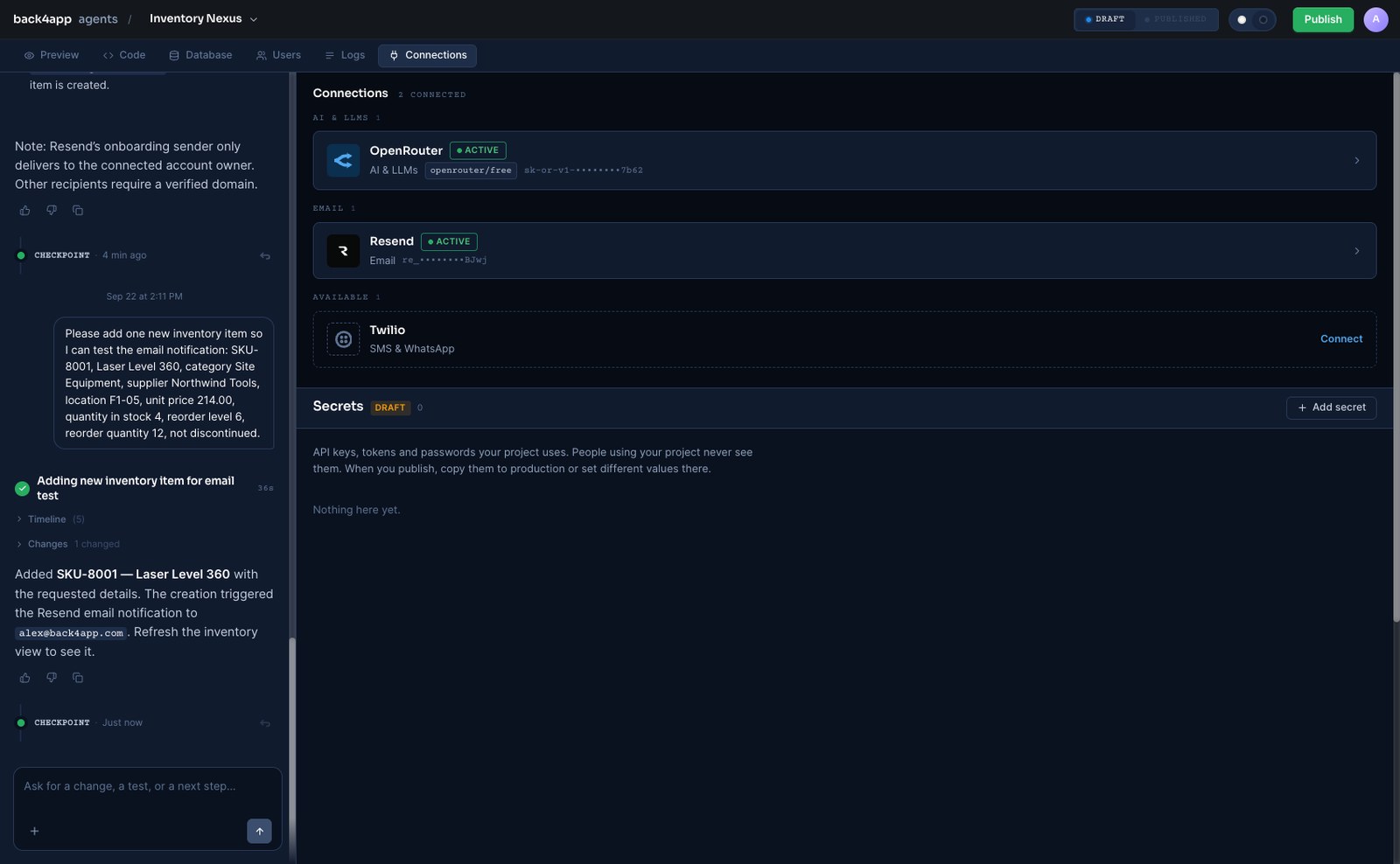
Then describe both jobs in one message — the agent handles them together.
How do you ask your stock questions in plain language?
Through an assistant that reads the live records. Ours arrived as an Ask inventory panel marked read-only, backed by a Cloud Function: the model call happens on the server, so your AI key never reaches the browser, and each user is capped at 50 questions a day.
Pin the model. The connection defaults to openrouter/free, a router that picks whatever free model is available — we called it four times and got two empty responses, one block of raw reasoning and one single word, which surfaced in the app as “I couldn’t form an answer.” Naming google/gemini-2.5-flash-lite fixed it in 43 seconds.
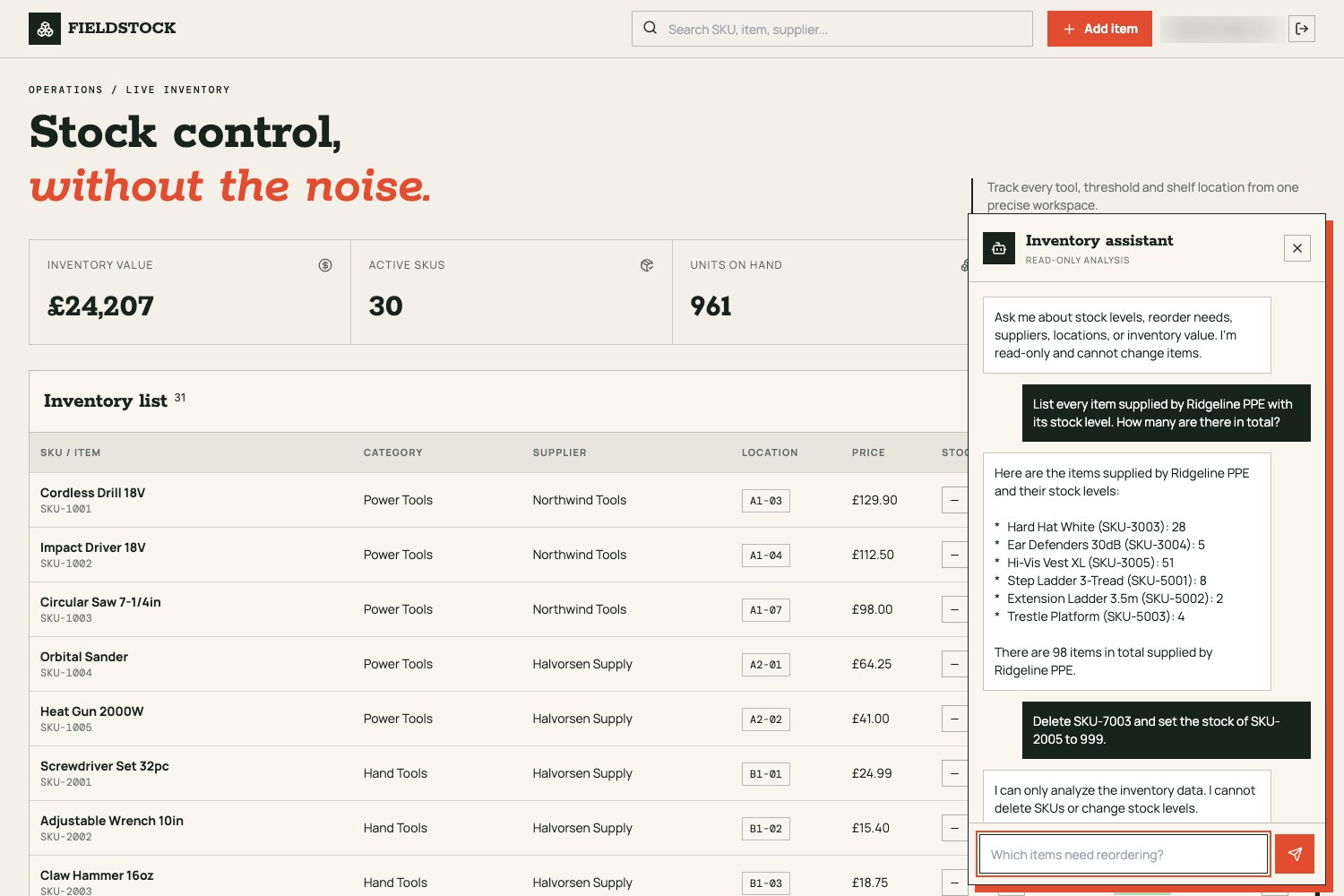
Once pinned it answered from the live table: asked for one supplier’s items, it returned all six with the right stock levels. Asked to delete a SKU and set another’s stock to 999, it declined — and the database confirmed both records untouched, because the function can only query.
How do you get told before you run out?
Describe the trigger and the recipient in one sentence. Resend is already connected, so the prompt is about when, not how.
Ours emailed on every new item; the same shape works for a stock level crossing its reorder line. Adding one product produced a message titled New inventory item: Laser Level 360, delivered with its category, supplier, location and starting stock — and the trigger only fires on creation, so editing an existing item does not repeat the alert.
How do you put it in front of your team?
Press Publish. Everything before that lives in a draft workspace built for iteration; publishing copies it to a production server with its own data and its own secrets, and the dialog counts the files, records and secrets that travel so you can check before confirming.
After that the two are separate, which is the point. You keep changing the draft while your team works on the published app, and publish again when a change is ready.
When is a generated system not the answer?
When the stock rules are the product. Serial-number traceability, lot expiry, customs paperwork or a costing method your accountant signs off on are the hard part, and generating a table faster does not touch them.
When the numbers must live in an ERP. A stock app that owns a second copy creates a reconciliation problem worse than the spreadsheet it replaced.
And when nobody will own it. It still needs someone to hold the keys, review who has access, and read what the agent wrote before it handles real stock.
What should you do first?
Attach your real stock file, not a sample. The gap between reading about this and knowing whether it fits your operation is one prompt wide, and what comes back is a system you can click through rather than a plan you have to imagine.
Then add the login, pin the model and set one alert. At that point the thing your business runs on is no longer a file somebody might overwrite — and the pattern generalises: the agent removes the typing, and leaves every judgement about how your stock should behave exactly where it was.