Password Reset
User Password Reset for React
Introduction
It’s a fact that as soon as you introduce passwords into a system, users will forget them. In such cases, the Parse library provides a way to let them securely reset their password. As with email verification, Parse already has an implementation ready for this, Parse.User.requestPasswordEmail. By using this method, Parse will handle all aspects of password resetting for you seamlessly.
Prerequisites
To complete this tutorial, you will need:
- Complete the previous guide so you can have a better understanding of the Parse.User class and the Parse.User.logIn method
- If you want to test/use the screen layout provided by this guide, you should set up the Ant Design library.
Goal
To add a user password reset feature to a React app using Parse.
1 - Customizing password reset emails
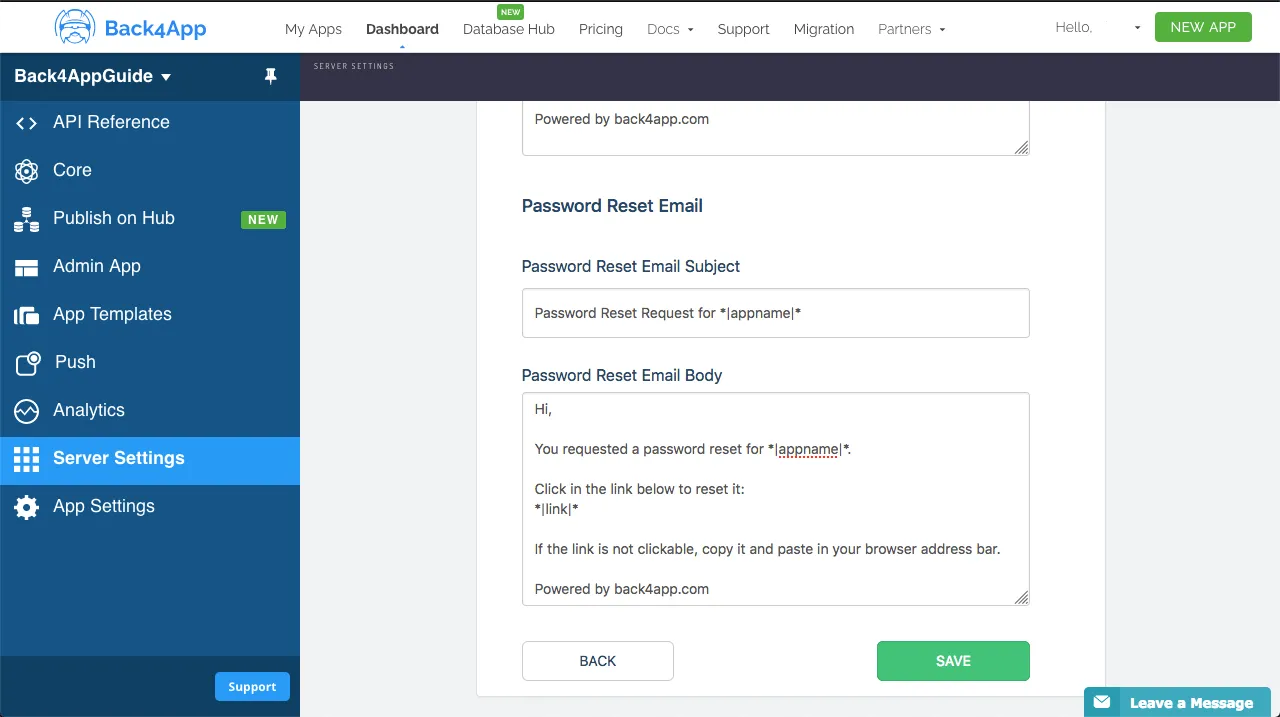
Before calling the Parse.User.requestPasswordEmail method, you can customize the message that your user will get after requesting a password reset. Log in to your Parse app dashboard, go to Settings->Verification Emails and change your password reset email subject or message. Ensure that your user will receive an email containing clear instructions and indicating that it is indeed from your application.
2 - Using requestPasswordEmail
Calling the Parse.User.requestPasswordEmail method only requires your user account email as a parameter, so go ahead and add the following function to your password reset component. Remember to add a text input for your user email to your component.
1	const doRequestPasswordReset = async function (): Promise<boolean> {
2	  // Note that this value come from state variables linked to your text input
3	  const emailValue: string = email;
4	  try {
5	    await Parse.User.requestPasswordReset(emailValue);
6	    alert(`Success! Please check ${email} to proceed with password reset.`);
7	    return true;
8	  } catch(error: any) {
9	    // Error can be caused by lack of Internet connection
10	    alert(`Error! ${error}`);
11	    return false;
12	  }
13	};
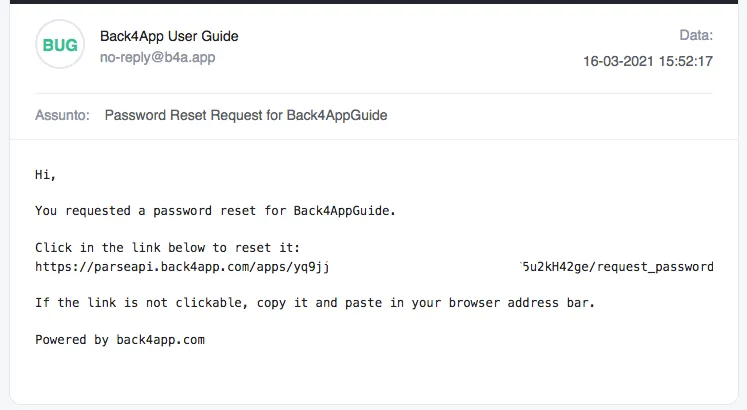
Go ahead and test your component. After requesting a password reset email, you should have received the email, so check your inbox. Note that the message will contain any changes you had set up before in your Parse dashboard.
The password reset form will look like this:
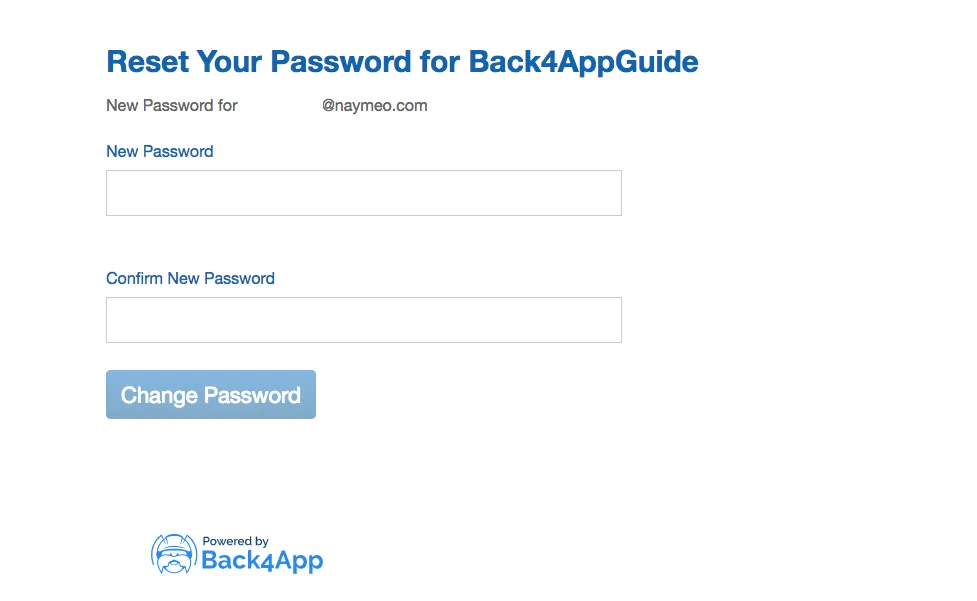
That’s it, after changing the password in this form, your user will be able to log in again to your application.
3 - Creating a password request component
As said before, you should create a component containing the function shown on Step 2 and also a text input field for your user account email to enable password reset in your app. Here is a complete example of this component. You can plug it in in our previous guide’s user login project if you like.
1	import React, { useState, FC, ReactElement } from 'react';
2	import './App.css';
3	import { Button, Divider, Input } from 'antd';
4	const Parse = require('parse/dist/parse.min.js');
5
6	export const UserPasswordReset: FC<{}> = (): ReactElement => {
7	  // State variables
8	  const [email, setEmail] = useState('');
9
10	  // Functions used by the screen components
11	  const doRequestPasswordReset = async function (): Promise<boolean> {
12	    // Note that this value come from state variables linked to your text input
13	    const emailValue: string = email;
14	    try {
15	      await Parse.User.requestPasswordReset(emailValue);
16	      alert(`Success! Please check ${email} to proceed with password reset.`);
17	      return true;
18	    } catch(error: any) {
19	      // Error can be caused by lack of Internet connection
20	      alert(`Error! ${error}`);
21	      return false;
22	    }
23	  };
24
25	  return (
26	    <div>
27	      <div className="header">
28	        <img
29	          className="header_logo"
30	          alt="Back4App Logo"
31	          src={
32	            'https://blog.back4app.com/wp-content/uploads/2019/05/back4app-white-logo-500px.png'
33	          }
34	        />
35	        <p className="header_text_bold">{'React on Back4App'}</p>
36	        <p className="header_text">{'User Password Reset'}</p>
37	      </div>
38	      <div className="container">
39	        <h2 className="heading">{'Request password reset email'}</h2>
40	        <Divider />
41	        <div className="form_wrapper">
42	          <Input
43	            value={email}
44	            onChange={(event) => setEmail(event.target.value)}
45	            placeholder="Your account email"
46	            size="large"
47	            className="form_input"
48	          />
49	        </div>
50	        <div className="form_buttons">
51	          <Button
52	            onClick={() => doRequestPasswordReset()}
53	            type="primary"
54	            className="form_button"
55	            color={'#208AEC'}
56	            size="large"
57	          >
58	            Request password reset
59	          </Button>
60	        </div>
61	      </div>
62	    </div>
63	  );
64	};
Add these classes to your App.css file to fully render the component layout elements:
1	@import '~antd/dist/antd.css';
2
3	.App {
4	  text-align: center;
5	}
6
7	html {
8	  box-sizing: border-box;
9	  outline: none;
10	  overflow: auto;
11	}
12
13	*,
14	*:before,
15	*:after {
16	  margin: 0;
17	  padding: 0;
18	  box-sizing: inherit;
19	}
20
21	h1,
22	h2,
23	h3,
24	h4,
25	h5,
26	h6 {
27	  margin: 0;
28	  font-weight: bold;
29	}
30
31	p {
32	  margin: 0;
33	}
34
35	body {
36	  margin: 0;
37	  background-color: #fff;
38	}
39
40	.container {
41	  width: 100%;
42	  max-width: 500px;
43	  margin: auto;
44	  padding: 20px 0;
45	  text-align: left;
46	}
47
48	.header {
49	  align-items: center;
50	  padding: 25px 0;
51	  background-color: #208AEC;
52	}
53
54	.header_logo {
55	  height: 55px;
56	  margin-bottom: 20px;
57	  object-fit: contain;
58	}
59
60	.header_text_bold {
61	  margin-bottom: 3px;
62	  color: rgba(255, 255, 255, 0.9);
63	  font-size: 16px;
64	  font-weight: bold;
65	}
66
67	.header_text {
68	  color: rgba(255, 255, 255, 0.9);
69	  font-size: 15px;
70	}
71
72	.heading {
73	  font-size: 22px;
74	}
75
76	.form_wrapper {
77	  margin-top: 20px;
78	  margin-bottom: 10px;
79	}
80
81	.form_input {
82	  margin-bottom: 20px;
83	}
84
85	.form_button {
86	  width: 100%;
87	}
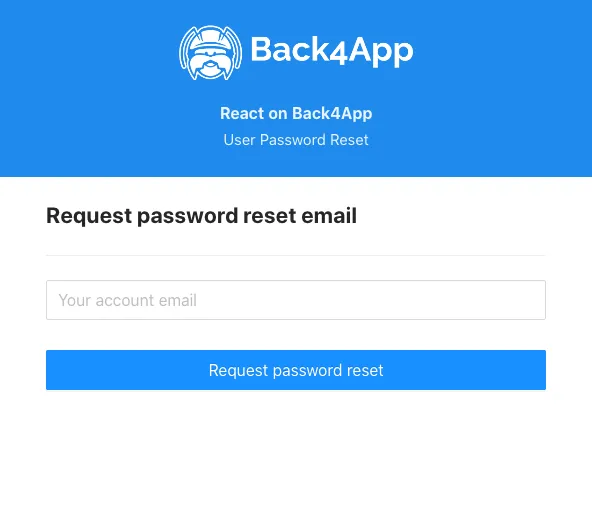
This component should render in a screen like this:
Conclusion
At the end of this guide, you learned how to allow your Parse users to reset their password on React. In the next guide, we will show you how to perform useful user queries.