SignIn with Google
SignIn with Google for React Native
Introduction
In the last tutorial, you built a User login/logout feature to your App using the Parse.User class. Now you will learn how to use Google Sign-in to retrieve user data from Google and log in, sign up or link existent users with it. You will also install and configure react-native-google-signin lib to achieve that.
The Parse.User.linkWith method is responsible for signing up and logging in users using any third-party authentication method, as long as you pass the right parameters requested by each different provider. After linking the user data to a new or existent Parse.User, Parse will store a valid user session in your device. Future calls to methods like currentAsync will successfully retrieve your User data, just like with regular logins.
At any time, you can access this project via our GitHub repositories to checkout the styles and complete code.
Prerequisites
To complete this tutorial, you will need:
Goal
To build a User LogIn feature using Google Sign-in on Parse for a React Native App.
1 - Installing dependencies
The most popular way to enable Google Sign-in on React Native is using react-native-google-signin to handle it. Since this library configuration depends on your development environment, target platform, and preferences, set it up following the official docs.
After that, make sure that your app main file (App.js or App.tsx) is correctly initializing and configuring GoogleSignin like this:
1	// Other imports
2	import {GoogleSignin} from '@react-native-community/google-signin';
3
4	// Parse initialization configuration goes here
5	// ...
6
7	// GoogleSignIn initial configuration
8	// iosClientId is required for iOS platform development and
9	// webCLientId for Android. Use only what is suitable to you
10	GoogleSignin.configure({
11	  iosClientId:
12	    'GOOGLE_IOS_CLIENT_ID',
13	  webClientId:
14	    'GOOGLE_ANDROID_WEB_CLIENT_ID',
15	});
16
17	// ...
2 - Usign Google Sign-in with Parse
Let’s now create a new method inside the UserLogIn component calling Google Sign-in authentication modal with GoogleSignin.signIn. If the user signs in with Google, this call will retrieve the user data from Google and you need to store the id, idToken, and Google email for later.
1	const doUserLogInGoogle = async function () {
2	  try {
3	    // Check if your user can sign in using Google on his phone
4	    await GoogleSignin.hasPlayServices({showPlayServicesUpdateDialog: true});
5	    // Retrieve user data from Google
6	    const userInfo = await GoogleSignin.signIn();
7	    const googleIdToken = userInfo.idToken;
8	    const googleUserId = userInfo.user.id;
9	    const googleEmail = userInfo.user.email;
10	  } catch (error) {
11	    Alert.alert('Error!', error.code);
12	    return false;
13	  }
14	};
After that, you can use Parse.User.linkWith on a new Parse.User object to register a new user and log in. Note that if your user had already signed up using this Google authentication, linkWith will log him in using the existent account.
1	const doUserLogInGoogle = async function (): Promise<boolean> {
2	  try {
3	    // Check if your user can sign in using Google on his phone
4	    await GoogleSignin.hasPlayServices({showPlayServicesUpdateDialog: true});
5	    // Retrieve user data from Google
6	    const userInfo: object = await GoogleSignin.signIn();
7	    const googleIdToken: string = userInfo.idToken;
8	    const googleUserId: string = userInfo.user.id;
9	    const googleEmail: string = userInfo.user.email;
10	    // Log in on Parse using this Google id token
11	    const userToLogin: Parse.User = new Parse.User();
12	    // Set username and email to match google email
13	    userToLogin.set('username', googleEmail);
14	    userToLogin.set('email', googleEmail);
15	    return await user
16	      .linkWith('google', {
17	        authData: {id: googleUserId, id_token: googleIdToken},
18	      })
19	      .then(async (loggedInUser: Parse.User) => {
20	        // logIn returns the corresponding ParseUser object
21	        Alert.alert(
22	          'Success!',
23	          `User ${loggedInUser.get('username')} has successfully signed in!`,
24	        );
25	        // To verify that this is in fact the current user, currentAsync can be used
26	        const currentUser: Parse.User = await Parse.User.currentAsync();
27	        console.log(loggedInUser === currentUser);
28	        // Navigation.navigate takes the user to the screen named after the one
29	        // passed as parameter
30	        navigation.navigate('Home');
31	        return true;
32	      })
33	      .catch(async (error: object) => {
34	        // Error can be caused by wrong parameters or lack of Internet connection
35	        Alert.alert('Error!', error.message);
36	        return false;
37	      });
38	  } catch (error) {
39	    Alert.alert('Error!', error.code);
40	    return false;
41	  }
42	};
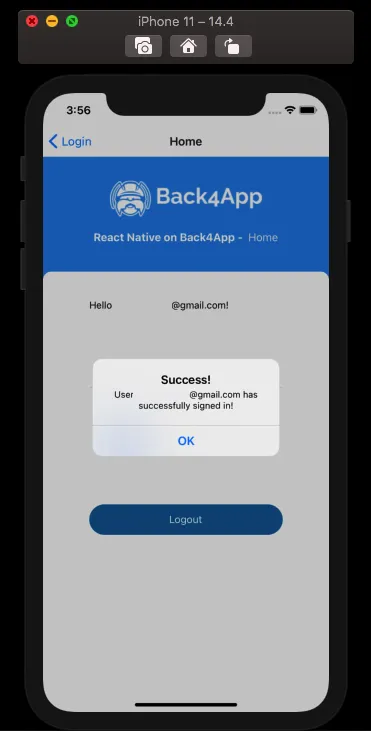
Add this function to your UserSignIn component and assign it to your Google button onPress parameter. Go ahead and test your new function. Note that the user will be redirected to your home screen after successfully registering and/or signing in.
3 - Verifying user sign in and session creation
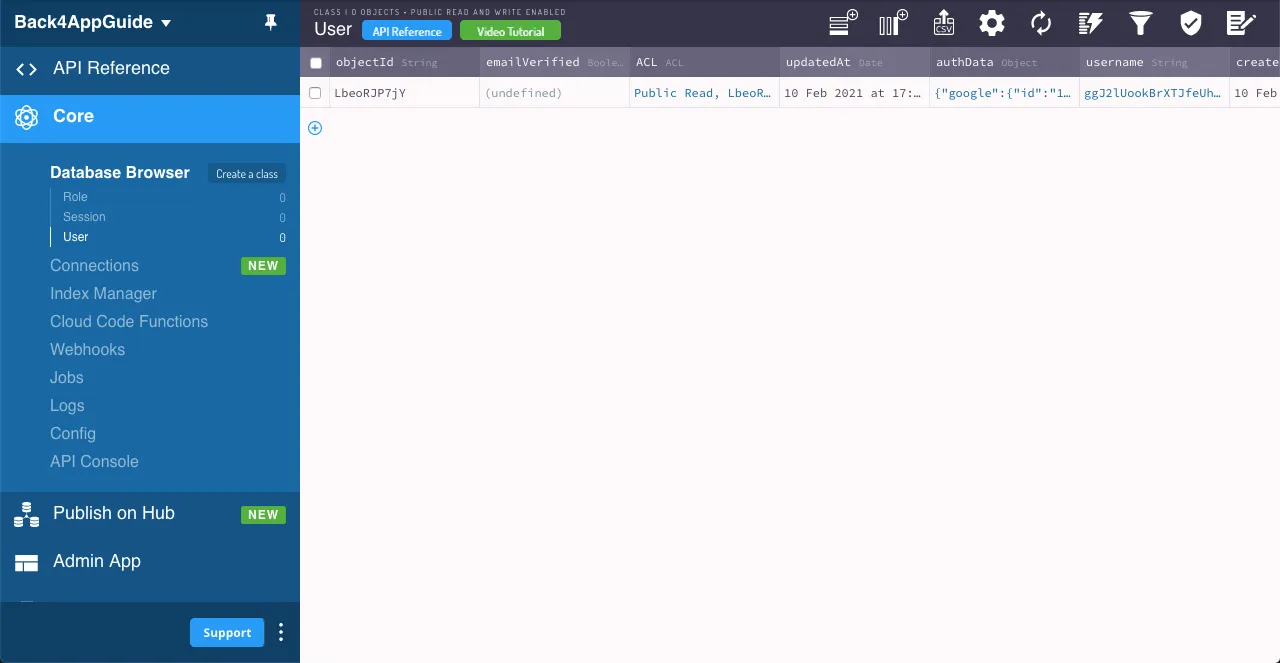
To make sure that the Google sign-in worked, you can look at your Parse dashboard and see your new User (if your Google authentication data didn’t belong to another user), containing the Google authData parameters.
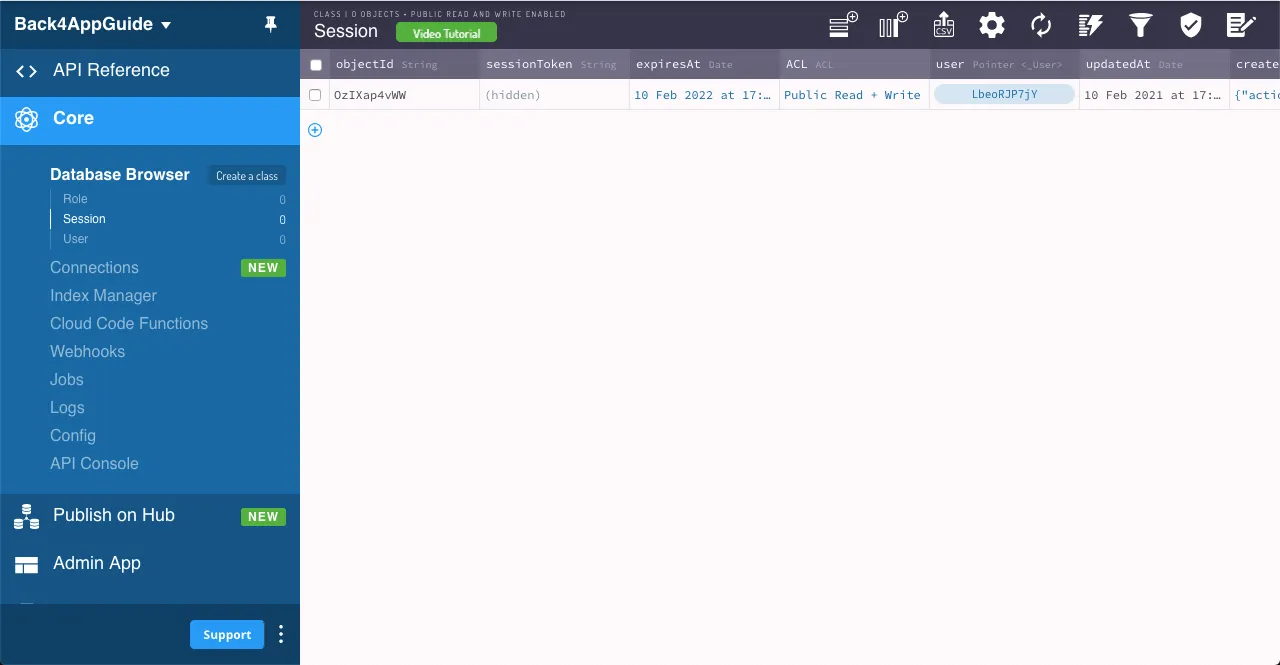
You can also verify that a valid session was created in the dashboard, containing a pointer to that User object.
4 - Linking an existing User to Google Sign-in
Another linkWith possible use is to link an existing user with another auth provider, in this case, Google. Add this function that calls linkWith the same way you did in UserLogIn to your HelloUser component or directly to your home screen. The only difference here is that instead of calling the method from an emptyParse.User, you will use it from the logged-in user object.
1	const doUserLinkGoogle = async function (): Promise<boolean> {
2	  try {
3	    // Check if your user can sign in using Google on his phone
4	    await GoogleSignin.hasPlayServices({showPlayServicesUpdateDialog: true});
5	    // Retrieve user data from Google
6	    const userInfo: object = await GoogleSignin.signIn();
7	    const googleIdToken: string = userInfo.idToken;
8	    const googleUserId: string = userInfo.user.id;
9	    const authData: object = {
10	      id: googleUserId,
11	      id_token: googleIdToken,
12	    };
13	    let currentUser: Parse.User = await Parse.User.currentAsync();
14	    // Link user with his Google Credentials
15	    return await currentUser
16	      .linkWith('google', {
17	        authData: authData,
18	      })
19	      .then(async (loggedInUser: Parse.User) => {
20	        // logIn returns the corresponding ParseUser object
21	        Alert.alert(
22	          'Success!',
23	          `User ${loggedInUser.get(
24	            'username',
25	          )} has successfully linked his Google account!`,
26	        );
27	        // To verify that this is in fact the current user, currentAsync can be used
28	        currentUser = await Parse.User.currentAsync();
29	        console.log(loggedInUser === currentUser);
30	        return true;
31	      })
32	      .catch(async (error: object) => {
33	        // Error can be caused by wrong parameters or lack of Internet connection
34	        Alert.alert('Error!', error.message);
35	        return false;
36	      });
37	  } catch (error) {
38	    Alert.alert('Error!', error.code);
39	    return false;
40	  }
41	};
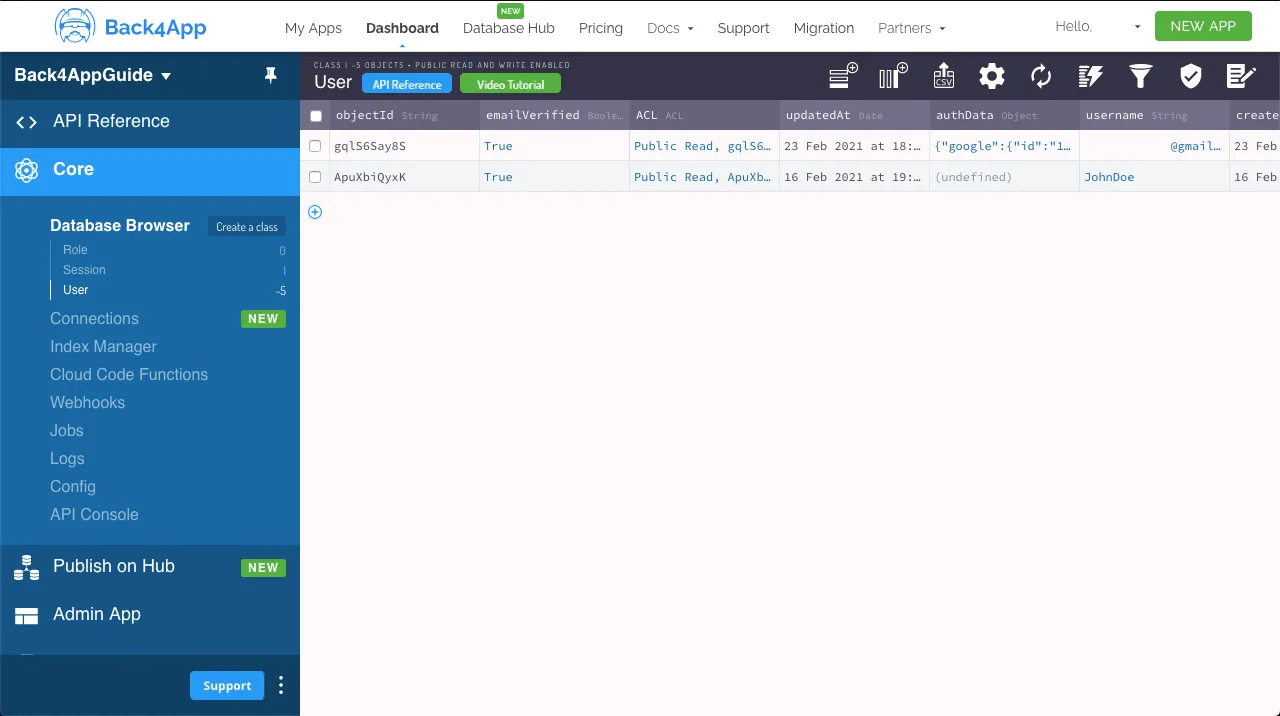
Assign this function to a Google button onPress parameter on your home screen. Test your new function, noting that the Parse.User object authData value will be updated with the new auth provider data. Verify if the user has indeed updated in your Parse server dashboard.
Conclusion
At the end of this guide, you learned how to log in, sign up or link existing Parse users on React Native using Google Sign-in with react-native-google-signin. In the next guide, we will show you how to perform useful user queries.