Quickstart
Introduction
This guide will help you set up and use Back4App with a new or existing project using the React Native CLI. You’ll install the Parse SDK, initialize it with your app keys, and create your first API call to save and retrieve data from Back4App.
Prerequisites
To complete this tutorial, you will need:
1 - Create your React Native project
There are two main ways to create a React Native project: React Native CLI and Expo. Choose based on your development environment and target platform (iOS or Android)
2 - Install dependencies
In your React Native project, install Parse Javascript SDK and AsyncStorage by running:
- Parse Javascript SDK - To integrate your App with Back4app servers.
- React Native Async Storage - To use Parse SDK, an AsyncStorage handler is required.
For iOS, also add native AsyncStorage support:
3 - Get your App Keys
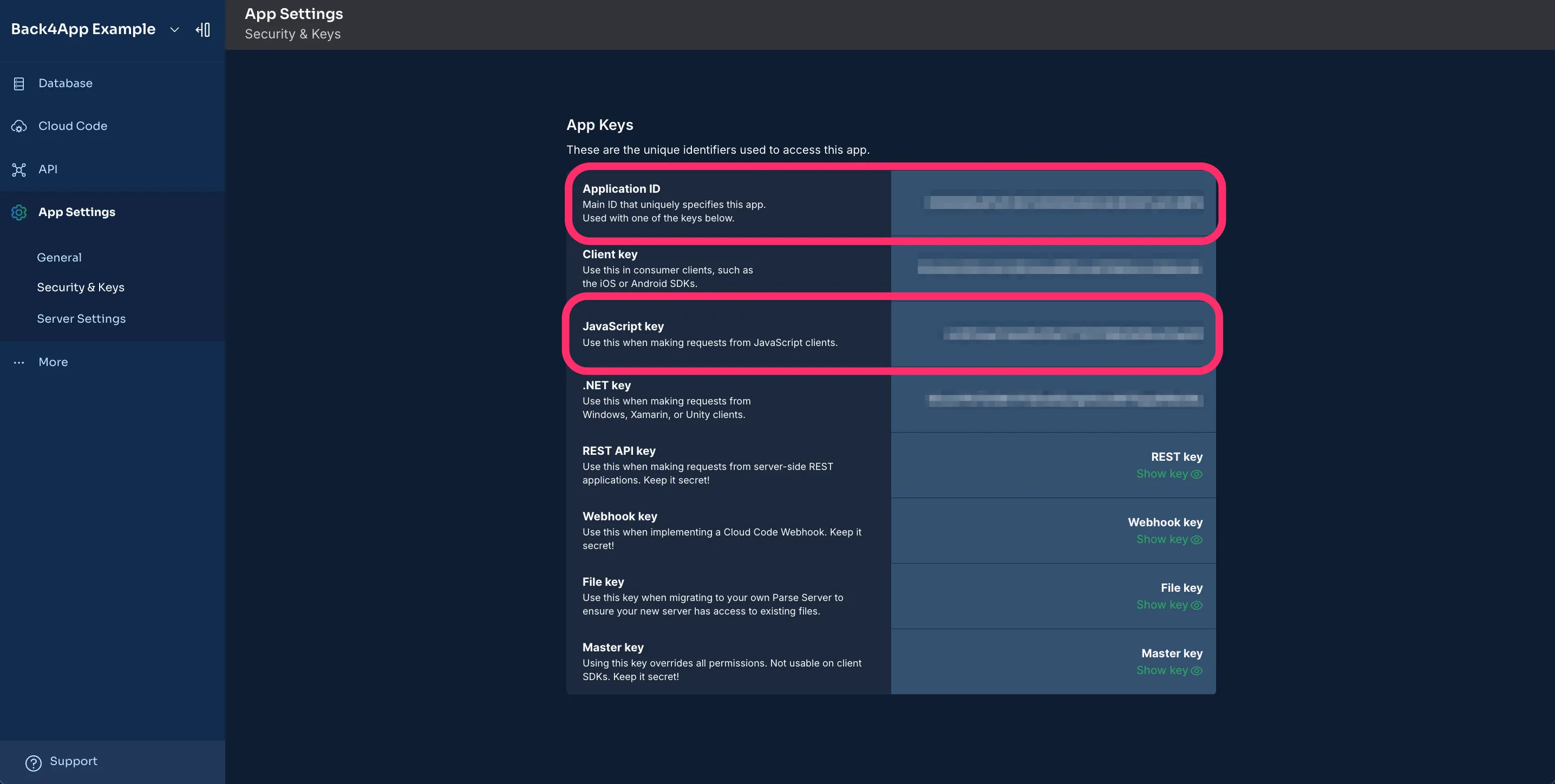
After creating your app on Back4App, find your App Keys under App Settings > Security & Keys. You’ll need both the Application ID and JavaScript KEY to connect.
4 - Initialize Parse and connect to Back4App
Open index.tsx and initialize Parse with your Application ID and JavaScript KEY:
import Parse from 'parse/react-native';
import AsyncStorage from '@react-native-async-storage/async-storage';

// Initialize Parse only once
Parse.setAsyncStorage(AsyncStorage);
Parse.initialize('YOUR_APPLICATION_ID', 'YOUR_JAVASCRIPT_KEY');
Parse.serverURL = 'https://parseapi.back4app.com/';
5 - Save and Retrieve Data
With Parse initialized, create two functions in index.tsx to save and fetch data from Back4App.
  // Function to create a new Person
  async function createPerson() {
    setLoading(true);
    setError(null);

    try {
      const PersonObject = Parse.Object.extend("Person");
      const personObject = new PersonObject();

      personObject.set("name", "Back4App User");

      const result = await personObject.save();
      setResult(`Object created with ID: ${result.id}`);

    } catch (error) {
      setError(error instanceof Error ? error.message : 'Unknown error');
    } finally {
      setLoading(false);
    }
  }

  async function fetchPeople() {
    setLoading(true);
    setError(null);

    try {
      const PersonObject = Parse.Object.extend("Person");
      const query = new Parse.Query(PersonObject);

      const results = await query.find();
      const names = results.map(result => ({
        objectId: result.id,
        name: result.get("name"),
      }));

      setResult(`Fetched names: ${JSON.stringify(names, null, 2)}`);

    } catch (error) {
      setError(error instanceof Error ? error.message : 'Unknown error');
    } finally {
      setLoading(false);
    }
  }
6 - Test your App
- Open your project’s terminal.
- Run the project.
Run expo start, and follow the instructions to view the app in your browser or device.

Troubleshooting
Some common issues and solutions:
Metro has encountered an error: while trying to resolve module “idb-keyval’ from file
Solution: Go to the metro.conf.js file and change it to this one:
1   const { getDefaultConfig } = require("@expo/metro-config");
2   const defaultConfig = getDefaultConfig(__dirname);
3   defaultConfig.resolver.assetExts.push("cjs");
4   module.exports = defaultConfig;
Unable to resolve module ‘EventEmitter’
Solution: Go to the file: node_modules\parse\lib\react-native\EventEmitter.js and change this row:
to this:
In the same file EventEmitter.js, change the following row:
to this:
Issues with babel
In case you face any issues with babel, consider updating your babel.config.js to the following:
Next Steps
This guide covers the basic setup and data storage with Back4App. Explore Parse features, including data storage, real-time capabilities, local data storage, cloud functions, authentication, and file storage.