Create subdomain
Activating Web Hosting
Introduction
Back4App offers a web hosting feature where is possible to host your website or even a simple NodeJS application. By default, enabling the web hosting tool, you will configure a subdomain on Back4App and at any time you can point it out to your own domain. Web hosting tool gives you the flexibility you need to host your entire platform on Back4App. See how to do that below.
Prerequisites
To complete this tutorial, you will need:
- A verified account at Back4App.
- An app created in Back4App.
How can I use the created subdomain?
When you enable the Webhosting feature is a guarantee that you can use more functionalities in Back4App side, so, it has the many different purposes that are described below:
1. Host Static Pages
The Back4App Documentation comprises various guides and tutorials to build a Web App using Angular, Ionic, React and Node!!!
2. Custom Domain appoint to your Back4App subdomain
This amazing possibility allows you set up a custom domain. All you need to do is create a CNAME DNS entry in your DNS provider, for example:
myapp.mydomain.com to myapp.b4a.app
Let’s get started to enable the Webhosting!
1 - Locate the feature block
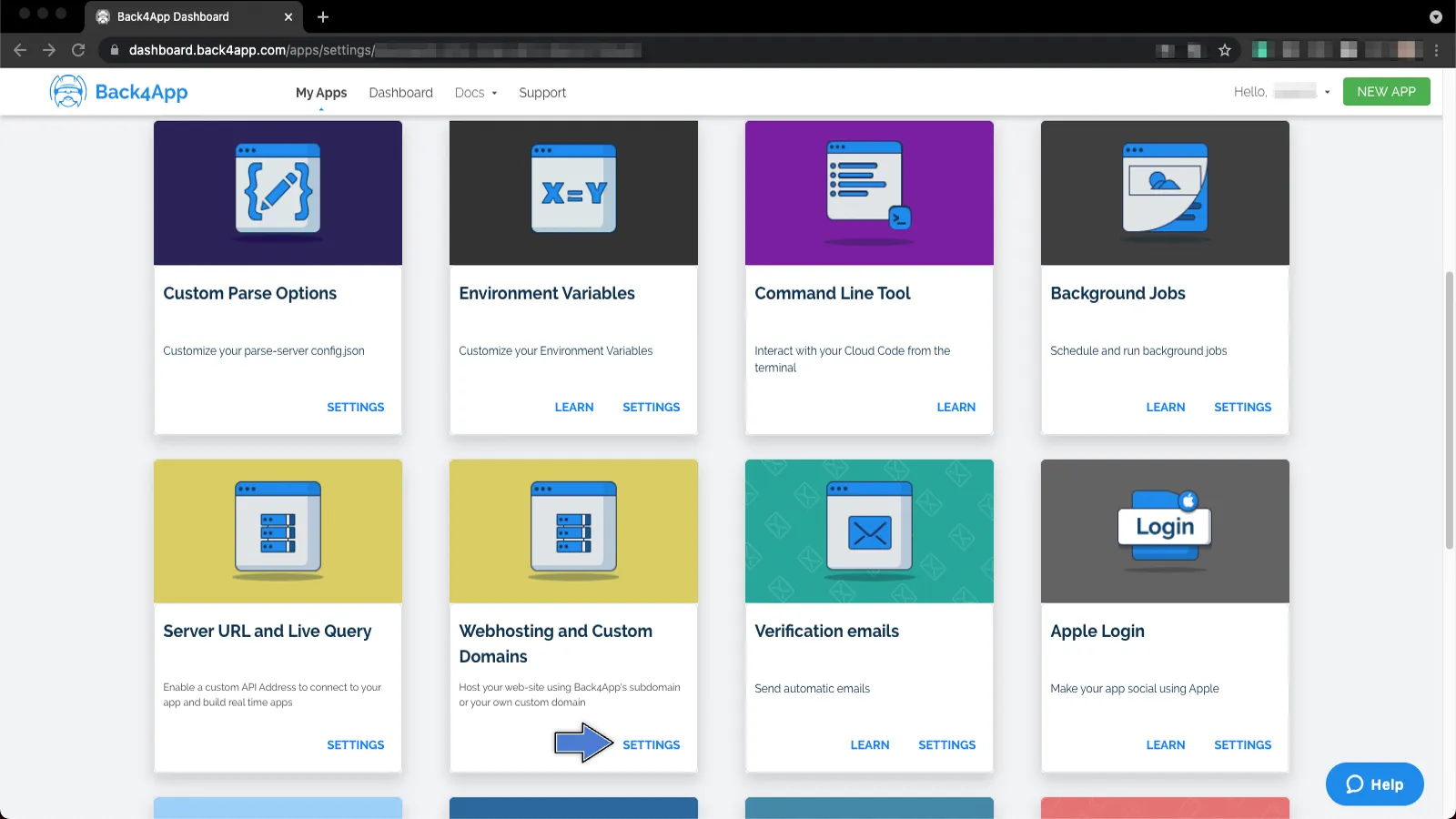
To locate and enable your Webhosting feature, log in to your Back4App account and go to the My Apps option and then click on Server Settings. After that, search for the Webhosting and Custom Domains block and select Settings. The Webhosting and Custom Domains section looks like this:
2 - Enable the Activate Hosting box
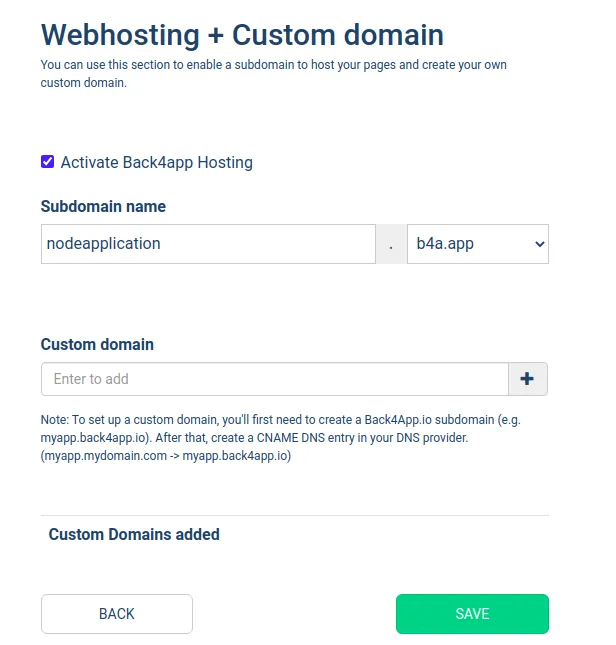
Now, tick the checkbox with tag Activate Back4App Hosting and insert the available Subdomain name you desired to have, and then click on the Save Button to preserve the changes, same as shown in the example below:
With the guide described above, you’ll be able to set up a Subdomain with Back4App and enable as well with various features, including Hosting Pages and creating your own Custom Domain!