App Settings
4 min
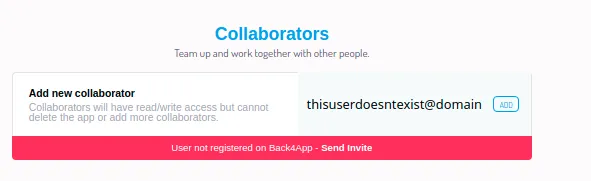
app settings introduction in this tutorial, you will learn about the app settings section prerequisites there are no pre requisites to read, however, you must be the owner to edit this page get started in this guide, you are going to learn more about the main features available in this section please, navigate through the tabs according to your needs general this page shows the general app settings like app name, collaborators and actions that will affect your app, please check the details app information to edit your app name via app settings, you must put the new data in \<font color="#2166ae">app name\</font> field and click on \<font color="#2166ae">save\</font> button collaborators in this section, you can add new people to contribute to your app you will be able to enter the collaborator email and click on the \<font color="#2166ae">save\</font> button don’t worry, if your collaborator doesn’t have a created account yet, you will see the following error message you can click on the \<font color="#2166ae">send invite\</font> button to send an invitation to their email! app management \<font color="#2166ae">clean up app\</font> this button can be used to delete the files that aren’t associated with any object and they’re counting space in file storage in case that you are using an array of files, we highly recommended that you don’t use this feature for security reasons, to delete completely your files, you must perform the following steps first of all, you’ll need to check what is the class and object that you require to delete the file you’ll need to add a query to update the field from the image with a ‘null’ at column space by following this step, you delete the reference to the object and file! use the button \<font color="#2166ae">clean up files\</font> at dashboard > app settings > clean up files , to delete files that are not referenced to any objects with the steps above, you have verified how it is possible to delete these files that have no relation \<font color="#2166ae">clean up log\</font> by clicking on this button, this action will purge your system log security & keys in this page, you will find the unique identifiers to access this app here you can find the same keys as shown in \<font color="#2166ae">core settings\</font> > \<font color="#2166ae">settings\</font>