Slack Clone App
React Slack Clone App
Introduction
In this guide, we will keep exploring the Parse React hook in useful situations by creating a Slack Clone App. The App will have basic features such as signup/login, channels, and real-time chat. In addition, the React components highlight the usefulness of real-time notifications using Live Query, User management capabilities, and the flexibility to perform queries (relational).
At any moment you can quickly deploy a slack clone app on Vercel:
Prerequisites
To complete this tutorial, you will need:
- Clone or download this project via our GitHub repositories so you can run it along with the guide. Make sure to follow the instructions on the README file to successfully set it up in your local environment:
Goal
To build a Slack clone application on React using the @parse/react hook.
1 - Creating your Parse app from a template
This application comprises two database classes: Channel and Message, containing pointers to the Parse User class. Instead of creating the app and database classes from scratch, let’s clone an existing template at Back4App Database Hub. Click on the “Clone Database” button and proceed with logging in and creating your app. For more details on how to clone please check the clone App guide.
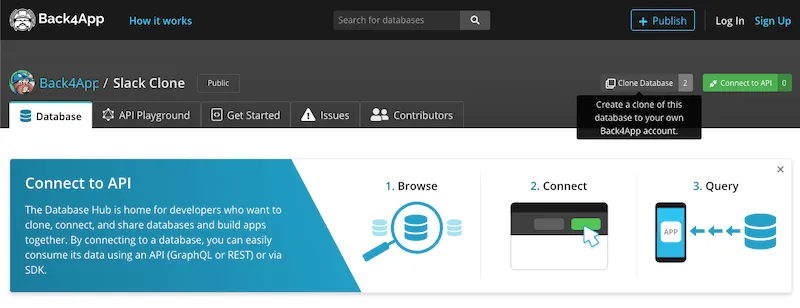
Now your App has the complete backend structure necessary to create your Slack Clone on Back4App.
2 - Enabling Live Query
Now that you have created the App and classes, you need to enable the live query(real-time). Go to your Back4App dashboard and navigate to App Settings > Server Settings > Server URL and Live Query. After activating your Back4App subdomain, you can then activate Live Query by selecting the classes Message and Channel. After that, save the changes.
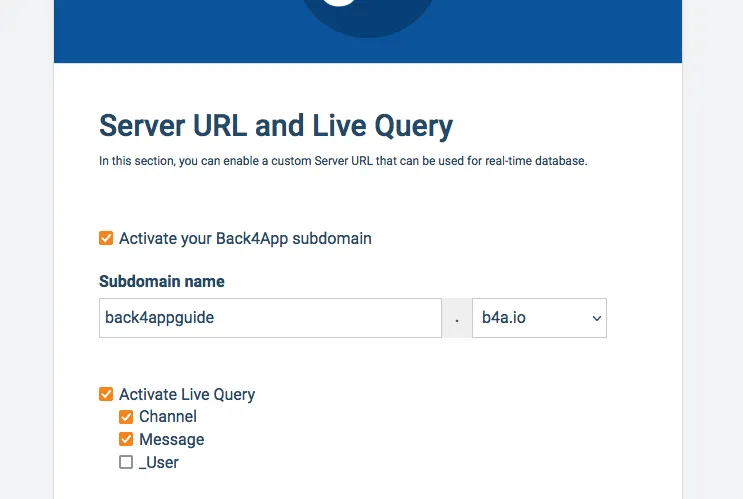
The URL above is your Live Query URL make sure to copy it in order to properly initialize the Parse hook.
Let’s now dive into the core React components: ChannelList, MessageList, and Home.
3 - The List components
The ChannelList and MessageList components use the @parse/react hook to retrieve the User data through Live Query. They have the same pattern structure as in the React LiveChat guide. They are instantiated with initial parameters (retrieved via the props object) that dynamically compose their Live Query query. Take a look at their queries and how the classes are related to each other:
1	// Note that Parse.Object coming from props need to be changed into pointers
2	// to be able to be used by Parse, since React changes the object structure
3	// when passing down parameters to child components
4
5	// channelList.js
6
7	const ownerQuery = new Parse.Query("Channel");
8	ownerQuery.equalTo("owner", props.currentUser.toPointer());
9	const membersQuery = new Parse.Query("Channel");
10	membersQuery.containedIn("members", [props.currentUser.toPointer()]);
11	// Creates the OR query
12	const parseQuery = Parse.Query.or(ownerQuery, membersQuery);
13	// Set results ordering
14	parseQuery.ascending("name");
15	// Include all pointer fields
16	parseQuery.includeAll();
17
18	// messageList.js
19
20	const parseQuery = new Parse.Query("Message");
21	// Get messages that involve both nicknames
22	parseQuery.equalTo("channel", props.currentChannel.toPointer());
23	// Set results ordering
24	parseQuery.ascending("createdAt");
25	// Include nickname fields, to enable name getting on list
26	parseQuery.includeAll();
These queries will be running every time there is a change in the classes data, so if another user in the channel sends a message, you will see it appearing there in real-time.
4 - The Home component
The Home component acts as the main application screen, in which the list components are conditionally rendered and instantiated when needed. You can find below the component code. Take a look at the functions for creating channels and inviting users to them.
1	import React, { useEffect, useState } from "react";
2	import "./App.css";
3	import { Modal } from "antd";
4	import { useHistory } from "react-router-dom";
5	import Parse from "parse";
6	import { ChannelList } from "./ChannelList";
7	import { MessageList } from "./MessageList";
8	import { MemberList } from "./MemberList";
9
10	export const Home = () => {
11	  const history = useHistory();
12
13	  // State variables holding input values and flags
14	  const [currentUser, setCurrentUser] = useState(null);
15	  const [isCreateChannelModalVisible, setIsCreateChannelModalVisible] =
16	    useState(false);
17	  const [createChannelInput, setCreateChannelInput] = useState("");
18	  const [currentChannel, setCurrentChannel] = useState(null);
19
20	  // This effect hook runs at every render and checks if there is a
21	  // logged in user, redirecting to Login screen if needed
22	  useEffect(() => {
23	    const checkCurrentUser = async () => {
24	      try {
25	        const user = await Parse.User.currentAsync();
26	        if (user === null || user === undefined) {
27	          history.push("/");
28	        } else {
29	          if (currentUser === null) {
30	            setCurrentUser(user);
31	          }
32	        }
33	        return true;
34	      } catch (_error) {}
35	      return false;
36	    };
37	    checkCurrentUser();
38	  });
39
40	  // Logout function
41	  const doLogout = async () => {
42	    // Logout
43	    try {
44	      await Parse.User.logOut();
45	      // Force useEffect execution to redirect back to Login
46	      setCurrentUser(null);
47	      return true;
48	    } catch (error) {
49	      alert(error);
50	      return false;
51	    }
52	  };
53
54	  // Makes modal visible
55	  const showCreateChannelModal = () => {
56	    setIsCreateChannelModalVisible(true);
57	  };
58
59	  // Clear input and hide modal on cancel
60	  const handleCreateChannelModalCancel = () => {
61	    setCreateChannelInput("");
62	    setIsCreateChannelModalVisible(false);
63	  };
64
65	  // Creates a channel based on input from modal
66	  const doCreateChannel = async () => {
67	    const channelName = createChannelInput;
68
69	    if (channelName === "") {
70	      alert("Please inform your new channel name!");
71	      return false;
72	    }
73
74	    // Creates a new Parse.Object instance and set parameters
75	    const Channel = new Parse.Object("Channel");
76	    Channel.set("name", channelName);
77	    Channel.set("owner", currentUser);
78	    // Members is an array of Parse.User objects, so .add() should be used to
79	    // concatenate the value inside the array
80	    Channel.add("members", currentUser);
81
82	    // Clears input value and hide modal
83	    setCreateChannelInput("");
84	    setIsCreateChannelModalVisible(false);
85
86	    try {
87	      // Save object on Parse server
88	      const saveResult = await Channel.save();
89	      // Set the created channel as the active channel,
90	      // showing the message list for this channel
91	      setCurrentChannel(saveResult);
92	      alert(`Success on creating channel ${channelName}`);
93	      return true;
94	    } catch (error) {
95	      alert(error);
96	      return false;
97	    }
98	  };
99
100	  // Changes the active channel and shows the message list for it
101	  // This is called using a callback in the ChannelList component
102	  const doSelectChannel = (channel) => {
103	    setCurrentChannel(null);
104	    setCurrentChannel(channel);
105	  };
106
107	  // Settings current channel to null hides the message list component
108	  // This is called using a callback in the MessageList component
109	  const doClearCurrentChannel = () => {
110	    setCurrentChannel(null);
111	  };
112
113	  return (
114	    <div className="grid">
115	      <div className="organizations">
116	        <div className="organization">
117	          <picture className="organization__picture">
118	            <img
119	              className="organization__img"
120	              src="https://scontent.fsqx1-1.fna.fbcdn.net/v/t1.6435-9/29136314_969639596535770_8356900498426560512_n.png?_nc_cat=103&ccb=1-5&_nc_sid=973b4a&_nc_ohc=D9actPSB8DUAX-zaA7F&_nc_ht=scontent.fsqx1-1.fna&oh=96679a09c5c4524f0a6c86110de697b6&oe=618525F9"
121	              alt=""
122	            />
123	          </picture>
124	          <p className="organization__title">Back4App</p>
125	        </div>
126	        <button className="button-inline" onClick={doLogout}>
127	          <svg
128	            className="button-inline__icon"
129	            xmlns="http://www.w3.org/2000/svg"
130	            width="24"
131	            height="24"
132	            viewBox="0 0 24 24"
133	            fill="none"
134	            stroke="currentColor"
135	            strokeWidth="2"
136	            strokeLinecap="round"
137	            strokeLinejoin="round"
138	          >
139	            <polyline points="9 10 4 15 9 20"></polyline>
140	            <path d="M20 4v7a4 4 0 0 1-4 4H4"></path>
141	          </svg>
142	          <span className="button-inline__label">Log out</span>
143	        </button>
144	      </div>
145	      <div className="channels">
146	        {/* Action buttons (new channel and logout) */}
147	        <div>
148	          <Modal
149	            title="Create new channel"
150	            visible={isCreateChannelModalVisible}
151	            onOk={doCreateChannel}
152	            onCancel={handleCreateChannelModalCancel}
153	            okText={"Create"}
154	          >
155	            <>
156	              <label>{"Channel Name"}</label>
157	              <input
158	                type={"text"}
159	                value={createChannelInput}
160	                placeholder={"New Channel Name"}
161	                onChange={(event) => setCreateChannelInput(event.target.value)}
162	              ></input>
163	            </>
164	          </Modal>
165	        </div>
166	        <div className="channels-header" onClick={showCreateChannelModal}>
167	          <p className="channels-header__label">Channels</p>
168	          <svg
169	            className="channels-header__icon"
170	            xmlns="http://www.w3.org/2000/svg"
171	            height="24px"
172	            viewBox="0 0 24 24"
173	            width="24px"
174	            fill="#000000"
175	          >
176	            <path d="M0 0h24v24H0z" fill="none" />
177	            <path d="M19 13h-6v6h-2v-6H5v-2h6V5h2v6h6v2z" />
178	          </svg>
179	        </div>
180	        {/* Channel list component, instantiated only when the user is successfully fetched */}
181	        {currentUser !== null && (
182	          <ChannelList
183	            currentUser={currentUser}
184	            selectChannelCallback={doSelectChannel}
185	          />
186	        )}
187	      </div>
188	      <div className="messages">
189	        {/* Message list component, instantiated only when there is a selected channel */}
190	        {currentUser !== null && currentChannel !== null && (
191	          <MessageList
192	            currentUser={currentUser}
193	            currentChannel={currentChannel}
194	            closeChannelCallback={doClearCurrentChannel}
195	          />
196	        )}
197	      </div>
198	      <div className="info">
199	        {/* Member list component, instantiated only when there is a selected channel */}
200	        {currentUser !== null && currentChannel !== null && (
201	          <MemberList
202	            currentUser={currentUser}
203	            currentChannel={currentChannel}
204	            closeChannelCallback={doClearCurrentChannel}
205	          />
206	        )}
207	      </div>
208	    </div>
209	  );
210	};
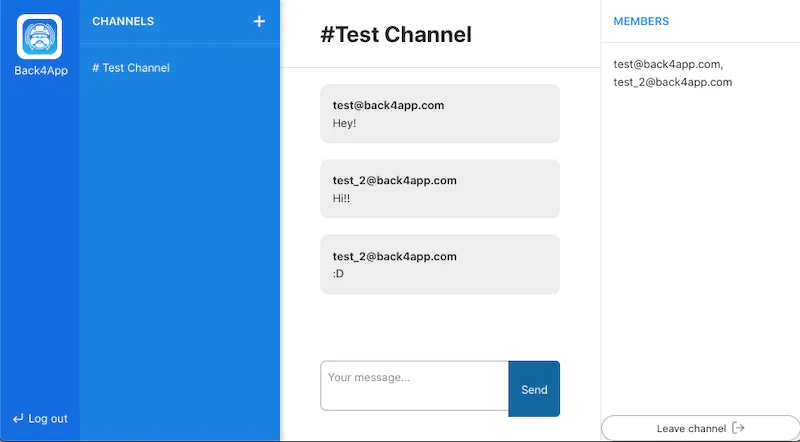
This approach of dynamically instantiating the Live Query components allows us to reuse them whenever the user changes the active channel, creates a new one, sends a message, etc. Here is how the complete App will look.
5 - Deploy on Vercel
At any time you can deploy the application on vercel by clicking on the link below:
Make sure you have your Application ID, Client Key and LiveQuery URL. For the keys you can go to App Settings -> Security & Keys and then copy. For the Live Query URL you can go to Step 2 and copy it.
Conclusion
At the end of this guide, you learned more about using the Parse React hook for live queries in Parse and how to use Back4App’s Database Hub.