Chat App Example
React Chat App - Real Time
Introduction
In the last guide, you got to know more about the @parse/react helper library that quickly enables Parse Live Query support on your React application. The lib is written entirely in Typescript, on top of Parse Javascript SDK, and is currently on the Alpha version.
Now, in this guide, you will use the Parse React hook in a realistic situation creating a simplistic live chat application. This app is composed of two React components that highlight the usefulness of Parse’s Live Query and also show everything you need to know to create your complete live app.
Parse React Native is currently on the Alpha version. The lib is under testing, so we recommend proceeding with caution. Your feedback is very appreciated, so feel free to use the lib and send us your questions and first impressions by dropping an email to [email protected].
Prerequisites
To complete this tutorial, you will need:
- Complete the previous guide so you can have a better understanding of the Parse React hook and Live Query.
- If you want to test/use the screen layout provided by this guide, you should set up the Ant Design library.
Goal
To build a live chat application on React using @parse/react hook as an enabler for Live Query on Parse.
1 - Understanding and creating the database classes
The chat application will be composed of two small database classes: Nickname and Message. Nickname only has a text field called name and will represent the users in the application. Message will hold any text message sent between two users, so it needs to have a text field called text and two object pointer fields called sender and receiver, both related to the Nickname class.
Run the following snippet on your Back4App dashboard’s Javascript console to create these classes and populate them with some samples.
1	// Create Nicknames
2	let NicknameA = new Parse.Object('Nickname');
3	NicknameA.set('name', 'SmartBoy22');
4	NicknameA = await NicknameA.save();
5	let NicknameB = new Parse.Object('Nickname');
6	NicknameB.set('name', 'CleverGirl23');
7	NicknameB = await NicknameB.save();
8
9	// Create Message linked to Nicknames
10	let Message = new Parse.Object('Message');
11	Message.set('text', 'Hi! How are you?');
12	Message.set('sender', NicknameA);
13	Message.set('receiver', NicknameA);
14	Message = await Message.save();
15	console.log('success');
2 - Enabling Live Query
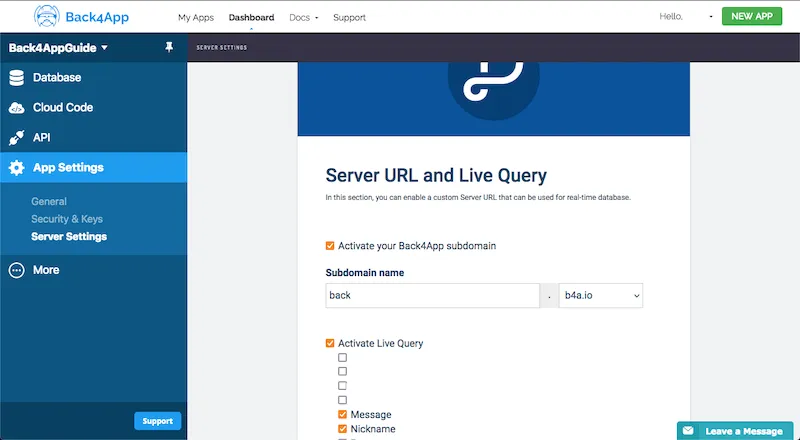
Now that you have created the Nickname and Message classes, we need to enable them with live query capabilities. Go to your Back4App dashboard and navigate to App Settings > Server Settings > Server URL and Live Query. After activating your Back4App subdomain, you can then activate Live Query and select which DB classes will be enabled to it. Make sure to select the new classes and save the changes.
The next thing to do is to create our chat app, which consists of two components, ChatSetup and LiveChat.
3 - Creating the Chat Setup component
This component is responsible for creating and setting up the sender and receiver Nickname objects while serving also as a container for the LiveChat component structure. The layout for the setup part has only two input fields for the nicknames and a button that triggers the setup function. Create a new file in your src directory called ChatSetup.js (or ChatSetup.tsx) and use the following code:
1	import React, { useState, FC, ReactElement } from "react";
2	import "./App.css";
3	import { Button, Input } from "antd";
4	import { LiveChat } from "./LiveChat";
5	import Parse from "parse";
6
7	export const ChatSetup: FC<{}> = (): ReactElement => {
8	  // State variables holding input values and results
9	  const [senderNicknameInput, setSenderNicknameInput] = useState("");
10	  const [senderNicknameId, setSenderNicknameId] = useState<string | null>(null);
11	  const [receiverNicknameInput, setReceiverNicknameInput] = useState("");
12	  const [receiverNicknameId, setReceiverNicknameId] = useState<string | null>(null);
13
14	  // Create or retrieve Nickname objects and start LiveChat component
15	  const startLiveChat = async (): Promise<Boolean> => {
16	    const senderNicknameName: string = senderNicknameInput;
17	    const receiverNicknameName: string = receiverNicknameInput;
18
19	    // Check if user informed both nicknames
20	    if (senderNicknameName === "" || receiverNicknameName === "") {
21	      alert("Please inform both sender and receiver nicknames!");
22	      return false;
23	    }
24
25	    // Check if sender nickname already exists, if not create new parse object
26	    let senderNicknameObject: Parse.Object | null = null;
27	    try {
28	      const senderParseQuery: Parse.Query = new Parse.Query("Nickname");
29	      senderParseQuery.equalTo("name", senderNicknameName);
30	      const senderParseQueryResult: Parse.Object | undefined = await senderParseQuery.first();
31	      if (
32	        senderParseQueryResult !== undefined
33	      ) {
34	        senderNicknameObject = senderParseQueryResult;
35	      } else {
36	        senderNicknameObject = new Parse.Object("Nickname");
37	        if (senderNicknameObject !== null) {
38	          senderNicknameObject.set("name", senderNicknameName);
39	          senderNicknameObject = await senderNicknameObject.save();
40	        }
41	      }
42	    } catch (error) {
43	      alert(error);
44	      return false;
45	    }
46
47	    // Check if receiver nickname already exists, if not create new parse object
48	    let receiverNicknameObject: Parse.Object | null = null;
49	    try {
50	      const receiverParseQuery: Parse.Query = new Parse.Query("Nickname");
51	      receiverParseQuery.equalTo("name", receiverNicknameName);
52	      const receiverParseQueryResult: Parse.Object | undefined = await receiverParseQuery.first();
53	      if (
54	        receiverParseQueryResult !== undefined
55	      ) {
56	        receiverNicknameObject = receiverParseQueryResult;
57	      } else {
58	        receiverNicknameObject = new Parse.Object("Nickname");
59	        if (receiverNicknameObject !== null) {
60	          receiverNicknameObject.set("name", receiverNicknameName);
61	          receiverNicknameObject = await receiverNicknameObject.save();
62	        }
63	      }
64	    } catch (error: any) {
65	      alert(error);
66	      return false;
67	    }
68
69	    // Set nickname objects ids, so live chat component is instantiated
70	    if (senderNicknameObject !== null && receiverNicknameObject !== null) {
71	      setSenderNicknameId(senderNicknameObject.id);
72	      setReceiverNicknameId(receiverNicknameObject.id);
73	    }
74	    return true;
75	  };
76
77	  return (
78	    <div>
79	      <div className="header">
80	        <img
81	          className="header_logo"
82	          alt="Back4App Logo"
83	          src={
84	            "https://blog.back4app.com/wp-content/uploads/2019/05/back4app-white-logo-500px.png"
85	          }
86	        />
87	        <p className="header_text_bold">{"React on Back4App"}</p>
88	        <p className="header_text">{"Live query chat app"}</p>
89	      </div>
90	      <div className="container">
91	        {senderNicknameId === null && receiverNicknameId === null && (
92	          <div>
93	            <Input
94	              className="form_input"
95	              value={senderNicknameInput}
96	              onChange={(event) => setSenderNicknameInput(event.target.value)}
97	              placeholder={"Sender (Your) Nickname"}
98	              size="large"
99	            />
100	            <Input
101	              className="form_input"
102	              value={receiverNicknameInput}
103	              onChange={(event) => setReceiverNicknameInput(event.target.value)}
104	              placeholder={"Receiver (Their) Nickname"}
105	              size="large"
106	            />
107	            <Button
108	              type="primary"
109	              className="form_button"
110	              color={"#208AEC"}
111	              size={"large"}
112	              onClick={startLiveChat}
113	            >
114	              Start live chat
115	            </Button>
116	          </div>
117	        )}
118	        {senderNicknameId !== null && receiverNicknameId !== null && (
119	          <LiveChat
120	            senderNicknameName={senderNicknameInput}
121	            senderNicknameId={senderNicknameId}
122	            receiverNicknameName={receiverNicknameInput}
123	            receiverNicknameId={receiverNicknameId}
124	          />
125	        )}
126	      </div>
127	    </div>
128	  );
129	};
Note that the LiveChat component is only initialized and rendered when the setup process is successful and all the state variables are properly set. Likewise, the setup inputs are hidden after the process and the child component layout is rendered.
4 - Creating the Live Chat component
The LiveChat component handles the exhibition and sending of the Messages between the two Nicknames passed as parameters on its initialization. It’s in this component that you will finally use the useParseQuery hook from @parse/react to set up the Live Query that will retrieve any Message object related to this chat instance. Create a new file in your src directory called LiveChat.js (or LiveChat.tsx) and insert the following code.
1	import React, { useState } from "react";
2	import "./App.css";
3	import { Button, Input, Tooltip } from "antd";
4	import { SyncOutlined } from "@ant-design/icons";
5	import Parse from "parse";
6	import { useParseQuery } from "@parse/react";
7
8	export const LiveChat = (props) => {
9	  // State variable to hold message text input
10	  const [messageInput, setMessageInput] = useState("");
11
12	  // Create parse query for live querying using useParseQuery hook
13	  const parseQuery = new Parse.Query("Message");
14	  // Get messages that involve both nicknames
15	  parseQuery.containedIn("sender", [
16	    props.senderNicknameId,
17	    props.receiverNicknameId,
18	  ]);
19	  parseQuery.containedIn("receiver", [
20	    props.senderNicknameId,
21	    props.receiverNicknameId,
22	  ]);
23	  // Set results ordering
24	  parseQuery.ascending("createdAt");
25
26	  // Include nickname fields, to enable name getting on list
27	  parseQuery.includeAll();
28
29	  // Declare hook and variables to hold hook responses
30	  const { isLive, isLoading, isSyncing, results, count, error, reload } =
31	    useParseQuery(parseQuery, {
32	      enableLocalDatastore: true, // Enables cache in local datastore (default: true)
33	      enableLiveQuery: true, // Enables live query for real-time update (default: true)
34	    });
35
36	  // Message sender handler
37	  const sendMessage = async () => {
38	    try {
39	      const messageText = messageInput;
40
41	      // Get sender and receiver nickname Parse objects
42	      const senderNicknameObjectQuery = new Parse.Query("Nickname");
43	      senderNicknameObjectQuery.equalTo("objectId", props.senderNicknameId);
44	      let senderNicknameObject = await senderNicknameObjectQuery.first();
45	      const receiverNicknameObjectQuery = new Parse.Query("Nickname");
46	      receiverNicknameObjectQuery.equalTo("objectId", props.receiverNicknameId);
47	      let receiverNicknameObject = await receiverNicknameObjectQuery.first();
48
49	      // Create new Message object and save it
50	      let Message = new Parse.Object("Message");
51	      Message.set("text", messageText);
52	      Message.set("sender", senderNicknameObject);
53	      Message.set("receiver", receiverNicknameObject);
54	      Message.save();
55
56	      // Clear input
57	      setMessageInput("");
58	    } catch (error) {
59	      alert(error);
60	    }
61	  };
62
63	  // Helper to format createdAt value on Message
64	  const formatDateToTime = (date) => {
65	    return `${date.getHours()}:${date.getMinutes()}:${date.getSeconds()}`;
66	  };
67
68	  return (
69	    <div>
70	      <div className="flex_between">
71	        <h2 class="list_heading">{`${props.senderNicknameName} sending, ${props.receiverNicknameName} receiving!`}</h2>
72	        <Tooltip title="Reload">
73	          <Button
74	            onClick={reload}
75	            type="primary"
76	            shape="circle"
77	            icon={<SyncOutlined />}
78	          />
79	        </Tooltip>
80	      </div>
81	      {results && (
82	        <div className="messages">
83	          {results
84	            .sort((a, b) => a.get("createdAt") > b.get("createdAt"))
85	            .map((result) => (
86	              <div
87	                key={result.id}
88	                className={
89	                  result.get("sender").id === props.senderNicknameId
90	                    ? "message_sent"
91	                    : "message_received"
92	                }
93	              >
94	                <p className="message_bubble">{result.get("text")}</p>
95	                <p className="message_time">
96	                  {formatDateToTime(result.get("createdAt"))}
97	                </p>
98	                <p className="message_name">
99	                  {result.get("sender").get("name")}
100	                </p>
101	              </div>
102	            ))}
103	        </div>
104	      )}
105	      <div className="new_message">
106	        <h2 className="new_message_title">New message</h2>
107	        <Input
108	          className="form_input"
109	          value={messageInput}
110	          onChange={(event) => setMessageInput(event.target.value)}
111	          placeholder={"Your message..."}
112	          size="large"
113	        />
114	        <Button
115	          type="primary"
116	          className="form_button"
117	          color={"#208AEC"}
118	          size={"large"}
119	          onClick={sendMessage}
120	        >
121	          Send message
122	        </Button>
123	      </div>
124	      <div>
125	        {isLoading && <p>{"Loading…"}</p>}
126	        {isSyncing && <p>{"Syncing…"}</p>}
127	        {isLive ? <p>{"Status: Live"}</p> : <p>{"Status: Offline"}</p>}
128	        {error && <p>{error.message}</p>}
129	        {count && <p>{`Count: ${count}`}</p>}
130	      </div>
131	    </div>
132	  );
133	};
Let’s break down this component structure into four parts, so you can better understand its layout:
- At the top we have the message’s Parse.Query and Parse React hook setup. Here you can see how the props parameters are used to enable the query to retrieve the messages that we want;
- After that, you have the sendMessage function, which will create a new Message object relating it to the Nickname used in this chat instance. There is also a helper function for formatting the messages date value;
- Now, inside the JSX code, we have the status flags that are related to the Parse React hook variables and also the connection reload button;
- Lastly, you can see the Message list in which the rendered list items style is dictated by its sender value. At the bottom, we have the message sending part, with a simple text input and a button.
Finally, add these classes to your App.css file if you want to fully render the components layout, and let’s proceed to test our app.
1	@import '~antd/dist/antd.css';
2
3	html {
4	  box-sizing: border-box;
5	  outline: none;
6	  overflow: auto;
7	}
8
9	body {
10	  margin: 0;
11	  background-color: #fff;
12	}
13
14	*,
15	*:before,
16	*:after {
17	  margin: 0;
18	  padding: 0;
19	  box-sizing: inherit;
20	}
21
22	h1,
23	h2,
24	h3,
25	h4,
26	h5,
27	h6 {
28	  margin: 0;
29	  font-weight: bold;
30	}
31
32	li {
33	  list-style: none;
34	}
35
36	p {
37	  margin: 0;
38	}
39
40	.flex_between {
41	  display: flex;
42	  align-items: center;
43	  justify-content: space-between;
44	}
45
46	.list_heading {
47	  font-weight: bold;
48	}
49
50	.App {
51	  text-align: center;
52	}
53
54	.container {
55	  width: 100%;
56	  max-width: 500px;
57	  margin: auto;
58	  padding: 20px 0;
59	  text-align: left;
60	}
61
62	.header {
63	  align-items: center;
64	  padding: 25px 0;
65	  background-color: #208AEC;
66	}
67
68	.header_logo {
69	  height: 55px;
70	  margin-bottom: 20px;
71	  object-fit: contain;
72	}
73
74	.header_text_bold {
75	  margin-bottom: 3px;
76	  color: rgba(255, 255, 255, 0.9);
77	  font-size: 16px;
78	  font-weight: bold;
79	}
80
81	.header_text {
82	  color: rgba(255, 255, 255, 0.9);
83	  font-size: 15px;
84	}
85
86	.heading {
87	  font-size: 22px;
88	}
89
90	.form_wrapper {
91	  margin-top: 20px;
92	  margin-bottom: 10px;
93	}
94
95	.form_input {
96	  margin-bottom: 20px;
97	}
98
99	.form_button {
100	  width: 100%;
101	}
102
103	.messages {
104	  margin-top: 25px;
105	}
106
107	.message_sent {
108	  position: relative;
109	  width: 50%;
110	  margin-left: auto;
111	}
112
113	.message_received {
114	  position: relative;
115	  width: 50%;
116	}
117
118	.message_bubble {
119	  padding: 12px;
120	  border-radius: 25px;
121	  background-color: rgba(0, 0, 0, 0.2);
122	}
123
124	.message_sent .message_bubble {
125	  background-color: #1E88E5;
126	  color: #fff;
127	}
128
129	.message_time {
130	  position: absolute;
131	  top: 35%;
132	  left: -62px;
133	  font-size: 13px;
134	  color: rgba(0, 0, 0, 0.35);
135	  transform: translateY(-50%);
136	}
137
138	.message_sent .message_time {
139	  left: initial;
140	  right: -62px;
141	}
142
143	.message_name {
144	  margin-top: 5px;
145	  color: rgba(0, 0, 0, 0.55);
146	  font-size: 13px;
147	  font-weight: 600;
148	}
149
150	.message_sent .message_name {
151	  text-align: right;
152	}
153
154	.new_message {
155	  padding-top: 15px;
156	  margin-top: 20px;
157	  margin-bottom: 10px;
158	  border-top: 1px solid rgba(0, 0, 0, 0.12);
159	}
160
161	.new_message_title {
162	  margin-bottom: 15px;
163	}
5 - Testing the chat application
Go ahead and test the live chat app by declaring and calling the ChatSetup component on your App.js (or App.tsx) JSX code. Here is an example of how you could do that:
1	import React from "react";
2	import "./App.css";
3	import { initializeParse } from "@parse/react";
4	import { ChatSetup } from "./ChatSetup";
5
6	// Your Parse initialization configuration goes here
7	// Note the live query URL instead of the regular server url
8	const PARSE_APPLICATION_ID = "YOUR_PARSE_APPLICATION_ID";
9	// const PARSE_SERVER_URL = "https://parseapi.back4app.com/";
10	const PARSE_LIVE_QUERY_URL = "https://YOUR_APP_NAME.b4a.io/";
11	const PARSE_JAVASCRIPT_KEY = "YOUR_PARSE_JAVASCRIPT_KEY";
12
13	// Initialize parse using @parse/react instead of regular parse JS SDK
14	initializeParse(
15	  PARSE_LIVE_QUERY_URL,
16	  PARSE_APPLICATION_ID,
17	  PARSE_JAVASCRIPT_KEY
18	);
19
20	function App() {
21	  return (
22	    <div className="App">
23	      <ChatSetup />
24	    </div>
25	  );
26	}
27
28	export default App;
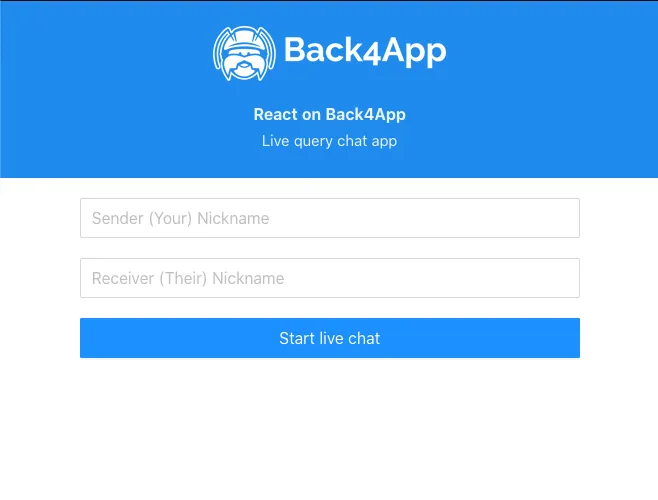
Start your app by running yarn start on your console. You should now be presented with the following screen, in which you need to inform the sending and receiving nicknames to begin chatting.
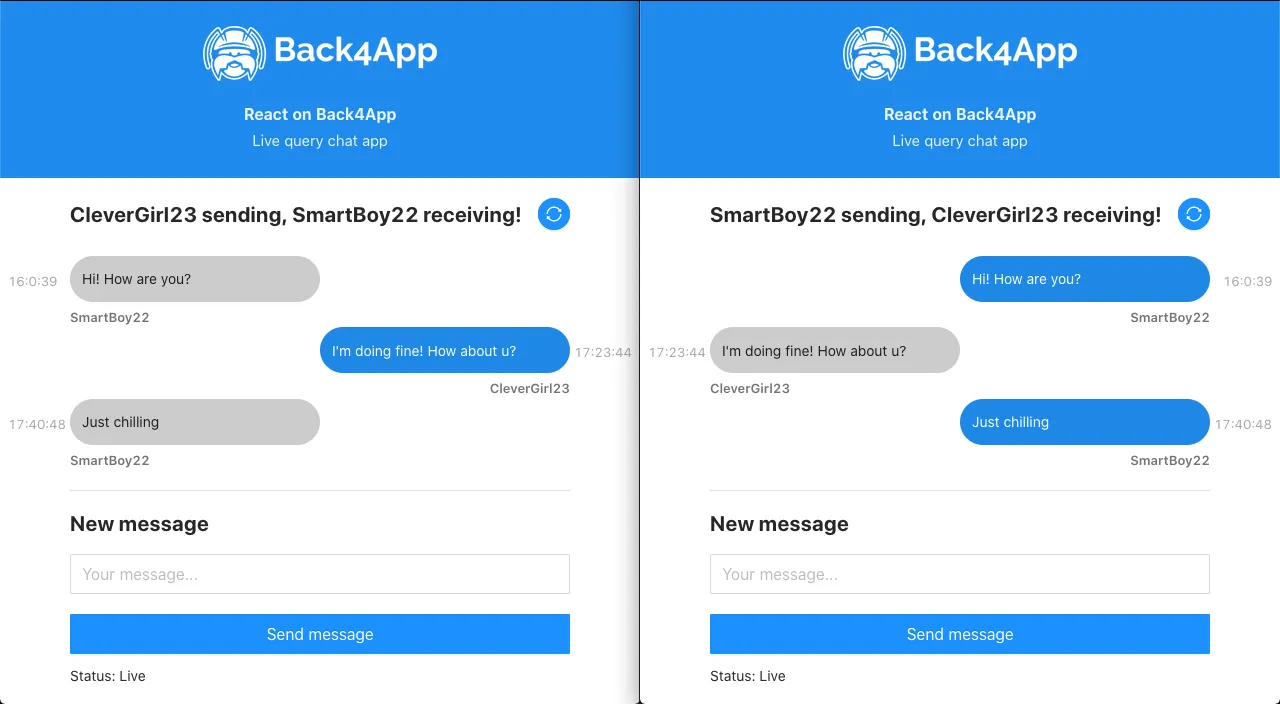
To better see how the app and live query are working, open the same app on two different browser windows and set them side by side. Immediately after sending a message in a window, you should see it pop on the other if the nicknames match and the connection is live.
Conclusion
At the end of this guide, you learned how to use the Parse React hook for live queries in Parse in a realistic application example.