from client side (Swift)
Send push notifications from client side in Swift
Introduction
This section explains how you can send push notifications through your iOS client with Back4App.
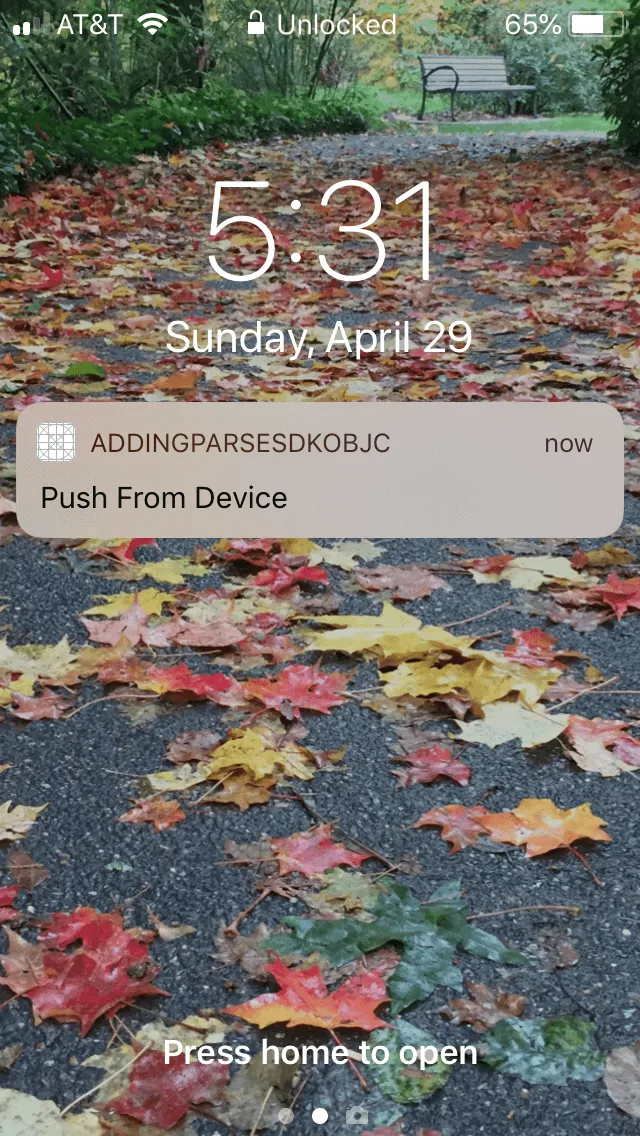
This is how it will look like:
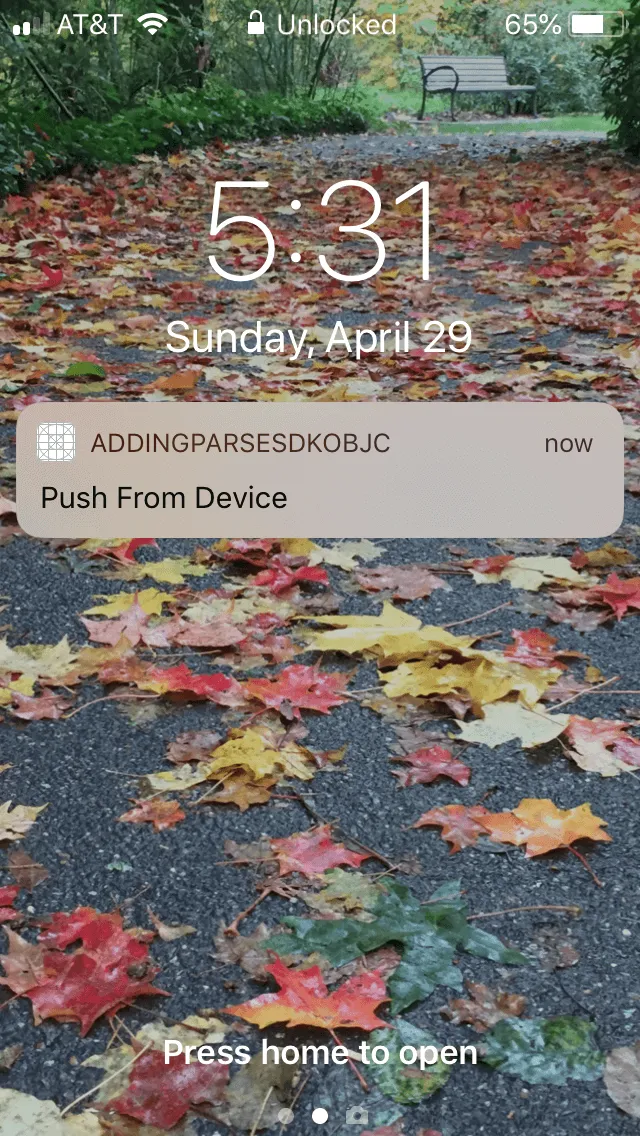
At any time, you can access the complete Project built with this tutorial at our GitHub repository.
Prerequisites
To complete this quickstart, you need:
- An app created at Back4App.
- An iOS app connected to Back4App.
- Note: Follow the Install Parse SDK (Swift) Tutorial to create an Xcode Project connected to Back4App.
- An iOS device, iphone or ipad, running iOS 10 or newer.
- A paid Apple developer Account.
Going forward we are going to assume you have completed all steps of the Back4App Push Notifications via Dashboard tutorial, even if you use the iOS Project built with this tutorial that is available at our GitHub repository. You should have basic push notifications working and also be able to send pushes out via the admin console.
1 - Enable Client Push
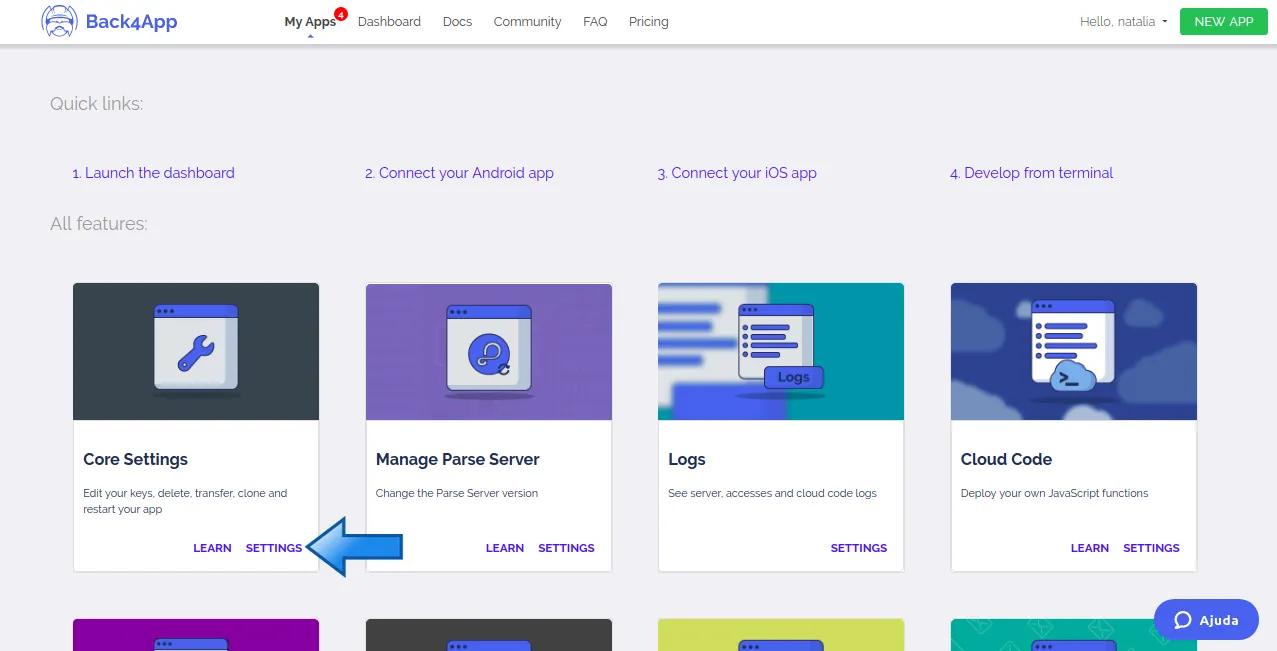
- Find the “Core Settings” block and click on SETTINGS. The “Core Settings” block looks like this:
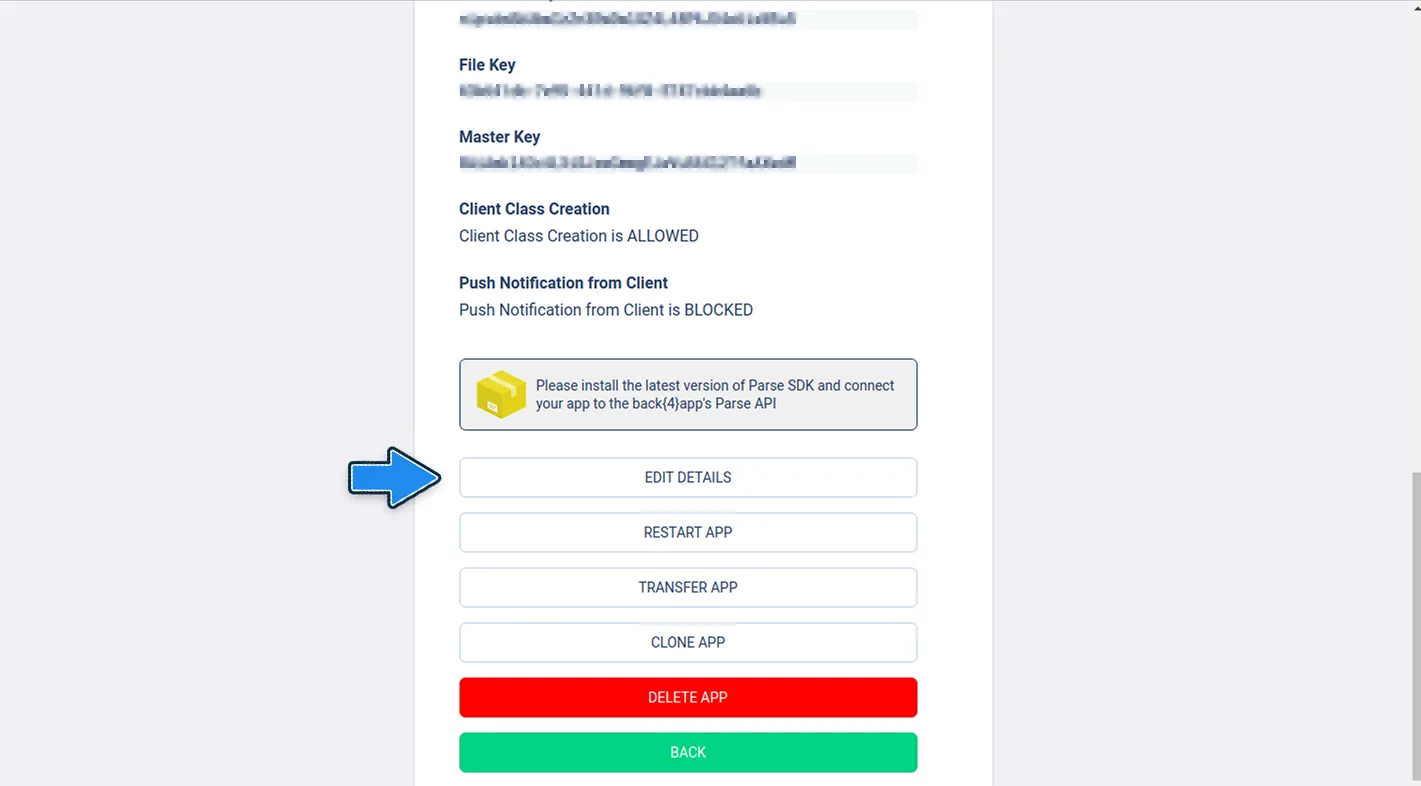
3. Scroll to the end of the page and click on the EDIT DETAILS button, as shown below:
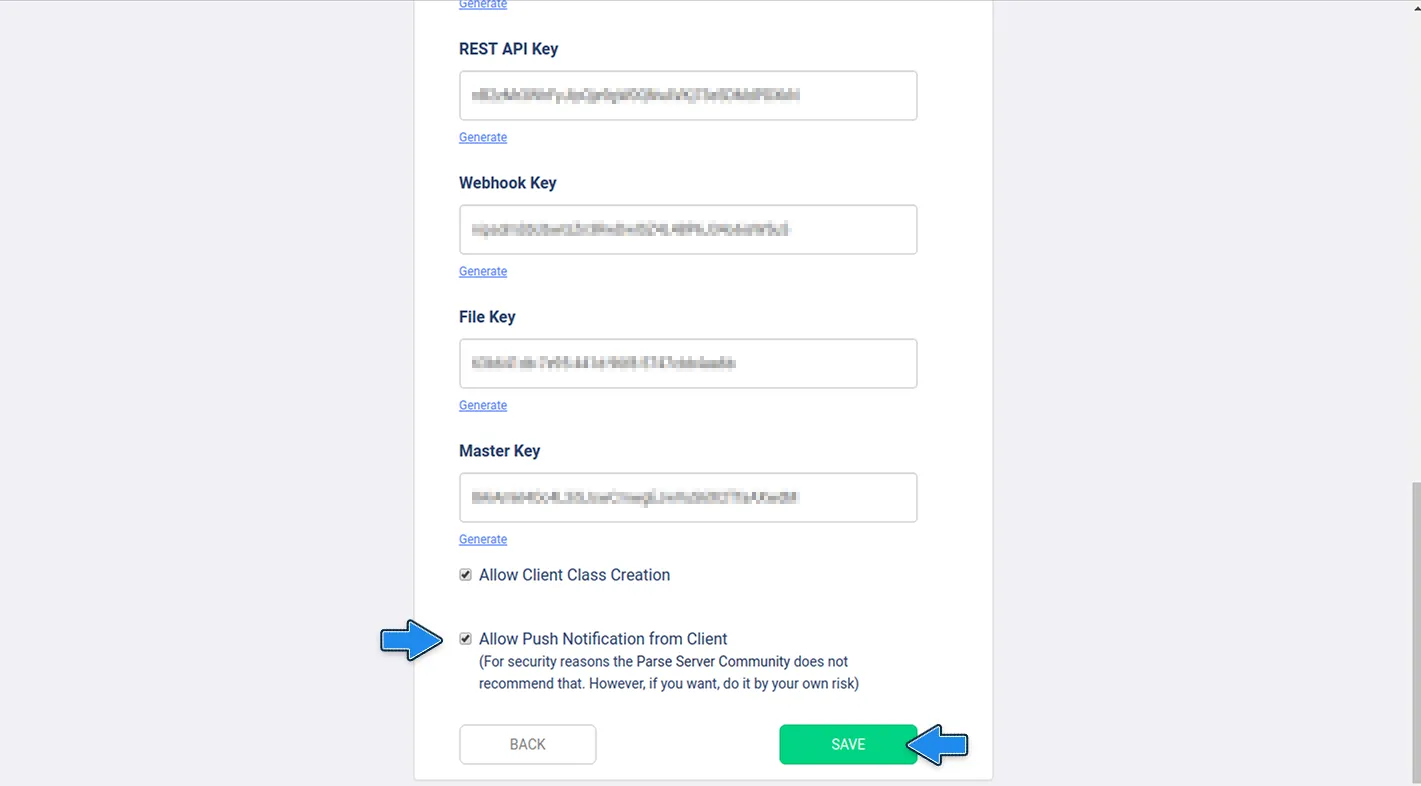
4. You will see a checkbox called Allow Push Notification from Client in the end of the edit page, tick that box and click on the SAVE button, as shown below:
2 - Subscribe your device to the News channel
- Assuming you have completed the Back4App Push Notifications via Dashboard tutorial, you will want to modify the completed project from that tutorial or download it from our GitHub repository. First, you will add a channel to your Installation object. You are going to do this by altering the method createInstallationOnParse in your AppDelegate file. Open your project’s AppDelegate.swift file and add the following line of code - ‘Installation setObject([”News1”] forKey:”channels”];’ - which will set the installation object’s channel array to contain one channel called News.
1   func createInstallationOnParse(deviceTokenData:Data){
2       if let installation = PFInstallation.current(){
3           installation.setDeviceTokenFrom(deviceTokenData)
4           installation.setObject(["News"], forKey: "channels")
5           installation.saveInBackground {
6               (success: Bool, error: Error?) in
7               if (success) {
8                   print("You have successfully saved your push installation to Back4App!")
9               } else {
10                  if let myError = error{
11                      print("Error saving parse installation \(myError.localizedDescription)")
12                  }else{
13                      print("Uknown error")
14                  }
15              }
16          }
17      }
18  }
This will allow you to send a message to everyone who subscribes to the channel called News via cloud code
Make sure your version of didRegisterForRemoteNotificationsWithDeviceToken is the same as the code below.
2. Next, we will add a method to your app delegate to send a push to the News channel everytime the app launches. Open your project’s AppDelegate.swift file and the method below and make sure this method is fired off everytime the app launches by calling it from didFinishLaunchingWithOptions.
1   func application(_ application: UIApplication, didFinishLaunchingWithOptions launchOptions: [UIApplicationLaunchOptionsKey: Any]?) -> Bool {
2        let configuration = ParseClientConfiguration {
3            $0.applicationId = "PASTE_YOUR_APPLICATION_ID_HERE"
4            $0.clientKey = "PASTE_YOUR_CLIENT_ID_HERE"
5            $0.server = "https://parseapi.back4app.com"
6        }
7        Parse.initialize(with: configuration)
8
9        UNUserNotificationCenter.current().requestAuthorization(options: [.alert, .sound, .badge, .carPlay ]) {
10           (granted, error) in
11           print("Permission granted: \(granted)")
12           guard granted else { return }
13           self.getNotificationSettings()
14       }
15       sendPushOnLaunch()
16       return true
17   }
18   func sendPushOnLaunch(){
19       let push = PFPush()
20       push.setChannel("News")
21       push.setMessage("Push From Device")
22       push.sendInBackground()
23   }
3 - Test that you can send targeted push notifications to yourself via the client
Open your app from the simulator while leaving your physical device closed with the lock screen on.
You should see the pushes appear on your device’s lock screen as soon as the app opens on the simulator.
Final Thoughts
You should have a firm understanding of how to send pushes from the client.
You can combine it with a pfquery to target users based on some sort of property like age, location, or object id.
Just remember that if client push is enabled it can be exploited and can’t be turned off without restricting all client pushes. It’s recommended that you tick to pushes from Cloud Code, but it’s still good to know.
It’s done!
At this stage, you can send push notifications using Client Push through Back4App!