Relationships
Relationships
Introduction
Relations are a fundamental feature for organizing data objects stored on a database. ParseSwift does provide the necessary tools and methods to establish relations between classes in your Back4App Database. Depending on the use case, we can identify the following type of relations
- 1:1: A relation that only connects two data objects.
- 1:N: A relation between one data object andNdata objects
- N:N: A relation beweenNdata objects toNdata objects.
As we will see below, implementing 1:1 relations are relatively straightforward. For 1:N and N:N relations, the implementation involves the ParseRelation object provided by ParseSwift SDK. There are additional alternatives for implementing 1:N and N:N relations. However, due to efficiency and performance, we recommend following our approach
This tutorial uses a basic app created in Xcode 12 and iOS 14.
At any time, you can access the complete Project via our GitHub repositories.
Goal
- To understand how relations are implemented in a Back4App Database.
Prerequisites
To complete this quickstart, you need:
- Xcode.
- An app created at Back4App.
- Note: Follow the Install Parse SDK (Swift) Tutorial to create an Xcode Project connected to Back4App.
Understanding our Books App
The project template is a Book App where the user enters a book details to save it on a Back4App Database. On the app’s homescreen you will find the form to do so
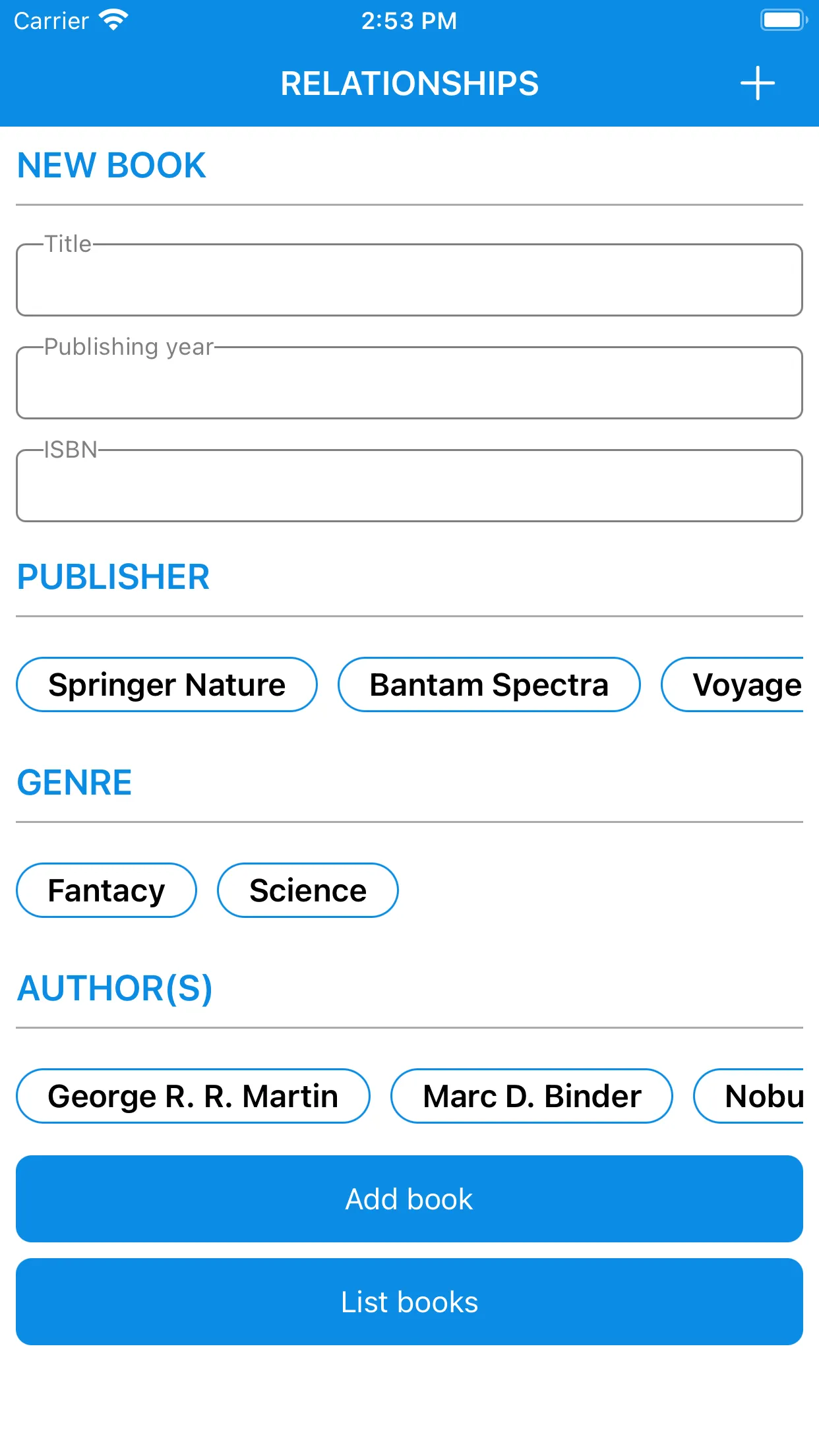
Using the + button located on the top-right side of the navigation bar, we can add as many Publishers, Genres and Authors as needed. Once the user enters a book, they can use the Add book button to save the book on their Back4App Database. Additionally, the List books button will allow us to show all the books the user added and also to see their relationship with the publishers and authors.
Quick reference of commands we are going to use
We make use of the objects Author, Publisher, ISBN and Book:
1   import Foundation
2   import ParseSwift
3
4   struct Genre: ParseObject {
5       ...
6
7       var name: String?
8
9       ...
10  }
Before storing instances of these objects in a Back4App Database, all their properties must conform to the Codable and Hashable protocols.
We make use of the following methods for managing these objects on the Back4App Database:
   //When creating a new instance of Author we use
1   var newAuthor: Author = Author(name: "John Doe")
2
3   // Saves newAuthor on your Back4App Database synchronously and returns the new saved Item. It throws and error if something went wrong.
4   let savedAuthor = try? newAuthor.save()
5
6   // Saves newAuthor on your Back4App Database asynchronously, and passes a Result<Author, ParseError> object to the completion block to handle the save process.
7   newAuthor.save { result in
8       // Handle the result to check wether the save process was successfull or not
9   }
1 - Download the Books App Template
The XCode project has the following structure
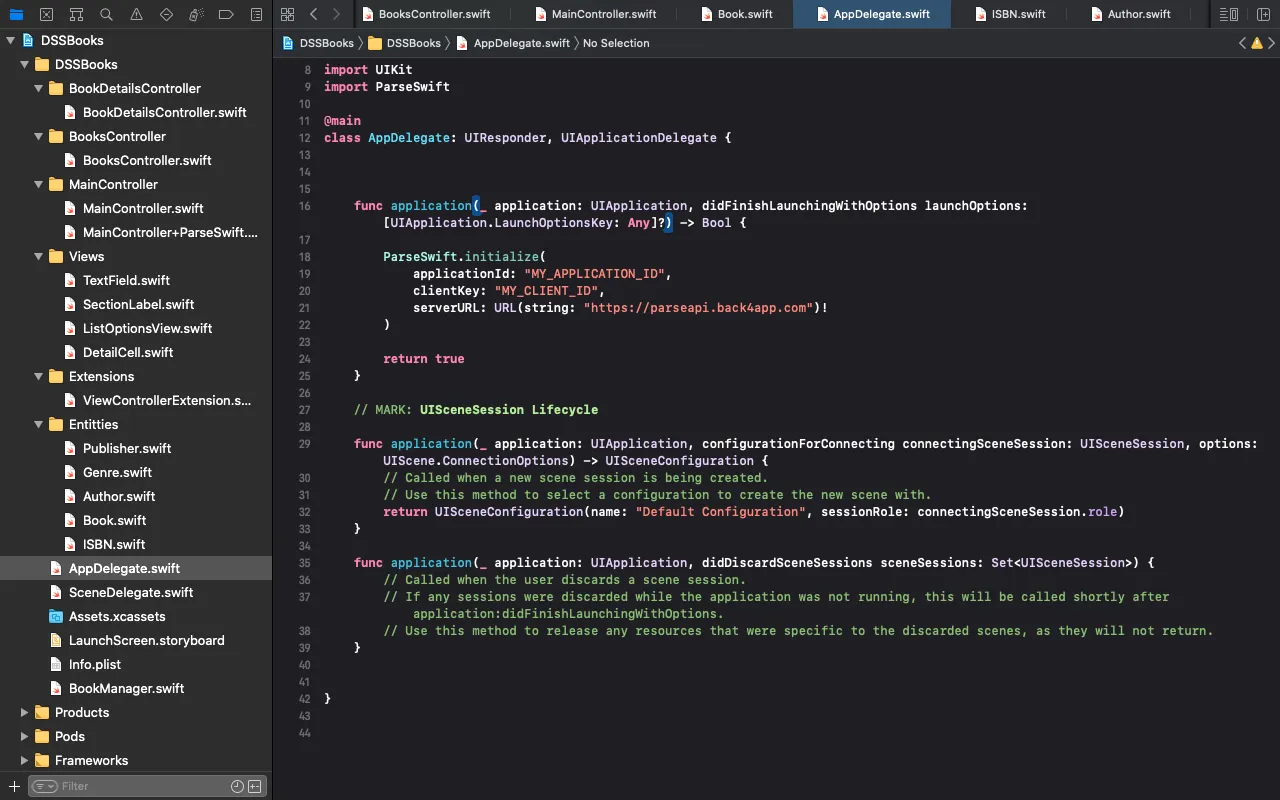
At any time, you can access the complete Project via our GitHub repositories.
2 - Additional CRUD flow
Before going further, it is necessary to implement some CRUD functions for us to be able to save the Author, Publisher and Genre objects. In theMainController+ParseSwift.swift file, under an extension for the MainController class, we implemented the following methods
1   // MainController+ParseSwift.swift file
2   extension MainController {
3       /// Collects the data to save an instance of Book on your Back4App database.
4       func saveBook() {
5           view.endEditing(true)
6
7           // 1. First retrieve all the information for the Book (title, isbn, etc)
8           guard let bookTitle = bookTitleTextField.text else {
9               return presentAlert(title: "Error", message: "Invalid book title")
10          }
11
12          guard let isbnValue = isbnTextField.text else {
13              return presentAlert(title: "Error", message: "Invalid ISBN value.")
14          }
15
16          let query = ISBN.query("value" == isbnValue)
17
18          guard (try? query.first()) == nil else {
19              return presentAlert(title: "Error", message: "The entered ISBN already exists.")
20          }
21
22          guard let genreObjectId = genreOptionsView.selectedOptionIds.first,
23                let genre = genres.first(where: { $0.objectId == genreObjectId})
24          else {
25              return presentAlert(title: "Error", message: "Invalid genre.")
26          }
27
28          guard let publishingYearString = publishingYearTextField.text, let publishingYear = Int(publishingYearString) else {
29              return presentAlert(title: "Error", message: "Invalid publishing year.")
30          }
31
32          let authors: [Author] = self.authorOptionsView.selectedOptionIds.compactMap { [weak self] objectId in
33             self?.authors.first(where: { objectId == $0.objectId })
34          }
35
36          let publishers: [Publisher] = self.publisherOptionsView.selectedOptionIds.compactMap { [weak self] objectId in
37             self?.publishers.first(where: { objectId == $0.objectId })
38          }
39
40          // Since we are making multiple requests to Back4App, it is better to use synchronous methods and dispatch them on the background queue
41          DispatchQueue.global(qos: .background).async {
42              do {
43                  let isbn = ISBN(value: isbnValue) // 2. Instantiate a new ISBN object
44
45                  let savedBook = try Book( // 3. Instantiate a new Book object with the corresponding input fields
46                      title: bookTitle,
47                     publishingYear: publishingYear,
48                      genre: genre,
49                      isbn: isbn
50                  ).save() // 4. Save the new Book object
51
52                  ... // Here we will implement the relations
53
54                  DispatchQueue.main.async {
55                      self.presentAlert(title: "Success", message: "Book saved successfully.")
56                  }
57              } catch {
58                  DispatchQueue.main.async {
59                     self.presentAlert(title: "Error", message: "Failed to save book: \((error as! ParseError).message)")
60                  }
61              }
62          }
63      }
64
65      /// Retrieves all the data saved under the Genre class in your Back4App Database
66      func fetchGenres() {
67          let query = Genre.query()
68
69          query.find { [weak self] result in
70              switch result {
71              case .success(let genres):
72                  self?.genres = genres // When setting self?.genres, it triggers the corresponding UI update
73              case .failure(let error):
74                  self?.presentAlert(title: "Error", message: error.message)
75              }
76          }
77      }
78
79      /// Presents a simple alert where the user can enter the name of a genre to save it on your Back4App Database
80      func handleAddGenre() {
81          // Displays a form with a single input and executes the completion block when the user presses the submit button
82          presentForm(
83              title: "Add genre",
84              description: "Enter a description for the genre",
85              placeholder: nil
86          ) { [weak self] name in
87              guard let name = name else { return }
88              let genre = Genre(name: name)
89
90              let query = Genre.query("name" == name)
91
92              guard ((try? query.first()) == nil) else {
93                  self?.presentAlert(title: "Error", message: "This genre already exists.")
94                  return
95              }
96
97              genre.save { [weak self] result in
98                  switch result {
99                  case .success(let addedGenre):
100                     self?.presentAlert(title: "Success", message: "Genre added!")
101                     self?.genres.append(addedGenre)
102                 case .failure(let error):
103                     self?.presentAlert(title: "Error", message: "Failed to save genre: \(error.message)")
104                 }
105             }
106         }
107     }
108
109     /// Retrieves all the data saved under the Publisher class in your Back4App Database
110     func fetchPublishers() {
111         let query = Publisher.query()
112
113         query.find { [weak self] result in
114             switch result {
115             case .success(let publishers):
116                 self?.publishers = publishers
117             case .failure(let error):
118                 self?.presentAlert(title: "Error", message: error.message)
119             }
120         }
121     }
122
123     /// Presents a simple alert where the user can enter the name of a publisher to save it on your Back4App Database
124     func handleAddPublisher() {
125         // Displays a form with a single input and executes the completion block when the user presses the submit button
126         presentForm(
127             title: "Add publisher",
128             description: "Enter the name of the publisher",
129             placeholder: nil
130         ) { [weak self] name in
131             guard let name = name else { return }
132
133             let query = Publisher.query("name" == name)
134
135             guard ((try? query.first()) == nil) else {
136                 self?.presentAlert(title: "Error", message: "This publisher already exists.")
137                 return
138             }
139
140             let publisher = Publisher(name: name)
141
142             publisher.save { [weak self] result in
143                 switch result {
144                 case .success(let addedPublisher):
145                     self?.presentAlert(title: "Success", message: "Publisher added!")
146                     self?.publishers.append(addedPublisher)
147                 case .failure(let error):
148                     self?.presentAlert(title: "Error", message: "Failed to save publisher: \(error.message)")
149                 }
150             }
151         }
152     }
153
154     /// Retrieves all the data saved under the Genre class in your Back4App Database
155     func fetchAuthors() {
156         let query = Author.query()
157
158         query.find { [weak self] result in
159             switch result {
160             case .success(let authors):
161                 self?.authors = authors
162             case .failure(let error):
163                 self?.presentAlert(title: "Error", message: error.message)
164             }
165         }
166     }
167
168     /// Presents a simple alert where the user can enter the name of an author to save it on your Back4App Database
169     func handleAddAuthor() {
170         // Displays a form with a single input and executes the completion block when the user presses the submit button
171         presentForm(
172             title: "Add author",
173             description: "Enter the name of the author",
174             placeholder: nil
175         ) { [weak self] name in
176             guard let name = name else { return }
177
178             let query = Author.query("name" == name)
179
180             guard ((try? query.first()) == nil) else {
181                 self?.presentAlert(title: "Error", message: "This author already exists.")
182                 return
183             }
184
185             let author = Author(name: name)
186
187             author.save { [weak self] result in
188                 switch result {
189                 case .success(let addedAuthor):
190                     self?.presentAlert(title: "Success", message: "Author added!")
191                     self?.authors.append(addedAuthor)
192                 case .failure(let error):
193                     self?.presentAlert(title: "Error", message: "Failed to save author: \(error.message)")
194                 }
195             }
196         }
197     }
198 }sw
For more details about this step, you can go to the basic operations guide.
3 - Setup the relations
Before starting to create relations, take a look at the quick reference section to have an idea about the objects we want to relate to each other. In the figure below we show how these objects are related

As can be seen, the relations are created by putting the Book object in the middle. The arrows show how each object is related to a Book object.
4 - Implementing relations
1:1 case
Adding 1:1 relations can easlity be achieved by adding a property in the Book object, i.e.,
1   struct Book: ParseObject {
2       ...
3
4       var isbn: ISBN? // Esablishes a 1:1 relation between Book and ISBN
5
6       ...
7   }
In this case, Book and ISBN share a 1:1 relation where Book is identified as the parent and ISBN as the child. Internally, when Back4App saves an instance of Book, it saves the ISBN object (under the ISBN class name) first. After this process is complete, Back4App continues with the object Book. The new Book object is saved in a way that its isbn property is represented by a Pointer<ISBN> object. A Pointer<> object allows us to store a unique instance of the ISBN object related to its corresponding parent.
1:N case
For 1:N relations, the most efficient way to implement them is via a ParseRelation<Book> object. ParseSwift provides a set of methods to add these types of relationships for any object conforming to the ParseObject protocol. For instance, if we want to create a 1:N relation between Book and Author we can use
1   let someBook: Book
2   let authors: [Author]
3   ...
4
5   // We create a relation (identified by the name 'authors') between someBook and a set of authors
6   let bookToAuthorsRelation =
7   guard let bookToAuthorsRelation = try someBook.relation?.add("authors", objects: authors) // Book -> Author
8   else {
9       fatalError("Failed to add relation")
10  }
11
12  let savedRelation = try bookToAuthorsRelation.save() // Saves the relation synchronously
13
14  bookToAuthorsRelation.save { result in // Saves the relation asynchronously
15      // Handle the result
16  }
It is straightforward to adapt this snippet for the other relations we have for Book.
- Putting all together
Once we established the basic idea to implement relations, we now complete the saveBook() method. We enumerate the key points to have in mind during this process
1   extension MainController {
2       /// Collects the data to save an instance of Book on your Back4App database.
3       func saveBook() {
4           ...
5           // 1. First retrieve all the information for the Book (bookTitle, isbnValue, etc)
6           ...
7
8           // Since we are making multiple requests to Back4App, it is better to use synchronous methods and dispatch them on the background queue
9           DispatchQueue.global(qos: .background).async {
10              do {
11                  let isbn = ISBN(value: isbnValue) // 2. Instantiate a new ISBN object
12
13                  let savedBook = try Book( // 3. Instantiate a new Book object with the corresponding input fields
14                      title: bookTitle,
15                      publishingYear: publishingYear,
16                      genre: genre,
17                      isbn: isbn
18                  ).save() // 4. Save the new Book object
19
20                  // 5. Add the corresponding relations for new Book object
21                  guard let bookToAuthorsRelation = try savedBook.relation?.add("authors", objects: authors), // Book -> Author
22                        let bootkToPublishersRelation = try savedBook.relation?.add("publishers", objects: publishers), // Book -> Publisher
23                        let genreRelation = try genre.relation?.add("books", objects: [savedBook]) // Genre -> Book
24                  else {
25                      return DispatchQueue.main.async {
26                          self.presentAlert(title: "Error", message: "Failed to add relations")
27                      }
28                  }
29
30                  // 6. Save the relations
31                  _ = try bookToAuthorsRelation.save()
32                  _ = try bootkToPublishersRelation.save()
33                  _ = try genreRelation.save()
34
35                  DispatchQueue.main.async {
36                      self.presentAlert(title: "Success", message: "Book saved successfully.")
37                  }
38              } catch {
39                  DispatchQueue.main.async {
40                      self.presentAlert(title: "Error", message: "Failed to save book: \((error as! ParseError).message)")
41                  }
42              }
43          }
44      }
45
46      ...
47  }
5 - Querying relations
For 1:1 relations, given the parent Book and its child ISBN, we query the corresponding child by including it in the Book query
1   let query = Book.query().include("isbn")
2
3   let books = try query.find() // Retrieves synchronously all the books together with its isbn
4
5   query.find { result in // Retrieves asynchronously all the books together with its isbn
6       // Handle the result
7   }
8
With this, all the books from the query will also have the isbn property set properly with the related ISBN object.
On the other hand, in order to retrieve objects with a 1:N relation, the ParseObject protocol provides the static method queryRelation(_,parent:). By providing the name of the relation (as the first parameter) and the parent, this method allows us to create the required query. For instance, to retrieve all the Author’s related to a specific Book we can use the following snippet
1   let book: Book // Book from which we are trying to retrieve its related authors
2
3   do {
4       let authorsQuery = try Author.queryRelations("authors", parent: book) // 'authors' is the name of the relation it was saved with
5
6       authorsQuery.find { [weak self] result in
7           switch result {
8           case .success(let authors):
9               self?.authors = authors
10
11              DispatchQueue.main.async {
12                  // Update the UI
13              }
14              case .failure(let error):
15                  DispatchQueue.main.async {
16                      self?.presentAlert(title: "Error", message: "Failed to retrieve authors: \(error.message)")
17                  }
18              }
19          }
20      }
21  } catch {
22      if let error = error as? ParseError {
23          presentAlert(title: "Error", message: "Failed to retrieve authors: \(error.message)")
24      } else {
25          presentAlert(title: "Error", message: "Failed to retrieve authors: \(error.localizedDescription)")
26      }
27  }
Similarly, we can query other related objects such as Publisher.
In the BookDetailsController.swift file we implement these queries to display the relation a book has with authors and publishers
1  // BookDetailsController.swift file
2  class BookDetailsController: UITableViewController {
3      ...
4
5      /// Retrieves the book's details, i.e., its relation with authors and publishers
6      private func fetchDetails() {
7          do {
8              // Constructs the relations you want to query
9              let publishersQuery = try Publisher.queryRelations("publishers", parent: book)
10              let authorsQuery = try Author.queryRelations("authors", parent: book)
11
12              // Obtains the publishers related to book and display them on the tableView, it presents an error if happened.
13              publishersQuery.find { [weak self] result in
14                  switch result {
15                  case .success(let publishers):
16                      self?.publishers = publishers
17
18                      // Update the UI
19                      DispatchQueue.main.async {
20                          self?.tableView.reloadSections(IndexSet([Section.publisher.rawValue]), with: .none)
21                      }
22                  case .failure(let error):
23                      DispatchQueue.main.async {
24                          self?.presentAlert(title: "Error", message: "Failed to retrieve publishers: \(error.message)")
25                      }
26                  }
27              }
28
29              // Obtains the authors related to book and display them on the tableView, it presents an error if happened.
30              authorsQuery.find { [weak self] result in
31                  switch result {
32                  case .success(let authors):
33                      self?.authors = authors
34
35                      // Update the UI
36                      DispatchQueue.main.async {
37                          self?.tableView.reloadSections(IndexSet([Section.author.rawValue]), with: .none)
38                      }
39                  case .failure(let error):
40                      DispatchQueue.main.async {
41                          self?.presentAlert(title: "Error", message: "Failed to retrieve authors: \(error.message)")
42                      }
43                  }
44              }
45          } catch { // If there was an error during the creation of the queries, this block should catch it
46              if let error = error as? ParseError {
47                  presentAlert(title: "Error", message: "Failed to retrieve authors: \(error.message)")
48              } else {
49                  presentAlert(title: "Error", message: "Failed to retrieve authors: \(error.localizedDescription)")
50              }
51          }
52      }
53
54      ...
55  }
6 - Run the app!
Before pressing the run button on XCode, do not forget to configure your Back4App application in the AppDelegate class!
You have to add a couple of Genre’s, Publisher’s and Author’s before adding a new book. Then, you can start entering a book’s information to save it on your Back4App Database. Once you have saved one Book, open your Back4App dashboard and go to your application linked to the XCode project. In the Database section, you will find the class Book where all the books created by the iOS App are stored.
Additionally, you can see that Back4App automatically created the class ISBN in order to relate it with its corresponding Book object. If you go back to the Book class, you can identify the data types for each type of relation. In the case of ISBN and Genre, the data type is a Pointer<>. On the other hand, for relations like Author and Publisher, the data type is Relation<>. This is a key difference to have in mind when constructing relations.