Cloud Code Functions
Using Cloud Functions in a Flutter App
Introduction
For complex apps, sometimes you just need a bit of logic that isn’t running on a mobile device. Cloud Code makes this possible.
Cloud Code is easy to use because it’s built on the same Parse JavaScript SDK that powers thousands of apps. The only difference is that this code runs in your Parse Server rather than running on the user’s mobile device.
You can use Cloud Code to offload processing to the Parse servers thus increasing your app’s perceived performance. You can create hooks that run whenever an object is saved or deleted. This is useful if you want to validate or sanitize your data. You can also use Cloud Code to modify related objects or kick off other processes such as sending off a push notification.
When you update your Cloud Code, it becomes available to all mobile environments instantly. You don’t have to wait for a new release of your application. This lets you change app behavior on the fly and add new features faster.
This section explains how to create and deploy Cloud Code, followed by how to call a cloud function in Flutter projects through Back4App.
In this guide, the focus is to demonstrate the use of Cloud Function through Flutter. You can find more in-depth information in Parse Official Cloud Code Documentation.
Prerequisites
To complete this tutorial, you will need:
- An Flutter app connected to Back4app.
- Note: Follow the Install Parse SDK on Flutter project to create an Flutter Project connected to Back4App.
- A device (or virtual device) running Android or iOS.
Goal
Run Parse Cloud Code on Back4App from a Flutter App.
1 - Create a Cloud Code File
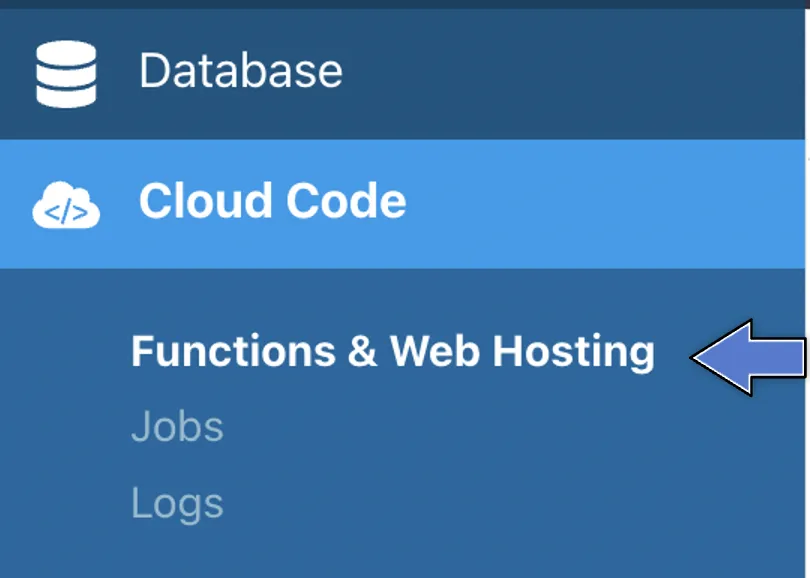
- Find the Cloud Code and click on Functions & Web Hosting. It looks like this:
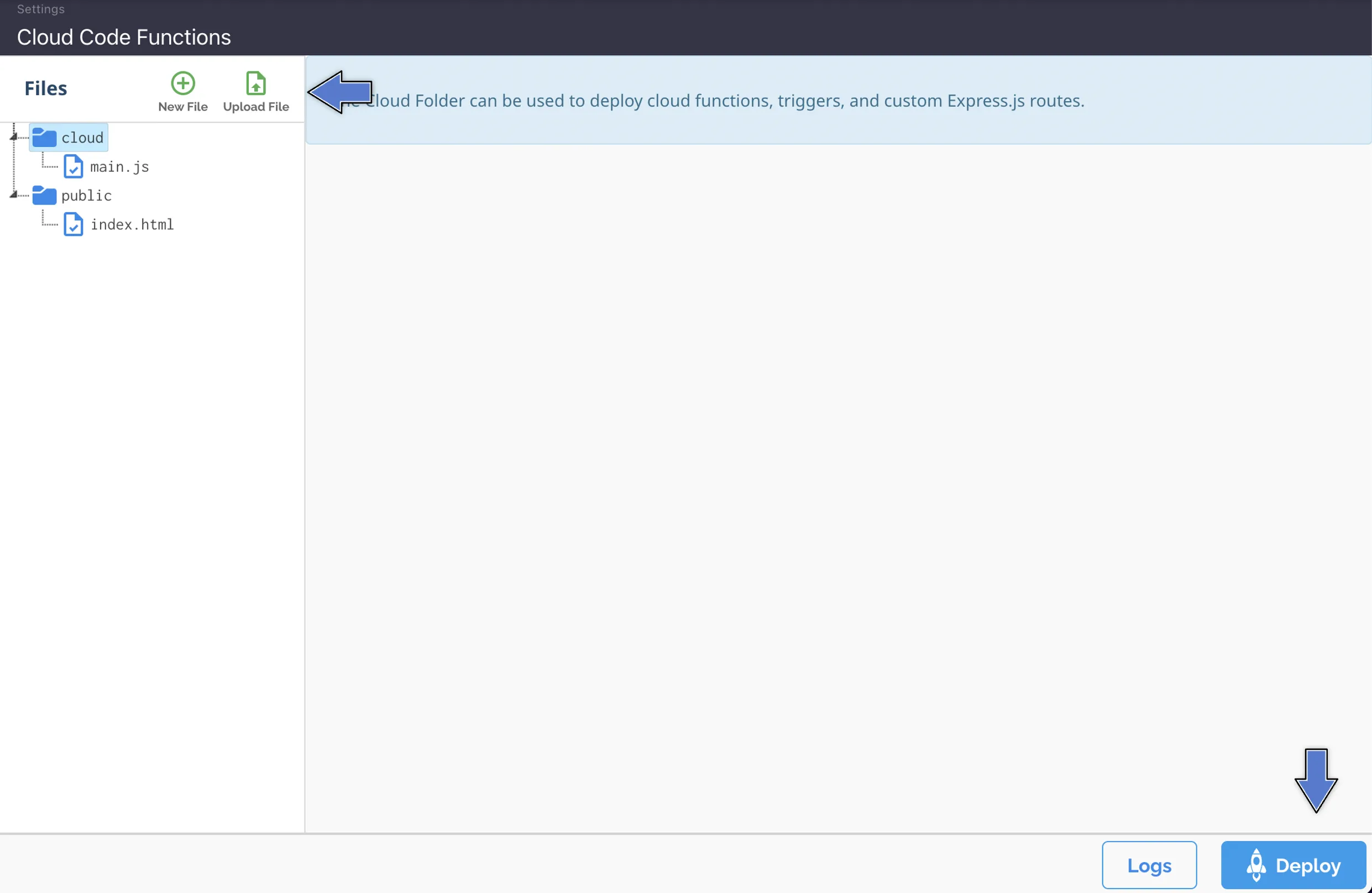
3. Upload or create a new file (you can also edit the currentmain.jsfile directly on the browser). Then, click at Deploy as shown here:
Yourmain.jsfile should look like this:
1   Parse.Cloud.define("hello", async (request) => {
2       console.log("Hello from Cloud Code!");
3       return "Hello from Cloud Code!";
4   });
5
6   Parse.Cloud.define("sumNumbers", async (request) => {
7       return (request.params.number1 + request.params.number2);
8   });
9
10  Parse.Cloud.define("createToDo", async (request) => {
11      const title = request.params.title;
12      const done = request.params.done;
13
14      const Todo = Parse.Object.extend('ToDo');
15      const todo = new Todo();
16      todo.set('title', title);
17      todo.set('done', done);
18
19      try {
20          await todo.save();
21          return todo;
22        } catch (error) {
23          console.log('ToDo create - Error - ' + error.code + ' ' + error.message);
24        }
25  });
26
27  Parse.Cloud.define("getListToDo", async (request) => {
28      let query = new Parse.Query("ToDo");
29      query.descending("done");
30      return await query.find();
31  });
You pass parameters to your Cloud function from your Flutter App and access then within the request.params object.
2 - Understanding the ParseCloudFunction class
The ParseCloudFunction class defines provides methods for interacting with Parse Cloud Functions.
A Cloud Function can be called with ParseCloudFunction.execute({parameters: params}) that returns a map object or ParseCloudFunction.executeObjectFunction<>({parameters: params}) that returns a ParseObject.
Parameters are optional and a map object is expected.
3 - Call Parse Cloud function
Now that you have deployed the Cloud Functions, we can call the functions using Flutter.
Example 1 - Call a Cloud Function and get the return
1       //Executes a cloud function with no parameters that returns a Map object
2       final ParseCloudFunction function = ParseCloudFunction('hello');
3       final ParseResponse parseResponse = await function.execute();
4       if (parseResponse.success && parseResponse.result != null) {
5         print(parseResponse.result);
6       }
The result displayed in the console will be:
Example 2 - Call a Cloud Function with parameters and get the return
1       //Executes a cloud function with parameters that returns a Map object
2       final ParseCloudFunction function = ParseCloudFunction('sumNumbers');
3       final Map<String, dynamic> params = <String, dynamic>{
4         'number1': 10,
5         'number2': 20
6       };
7       final ParseResponse parseResponse =
8           await function.execute(parameters: params);
9       if (parseResponse.success) {
10        print(parseResponse.result);
11      }
The result displayed in the console will be:
Example 2.1 - Call a Cloud Function with parameters and get the return
1       //Executes a cloud function with parameters that returns a Map object
2       final ParseCloudFunction function = ParseCloudFunction('sumNumbers');
3       final Map<String, dynamic> params = <String, dynamic>{
4         'number1': 10,
5         'number2': 20
6       };
7       final ParseResponse parseResponse =
8           await function.execute(parameters: params);
9       if (parseResponse.success) {
10        print(parseResponse.result);
11 }Example 3 - Call a Cloud Function with parameters and get ParseObject on return
1       //Executes a cloud function that returns a ParseObject type
2       final ParseCloudFunction function = ParseCloudFunction('createToDo');
3       final Map<String, dynamic> params = <String, dynamic>{
4         'title': 'Task 1',
5         'done': false
6       };
7       final ParseResponse parseResponse =
8           await function.executeObjectFunction<ParseObject>(parameters: params);
9       if (parseResponse.success && parseResponse.result != null) {
10        if (parseResponse.result['result'] is ParseObject) {
11          //Transforms the return into a ParseObject
12          final ParseObject parseObject = parseResponse.result['result'];
13          print(parseObject.objectId);
14        }
15      }
The result displayed in the console will be:
Example 4 - Call a Cloud Function that returns a list of maps that can be converted to a ParseObject
1       //Executes a cloud function with parameters that returns a Map object
2       final ParseCloudFunction function = ParseCloudFunction('getListToDo');
3       final ParseResponse parseResponse = await function.execute();
4       if (parseResponse.success) {
5         if (parseResponse.result != null) {
6           for (final todo in parseResponse.result) {
7             //Use fromJson method to convert map in ParseObject
8             print(ParseObject('ToDo').fromJson(todo));
9           }
10        }
11      }
The result displayed in the console will be:
1    flutter: {"className":"ToDo","objectId":"cR3G4RccT1","createdAt":"2021-06-23T03:20:34.933Z","updatedAt":"2021-06-23T03:20:34.933Z","title":"Task 1","done":false}
2    flutter: {"className":"ToDo","objectId":"6BARcICPKe","createdAt":"2021-06-23T03:20:54.294Z","updatedAt":"2021-06-23T03:20:54.294Z","title":"Task 1","done":false}
3    flutter: {"className":"ToDo","objectId":"tYZA74l89Q","createdAt":"2021-06-23T03:39:42.049Z","updatedAt":"2021-06-23T03:39:42.049Z","title":"Task 1","done":false}
4    flutter: {"className":"ToDo","objectId":"ArjM8Q7H8D","createdAt":"2021-06-24T03:33:27.925Z","updatedAt":"2021-06-24T03:33:27.925Z","title":"Task 1","done":false}
5 - Call Cloud Function from Flutter
Let’s now use our example call cloud Function in Flutter App, with a simple interface.
Open your Flutter project, go to the main.dart file, clean up all the code, and replace it with:
1   import 'package:flutter/cupertino.dart';
2   import 'package:flutter/material.dart';
3   import 'package:parse_server_sdk_flutter/parse_server_sdk.dart';
4
5   void main() async {
6     WidgetsFlutterBinding.ensureInitialized();
7
8     final keyApplicationId = 'YOUR_APP_ID_HERE';
9     final keyClientKey = 'YOUR_CLIENT_KEY_HERE';
10
11    final keyParseServerUrl = 'https://parseapi.back4app.com';
12
13    await Parse().initialize(keyApplicationId, keyParseServerUrl,
14        clientKey: keyClientKey, debug: true);
15
16    runApp(MaterialApp(
17      title: 'Flutter - GeoPoint',
18      debugShowCheckedModeBanner: false,
19      home: HomePage(),
20    ));
21  }
22
23  class HomePage extends StatefulWidget {
24    @override
25    _HomePageState createState() => _HomePageState();
26  }
27
28  class _HomePageState extends State<HomePage> {
29
30    void doCallCloudCodeHello() async {
31      //Executes a cloud function with no parameters that returns a Map object
32      final ParseCloudFunction function = ParseCloudFunction('hello');
33      final ParseResponse parseResponse = await function.execute();
34      if (parseResponse.success && parseResponse.result != null) {
35        print(parseResponse.result);
36      }
37    }
38
39    void doCallCloudCodeSumNumbers() async {
40      //Executes a cloud function with parameters that returns a Map object
41      final ParseCloudFunction function = ParseCloudFunction('sumNumbers');
42      final Map<String, dynamic> params = <String, dynamic>{
43        'number1': 10,
44        'number2': 20
45      };
46      final ParseResponse parseResponse =
47          await function.execute(parameters: params);
48      if (parseResponse.success) {
49        print(parseResponse.result);
50      }
51    }
52
53    void doCallCloudCodeCreateToDo() async {
54      //Executes a cloud function that returns a ParseObject type
55      final ParseCloudFunction function = ParseCloudFunction('createToDo');
56      final Map<String, dynamic> params = <String, dynamic>{
57        'title': 'Task 1',
58        'done': false
59      };
60      final ParseResponse parseResponse =
61          await function.executeObjectFunction<ParseObject>(parameters: params);
62      if (parseResponse.success && parseResponse.result != null) {
63        if (parseResponse.result['result'] is ParseObject) {
64          //Transforms the return into a ParseObject
65          final ParseObject parseObject = parseResponse.result['result'];
66          print(parseObject.toString());
67        }
68      }
69    }
70
71    void doCallCloudCodeGetListTodo() async {
72      //Executes a cloud function with parameters that returns a Map object
73      final ParseCloudFunction function = ParseCloudFunction('getListToDo');
74      final ParseResponse parseResponse = await function.execute();
75      if (parseResponse.success) {
76        if (parseResponse.result != null) {
77          for (final todo in parseResponse.result) {
78            //Use fromJson method to convert map in ParseObject
79            print(ParseObject('ToDo').fromJson(todo));
80          }
81        }
82      }
83    }
84
85    @override
86    Widget build(BuildContext context) {
87      return Scaffold(
88          body: Padding(
89        padding: const EdgeInsets.all(16.0),
90        child: Column(
91          crossAxisAlignment: CrossAxisAlignment.stretch,
92          children: [
93            Container(
94              height: 200,
95              child: Image.network(
96                  'https://blog.back4app.com/wp-content/uploads/2017/11/logo-b4a-1-768x175-1.png'),
97            ),
98            Center(
99              child: const Text('Flutter on Back4app - Call Clode Code',
100                 style: TextStyle(fontSize: 18, fontWeight: FontWeight.bold)),
101           ),
102           SizedBox(
103             height: 8,
104           ),
105           Container(
106             height: 50,
107             child: ElevatedButton(
108                 onPressed: doCallCloudCodeHello,
109                 child: Text('Cloud Code - Hello'),
110                 style: ElevatedButton.styleFrom(primary: Colors.blue)),
111           ),
112           SizedBox(
113             height: 8,
114           ),
115           Container(
116             height: 50,
117             child: ElevatedButton(
118                 onPressed: doCallCloudCodeSumNumbers,
119                 child: Text('Cloud Code - sumNumber'),
120                 style: ElevatedButton.styleFrom(primary: Colors.blue)),
121           ),
122           SizedBox(
123             height: 8,
124           ),
125           Container(
126             height: 50,
127             child: ElevatedButton(
128                 onPressed: doCallCloudCodeCreateToDo,
129                 child: Text('Cloud Code - createToDo'),
130                 style: ElevatedButton.styleFrom(primary: Colors.blue)),
131           ),
132           SizedBox(
133             height: 8,
134           ),
135           Container(
136             height: 50,
137             child: ElevatedButton(
138                 onPressed: doCallCloudCodeGetListTodo,
139                 child: Text('Cloud Code - getListToDo'),
140                 style: ElevatedButton.styleFrom(primary: Colors.blue)),
141           ),
142         ],
143       ),
144     ));
145   }
146 }
Find your Application Id and Client Key credentials navigating to your app Dashboard at Back4App Website.
Update your code in main.dart with the values of your project’s ApplicationId and ClientKey in Back4app.
- keyApplicationId = App Id
- keyClientKey = Client Key
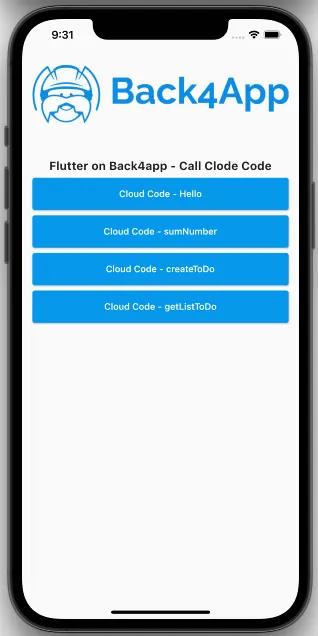
Run the project, and the app will load as shown in the image.
Conclusion
At this stage, you are able to code and call your own Cloud Code in your Flutter App using Parse Server Core features through Back4App!.