Relational Queries
Parse Relational Query in Flutter
Introduction
You’ve already seen how to store relational data objects using theParse.Pointer and Parse.Relations data types. You’ve learned that on Parse it is possible to use any ParseObject as a value in other ParseObject, establishing a relation between them. Internally, the Parse framework will store the referred-to object in just one place to maintain consistency. That can give you extra power when building and running complex queries.
Also, you’ve already learned how to use a QueryBuilder with get can retrieve a single ParseObject from Back4App. There are many other ways to retrieve data with QueryBuilder.
In this guide, you will ding deep into the QueryBuilder class and see methods you can use to build Relational Queries. You will use a simple database class with some mocked data to perform the Queries using Flutter on Back4App.
Prerequisites
To complete this tutorial, you will need:
- An Flutter app connected to Back4app.
- Note: Follow the Install Parse SDK on Flutter project to create an Flutter Project connected to Back4App.
- A device (or virtual device) running Android or iOS.
Goal
Query relational data stored on Back4App from a Flutter App.
1 - Understanding the QueryBuilder class
Any Parse query operation uses the QueryBuilder object type, which will help you retrieve specific data from your database throughout your app.
To create a new QueryBuilder, you need to pass as a parameter the desired ParseObject subclass, which is the one that will contain your query results.
It is crucial to know that a QueryBuilder will only resolve after calling a retrieve method query, so a query can be set up and several modifiers can be chained before actually being called.
1	       // This will create your query
2      QueryBuilder<ParseObject> queryBook =
3           QueryBuilder<ParseObject>(ParseObject('Book'));
4
5       	// The query will resolve only after calling this method
6      final ParseResponse apiResponse = await queryBook.query();
7
8       if (apiResponse.success && apiResponse.results != null) {
9         ....
10      } else {
11  	   ...
12      }
You can read more about the QueryBuilder class here at the official documentation.
Using the JavaScript Console on Back4App
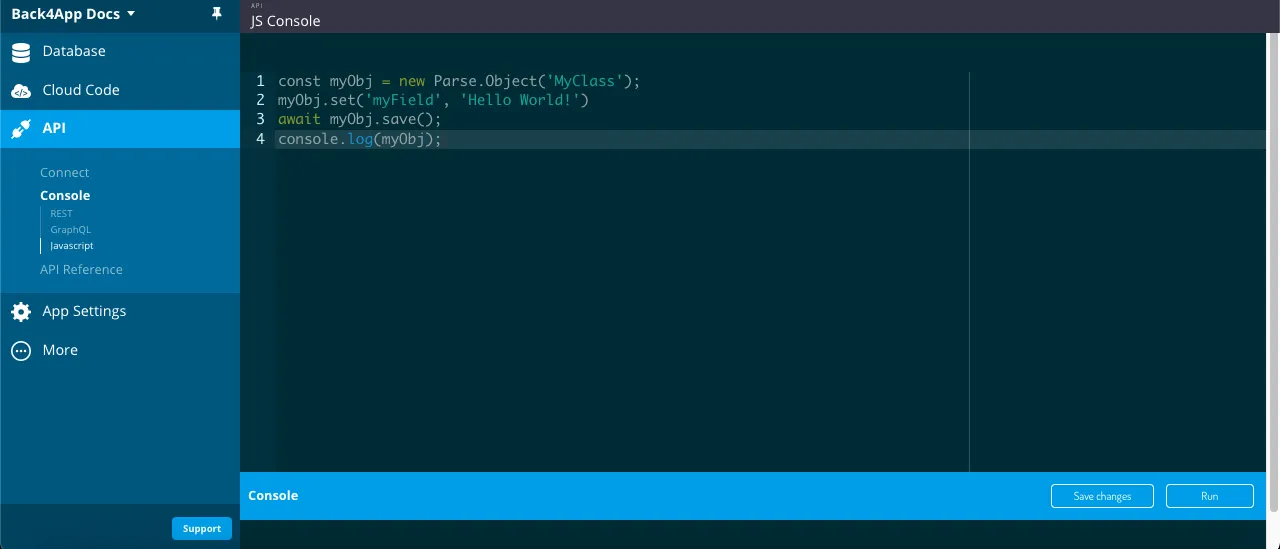
Inside your Back4App application’s dashboard, you will find a very useful API console in which you can run JavaScript code directly. In this guide you will use to store data objects in Back4App. On your App main dashboard go to Core->API Console->Javascript.
2 - Save Data on Back4app
To run the queries on this guide you’ll need first to populate your App with some data.
The classes are: Author, Book, Publisher and BookStore. Which Book has a 1:N relation with Publisher and N:N with Author, and BookStore has an N:N relation with Book.
Here is the Parse.Object classes creation code, so go ahead and run it in your API console:
1   // Add objects and create tables
2   // Authors
3   const AuthorA = new Parse.Object('Author');
4   AuthorA.set('name', 'Aaron Writer');
5   await AuthorA.save();
6
7   const AuthorB = new Parse.Object('Author');
8   AuthorB.set('name', 'Beatrice Novelist');
9   await AuthorB.save();
10
11  const AuthorC = new Parse.Object('Author');
12  AuthorC.set('name', 'Casey Columnist');
13  await AuthorC.save();
14
15  const AuthorD = new Parse.Object('Author');
16  AuthorD.set('name', 'Gary Stur');
17  await AuthorD.save();
18
19  const AuthorE = new Parse.Object('Author');
20  AuthorE.set('name', 'Mary Sue');
21  await AuthorE.save();
22
23  // Publishers
24  const PublisherA = new Parse.Object('Publisher');
25  PublisherA.set('name', 'Acacia Publishings');
26  await PublisherA.save();
27
28  const PublisherB = new Parse.Object('Publisher');
29  PublisherB.set('name', 'Birch Distributions');
30  await PublisherB.save();
31
32  const PublisherC = new Parse.Object('Publisher');
33  PublisherC.set('name', 'Acacia Distributions');
34  await PublisherC.save();
35
36
37  // Books
38  const BookA = new Parse.Object('Book');
39  BookA.set('title', 'A Love Story');
40  BookA.set('publisher', PublisherA);
41  BookA.set('publishingDate', new Date('05/07/1998'));
42  const BookARelation = BookA.relation("authors");
43  BookARelation.add(AuthorA);
44  await BookA.save();
45
46  const BookB = new Parse.Object('Book');
47  BookB.set('title', 'Benevolent Elves');
48  BookB.set('publisher', PublisherB);
49  BookB.set('publishingDate', new Date('11/31/2008'));
50  const BookBRelation = BookB.relation("authors");
51  BookBRelation.add(AuthorB);
52  await BookB.save();
53
54  const BookC = new Parse.Object('Book');
55  BookC.set('title', 'Can You Believe It?');
56  BookC.set('publisher', PublisherB);
57  BookC.set('publishingDate', new Date('08/21/2018'));
58  const BookCRelation = BookC.relation("authors");
59  BookCRelation.add(AuthorA);
60  BookCRelation.add(AuthorC);
61  await BookC.save();
62
63  // BookStore
64  const BookStoreA = new Parse.Object('BookStore');
65  BookStoreA.set('name', 'Books of Love');
66  const BookStoreARelation = BookStoreA.relation("books");
67  BookStoreARelation.add(BookA);
68  await BookStoreA.save();
69
70  const BookStoreB = new Parse.Object('BookStore');
71  BookStoreB.set('name', 'Fantasy Books');
72  const BookStoreBRelation = BookStoreB.relation("books");
73  BookStoreBRelation.add(BookB);
74  await BookStoreB.save();
75
76  const BookStoreC = new Parse.Object('BookStore');
77  BookStoreC.set('name', 'General Books');
78  const BookStoreCRelation = BookStoreC.relation("books");
79  BookStoreCRelation.add(BookA);
80  BookStoreCRelation.add(BookC);
81  await BookStoreC.save();
82
83  console.log('Success');
After running this code, you should now have a Author, Publisher, Book and BookStore class in your database.
Your new class should look like this:

Let’s now take a look at examples from every QueryBuilder method, along with brief explanations on what they do.
3 - Query the data
Now that you have a populated class, we can now perform some relational queries
Now that you have populated all the classes, we can now perform some relational queries in it.
Let’s begin by filtering Book results by the publisher, searching for the ones that belong to the Publisher “Acacia Publishings” (or “Publisher A”) with relational Pointer using the basic .whereEqualTo method:
1       // Get PublisherA object
2       final QueryBuilder<ParseObject> publisherQueryA =
3           QueryBuilder<ParseObject>(ParseObject('Publisher'))
4             ..whereEqualTo('name', 'Acacia Publishings');
5
6       final ParseResponse publisherResponse = await publisherQueryA.query();
7       if (!publisherResponse.success) {
8         return;
9       }
10      final publisherA = publisherResponse.results?.first as ParseObject;
11
12      // Query Books with PublisherA
13      final QueryBuilder<ParseObject> bookQuery =
14          QueryBuilder<ParseObject>(ParseObject('Book'))
15            ..whereEqualTo('publisher', publisherA);
16
17      final ParseResponse bookResponse = await bookQuery.query();
18      if (!bookResponse.success) {
19        return;
20      }
21
22      for (var book in bookResponse.results as List<ParseObject>) {
23        print(book.get('title'));
24      }
Let’s now query which BookStore objects contain Book objects with publishing date greater than 01/01/2010, using an inner query with the whereGreaterThan method and then the whereMatchesQuery method:
1   // Create inner Book query
2       final QueryBuilder<ParseObject> bookQuery =
3           QueryBuilder<ParseObject>(ParseObject('Book'))
4             ..whereGreaterThan('publishingDate', DateTime(2010, 01, 01));
5
6       // Query BookStore using inner Book query
7       final QueryBuilder<ParseObject> bookStoreQuery =
8           QueryBuilder<ParseObject>(ParseObject('BookStore'))
9             ..whereMatchesQuery('books', bookQuery);
10
11      final ParseResponse bookStoreResponse = await bookStoreQuery.query();
12      if (!bookStoreResponse.success) {
13        return;
14      }
15
16      for (var b in bookStoreResponse.results as List<ParseObject>) {
17        print(b.get('name'));
18      }
Let’s now create another query, looking for Authors that are relation with the book Can You Believe It?, using whereRelatedTo:
1       // Get Book object
2       final QueryBuilder<ParseObject> bookQuery =
3           QueryBuilder<ParseObject>(ParseObject('Book'))
4             ..whereEqualTo('title', 'Can You Believe It?');
5
6       final ParseResponse bookResponse = await bookQuery.query();
7       if (!bookResponse.success) {
8         return;
9       }
10
11      final book = bookResponse.results?.first as ParseObject;
12
13      // Get Author with relation with Book Can You Believe It?
14      final QueryBuilder<ParseObject> authorsQuery =
15          QueryBuilder<ParseObject>(ParseObject('Author'))
16            ..whereRelatedTo('authors', 'Book', book.objectId!);
17
18      final ParseResponse authorResponse = await authorsQuery.query();
19
20      // Let's show the results
21      if (authorResponse.success && authorResponse.results != null) {
22        for (var a in authorResponse.results! as List<ParseObject>) {
23          print(a.get('name'));
24        }
25      }
4 - Query from Flutter
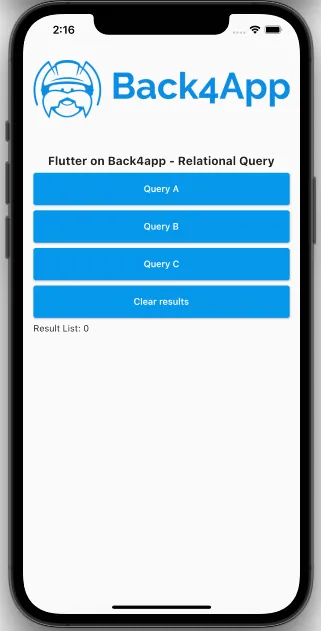
Let’s now use our example queries inside a Flutter App, with a simple interface having a list showing results and also 3 buttons for calling the queries.
Open your Flutter project, go to the main.dart file, clean up all the code, and replace it with:
1   import 'package:flutter/cupertino.dart';
2   import 'package:flutter/material.dart';
3   import 'package:parse_server_sdk_flutter/parse_server_sdk.dart';
4
5   void main() async {
6     WidgetsFlutterBinding.ensureInitialized();
7
8     final keyApplicationId = 'YOUR_APP_ID_HERE';
9     final keyClientKey = 'YOUR_CLIENT_KEY_HERE';
10    final keyParseServerUrl = 'https://parseapi.back4app.com';
11
12    await Parse().initialize(keyApplicationId, keyParseServerUrl,
13        clientKey: keyClientKey, debug: true);
14
15    runApp(MaterialApp(
16      title: 'Flutter - GeoPoint',
17      debugShowCheckedModeBanner: false,
18      home: HomePage(),
19    ));
20  }
21
22  class HomePage extends StatefulWidget {
23    @override
24    _HomePageState createState() => _HomePageState();
25  }
26
27  class _HomePageState extends State<HomePage> {
28    List<ParseObject> results = <ParseObject>[];
29    double selectedDistance = 3000;
30
31    void doQueryPointer() async {
32      // Get PublisherA object
33      final QueryBuilder<ParseObject> publisherQueryA =
34          QueryBuilder<ParseObject>(ParseObject('Publisher'))
35            ..whereEqualTo('name', 'Acacia Publishings');
36
37      final ParseResponse publisherResponse = await publisherQueryA.query();
38      if (!publisherResponse.success) {
39        return;
40      }
41      final publisherA = publisherResponse.results?.first as ParseObject;
42
43      // Query Books with PublisherA
44      final QueryBuilder<ParseObject> bookQuery =
45          QueryBuilder<ParseObject>(ParseObject('Book'))
46            ..whereEqualTo('publisher', publisherA);
47
48      final ParseResponse bookResponse = await bookQuery.query();
49
50      if (!bookResponse.success) {
51        setState(() {
52          results.clear();
53        });
54      } else {
55        setState(() {
56          results = bookResponse.results as List<ParseObject>;
57        });
58      }
59    }
60
61    void doQueryMatches() async {
62      // Create inner Book query
63      final QueryBuilder<ParseObject> bookQuery =
64          QueryBuilder<ParseObject>(ParseObject('Book'))
65            ..whereGreaterThan('publishingDate', DateTime(2010, 01, 01));
66
67      // Query BookStore using inner Book query
68      final QueryBuilder<ParseObject> bookStoreQuery =
69          QueryBuilder<ParseObject>(ParseObject('BookStore'))
70            ..whereMatchesQuery('books', bookQuery);
71
72      final ParseResponse bookStoreResponse = await bookStoreQuery.query();
73      if (!bookStoreResponse.success) {
74        setState(() {
75          results.clear();
76        });
77      } else {
78        setState(() {
79          results = bookStoreResponse.results as List<ParseObject>;
80        });
81      }
82    }
83
84    void doQueryRelatedTo() async {
85      // Get Book object
86      final QueryBuilder<ParseObject> bookQuery =
87          QueryBuilder<ParseObject>(ParseObject('Book'))
88            ..whereEqualTo('title', 'Can You Believe It?');
89
90      final ParseResponse bookResponse = await bookQuery.query();
91      if (!bookResponse.success) {
92        return;
93      }
94
95      final book = bookResponse.results?.first as ParseObject;
96
97      // Get Author with relation with Book Can You Believe It?
98      final QueryBuilder<ParseObject> authorsQuery =
99          QueryBuilder<ParseObject>(ParseObject('Author'))
100           ..whereRelatedTo('authors', 'Book', book.objectId!);
101
102     final ParseResponse authorResponse = await authorsQuery.query();
103
104     if (!authorResponse.success) {
105       setState(() {
106         results.clear();
107       });
108     } else {
109       setState(() {
110         results = authorResponse.results as List<ParseObject>;
111       });
112     }
113   }
114
115   void doClearResults() async {
116     setState(() {
117       results.clear();
118     });
119   }
120
121   @override
122   Widget build(BuildContext context) {
123     return Scaffold(
124         body: Padding(
125       padding: const EdgeInsets.all(16.0),
126       child: Column(
127         crossAxisAlignment: CrossAxisAlignment.stretch,
128         children: [
129           Container(
130             height: 200,
131             child: Image.network(
132                 'https://blog.back4app.com/wp-content/uploads/2017/11/logo-b4a-1-768x175-1.png'),
133           ),
134           Center(
135             child: const Text('Flutter on Back4app - GeoPoint',
136                 style: TextStyle(fontSize: 18, fontWeight: FontWeight.bold)),
137           ),
138           SizedBox(
139             height: 8,
140           ),
141           Container(
142             height: 50,
143            child: ElevatedButton(
144                 onPressed: doQueryPointer,
145                 child: Text('Query A'),
146                 style: ElevatedButton.styleFrom(primary: Colors.blue)),
147           ),
148           SizedBox(
149             height: 8,
150           ),
151           Container(
152             height: 50,
153             child: ElevatedButton(
154                 onPressed: doQueryMatches,
155                 child: Text('Query B'),
156                 style: ElevatedButton.styleFrom(primary: Colors.blue)),
157           ),
158           SizedBox(
159             height: 8,
160           ),
161           Container(
162             height: 50,
163             child: ElevatedButton(
164                 onPressed: doQueryRelatedTo,
165                 child: Text('Query C'),
166                 style: ElevatedButton.styleFrom(primary: Colors.blue)),
167           ),
168           SizedBox(
169             height: 8,
170           ),
171           Container(
172             height: 50,
173             child: ElevatedButton(
174                 onPressed: doClearResults,
175                 child: Text('Clear results'),
176                 style: ElevatedButton.styleFrom(primary: Colors.blue)),
177           ),
178           SizedBox(
179             height: 8,
180           ),
181           Text(
182             'Result List: ${results.length}',
183           ),
184           Expanded(
185             child: ListView.builder(
186                 itemCount: results.length,
187                 itemBuilder: (context, index) {
188                   final o = results[index];
189                   return Container(
190                     padding: const EdgeInsets.all(4),
191                     decoration:
192                         BoxDecoration(border: Border.all(color: Colors.black)),
193                     child: Text('${o.toString()}'),
194                   );
195                 }),
196           )
197         ],
198       ),
199     ));
200   }
201 }
Find your Application Id and Client Key credentials navigating to your app Dashboard at Back4App Website.
Update your code in main.dart with the values of your project’s ApplicationId and ClientKey in Back4app.
- keyApplicationId = App Id
- keyClientKey = Client Key
Run the project, and the app will load as shown in the image.
Conclusion
At the end of this guide, you learned how relational queries work on Parse and how to perform them on Back4App from a Flutter App. In the next guide, you will learn how to work with Users in Parse.