Email verification
How to implement user registration with email verification
Introduction
In this guide, you will learn how to set up a user email verification process to a user registration feature (Sign Up). You will create an app that includes user registration with email verification using Parse Server core features through Back4App.
This tutorial uses a basic app created in Android Studio 4.1.1 with buildToolsVersion=30.0.3 , Compile SDK Version = 30 and targetSdkVersion 30
At any time, you can access the complete Project via our GitHub repositories.
Goal
Setup a user verification email process on Back4App on a user sign up feature.
Prerequisites
To complete this tutorial, you need:
1 - Import Library
In this step we will import the libraries which we are gonna use in our project:
- Add the following Parse Classes to our Activities.
2. You need to add Java 1.8 to our Project via build.gradle(Module:App) because you will use lambda functions frequently in this Project.
1   compileOptions {
2       sourceCompatibility JavaVersion.VERSION_1_8
3       targetCompatibility JavaVersion.VERSION_1_8
4   }
2 - Enable Email Verification
Let’s now enable the email verification on Back4App Dashboard. The email verification page has two properties: Verify User Emails and Prevent login if the email is not verified. If you enable only the Verify User Emails option, the user will receive the verification email but will be able to log in and use the application normally. If you also enable the “Prevent login if email is not verified” option, the user will only log in after concluding the email verification process.
1. Go to your App at Back4App Website and click on Server Settings.
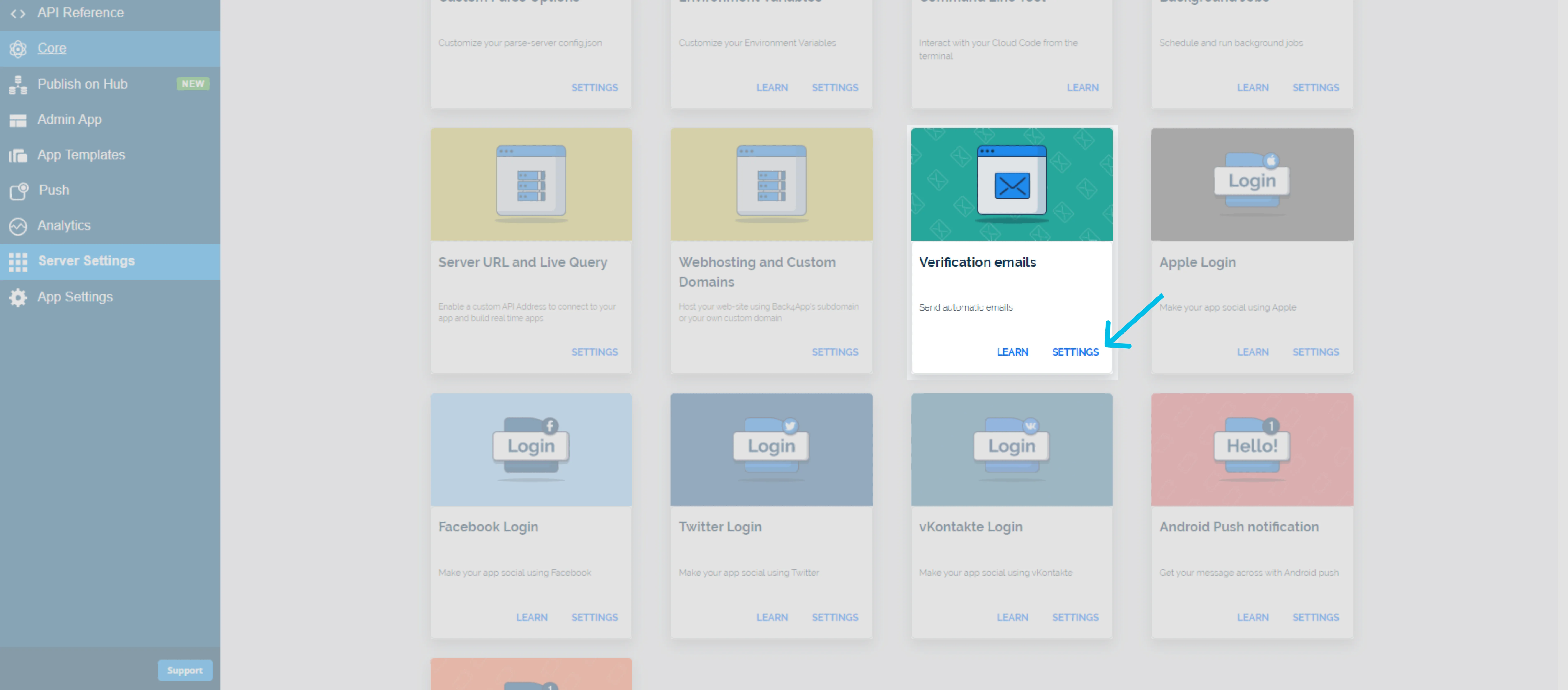
2. Find the “Verification emails” card and click on Settings.
3. Click on Verify User Email and Prevent login if the email is not verified.
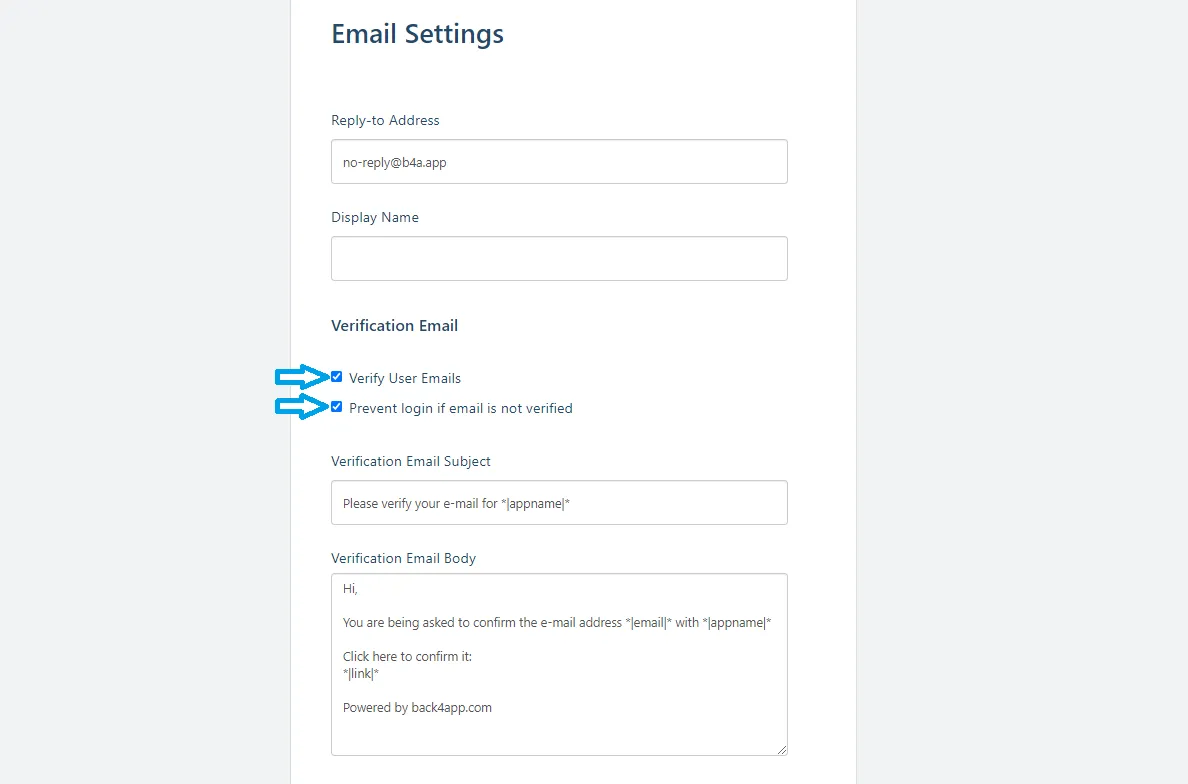
4. Optional: Fill the empty fields and modify the ones that have already been filled based on your preferences.
5. Click on the SAVE button.
3 - Sign Up
The two fundamental attributes of ParseUser class are username and password. There’s a third special attribute that you should also set, i.e. the email. To implement Sign Up with Email Verification, you will use the same method you used to implement the user registration. But this time, instead of redirecting the user to a logged screen, you will ask the user to verify their email to log in. After completing the SignUp process, the user will be saved on the database. The user data will be available on Parse Dashboard with the mailVerified Boolean attribute set to false. The verification email process consists of verifying the User’s email and setting this attribute to true so the user can entirely access all your app resources. Your Sign Up screen will look like this:
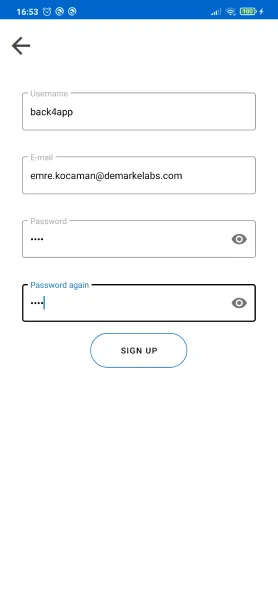
Create a SignUpActivity work following these steps: 1. Import into your SignUpActivity, in addition to the dependencies imported in Step 1:
2. Implement the user registration using the following code:
1   private fun signUp(username: String, password: String, email: String) {
2        progressDialog?.show()
3        val user = ParseUser()
4        user.username = username
5        user.setPassword(password)
6        user.email = email
7        user.signUpInBackground(SignUpCallback {
8            progressDialog?.dismiss()
9            if (it == null) {
10               ParseUser.logOut();
11               showAlert("Account Created Successfully!","Please verify your email before Login", false)
12           } else {
13              ParseUser.logOut();
14              showAlert("Error Account Creation failed","Account could not be created" + " :" + it.message,true)
15           }
16       })
17   }
In the example project, this code is available inside a SIGN UP button callback. Also, username, password and email are caught using Edit Texts.
You may add your own code to verify if the email address is valid before setting it in the front end. Finally, you may add your own code to provide feedback.
After conclude the sign up we will see the following message… :
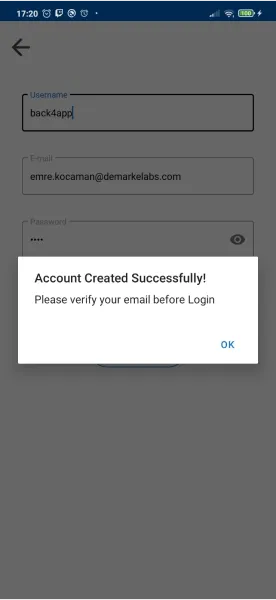
3. It’s interesting to add an additional method to display Alert Dialogs and make the process look more professional. Here’s how you can do this:
1    private fun showAlert(title: String, message: String, error: Boolean) {
2         val builder = AlertDialog.Builder(this)
3             .setTitle(title)
4             .setMessage(message)
5             .setPositiveButton("OK") { dialog, which ->
6                 dialog.cancel()
7                 // don't forget to change the line below with the names of your Activities
8                 if (!error) {
9                     val intent = Intent(this@SignUpActivity, LoginActivity::class.java)
10                    intent.addFlags(Intent.FLAG_ACTIVITY_CLEAR_TASK or Intent.FLAG_ACTIVITY_NEW_TASK)
11                    startActivity(intent)
12                }
13            }
14        val ok = builder.create()
15        ok.show()
16    }
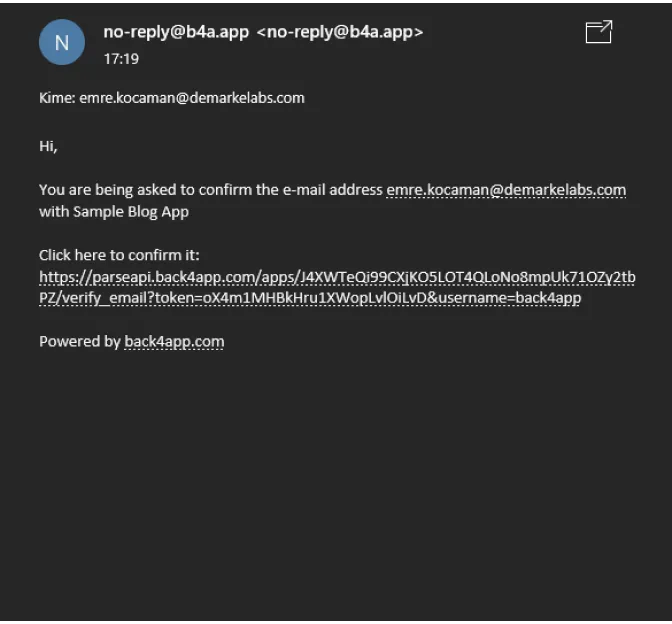
After SignUp we will receieve an email like this:
After verify the email the property will be set to true:
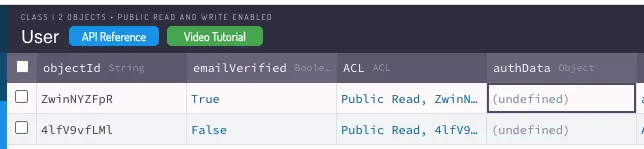
After verify the email the property will be set to true:

4 - Log in
To implement Log In with Email Verification, you will use the same method which you used to implement the basic user registration. But this time, Parse will check the emailVerified boolean before granting further access to the user.
Note: the user actually logs in when the function ParseUser.logInInBackground() is called. But he can’t access the app entirely until the email verification is done, because of a Session object which is created in the database. So it’s important to use ParseUser.logout() every time the user who hasn’t verified his email tries to access the application unsuccessfully, in order to not leave Sessions opened.
If you have enabled the ‘Prevent login if email is not verified’ option in Step 2, you will get the following error if you try to login without verifying your email.
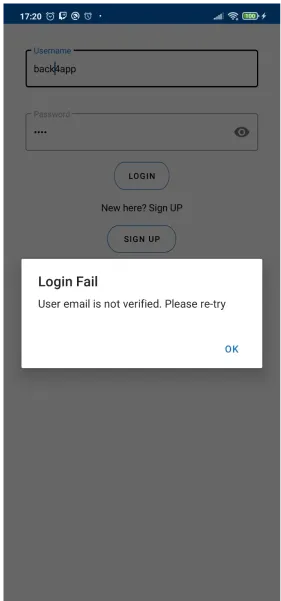
To make LoginActivity work, follow these steps: 1. Import into your LoginActivity, in addition to the dependencies imported in Step 1:
2. To implement user login function, simply use the following code:
1   private fun login(username: String, password: String) {
2        progressDialog?.show()
3        ParseUser.logInInBackground(username,password) { parseUser: ParseUser?, e: ParseException? ->
4            progressDialog?.dismiss()
5            if (parseUser != null) {
6                showAlert("Login Successful", "Welcome, $username!", false)
7            } else {
8                ParseUser.logOut()
9                showAlert("Login Fail", e?.message + " Please try again", true)
10           }
11       }
12   }
In the example project, this code is placed available a LOG IN button callback. Also, username and password are caught using Edit Texts.
The method alertDisplayer is the same that you added in the SignUpActivity, don’t forget to change its Intent arguments though.
5 - Log Out
To implement user Log Out, simply use the code below, in the LogoutActivity:
1   progressDialog!!.show()
2        ParseUser.logOutInBackground { e: ParseException? ->
3            progressDialog!!.dismiss()
4            if (e == null)
5                showAlert("So, you're going...", "Ok...Bye-bye then")
6        }
In the example project, this code is available inside a LOG OUT button callback.
The method alertDisplayer is the same as you added in the LoginActivity and SignUpActivity, don’t forget to change its Intent arguments .
6 - Test your app
Run your app, create a couple of users, and try logging in after registering without
1. Run your app, create a couple of users, and try logging in after registering without verifying the email to see if the error is displayed.
2. Login at Back4App Website.
3. Find your app and click on Dashboard > Core > Browser > User to see the users you’ve created!
It’s done!
At this stage, you can Log in, Sign Up or Log out of your app using email verification with Parse Server core features through Back4App!