Cloud Code Functions
How to create and deploy your Parse Cloud Code
Introduction
For complex apps, sometimes you need a bit of logic that isn’t running on the mobile device. Cloud Code makes it possible.
Cloud Code is built on the same JavaScript SDK that powers thousands of apps. The only difference is that this code runs in your Parse Server rather than running on the user’s mobile device. When you update the Cloud Code, it becomes available to all mobile environments instantly and you don’t have to wait until a new release of your application comes up. This lets you change app behavior on the fly and also lets you add new features on your app faster.
This section explains how to create and deploy Cloud Code, followed by how to call a cloud function in Android projects through Back4App.
Even if you’re only familiar with mobile development, we hope you’ll find Cloud Code straightforward and easy to use.
You can find more in-depth information in Parse Official Cloud Code Documentation.
To complete this tutorial, we need:
- An app created on Back4App.
- An android app connected to Back4App.
- Note: Follow the Install Parse SDK tutorial to create an Android Studio Project connected to Back4App.
1 - Create a Cloud Code File
Create a new file and name it main.js and add the following Parse.Cloud.define function, which has its name and a callback as arguments.
You can pass parameters to your Cloud function from your Android App and access then within the request.params object.
//main.js
1   Parse.Cloud.define("test", (request) => {
2       var text = "hello world";
3       var jsonObject = {
4           "answer": text
5       };
6       return jsonObject
7   });
2 - Upload to Cloud Code
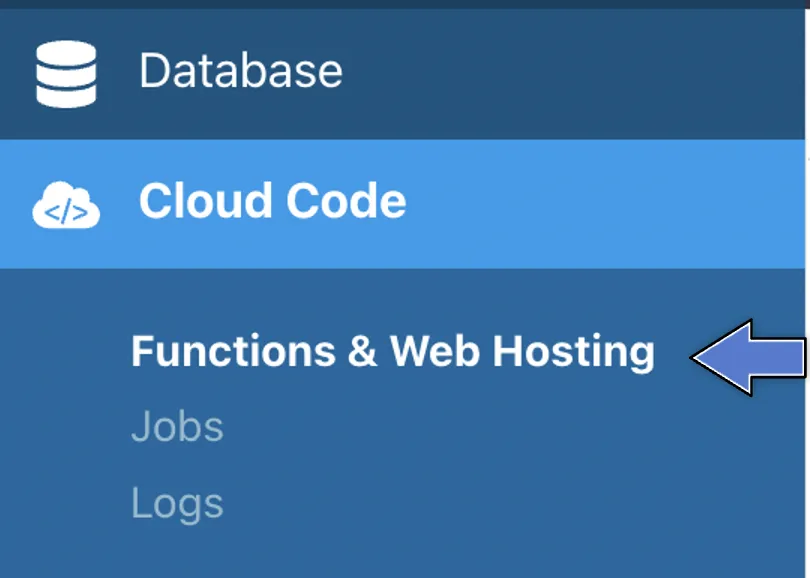
- Find the Cloud Code and click on Functions & Web Hosting. It looks like this:
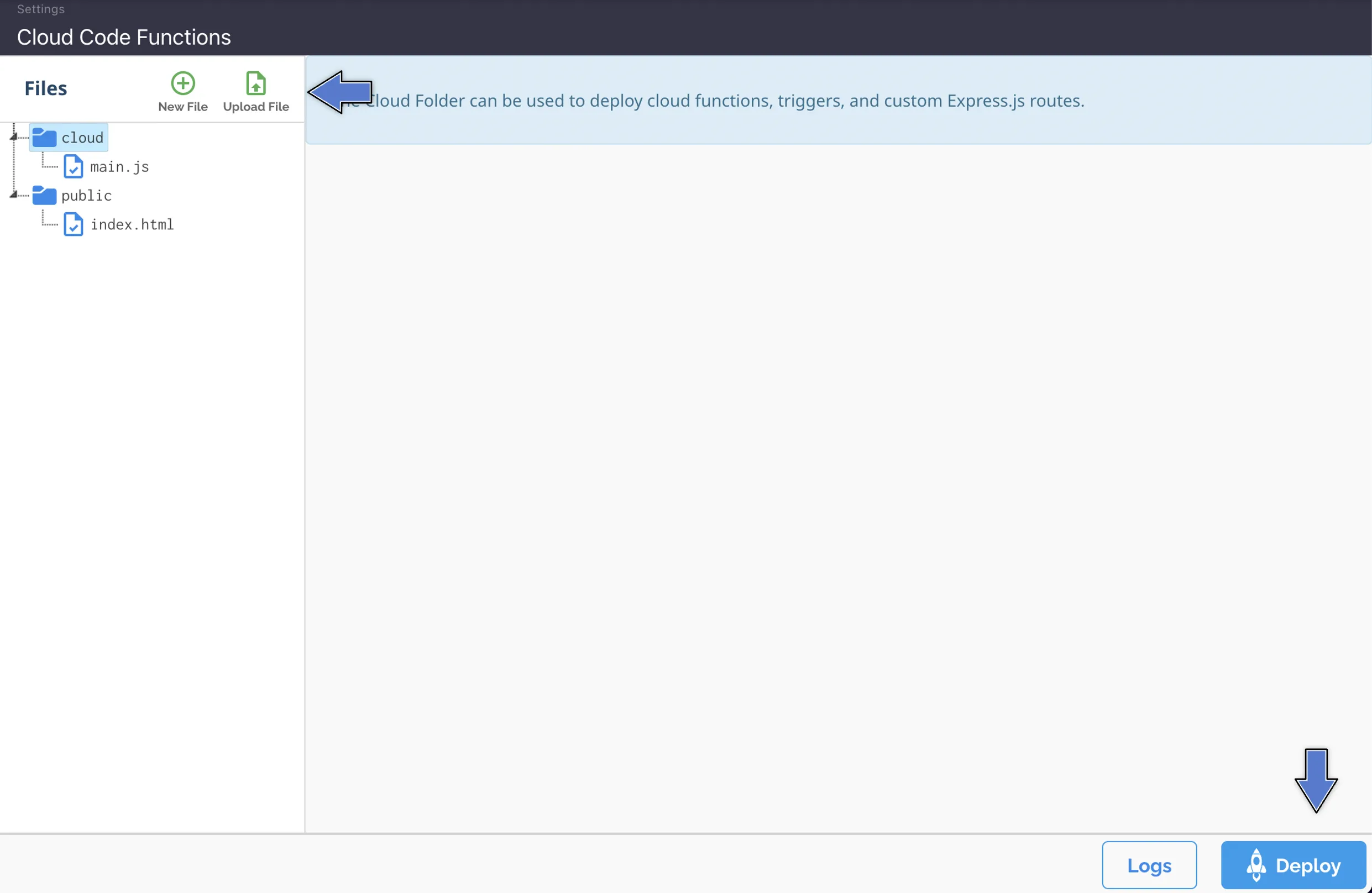
3. Upload or create a new file (you can also edit the current main.js file directly on the browser). Then, click at Deploy as shown here:
3 - Add Android Code
Import the following dependecies:
To call your Cloud Code function, you need to call a special android function: ParseCloud.callFunctionInBackground. Its first parameter is the function name on Cloud Code and the second one is the HashMap that has every parameter that will be passed to the function. The third argument is the callback that will be executed after the function has been called.
The following code calls the function:
1   // Use this map to send parameters to your Cloud Code function
2   // Just push the parameters you want into it
3   Map<String, String> parameters = new HashMap<String, String>();
4
5   // This calls the function in the Cloud Code
6   ParseCloud.callFunctionInBackground("test", parameters, new FunctionCallback<Map<String, Object>>() {
7       @Override
8       public void done(Map<String, Object> mapObject, ParseException e) {
9           if (e == null) {
10              // Everything is alright
11              Toast.makeText(MainActivity.this, "Answer = " + mapObject.get("answer").toString(), Toast.LENGTH_LONG).show();
12          }
13          else {
14              // Something went wrong
15          }
16      }
17  });
In this function, the mapObject has a key called answer, which contains the value hello world, which will be printed on the screen by the Toast class when the code is executed.
It’s done!
At this stage, you are able to code and call your own Cloud Code in your Android App using Parse Server Core features through Back4App!