SignIn with Google
React Google Login
Introduction
In the last tutorial, you built a User login/logout feature to your App using the Parse.User class. Now you will learn how to use Google Sign-in to retrieve user data from Google and log in, sign up or link existent users with it. You will also install and configure react-google-login lib to achieve that.
The Parse.User.linkWith method is responsible for signing up and logging in users using any third-party authentication method, as long as you pass the right parameters requested by each different provider. After linking the user data to a new or existent Parse.User, Parse will store a valid user session on your device. Future calls to methods like current will successfully retrieve your User data, just like with regular logins.
Prerequisites
To complete this tutorial, you will need:
- Complete the previous guide so you can have a better understanding of the Parse.User class and the Parse.User.logIn method
- If you want to test/use the screen layout provided by this guide, you should set up the Ant Design library.
Goal
To build a User LogIn feature using Google Sign-in on Parse for a React App.
1 - Installing dependencies
The most popular way to enable Google Sign-in on React is using react-google-login to handle it. Set it up following the official docs.
Make sure to create an OAuth clientId in your Google Credentials page, adding your local development address to the authorized URLs, which generally is http://localhost:3000.
2 - Usign Google Sign-in with Parse
Let’s now create a new method inside the UserLogIn component that will handle the response when calling a Google Sign-in authentication modal. If the user signs in with Google, this call will retrieve the user data from Google and you need to store the id, idToken, and Google email. Then, the function will try to log in on Parse using the Parse.User.linkWith method and these credentials. Note that if your user had already signed up using this Google authentication, linkWith will log him in using the existent account.
1	const handleGoogleLoginLoginResponse = async function(response: any): Promise<boolean> {
2	  // Check if response has an error
3	  if (response.error !== undefined) {
4	    console.log(`Error: ${response.error}`);
5	    return false;
6	  } else {
7	    try {
8	      // Gather Google user info
9	      const userGoogleId: string = response.googleId;
10	      const userTokenId: string = response.tokenId;
11	      const userEmail: string = response.profileObj.email;
12	      // Try to login on Parse using linkWith and these credentials
13	      // Create a new Parse.User object
14	      const userToLogin: Parse.User = new Parse.User();
15	      // Set username and email to match google email
16	      userToLogin.set('username', userEmail);
17	      userToLogin.set('email', userEmail);
18	      try {
19	        let loggedInUser: Parse.User = await userToLogin
20	        .linkWith('google', {
21	          authData: {id: userGoogleId, id_token: userTokenId},
22	        });
23	        // logIn returns the corresponding ParseUser object
24	        alert(
25	          `Success! User ${loggedInUser.get('username')} has successfully signed in!`,
26	        );
27	        // Update state variable holding current user
28	        getCurrentUser();
29	        return true;
30	      } catch (error: any) {
31	        // Error can be caused by wrong parameters or lack of Internet connection
32	        alert(`Error! ${error.message}`);
33	        return false;
34	      }
35	    } catch (error: any) {
36	      console.log("Error gathering Google user info, please try again!")
37	      return false;
38	    }
39	  }
40	}
After that, you need to use the react-google-login GoogleLogin component to call the Google SignIn modal, adding it to your JSX code. You can use Google’s default styling or create a custom one, which is the way followed by this guide. Here is the full UserLogin component code, note the react-google-login button and how it is tied to the modal response method created before.
1	import React, { useState, FC, ReactElement } from 'react';
2	import './App.css';
3	import { Button, Divider, Input } from 'antd';
4	import GoogleLogin from 'react-google-login';
5	const Parse = require('parse/dist/parse.min.js');
6
7	export const UserLogin: FC<{}> = (): ReactElement => {
8	  // State variables
9	  const [username, setUsername] = useState('');
10	  const [password, setPassword] = useState('');
11	  const [currentUser, setCurrentUser] = useState<Parse.Object | null>(null);
12
13	  const doUserLogIn = async function (): Promise<boolean> {
14	    // Note that these values come from state variables that we've declared before
15	    const usernameValue: string = username;
16	    const passwordValue: string = password;
17	    try {
18	      const loggedInUser: Parse.User = await Parse.User.logIn(usernameValue, passwordValue);
19	      // logIn returns the corresponding ParseUser object
20	      alert(
21	        `Success! User ${loggedInUser.get('username')} has successfully signed in!`,
22	      );
23	      // To verify that this is in fact the current user, `current` can be used
24	      const currentUser: Parse.User = await Parse.User.current();
25	      console.log(loggedInUser === currentUser);
26	      // Clear input fields
27	      setUsername('');
28	      setPassword('');
29	      // Update state variable holding current user
30	      getCurrentUser();
31	      return true;
32	    } catch (error: any) {
33	      // Error can be caused by wrong parameters or lack of Internet connection
34	      alert(`Error! ${error.message}`);
35	      return false;
36	    }
37	  };
38
39	  const doUserLogOut = async function (): Promise<boolean> {
40	    try {
41	      await Parse.User.logOut();
42	      // To verify that current user is now empty, currentAsync can be used
43	      const currentUser: Parse.User = await Parse.User.current();
44	      if (currentUser === null) {
45	        alert('Success! No user is logged in anymore!');
46	      }
47	      // Update state variable holding current user
48	      getCurrentUser();
49	      return true;
50	    } catch (error: any) {
51	      alert(`Error! ${error.message}`);
52	      return false;
53	    }
54	  };
55
56	  // Function that will return current user and also update current username
57	  const getCurrentUser = async function (): Promise<Parse.User | null> {
58	    const currentUser: (Parse.User | null) = await Parse.User.current();
59	    // Update state variable holding current user
60	    setCurrentUser(currentUser);
61	    return currentUser;
62	  }
63
64	  const handleGoogleLoginLoginResponse = async function(response: any): Promise<boolean> {
65	    // Check if response has an error
66	    if (response.error !== undefined) {
67	      console.log(`Error: ${response.error}`);
68	      return false;
69	    } else {
70	      try {
71	        // Gather Google user info
72	        const userGoogleId: string = response.googleId;
73	        const userTokenId: string = response.tokenId;
74	        const userEmail: string = response.profileObj.email;
75	        // Try to login on Parse using linkWith and these credentials
76	        // Create a new Parse.User object
77	        const userToLogin: Parse.User = new Parse.User();
78	        // Set username and email to match google email
79	        userToLogin.set('username', userEmail);
80	        userToLogin.set('email', userEmail);
81	        try {
82	          let loggedInUser: Parse.User = await userToLogin
83	          .linkWith('google', {
84	            authData: {id: userGoogleId, id_token: userTokenId},
85	          });
86	          // logIn returns the corresponding ParseUser object
87	          alert(
88	            `Success! User ${loggedInUser.get('username')} has successfully signed in!`,
89	          );
90	          // Update state variable holding current user
91	          getCurrentUser();
92	          return true;
93	        } catch (error: any) {
94	          // Error can be caused by wrong parameters or lack of Internet connection
95	          alert(`Error! ${error.message}`);
96	          return false;
97	        }
98	      } catch (error: any) {
99	        console.log("Error gathering Google user info, please try again!")
100	        return false;
101	      }
102	    }
103	  }
104
105	  return (
106	    <div>
107	      <div className="header">
108	        <img
109	          className="header_logo"
110	          alt="Back4App Logo"
111	          src={
112	            'https://blog.back4app.com/wp-content/uploads/2019/05/back4app-white-logo-500px.png'
113	          }
114	        />
115	        <p className="header_text_bold">{'React on Back4App'}</p>
116	        <p className="header_text">{'User Login'}</p>
117	      </div>
118	      {currentUser === null && (
119	        <div className="container">
120	          <h2 className="heading">{'User Login'}</h2>
121	          <Divider />
122	          <div className="form_wrapper">
123	            <Input
124	              value={username}
125	              onChange={(event) => setUsername(event.target.value)}
126	              placeholder="Username"
127	              size="large"
128	              className="form_input"
129	            />
130	            <Input
131	              value={password}
132	              onChange={(event) => setPassword(event.target.value)}
133	              placeholder="Password"
134	              size="large"
135	              type="password"
136	              className="form_input"
137	            />
138	          </div>
139	          <div className="form_buttons">
140	            <Button
141	              onClick={() => doUserLogIn()}
142	              type="primary"
143	              className="form_button"
144	              color={'#208AEC'}
145	              size="large"
146	              block
147	            >
148	              Log In
149	            </Button>
150	          </div>
151	          <Divider />
152	          <div className="login-social">
153	            <div className="login-social-item login-social-item--facebook">
154	              <img className="login-social-item__image" src={'https://findicons.com/files/icons/2830/clean_social_icons/250/facebook.png'} alt=""/>
155	            </div>
156	            <GoogleLogin
157	              clientId="108490793456-0flm4qh8ek4cb4krt7e06980o4sjvado.apps.googleusercontent.com"
158	              render={renderProps => (
159	                  <div className="login-social-item">
160	                    <img onClick={renderProps.onClick} className="login-social-item__image" src={'data:image/png;base64,iVBORw0KGgoAAAANSUhEUgAAAN8AAADiCAMAAAD5w+JtAAABWVBMVEX////qQzU0qFNChfT7vAUufPPk7f08gvR0o/Zzofb7uQD7uADpNCP/vQDqPzAspk7pLhrpOysYokLpOyzpNST97OvwgnskpEnsXFH8wgAVoUHpLRj+9/b0paD4xsOIx5fd7+H74uDvenLrU0f61tT1r6vuc2vtZVvxioP5zsvpNjb93p4nefOFrPeqxPnK5dBUs2zt9u++0vtuvYFelfWq1rT2u7j86ejyl5HrSz7/9+X80nT94637xDX8yU//+/D93Jb+785SjvWdu/j+9NzC1fvv9P7a5v1FrmDl8+nD4spru34zqkLoHwD0qKTwhnPwdjf1ly/5sSL82IbuZjjyiDL3pyfsWDjwezb1mi7vazn8zWH+68L7wjDq04OkszlurkrfuiG7tjKGsERSq1DSuSqatEQ4o31Kk9pJnrQ/qmRIjuVJmcRHo5uYzqVKmMtIoqJBqHlesJcm1X3QAAALTUlEQVR4nO2c2X/a2BWAFRniBAttyIiwmNUsM46BEGycZDY7cTC47iztdKbJdJ1u09ad9v9/qCQESKDlbrpX4pfvyS9Y+nzOvefcBXPcB0hRLh+en9cNzg/LrN+FHIeto+Nuo9PMlQzkBeZPYqHRrZz1zpOrWm4ddwuiLAuakhPFB5uIuZyiCbLSbFSODlm/KySGWv6iZIhta3l4KkIp1670khLJVqWjyVoOQM2BIak1J7F3LB81NBkkap6RNALZPo5vrpbP2oKQQ3NbOWpyIZ6KvQa23FKx1DmLWaK2JgoZOVtRkPMt1k5rjguyQk5ugSI3z1h7WRxOZA1xQglGFLQK8zQ975IP3RpN6DKda+r5EsFR54VSYmd4mJcjtrMMhS6TLC1PShFmpstQntA3vBMo2ZloIuW5tHch0LMzkQsU6+FhW46kIgQhynlaSXpMslUBR8kd0bA77FBOzTVyI/oQHtOoCX4oSsQhLLdldnYmpXyUei2RYlHwRmnWI9OrlKhPm9uIpahqYZvZxOJGjiRHzx8wz80lSpN8z30kxCA3l4haj7DeXYm1k5vSMVG9CeOysM0vSAo2YjKzrBFIzjEdjbXOJkT1CrGZOJeQ1Cs3d1yPYT/tjdDYbb0dH3sEo8d14qdHMnqN+BUGktGb7HZZP45dU0Y0er2YtdSEo3e+28nJXcRovWdBVq8Rt8pAVq8St7mFrF6L9Nwi5hRNEwTBvH4mCBrs9R/CeuUH5AafmNPkktbJT+7OjnqtVr3e6h2d3XU7YkkGur8VgR65wacIcjN/3PI8NijXzyYFsNtOhPXOiAw+UZHFbtjVwHKr0iyF3b8grHdIYvApcqECuJN+fhd8f4awHtfBXvKJgjKBOiaoTxTf/VWiTRlHIDtFuYBwRHBU8L5rQjp6Zcy+TJQ7iEfl9bbH2SLp6HFtrOwUS6h2JvX25gkV6ehxPazsFAqYBwOtgit9iOthtdWKRmDT/ExZz6Xk9e4wRh+h4/9yfplC5PXK6BsuOXJn/z0lF40e10VuzIQ2wbsbZfOoOAI99M6F6HEVZx71R6DH5RFrgygSvx3Wi0DvHLE2RHEeHgW/RAsf8RYjIl5kvvwIRa/L+sUBeZl58hW8oDxh/d6AfJZJpZ58fQGrV2H93qB8Y/gZ/BYqhImJHsct9FJQOZqYscdxr2w/mBxV2qzfGpxPUmt+BRZCscn6pcF5feDwe/JrIEEtGWXd4mUm5RT8FkBPjtFX2EJx6RmCB78JC6GQmMpg8OogtUFYjuY6rN8Zhk839QzB7wMFkzT4uBdb4QvLUTke364E5FXGw8/gOz/BZGWnV3oG56iQpOy0Wmsfwa8vvAy1JM2d/ulp4bEoFB+wfmM43gXoeTXcMpVvcpEjKHweDbdYYP3CcHzhVR1cuBeFMulvH0TM58HxS200M0kLn2tp5Cf47TpHhYSNPv/q4GK5KBQvWL8wJOHDz5WjJA7BqPIxWPyMHLUEZeb/9AKSd4B+i4Y7l5wtJRtAO8vwu48StWo38Vwb+Qp+n7DWjOPew/ilUt/gPe0hJdZPDK/uTg7e4/k9P0nT4OTt6okvofwyeHrc4/09GqRPV08E6F4cfJoMv/2nywd+BqWX+TgZfnuXKz+o6eXgdUL89q/tBwJ2Z8v4YepR80svJ5j3UNPLJ4nxe2Y/ELT7XIQPs/pRzM8r+4FQ5SGDWf0o+j2yHxi4t7QJ9vRCz285gfpt7Xr74epR89tL2w+E0UulkuN3co3ghz19Uoyf3WLDlL/MuwT5LQogVPuCXx4o+r1B8Ps8QX6LAg+1esfurin67Z/uuN+igXkN5ffqg98Hvw9+BP12fX7Zdb+dre/LBe7O9menCH5J6q9tP7rbS9T7z51d39rrB7jt+QPss1va6z/w01vLLzH7S6v1O9z+IHYDQ8/P3n+BOv5Lzv7u3on9wMC7g1skZn9+b99+4I6er6z2d3f1fOzx0g9GLznnm+sD3B+gBBNyPr3cXuIgC2BS7hes2hfa90Oon99C3u/J/i4hfsvzd7gVfPb3PKZfeh8ZKMH1IyHsUn/g1T6W39XjR8hA2K3KAwdxwpn9I8/zUhXLD4c0hN/V+mOgE4yRmyYqK703EH6r6xMcaIeWzf7Z0uP1MSO/K4gBuJ4+Ae+XW7m5YMrI7xJcb3X6bgGwhM/+aaWHO8Og8hBm+D13fjJ0AK5y00IaMPE7RZxewgdg9ocfeSdsAvgcZvg9c300OH7O3GQXwGuI8K02X2yCWuxs9q/8JuqMvh9Mejq7F5OAPYps6sctPQP6fjCz53rxt8C/QmT/4mXHoAbCFPfN4effotkti4fgkLIf1Lrj5Hrj096XQM122gdpTlfv7QlMel5uftxzk8nRsmxDeYp5BBM+d/Wz8EhQ39xkkKFvoSZPZ/Nps/X/Ndwti1eG0iyCMLV9vbXrZGMABuamnaH05tBnUOHbrA4W7mOWrZbFU5BamwZj55me7nswoblJeQg+hdyT8vwl60XSZjvti0RnJQhV2n3S09Gj+bQsnoI05phryOh5pie3nGG82umADB1F7wc3dzq+WbWB9f/5AloWb8HId9OewmWn85t/bswmGyI3bdSIBeGWRXvOjetNXmZCWhYGgs9g+k6T1fdytnkBmZs2UY5ByKlzz392MRlJKH68HtlaAl7Pd3YxuVGR/Iw6GE2hh05Oj5WtiypaAHlJiqJVu4KPnk/vsmRYRPPj+SL5ZvsRgp5vcbCp6qiC6pxsjj68RDkITYf81iGyHy/pJFf0p2kkvZDwcdwYXZBXR6RCeP0YZejthYw+iym6nxFCMqNw9jek5AQIH8f1EWvEAp3HT9LaQNX5vyMFEOTXIxb5JeqghmV3My+aL3D7D3jB4Nq3BGOKsZDUAXox7I9U+897+789yBx1n/n5M8bK0IUh2jgcT9V18ug//RNO8CSg83Qxx8tQ01BXqzVIOSN0uuvB0u2/YHLUZ1vCgyFuAK23U6dV8DydVXl1+696+2+IOz3+677tp5EQNBXV0ewm9Gn98byoe6fM7X+BCwVIbViBOYc6FHV1Ohr3fSSHtXF1IKk+ctbnJcBCATq52BDSsx11VR2MquPZrN+v1Wr9fn82vq/Op2rRUAv7S97+DNSpbRxIh9FHXkj4SUqGpuFpYfwULrYSBGlmoLLT5J7MECSBFN7MQGanCX6RIEZ4odgHnztX8PERDCsUJ2/CdbZA3YyJhMBmJr19XAsC8TkGB0n/j1+OIgy+BdiNKFFuf/bJUZTBt6AaL0HvZga4rfZghLlWIotnoQBb9Pkxj5WguerdCCHi3LJiEKMqwZvNjHvVmwZeFPkxjZegUSgcOer8FsCOCDqbGeTK4CJmKbpuZravmSEKxmuS4W9/so7kSenFbhY1FltGM7N/iVzXt4hXHeStVS+x6JnEq5Phze1RknrGejdOzXYUR+KzgF0g6kRxZ+MmPgveCA6LTebxGISSHtW9zHEcBqEe0WUNkxr7HFWjvdE3YpujUuSXopnOo/o0/DgDlyG7aaZI56vNYzYh1Hla99mHI4/DuoiRor5o6qI/pdxx69MaRT3OTFKKhjqD76QPq0VKSSoVq7S/jWdxQ2UYSuSufUFTG0UdQ6k4qrGyMzFiGOE4NGIXfUEPM7zXI6qHulplbmcxHpAfiJLK37P2WlOrSiQVJV2dM/iKfSBb96uQ0YvTMbMpM4jZHHsomheC7musRfyZjXT0MEp6cTCOx5QSQO1+gOBoBI6vzmKZltsMa+PRFOT2lWVmqBWnVYCbePFi2B9XB7x5G0vy9LSubBndwaA6ZvMPgYgwrM3G1dFgKqnForrC+Jm3rtzVEpKRIAyHNzc1i5sdsmLK/wHcjdWqyATPYAAAAABJRU5ErkJggg=='} alt=""/>
161	                  </div>
162	              )}
163	              buttonText="Login"
164	              onSuccess={handleGoogleLoginLoginResponse}
165	              onFailure={handleGoogleLoginLoginResponse}
166	              cookiePolicy={'single_host_origin'}
167	            />
168	            <div className="login-social-item">
169	              <img className="login-social-item__image" src={'data:image/png;base64,iVBORw0KGgoAAAANSUhEUgAAAOEAAADhCAMAAAAJbSJIAAAAV1BMVEWZmZn///+SkpKVlZWRkZH19fWgoKDg4OCampqjo6P8/Py+vr7l5eX29vb5+fnIyMirq6vQ0NDp6enW1ta3t7fU1NS7u7uwsLDKysrv7+/b29vi4uKtra2OjCyUAAAJGUlEQVR4nO2d6ZrqIAyGKdSldrSrVh3v/zpPq6PjjCULxhLnOd9/aV8LAUISTKJSq8OxaEtzFGjKCLQhrboojXXOGLcVaE0dYZ33dOYitxdoUBnhNrvhDYSFQJOaCFd7c4f39whXhfvJ99cIG/ObryesBBpWQjjL7APfn7Kl1RifMfavzIebchzQ2FqgdQWE9cgI/CKcCTQfn/CYevh6SbQfnXAPAJYSD4hNWACALpd4QmTC3GNjLsNQwpRGJiwgQJNKGJq4hBXQRXvNRR4Sk/ATBpQZhjEJD2AX7Yfhh8hjIhLOYUDjZB4TjzD3rWRkO2k8wgU8CHtLKrEoTeIRrhA+YzKhJ8UibJE+amwj9KRIhB9YH5VZdQ+KRIjZURkHxllxCLfIVNhrJfWsOITYIJQbhZEIK5RQZkl6VhRCtIuKOGiuD5Nriix0FLpW8GkxCFFDKmdmkiiEH9gnTD8lHxeBcDfRkvtLEQixLiq1IL0+TrY5gj6RTurWss+bnhDZF0pOFGdNT7gEAVMRD+K9JiecwQ5EsQX3TZMTHiHCFwBOT1gAw/AVgNMTdoCRER+DgyYnzPyE0lb0oskJfZ3UZZvXPHBqwpXHQZPKLtXuNDXhbJTQGdHF9g9pIHSv+4CJBkKXtiLnhD5NTbj5Rejs7vDaJ05uS9Mfny+rXmRBvzU54Rebc9acqhd/vssDJ3jGD+3mvcq2aGpJZwyg2NEmr9d/QprWh89j0xwXn/XsactxWGyLtpzP+53yMju1eXU8PNXm04SHbV4uba/BeFibumWZN6EWpK5Kc27p29wOrbp5uw02Sk8Rbo6tsw+xy/1bWddV3J3CoTpZ612Xu9S0x6Bv+QThsXPeNxqm8mVOX2weijnQ1rVF1wYsX0MJZ4VBzwD7V9pRXmm2n6foadT1byu4zsYwwtkO/cevr2QKZAQdS2Jb1xZ3PMYQwg2V7/JKabb1DqBDjneFR8acMyADCCvWf355p24x0tCqKYm986E9hsuKTVjP2X/6oN7u/ApTC/l8381lZFPNJczxMBGP+nlt11x3gr3tDPt8N6XUfBoe4Tp76rWGDUV2qooOnxpwWaLrikX48fx7mYFTopVBpJ7KIURCeqdXSolJYRCGD8GXiTIY6YRduOV7nSyOSCbsxEaPqHBEKqFSQAIikXCnsYtehJkbGiGc+RFZ6diKkEnY6LOi93Kgz5xCeNANiETgEAhXcPSEAlmoMgGBUK0ZvclBySc4YaPZypwFTxgoIRz/okBuDrtJUMIyNgEiu0MAMEIwwEeB8O0FQrhSbmUcvkVECKEIJg0i+PphQt1mxs0pfgyYEM2/iioSIEw4HvyiRXPaITJIqPsTEp37EKHqUWipB4oQoWZDSo/UhAgVf0JGTgZA2Cj+hIycDIBQ8Yo0ZZzq+wkV7+xZtfj8hIrtDCv/0k+I59DFUsoqmOElxOpyRFTHAfQT7tV2UvJcjxCqtaTcFFof4UZtJ+XMFBChXu/FiQfoJcSqx0QTO3XIR6h3rmAC+gjXWjspPw3aQ4gl60YTP4nWQ6h3NuQC+gi1+i8c5uEmE2o1NI6fhOkh1LpzCqjZOk6odtm9ZAN6CBdaCXnbCoAQLwIURyElzMcJte7vAwyNh1DrZBFSNGOcUOvmMA2oezJOqHU6tAEZfeOEWiNoAiaLcUK8MGUkhZRxGyVcKzU0coRqj9X+E/4nvOkvLbzfjDAk0+69CMVmfL2EAfnO72VpxFbeagnFdk9q1zRiO2C161ITUJx23P7GBvEqYMp/r/1hSOnPcUKgbFxcWTgDiE4IlP6LqwBTM06o9nw0oATvOKHeoyf+DUnjhHqD9vh3JowToiW344ndTccJFQd4sxffnh2X2l7KP8j3EKqdEPl7RN8pd2wOv7gXPb9dpILh3pzgIVR7RGrY6xoPodo98CDLqmrm817FpoDEi7/0EZ5iY0BihUH7CLWec1/E8Qz7CDWbGl5olI9wrXfdNohxSYTXT67WkXERXAuDRIjddxNbZJ+Ul/ConNBR4729hKrn/EHUWfEds4K+hFZTwAj1eqOuoiH6CXXPiGdZSkf1E2ovGDHIlfhOCjg3Vr00/ZKbo/MiQLh9g49IyKEBCBU73O6FXf8BRTcodkfdCykyBBGqdtbcCywUBRGqDcl4kFv6RyMYg/Mm3XSQLX1hGiDh23TTQWk5Xv/9jevTPGjcGw5HimmNaB+V50QDJtR7jjgiTwo0TPgOa9ObPCeLSDyjdl/GnZynNh1CWL+PrfHVv8RiUtXv9K/ynpxihFqz2B7kLbWAEb6NrfFmJqKR0/rdNWdZ74U2KKHiYkr38juI8eh3tTFu97L+MqY4oeLooTv535+QwfAGeygoPoNAqLdUzU0WeH1KFor6WR+MzqAQbrV/RDA2mpRJFJsAERzqRiJU/hFTML6Glg2mNfP5LCRakUaoura+g0OkiBl9is0pFuZGJFR8mIh8QvJdQWq9bmi4KZVQ7xYDe3NyZq3ScifApoJLuNFJiCcn0LOjK43GhhCHycj/VriLcoS6UQxChb5TSjoiJ4dfnQOclJjAIVR3tRUpVJhVh2Ghq5+mpFu6eZUmVE2KxOBEHqGqfuoE7ih5lCJ7Sk165tZDUZOlQE4rYVd80TLvL6n5XWxCJTUz0pfdPJ4knxqGIuEe4HDCZB9/Ce5K+uuGVF6Kf6kl5rl4ljC6taEPwlDCTdyJP2VVHQgijJtuYnn56mGESR0PkbLrFSBMPmLNGY5bNiKUMNbdAo54J6AAYaTNIu1WRxnCpJ6ej3YvpxhhMltyp35nbWrKrmtP2TJNLfvnAYBPESZJyXhHZ+fdfnEXfbb+qDrDobTcS3QECJOcNhiddV0zmqFU7zMqJJYc49GThMnRoe/n7DKHfEazKksJkCE1Ewc9S5isS3DacNbscM/7oVgiX9KWAeXYz3qaMEka4305Z1tqCbnPFmB0vhBnggQIk1U++nLOlg1nel415Tikc0VA7dmrJAj7rpq7X33VpVnFvzFltu3sL8reSOWhHfQsGcJex1P/Lu7yl1vTBeB9qd6fjO05B1k7z1nXOY5IjLDvZfU2b09lVzQB1X5/alYvmmpfHT+C/6dv/QMH/ovCU90cLAAAAABJRU5ErkJggg=='} alt=""/>
170	            </div>
171	          </div>
172	          <p className="form__hint">Don't have an account? <a className="form__link" href="#">Sign up</a></p>
173	        </div>
174	      )}
175	      {currentUser !== null && (
176	        <div className="container">
177	          <h2 className="heading">{'User Screen'}</h2>
178	          <Divider />
179	          <h2 className="heading">{`Hello ${currentUser.get('username')}!`}</h2>
180	          <div className="form_buttons">
181	            <Button
182	              onClick={() => doUserLogOut()}
183	              type="primary"
184	              className="form_button"
185	              color={'#208AEC'}
186	              size="large"
187	              block
188	            >
189	              Log Out
190	            </Button>
191	          </div>
192	        </div>
193	      )}
194	    </div>
195	  );
196	};
Add these classes to your App.css file if you want to fully render this component’s layout.
1	@import '~antd/dist/antd.css';
2
3	.App {
4	  text-align: center;
5	}
6
7	html {
8	  box-sizing: border-box;
9	  outline: none;
10	  overflow: auto;
11	}
12
13	*,
14	*:before,
15	*:after {
16	  margin: 0;
17	  padding: 0;
18	  box-sizing: inherit;
19	}
20
21	h1,
22	h2,
23	h3,
24	h4,
25	h5,
26	h6 {
27	  margin: 0;
28	  font-weight: bold;
29	}
30
31	p {
32	  margin: 0;
33	}
34
35	body {
36	  margin: 0;
37	  background-color: #fff;
38	}
39
40	.container {
41	  width: 100%;
42	  max-width: 900px;
43	  margin: auto;
44	  padding: 20px 0;
45	  text-align: left;
46	}
47
48	.header {
49	  align-items: center;
50	  padding: 25px 0;
51	  background-color: #208AEC;
52	}
53
54	.header_logo {
55	  height: 55px;
56	  margin-bottom: 20px;
57	  object-fit: contain;
58	}
59
60	.header_text_bold {
61	  margin-bottom: 3px;
62	  color: rgba(255, 255, 255, 0.9);
63	  font-size: 16px;
64	  font-weight: bold;
65	}
66
67	.header_text {
68	  color: rgba(255, 255, 255, 0.9);
69	  font-size: 15px;
70	}
71
72	.heading {
73	  font-size: 22px;
74	}
75
76	.flex {
77	  display: flex;
78	}
79
80	.flex_between {
81	  display: flex;
82	  justify-content: space-between;
83	}
84
85	.flex_child {
86	  flex: 0 0 45%;
87	}
88
89	.heading_button {
90	  margin-left: 12px;
91	}
92
93	.list_item {
94	  padding-bottom: 15px;
95	  margin-bottom: 15px;
96	  border-bottom: 1px solid rgba(0, 0, 0, 0.06);
97	  text-align: left;
98	}
99
100	.list_item_title {
101	  color: rgba(0, 0, 0, 0.87);
102	  font-size: 17px;
103	}
104
105	.list_item_description {
106	  color: rgba(0, 0, 0, 0.5);
107	  font-size: 15px;
108	}
109
110	.form_input {
111	  margin-bottom: 20px;
112	}
113
114	.login-social {
115	  display: flex;
116	  justify-content: center;
117	  margin-bottom: 30px;
118	}
119
120	.login-social-item {
121	  width: 54px;
122	  height: 54px;
123	  border-radius: 54px;
124	  padding: 12px;
125	  margin: 0 12px;
126	  border: 1px solid #e6e6e6;
127	  box-shadow: 0 2px 4px #d6d6d6;
128	}
129
130	.login-social-item--facebook {
131	  padding: 4px;
132	  background-color: #3C5B9B;
133	}
134
135	.login-social-item__image {
136	  width: 100%;
137	}
138
139	.form__hint {
140	  color: rgba(0, 0, 0, 0.5);
141	  font-size: 16px;
142	  text-align: center;
143	}
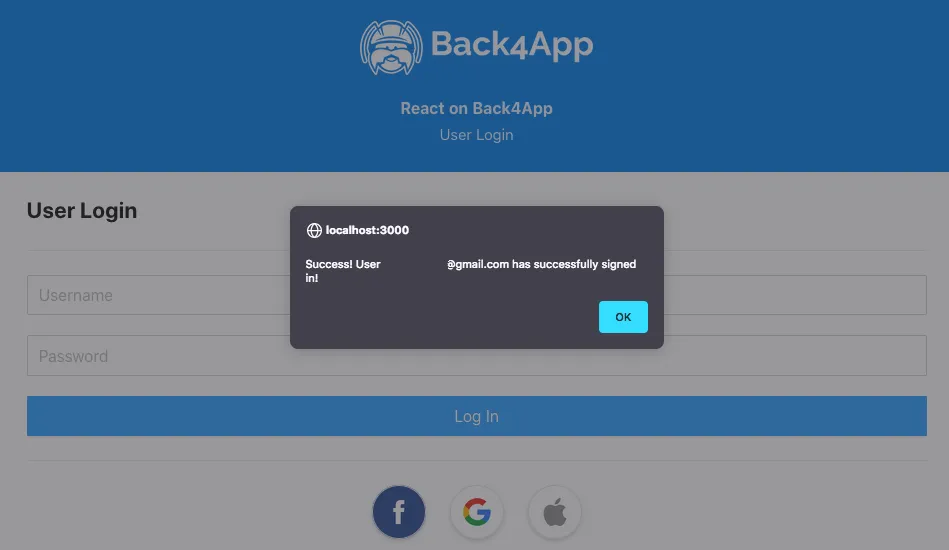
Go ahead and test your new function. If you were able to sign in to Google and the Parse linkWith call was successful, you should see a success message like this.
3 - Verifying user sign in and session creation
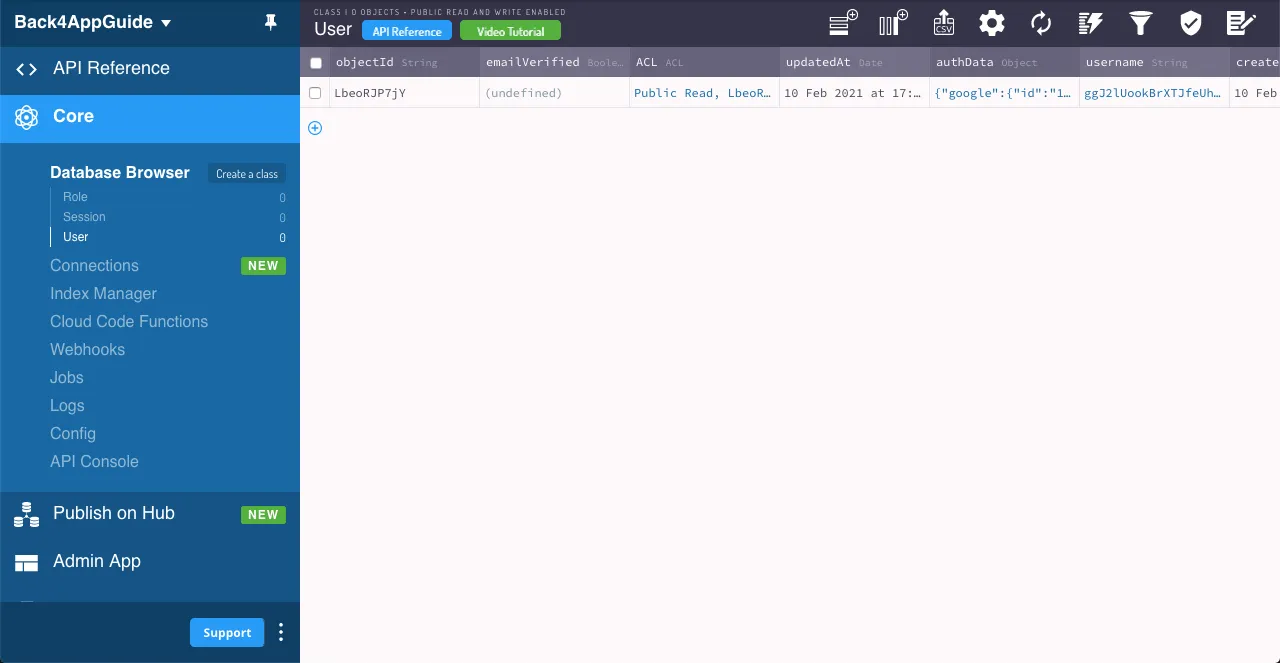
To make sure that the Google sign-in worked, you can look at your Parse dashboard and see your new User (if your Google authentication data didn’t belong to another user), containing the Google authData parameters.
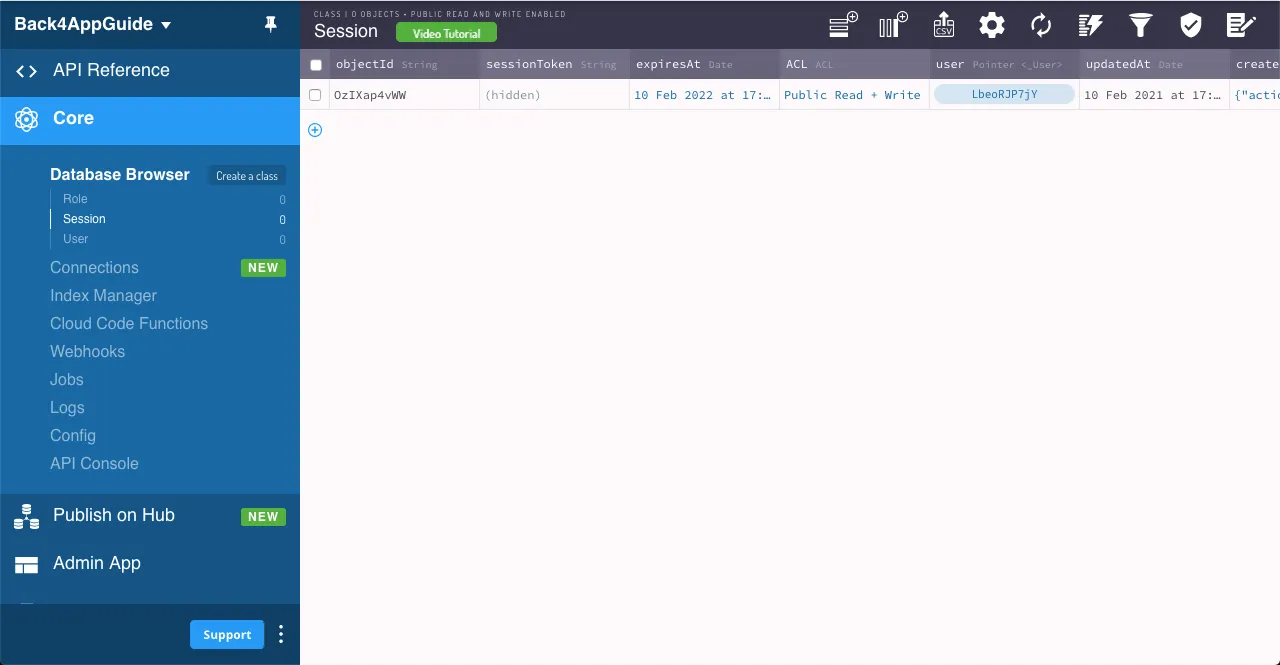
You can also verify that a valid session was created in the dashboard, containing a pointer to that User object.
4 - Linking an existing User to Google Sign-in
Another linkWith possible use is to link an existing user with another auth provider, in this case, Google. Add this function that calls linkWith the same way as logging in to your UserLogIn component. The only difference here is that instead of calling the method from an empty Parse.User, you will use it from the currently logged-in user object.
1	const handleGoogleLoginLinkResponse = async function(response) {
2	  // Check if response has an error
3	  if (response.error !== undefined) {
4	    console.log(`Error: ${response.error}`);
5	    return false;
6	  } else {
7	    try {
8	      // Gather Google user info
9	      const userGoogleId = response.googleId;
10	      const userTokenId = response.tokenId;
11	      // Try to link current Parse user using linkWith and these credentials
12	      // Get current user
13	      const userToLink = await Parse.User.current();
14	      try {
15	        let loggedInUser = await userToLink
16	        .linkWith('google', {
17	          authData: {id: userGoogleId, id_token: userTokenId},
18	        });
19	        // logIn returns the corresponding ParseUser object
20	        alert(
21	          `Success! User ${loggedInUser.get(
22	            'username',
23	          )} has successfully linked his Google account!`,
24	        );
25	        // Update state variable holding current user
26	        getCurrentUser();
27	        return true;
28	      } catch (error) {
29	        // Error can be caused by wrong parameters or lack of Internet connection
30	        alert(`Error! ${error.message}`);
31	        return false;
32	      }
33	    } catch (error) {
34	      console.log("Error gathering Google user info, please try again!")
35	      return false;
36	    }
37	  }
38	}
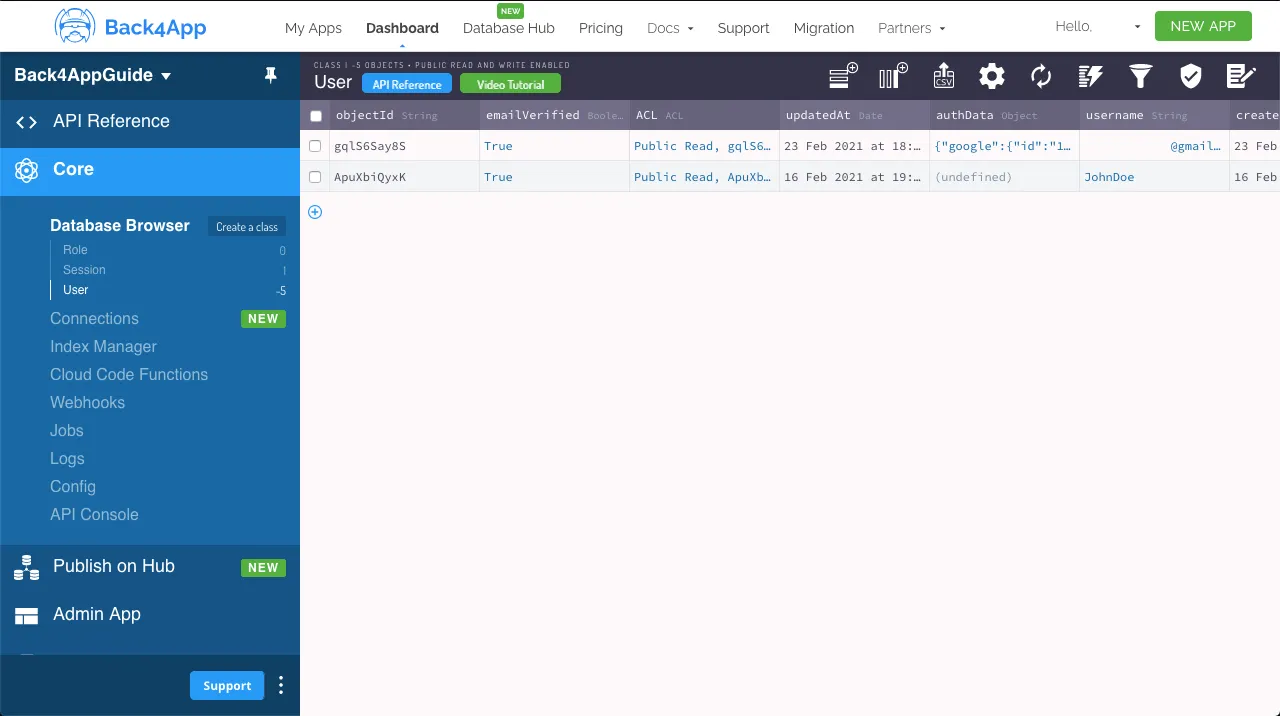
Assign this function to another react-google-login component in your home screen, which is shown only when there is a current user logged in in your app. Test your new function, noting that the Parse.User object authData value will be updated with the new auth provider data. Verify if the user has indeed updated in your Parse server dashboard.
Conclusion
At the end of this guide, you learned how to log in, sign up or link existing Parse users on React using Google Sign-in with react-google-login. In the next guide, we will show you how to use Apple sign-in.