Basic Queries
Query in React using Parse
Introduction
In this guide, you will perform basic queries in Parse and implement a React component using these queries. You will learn how to set up and query realistic data using Back4App and React.
Prerequisites
To complete this tutorial, you will need:
Goal
Query data stored on Back4App from a React application.
1 - Understanding the Parse.Query class
Any Parse query operation uses the Parse.Query object type, which will help you retrieve specific data from your database throughout your app. It is crucial to know that a Parse.Query will only resolve after calling a retrieve method (like Parse.Query.find or Parse.Query.get), so a query can be set up and several modifiers can be chained before actually being called.
To create a new Parse.Query, you need to pass as a parameter the desired Parse.Object subclass, which is the one that will contain your query results. An example query can be seen below, in which a fictional Profile subclass is being queried.
1   // This will create your query
2   let parseQuery = new Parse.Query("Profile");
3   // The query will resolve only after calling this method
4   let queryResult = await parseQuery.find();
You can read more about the Parse.Query class here at the official documentation.
2 - Save some data on Back4App
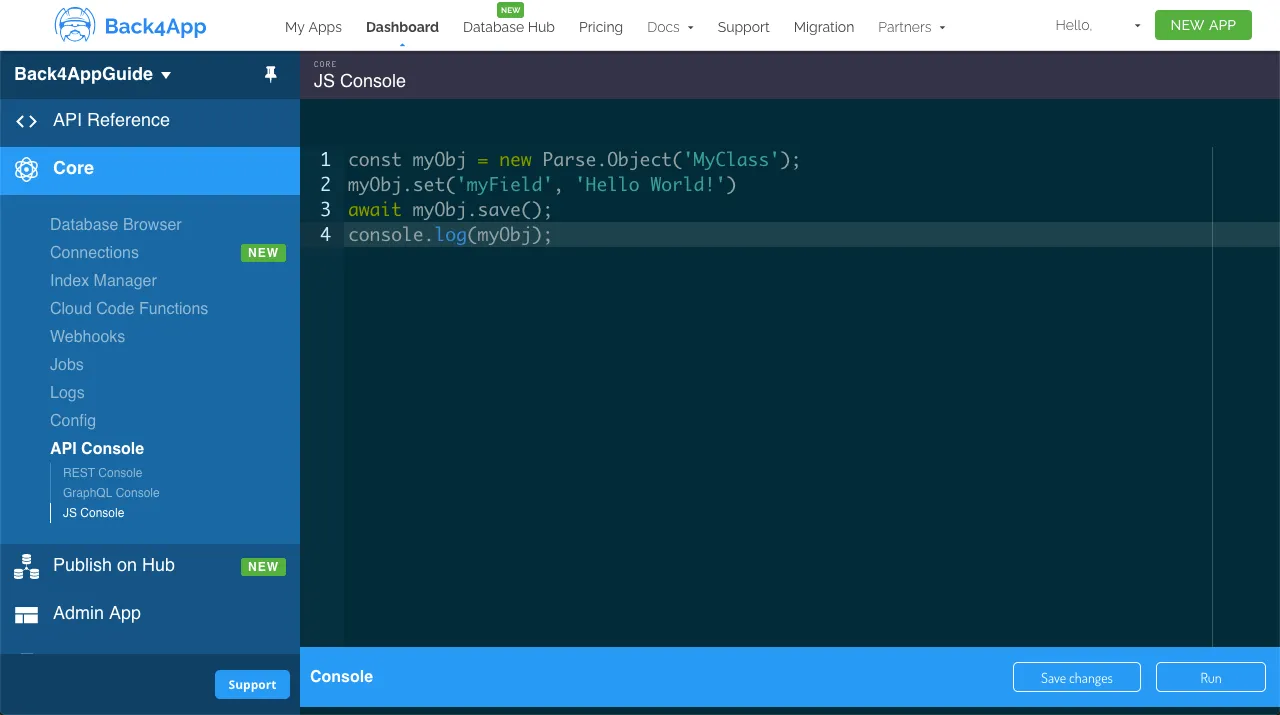
Let’s create a Profile class, which will be the target of our queries in this guide. On Parse JS Console is possible to run JavaScript code directly, querying and updating your application database contents using the JS SDK commands. Run the code below from your JS Console and insert the data on Back4App.
Here is how the JS Console looks like in your dashboard:
Go ahead and create the user Profile class with the following example content:
1   // Add Profile objects and create table
2   // Adam Sandler
3   let Profile = new Parse.Object('Profile');
4   Profile.set('name', 'Adam Sandler');
5   Profile.set('birthDay', new Date('09/09/1966'));
6   Profile.set('friendCount', 2);
7   Profile.set('favoriteFoods', ['Lobster', 'Bread']);
8   await Profile.save();
9
10  // Adam Levine
11  Profile = new Parse.Object('Profile');
12  Profile.set('name', 'Adam Levine');
13  Profile.set('birthDay', new Date('03/18/1979'));
14  Profile.set('friendCount', 52);
15  Profile.set('favoriteFoods', ['Cake', 'Bread']);
16  await Profile.save();
17
18  // Carson Kressley
19  Profile = new Parse.Object('Profile');
20  Profile.set('name', 'Carson Kressley');
21  Profile.set('birthDay', new Date('11/11/1969'));
22  Profile.set('friendCount', 12);
23  Profile.set('favoriteFoods', ['Fish', 'Cookies']);
24  await Profile.save();
25
26  // Dan Aykroyd
27  Profile = new Parse.Object('Profile');
28  Profile.set('name', 'Dan Aykroyd');
29  Profile.set('birthDay', new Date('07/01/1952'));
30  Profile.set('friendCount', 66);
31  Profile.set('favoriteFoods', ['Jam', 'Peanut Butter']);
32  await Profile.save();
33
34  // Eddie Murphy
35  Profile = new Parse.Object('Profile');
36  Profile.set('name', 'Eddie Murphy');
37  Profile.set('birthDay', new Date('04/03/1961'));
38  Profile.set('friendCount', 49);
39  Profile.set('favoriteFoods', ['Lettuce', 'Pepper']);
40  await Profile.save();
41
42  // Fergie
43  Profile = new Parse.Object('Profile');
44  Profile.set('name', 'Fergie');
45  Profile.set('birthDay', new Date('03/27/1975'));
46  Profile.set('friendCount', 55);
47  Profile.set('favoriteFoods', ['Lobster', 'Shrimp']);
48  await Profile.save();
49
50  console.log('Success!');
3 - Querying the data
Now that you have a populated class, we can now perform some basic queries in it. Let’s begin by filtering Profile results by name, which is a string type field, searching for values that contain the name Adam using the Parse.Query.contains method:
1   // Create your query
2   let parseQuery = new Parse.Query('Profile');
3
4   // `contains` is a basic query method that checks if string field
5   // contains a specific substring
6   parseQuery.contains('name', 'Adam');
7
8   // The query will resolve only after calling this method, retrieving
9   // an array of `Parse.Objects`
10  let queryResults = await parseQuery.find();
11
12  // Let's show the results
13  for (let result of queryResults) {
14    // You access `Parse.Objects` attributes by using `.get`
15    console.log(result.get('name'));
16  };
Let’s now query by the number type field friendCount by using another common query method, Parse.Query.greaterThan. In this case, we want user Profiles in which the friend count is greater than 20.
1   // Create your query
2   let parseQuery = new Parse.Query('Profile');
3
4   // `greaterThan` is a basic query method that does what it
5   // says on the tin
6   parseQuery.greaterThan('friendCount', 20);
7
8   // The query will resolve only after calling this method, retrieving
9   // an array of `Parse.Objects`
10  let queryResults = await parseQuery.find();
11
12  // Let's show the results
13  for (let result of queryResults) {
14    // You access `Parse.Objects` attributes by using `.get`
15    console.log(`name: ${result.get('name')}, friend count: ${result.get('friendCount')}`);
16  };
Other recurring query methods are Parse.Query.ascending and Parse.Query.descending, responsible for ordering your queries. This ordering can be done in most data types, so let’s order a query by the date field birthDay by the youngest.
1   // Create your query
2   let parseQuery = new Parse.Query('Profile');
3
4   // `descending` and `ascending` can and should be chained
5   // with other query methods to improve your queries
6   parseQuery.descending('birthDay');
7
8   // The query will resolve only after calling this method, retrieving
9   // an array of `Parse.Objects`
10  let queryResults = await parseQuery.find();
11
12  // Let's show the results
13  for (let result of queryResults) {
14    // You access `Parse.Objects` attributes by using `.get`
15    console.log(`name: ${result.get('name')}, birthday: ${result.get('birthDay')}`);
16  };
As stated here before, you can and should chain query methods to achieve more refined results. Let’s then combine the previous examples in a single query request:
1   // Create your query
2   let parseQuery = new Parse.Query('Profile');
3
4   parseQuery.contains('name', 'Adam');
5   parseQuery.greaterThan('friendCount', 20);
6   parseQuery.descending('birthDay');
7
8   // The query will resolve only after calling this method, retrieving
9   // an array of `Parse.Objects`
10  let queryResults = await parseQuery.find();
11
12  // Let's show the results
13  for (let result of queryResults) {
14    // You access `Parse.Objects` attributes by using `.get`
15    console.log(`name: ${result.get('name')}, friend count: ${result.get('friendCount')}, birthday: ${result.get('birthDay')}`);
16  };
4 - Query from a React component
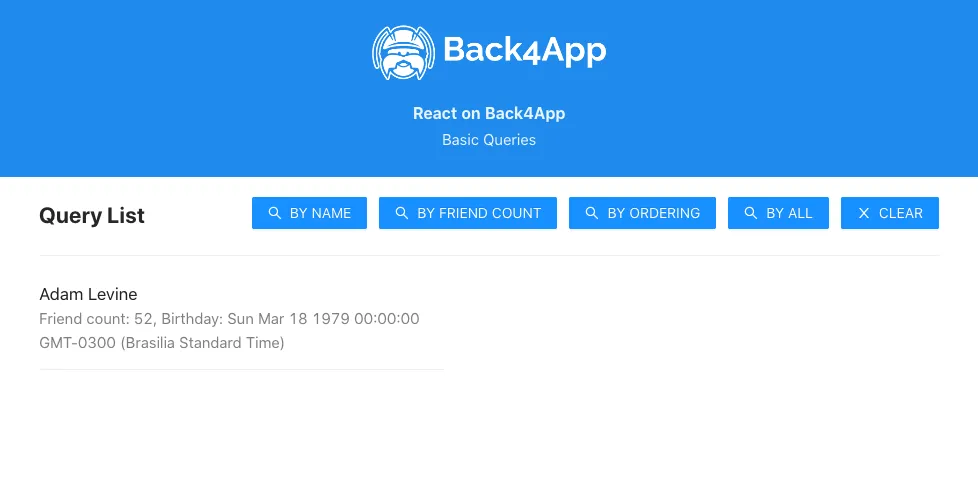
Let’s now use our example queries inside a component in React, with a simple interface having a list showing results and also 4 buttons for calling the queries. This is how the component code is laid out, note the doQuery functions, containing the example code form before.
1	import React, { useState } from 'react';
2	import Parse from 'parse/dist/parse.min.js';
3	import './App.css';
4	import { Button, Divider } from 'antd';
5	import { CloseOutlined, SearchOutlined } from '@ant-design/icons';
6
7	export const QueryBasic = () => {
8	  // State variable
9	  const [queryResults, setQueryResults] = useState();
10
11	  const doQueryByName = async function () {
12	    // Create our Parse.Query instance so methods can be chained
13	    // Reading parse objects is done by using Parse.Query
14	    const parseQuery = new Parse.Query('Profile');
15
16	    // `contains` is a basic query method that checks if string field
17	    // contains a specific substring
18	    parseQuery.contains('name', 'Adam');
19
20	    try {
21	      let profiles = await parseQuery.find();
22	      setQueryResults(profiles);
23	      return true;
24	    } catch (error) {
25	      // Error can be caused by lack of Internet connection
26	      alert(`Error! ${error.message}`);
27	      return false;
28	    }
29	  };
30
31	  const doQueryByFriendCount = async function () {
32	    // Create our Parse.Query instance so methods can be chained
33	    // Reading parse objects is done by using Parse.Query
34	    const parseQuery = new Parse.Query('Profile');
35
36	    // `greaterThan` is a basic query method that does what it
37	    // says on the tin
38	    parseQuery.greaterThan('friendCount', 20);
39
40	    try {
41	      let profiles = await parseQuery.find();
42	      setQueryResults(profiles);
43	      return true;
44	    } catch (error) {
45	      // Error can be caused by lack of Internet connection
46	      alert(`Error! ${error.message}`);
47	      return false;
48	    }
49	  };
50
51	  const doQueryByOrdering = async function () {
52	    // Create our Parse.Query instance so methods can be chained
53	    // Reading parse objects is done by using Parse.Query
54	    const parseQuery = new Parse.Query('Profile');
55
56	    // `descending` and `ascending` can and should be chained
57	    // with other query methods to improve your queries
58	    parseQuery.descending('birthDay');
59
60	    try {
61	      let profiles = await parseQuery.find();
62	      setQueryResults(profiles);
63	      return true;
64	    } catch (error) {
65	      // Error can be caused by lack of Internet connection
66	      alert(`Error! ${error.message}`);
67	      return false;
68	    }
69	  };
70
71	  const doQueryByAll = async function () {
72	    // Create our Parse.Query instance so methods can be chained
73	    // Reading parse objects is done by using Parse.Query
74	    const parseQuery = new Parse.Query('Profile');
75
76	    parseQuery.contains('name', 'Adam');
77	    parseQuery.greaterThan('friendCount', 20);
78	    parseQuery.descending('birthDay');
79
80	    try {
81	      let profiles = await parseQuery.find();
82	      setQueryResults(profiles);
83	      return true;
84	    } catch (error) {
85	      // Error can be caused by lack of Internet connection
86	      alert(`Error! ${error.message}`);
87	      return false;
88	    }
89	  };
90
91	  const clearQueryResults = async function () {
92	    setQueryResults(undefined);
93	    return true;
94	  };
95
96	  return (
97	    <div>
98	      <div className="header">
99	        <img
100	          className="header_logo"
101	          alt="Back4App Logo"
102	          src={
103	            'https://blog.back4app.com/wp-content/uploads/2019/05/back4app-white-logo-500px.png'
104	          }
105	        />
106	        <p className="header_text_bold">{'React on Back4App'}</p>
107	        <p className="header_text">{'Basic Queries'}</p>
108	      </div>
109	      <div className="container">
110	        <div className="flex_between">
111	          <h2 className="heading">{'Query List'}</h2>
112	          <div className="flex">
113	            <Button
114	              onClick={() => doQueryByName()}
115	              type="primary"
116	              className="heading_button"
117	              color={'#208AEC'}
118	              icon={<SearchOutlined />}
119	            >
120	              BY NAME
121	            </Button>
122	            <Button
123	              onClick={() => doQueryByFriendCount()}
124	              type="primary"
125	              className="heading_button"
126	              color={'#208AEC'}
127	              icon={<SearchOutlined />}
128	            >
129	              BY FRIEND COUNT
130	            </Button>
131	            <Button
132	              onClick={() => doQueryByOrdering()}
133	              type="primary"
134	              className="heading_button"
135	              color={'#208AEC'}
136	              icon={<SearchOutlined />}
137	            >
138	              BY ORDERING
139	            </Button>
140	            <Button
141	              onClick={() => doQueryByAll()}
142	              type="primary"
143	              className="heading_button"
144	              color={'#208AEC'}
145	              icon={<SearchOutlined />}
146	            >
147	              BY ALL
148	            </Button>
149	            <Button
150	              onClick={() => clearQueryResults()}
151	              type="primary"
152	              className="heading_button"
153	              color={'#208AEC'}
154	              icon={<CloseOutlined />}
155	            >
156	              CLEAR
157	            </Button>
158	          </div>
159	        </div>
160	        <Divider />
161	        <div className="flex_between">
162	          <div className="flex_child">
163	            {/* Query list */}
164	            {queryResults !== undefined &&
165	              queryResults.map((profile, index) => (
166	                <div className="list_item" key={`${index}`}>
167	                  <p className="list_item_title">{`${profile.get('name')}`}</p>
168	                  <p className="list_item_description">{`Friend count: ${profile.get(
169	                    'friendCount'
170	                  )}, Birthday: ${profile.get('birthDay')}`}</p>
171	                </div>
172	              ))}
173	            {queryResults !== undefined && queryResults.length <= 0 ? (
174	              <p>{'No results here!'}</p>
175	            ) : null}
176	          </div>
177	        </div>
178	      </div>
179	    </div>
180	  );
181	};
Also append these classes to your App.css file to properly render all the interface elements:
1   html {
2     box-sizing: border-box;
3     outline: none;
4     overflow: auto;
5   }
6
7   *,
8   *:before,
9   *:after {
10    margin: 0;
11    padding: 0;
12    box-sizing: inherit;
13  }
14
15  h1,
16  h2,
17  h3,
18  h4,
19  h5,
20  h6 {
21    margin: 0;
22    font-weight: bold;
23  }
24
25  p {
26   margin: 0;
27  }
28
29  body {
30    margin: 0;
31    background-color: #fff;
32  }
33
34  .container {
35    width: 100%;
36    max-width: 900px;
37    margin: auto;
38    padding: 20px 0;
39    text-align: left;
40  }
41
42  .header {
43    align-items: center;
44    padding: 25px 0;
45    background-color: #208AEC;
46  }
47
48  .header_logo {
49    height: 55px;
50    margin-bottom: 20px;
51    object-fit: contain;
52  }
53
54  .header_text_bold {
55    margin-bottom: 3px;
56    color: rgba(255, 255, 255, 0.9);
57    font-size: 16px;
58    font-weight: bold;
59  }
60
61  .header_text {
62    color: rgba(255, 255, 255, 0.9);
63    font-size: 15px;
64  }
65
66  .heading {
67    font-size: 22px;
68  }
69
70  .flex {
71    display: flex;
72  }
73
74  .flex_between {
75    display: flex;
76    justify-content: space-between;
77  }
78
79  .flex_child {
80    flex: 0 0 45%;
81  }
82
83  .heading_button {
84    margin-left: 12px;
85  }
86
87  .list_item {
88    padding-bottom: 15px;
89    margin-bottom: 15px;
90    border-bottom: 1px solid rgba(0,0,0,0.06);
91    text-align: left;
92  }
93
94  .list_item_title {
95    color: rgba(0,0,0,0.87);
96    font-size: 17px;
97  }
98
99  .list_item_description {
100   color: rgba(0,0,0,0.5);
101   font-size: 15px;
102 }
This is how the component should look like after rendering and querying by all the query functions:
Conclusion
At the end of this guide, you learned how basic data queries work on Parse and how to perform them on Back4App from a React App. In the next guide, you will explore the Parse.Query full potential using all the methods available on this class.