Sign Up With GitHub
Sign In with Github Tutorial
Introduction
Sign In with Github enables users to sign in to Apps using their Github accounts.
Prerequisites
To complete this tutorial, you will need:
- An app created at Back4App
- Set up a Subdomain for your Back4app app
1 - Create a New Back4App App
First of all, it’s necessary to make sure that you have an existing app created at Back4App. However, if you are a new user, you can check this tutorial to learn how to create one.
2 - Create a new Github App
Create a new Github Application by going to Applications/New Fill up the Application name, your Homepage URL, a quick Description and your Authorization callback URL`
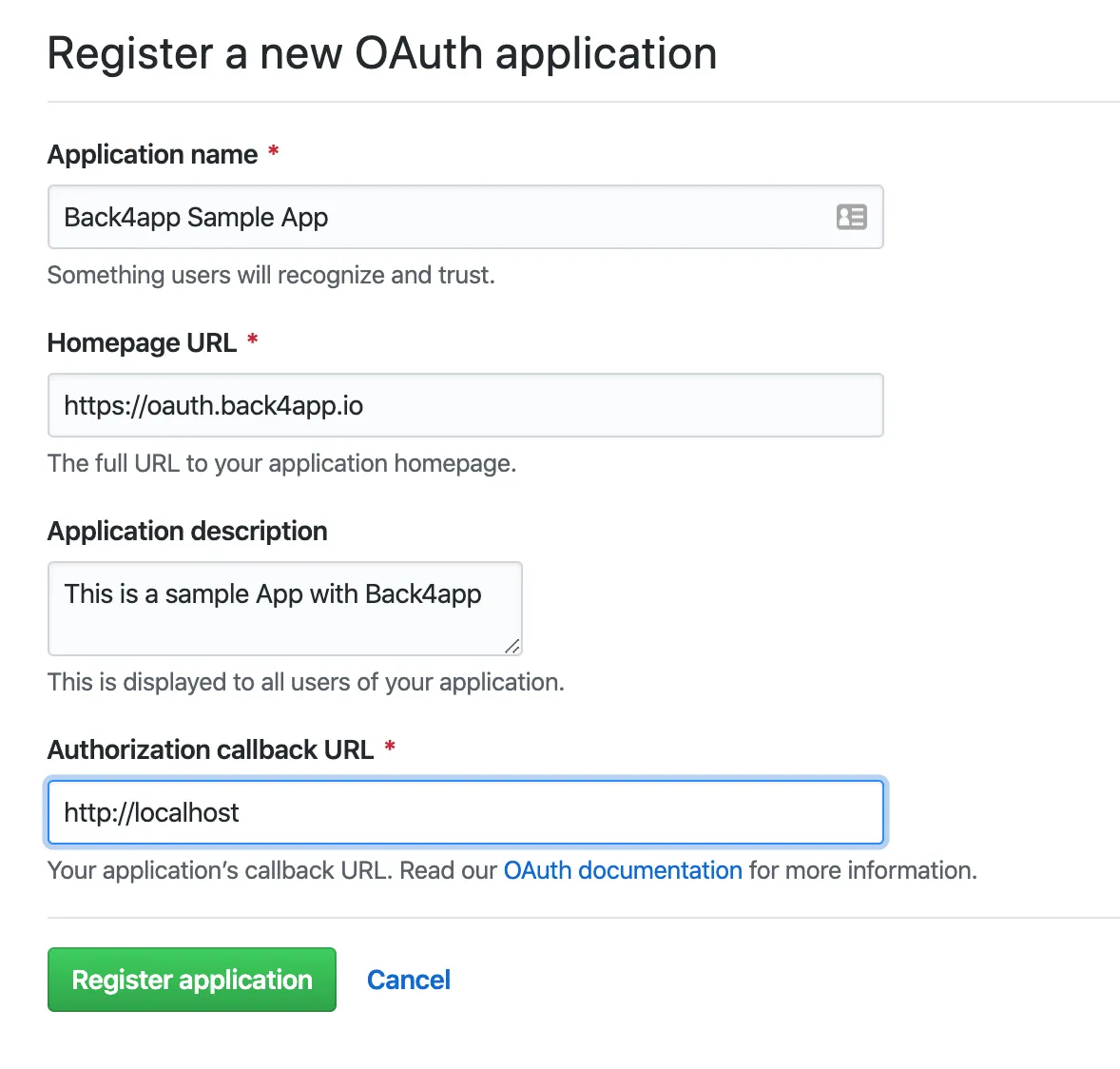
Then click Register Application. You should then see your App Secret and Client Secret
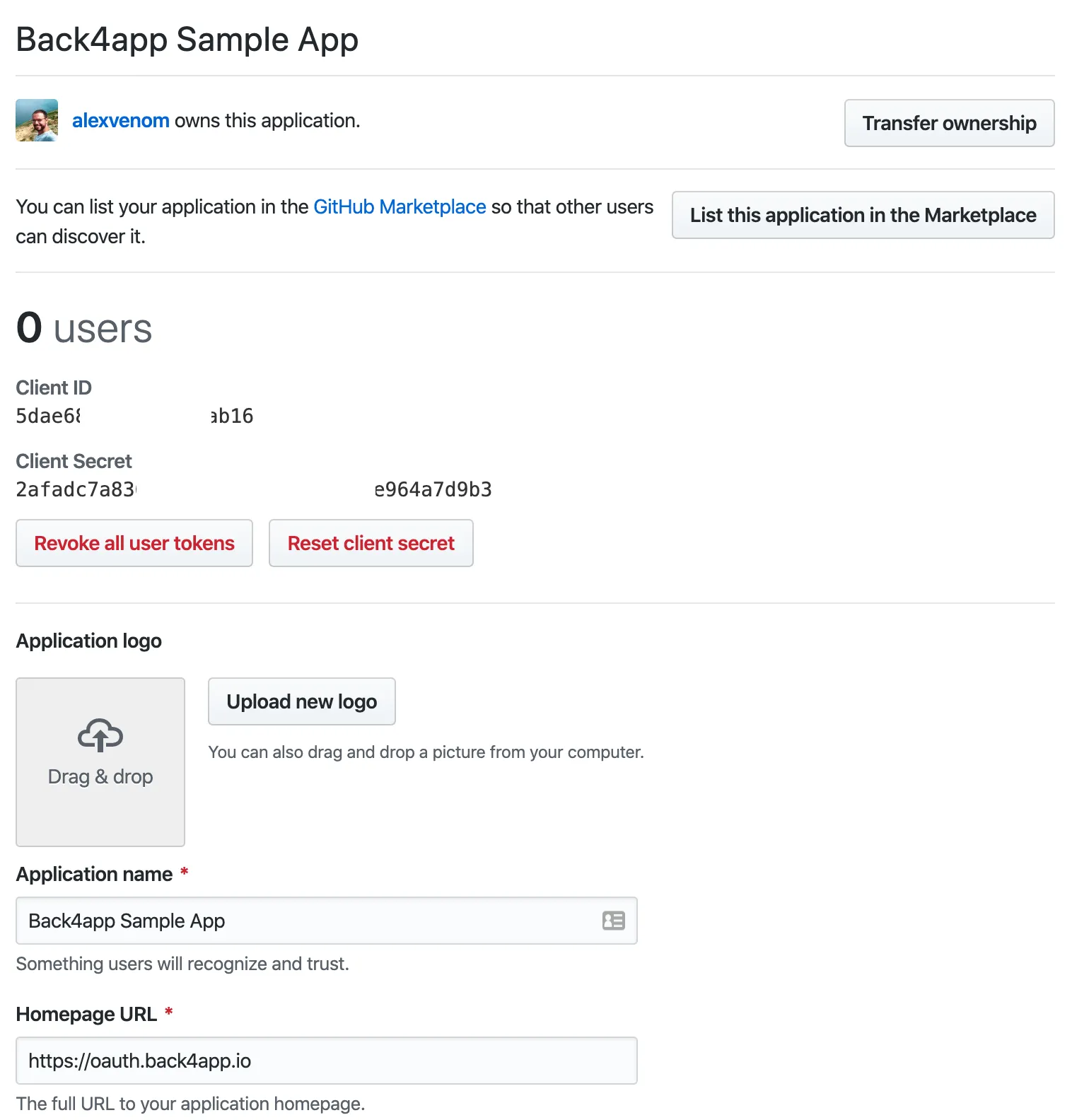
3 - Retrieve your Code
Visit the following URL, changing the values for CLIENT_ID for the one you created.
Log in with your GitHub account:
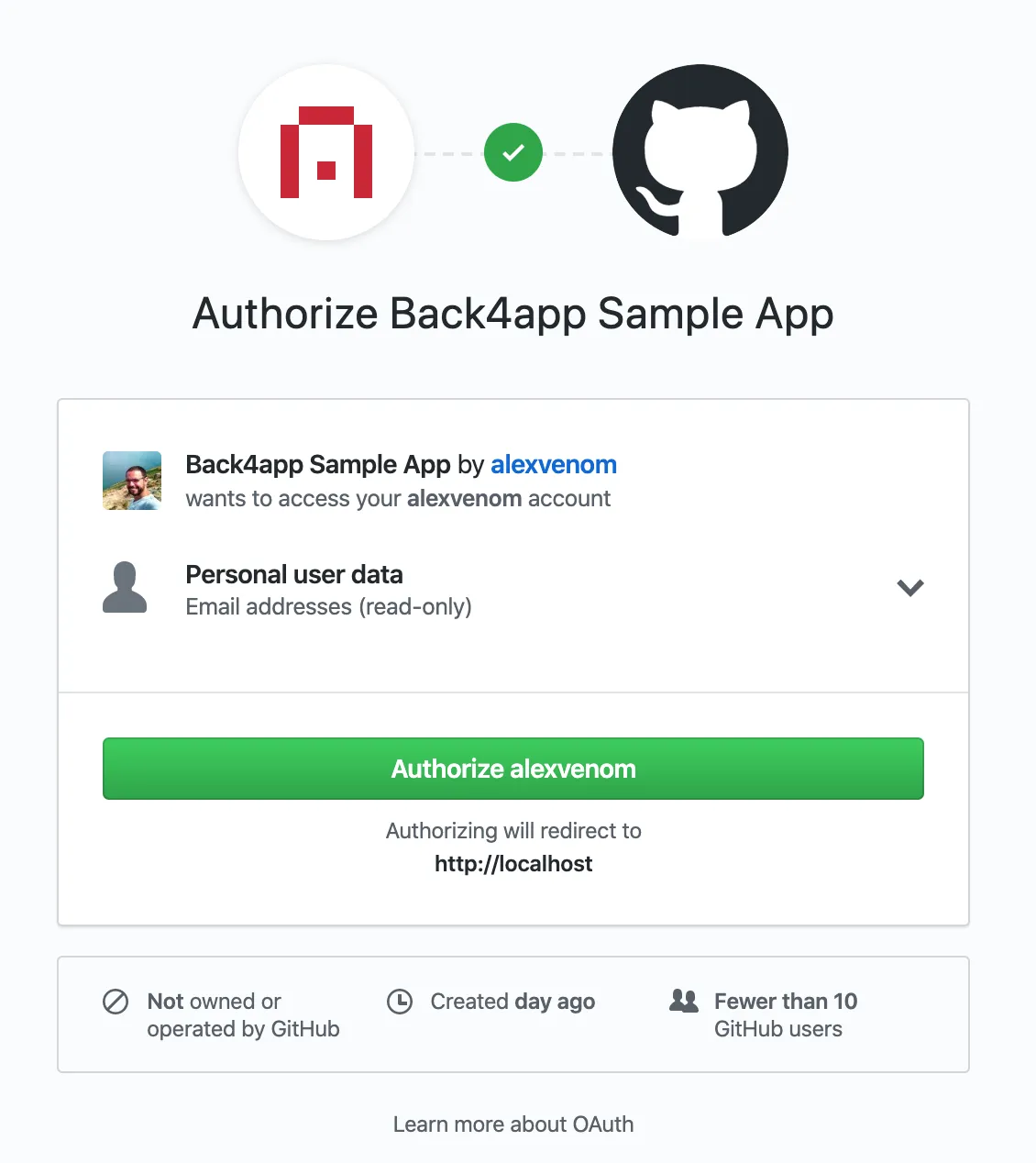
and the redirected website will have your code in the URL:

Copy the Code part of the URL only and run the following CURL command replacing the values YOUR_CODE, YOUR_CLIENT_ID, and YOUR_CLIENT_SECRET for the values of your application
1   curl -X POST \
2       -F \'client_id=YOUR_CLIENT_ID'
3       -F 'client_secret=YOUR_CLIENT_SECRET'
4       -F 'code=YOUR_CODE'
5       -F 'accept=json'
6       https://github.com/login/oauth/access_token
Run it and you should retrieve your access token:

REMEMBER: the code can be used only once. If you get an error or don’t use your token, you must re-generate your Code to be able to run it again.
4 - Start the development
Now that the Sign In with Github is configured, you can start the development process. The format for AUTHDATA is:
1   {
2     "github": {
3       "id": "user's Github id (string)",
4       "access_token": "an authorized Github access token for the user"
5     }
6   }
Here is the method for the iOS SDK:
1   PFUser.logInWithAuthType(inBackground: "github", authData: ["access_token":tokenString, "id": user]).continueWith { task -> Any? in
2
3   }
And here for the Android SDK:
1   Map<string, string, bool> authData = new HashMap<string, string, bool>();
2   authData.put("access_token", tokenString);
3   authData.put("id", user);
4   ParseUser.logInWithInBackground("github", authData){
5
6   }