Stripe
Stripe Integration using Cloud Functions
Introduction
In this guide, we are going to show you how to integrate a hosted backend in Back4App with Stripe API. The best architecture choice to build it on Back4App is using a very powerful feature called Cloud Functions. Once you finish the cloud function integration with Stripe you will be able to use this integration for all your front-end projects (Web, iOS, Android). This guide presents a complete Stripe integration using a web example.
Prerequisites
To complete this tutorial, you will need:
- An app created at Back4App.
Goal
Integrate Stripe on a web project using Back4App Cloud Functions.
What is Stripe?
Stripe is a tech company operating in over 25 countries, which allows both individuals and businesses to accept payments over the Internet. Stripe focuses on providing the technical, fraud prevention, and banking infrastructure required to operate online payment systems.
This tutorial will walk you through the steps of creating functions and integrating Stripe API to your Parse Server into your web app.
More specifically, in this guide, we will create an environment in which a user can log in or sign up, register credit cards, and generate example purchases with them via Stripe Payments. Also, you will be guided on how to set up the whole process as well as test if the connection to the server and the Stripe API is working properly.
1 - Create a Stripe Account
Go to Stripe and click on the sign up to create an account. There, you just need to provide your personal information and to which country your account belongs.
Next, verify your Stripe account (you will receive an email containing a verification link from Stripe). Click on that link, and then follow the steps to confirm your Stripe email address.
2 - Setting up your database classes
After configuring the Stripe environment for Step 1, go to your Back4App app dashboard so you can set up your database. This step is not obligatory since Parse will automatically create the classes while the cloud functions try to create a new object, but we will go through them to explain which fields will be created and why.
There will be two classes that will hold your app Stripe related data: PaymentMethod and Payment:
Here is how the classes are laid out:
- PaymentMethod
- type(String): its value will always be “card”;
- card(Object): will hold the complete Stripe data regarding the registered card;
- stripeID(String): id referencing this PaymentMethod on the Stripe backend;
- user(Pointer to Parse.User): direct reference to which Use this PaymentMethod belongs.
- Payment
- data(Object): will hold the complete Stripe data regarding the payment;
- user(Pointer to Parse.User): direct reference to which User this Payment belongs.
We will also add two new String value columns in your app default User class called setupSecret and customerId that will contain the Stripe ids that relate the User to its Stripe counterpart.
3 - Implementing Cloud Code
Let’s configure the Cloud Code functions in the app, installing the Stripe module and deploying the Code.
If you want to better understand the Cloud Code enviroment, check this guide.
3.1 - Get your Stripe Key
Now, open your Stripe dashboard, navigate to the Developers page at the top and then select API Keys on the left menu. In that section, you will be able to see your Publishable key and your Secret key.
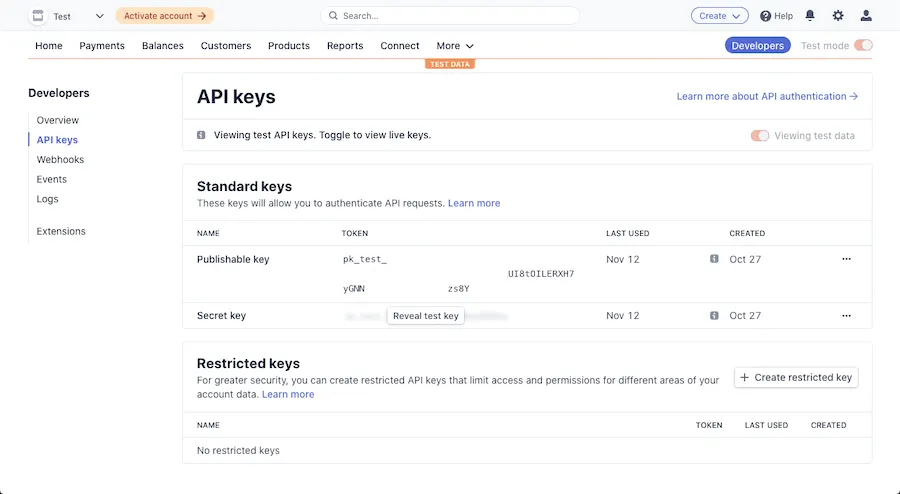
Write down these keys as you will need them later.
3.2 - Cloud Code files
On your computer, create the following files, that will be responsible to install the module and adding your Cloud Code functions to Back4App.
1   {
2     "dependencies": {
3       "stripe": "*"
4     }
5   }
Add the code below to a new file and don’t forget to paste your Stripe secret key on the top.
1   const STRIPE_SECRET_KEY =
2     "YOUR_STRIPE_SECRET_KEY";
3   const stripe = require("stripe")(STRIPE_SECRET_KEY);
4
5   // Stripe needs an unique customer id to create payments, so after
6   // signing up, this function should be called to do this operation
7   Parse.Cloud.define("createStripeCustomer", async (request) => {
8     // Get Parse.User object
9     const userQuery = new Parse.Query(Parse.User);
10    userQuery.equalTo("objectId", request.params.userId);
11    let user = await userQuery.first();
12
13    const customer = await stripe.customers.create({ email: user.get("email") });
14    // Creates an stripe setupIntent, that will enable the stripe lib to perform
15    // a singel operation related to payments
16    const intent = await stripe.setupIntents.create({
17      customer: customer.id,
18    });
19    // Set and save the stripe ids to the Parse.User object
20    user.set({
21      customerId: customer.id,
22      setupSecret: intent.client_secret,
23    });
24    return await user.save(null, { useMasterKey: true });
25  });
26
27  // Creates new payment method for a registered customer
28  Parse.Cloud.define("addNewPaymentMethod", async (request) => {
29    // Get Parse.User object
30    const userQuery = new Parse.Query(Parse.User);
31    userQuery.equalTo("objectId", request.params.userId);
32    let user = await userQuery.first();
33
34    // Retrieve complete stripe payment method by its id
35    const stripePaymentMethod = await stripe.paymentMethods.retrieve(
36      request.params.paymentMethodId
37    );
38
39    // Create a new SetupIntent so the customer can add a new method next time.
40      const intent = await stripe.setupIntents.create({
41      customer: `${stripePaymentMethod.customer}`,
42    });
43    user.set("setupSecret", intent.client_secret);
44    user = await user.save(null, { useMasterKey: true });
45
46    // Creates a new Parse object in the PaymentMethod class
47    let PaymentMethod = new Parse.Object("PaymentMethod");
48    PaymentMethod.set({
49      user: user,
50      type: "card",
51      stripeId: stripePaymentMethod.id,
52      card: stripePaymentMethod.card,
53    });
54    PaymentMethod.save();
55    return true;
56  });
57
58  // Creates a new payment using a valid payment method
59  Parse.Cloud.define("createNewPayment", async (request) => {
60    // Get Parse.User object
61    const userQuery = new Parse.Query(Parse.User);
62    userQuery.equalTo("objectId", request.params.userId);
63    let user = await userQuery.first();
64
65    const { amount, currency, payment_method } = request.params.paymentData;
66
67    // Look up the Stripe customer id.
68    const customer = user.get("customerId");
69
70    // Create a charge using an unique idempotency key
71    // to protect against double charges.
72    const idempotencyKey = new Date().getTime();
73    const payment = await stripe.paymentIntents.create(
74      {
75        amount,
76        currency,
77        customer,
78        payment_method,
79        off_session: false,
80        confirm: true,
81        confirmation_method: "manual",
82      },
83      { idempotencyKey }
84    );
85    // If the result is successful, write it back to the database.
86    let Payment = new Parse.Object("Payment");
87    Payment.set({
88      user: user,
89      data: payment,
90    });
91    await Payment.save();
92
93    return true;
94  });
4 - Upload functions to Cloud Code
Go to the Back4App website, log in and then find your app. After that, click on Dashboard link and you will end up on the page shown below. To deploy your Cloud Code, click on the + ADD button and find the main.js and package.json files that you created in the previous step, then click on the DEPLOY button.
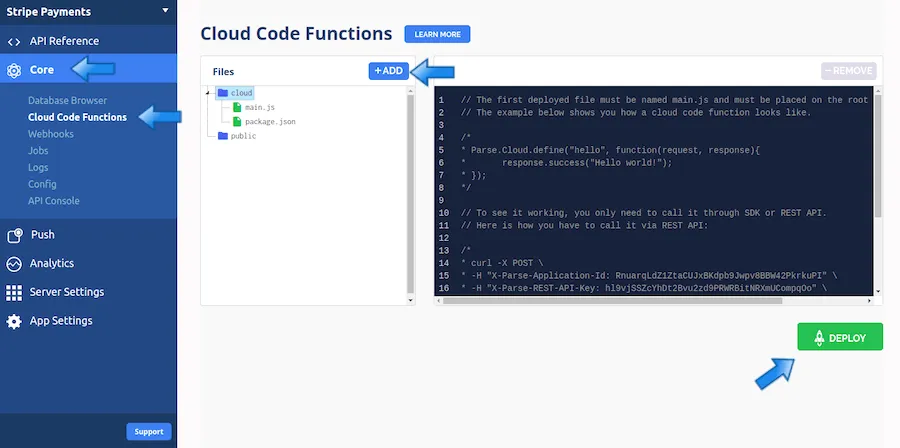
You have just configured Cloud Code functions that you can use on any platform! Check the Deploy & call functions guide to learn how to call them. On the next step, you will work with a JavaScript project that calls them.
5 - Integrating a JavaScript app with Cloud Code
Now you will see an example of a straightforward HTML page with JavaScript that has three main features: signing in or up a user on Parse, creating valid payment methods (credit cards), and creating new payments, charging these methods belonging to the user.
Go ahead and create a new directory in your computer and a new HTML file with the following code inside it:
1   <!DOCTYPE html>
2   <html lang="en">
3
4   <head>
5       <meta charset="UTF-8" />
6       <meta name="viewport" content="width=device-width, initial-scale=1.0" />
7       <title>Back4App Stripe Payments</title>
8       <link rel="stylesheet" href="app.css">
9   </head>
10
11  <body>
12      <header class="header">
13          <img class="header_logo"
14              src="https://blog.back4app.com/wp-content/uploads/2019/05/back4app-white-logo-500px.png" alt="">
15          <p class="header_text_bold">React on Back4App</p>
16          <p class="header_text">Back4App Stripe Payments</p>
17      </header>
18      <section id="auth">
19          <div class="container">
20              <div class="form_wrapper">
21                  <form id="auth-signin-form">
22                      <h2 class="form_heading">Sign In</h2>
23                      <input class="form_input" type="email" name="email" placeholder="Email" required />
24                      <input class="form_input" type="password" name="password" placeholder="Password" required />
25                      <button class="form_button" type="submit">
26                          Sign in
27                      </button>
28                      <a class="form_hint" id="signup-toggle" href="#">Don't have an account yet? Sign up instead.</a>
29                  </form>
30                  <form id="auth-signup-form" hidden>
31                      <h2 class="form_heading">Sign Up</h2>
32                      <input class="form_input" type="email" name="email" placeholder="Email" required />
33                      <input class="form_input" type="password" name="password" placeholder="Password" required />
34                      <button class="form_button" type="submit">
35                          Sign up
36                      </button>
37                      <a class="form_hint" id="signin-toggle" href="#">Already have an account? Sign in instead.</a>
38                  </form>
39              </div>
40          </div>
41      </section>
42      <section id="content" style="display: none;">
43          <div class="container">
44              <div>
45                  <h2 class="form_heading">Add new payment method</h2>
46                  <p>
47                      Use any of the
48                      <a href="https://stripe.com/docs/testing#international-cards" target="_blank">Stripe test cards</a>
49                      for this demo!
50                  </p>
51                  <form class="form" id="payment-method-form">
52                      <input class="form_input" type="text" name="name" placeholder="Cardholder name" required />
53                      <div class="card_element_wrapper">
54                          <div id="card-element"></div>
55                      </div>
56                      <button class="form_button">Save Card</button>
57                  </form>
58              </div>
59              <div>
60                  <h2 class="form_heading">Create new payment</h2>
61                  <form class="form" id="payment-form">
62                      <select class="form_input" name="payment-method" required>
63                          <option disabled selected>Card (payment method):</option>
64                      </select>
65                      <div>
66                          <input class="form_input" name="amount" type="number" min="1" max="99999999"
67                              placeholder="Amount" required />
68                          <select class="form_input" name="currency">
69                              <option disabled selected>Currency:</option>
70                              <option value="usd">USD</option>
71                              <option value="brl">BRL</option>
72                              <option value="eur">EUR</option>
73                          </select>
74                      </div>
75                      <button class="form_button">Charge selected card</button>
76                  </form>
77              </div>
78              <div class="form">
79                  <h2 class="form_heading">Payments</h2>
80                  <ul id="payments-list"></ul>
81              </div>
82              <button type="button" id="signout">
83                  Sign out
84              </button>
85          </div>
86      </section>
87      <script type="text/javascript" src="https://npmcdn.com/parse/dist/parse.min.js"></script>
88      <script type="text/javascript" src="https://js.stripe.com/v3/"></script>
89      <script type="text/javascript" src="index.js"></script>
90  </body>
91
92  </html>
In this file you will find two main sections, the first one being the authentication one, which will be rendered by default if the user is not logged in yet. After logging in, the payment section will be shown, containing all the forms responsible for creating data on Stripe and also communicating with the Cloud Code functions on Back4App.
We now need to create a JavaScript function containing the code that ties it all together, called index.js:
1   // Define and initialize Parse and Stripe libs
2   const PARSE_APP_ID = "YOUR_PARSE_ID";
3   const PARSE_JS_KEY = "YOUR_PARSE_JS_KEY";
4   Parse.initialize(PARSE_APP_ID, PARSE_JS_KEY);
5   Parse.serverURL = "https://parseapi.back4app.com/";
6
7   const STRIPE_PUBLISHABLE_KEY = "YOUR_STRIPE_PUBLISHABLE_KEY";
8   const stripe = Stripe(STRIPE_PUBLISHABLE_KEY);
9
10  // Holds the currentUser complete Parse object
11  let currentUser = null;
12  const setCompleteCurrentUser = async () => {
13    // Called when user is already signed in, completing
14    // the currentUser object with the full one
15    currentUser = await new Parse.Query(Parse.User)
16      .equalTo("objectId", Parse.User.current().id)
17      .first();
18    // Retrieve and render user cards and payments
19    retrieveCurrentUserPaymentMethods();
20    retrieveCurrentUserPayments();
21  };
22
23  const retrieveCurrentUserPaymentMethods = async () => {
24    // Query and render user PaymentMethods
25    const PMQuery = new Parse.Query("PaymentMethod");
26    PMQuery.equalTo("user", Parse.User.current());
27    paymentMethods = await PMQuery.find();
28    renderPaymentMethodOptions(paymentMethods);
29  };
30
31  const retrieveCurrentUserPayments = async () => {
32    // Query and render user Payments
33    const paymentsQuery = new Parse.Query("Payment");
34    paymentsQuery.equalTo("user", Parse.User.current());
35    payments = await paymentsQuery.find();
36    renderPayments(payments);
37  };
38
39  const renderPaymentMethodOptions = async (paymentMethods) => {
40    for (let paymentMethod of paymentMethods) {
41      const optionId = `card-${paymentMethod.get("stripeId")}`;
42      let optionElement = document.getElementById(optionId);
43
44      // Add a new option if one doesn't exist yet.
45      if (!optionElement) {
46        optionElement = document.createElement("option");
47        optionElement.id = optionId;
48        document
49          .querySelector("select[name=payment-method]")
50          .appendChild(optionElement);
51      }
52
53      optionElement.value = paymentMethod.get("stripeId");
54      optionElement.text = `${paymentMethod.get("card").brand} •••• ${
55        paymentMethod.get("card").last4
56      } | Expires ${paymentMethod.get("card").exp_month}/${
57        paymentMethod.get("card").exp_year
58      }`;
59    }
60  };
61
62  const renderPayments = (payments) => {
63    for (let payment of payments) {
64      let liElement = document.getElementById(`payment-${payment.id}`);
65      if (!liElement) {
66        liElement = document.createElement("li");
67        liElement.id = `payment-${payment.id}`;
68      }
69
70      const paymentData = payment.get("data");
71      let content = "";
72      if (
73        paymentData.status === "new" ||
74        paymentData.status === "requires_confirmation"
75      ) {
76        content = `Creating Payment for ${formatAmount(
77          paymentData.amount,
78          paymentData.currency
79        )}`;
80      } else if (paymentData.status === "succeeded") {
81        const card = paymentData.charges.data[0].payment_method_details.card;
82        content = `Payment for ${formatAmount(
83          paymentData.amount,
84          paymentData.currency
85        )} on ${card.brand} card •••• ${card.last4} ${paymentData.status}!`;
86      } else {
87        content = `Payment for ${formatAmount(
88          paymentData.amount,
89          paymentData.currency
90        )} ${paymentData.status}`;
91      }
92      liElement.innerText = content;
93      document.querySelector("#payments-list").appendChild(liElement);
94    }
95  };
96
97  // Checks if user is already signed in on Parse
98  if (Parse.User.current() !== null) {
99    setCompleteCurrentUser();
100   // Hide auth screen and show payment fields
101   document.getElementById("auth").style.display = "none";
102   document.getElementById("content").style.display = "block";
103 }
104
105 // Toggle signin and signup forms
106 document
107   .querySelector("#signup-toggle")
108   .addEventListener("click", async (_event) => {
109     document.getElementById("auth-signin-form").style.display = "none";
110     document.getElementById("auth-signup-form").style.display = "block";
111     clearAuthFormFields();
112   });
113 document
114   .querySelector("#signin-toggle")
115   .addEventListener("click", async (_event) => {
116     document.getElementById("auth-signup-form").style.display = "none";
117     document.getElementById("auth-signin-form").style.display = "block";
118     clearAuthFormFields();
119   });
120
121  // Clear auth form fields
122 const clearAuthFormFields = () => {
123   document
124     .querySelector("#auth")
125     .querySelectorAll("input")
126     .forEach((input) => (input.value = ""));
127 };
128
129 // Handle auth forms
130 document
131   .querySelector("#auth-signin-form")
132   .addEventListener("submit", async (event) => {
133     event.preventDefault();
134     toggleAllButtonsEnabled(false);
135     const form = new FormData(event.target);
136     const email = form.get("email");
137     const password = form.get("password");
138
139    // Try to signin on Parse
140     try {
141       let user = await Parse.User.logIn(email, password);
142       if (user !== null) {
143         currentUser = user;
144         // Hide auth screen and show payment fields
145         document.getElementById("auth").style.display = "none";
146         document.getElementById("content").style.display = "block";
147         clearAuthFormFields();
148       }
149     } catch (error) {
150       alert(error);
151     }
152     toggleAllButtonsEnabled(true);
153   });
154
155 document
156   .querySelector("#auth-signup-form")
157   .addEventListener("submit", async (event) => {
158     event.preventDefault();
159     toggleAllButtonsEnabled(false);
160     const form = new FormData(event.target);
161     const email = form.get("email");
162     const password = form.get("password");
163
164     // Try to signup on Parse
165     try {
166       let user = await Parse.User.signUp(email, password, { email: email });
167       // Cloud code to create Stripe user and intent
168       user = await Parse.Cloud.run("createStripeCustomer", { userId: user.id });
169       if (user !== null) {
170         currentUser = user;
171         // Hide auth screen and show payment fields
172         document.getElementById("auth").style.display = "none";
173         document.getElementById("content").style.display = "block";
174         clearAuthFormFields();
175       }
176     } catch (error) {
177       alert(error);
178     }
179     toggleAllButtonsEnabled(true);
180   });
181
182 // Signout from Parse
183 document.querySelector("#signout").addEventListener("click", async (_event) => {
184   await Parse.User.logOut();
185   currentUser = null;
186   // Show auth screen and hide payment fields
187   document.getElementById("auth").style.display = "block";
188   document.getElementById("content").style.display = "none";
189 });
190
191 // Creates stripe card UI element
192 const elements = stripe.elements();
193 const cardElement = elements.create("card");
194 cardElement.mount("#card-element");
195
196 // Handle add new card form
197 document
198   .querySelector("#payment-method-form")
199   .addEventListener("submit", async (event) => {
200    event.preventDefault();
201     toggleAllButtonsEnabled(false);
202     if (!event.target.reportValidity()) {
203       return;
204     }
205    const form = new FormData(event.target);
206     const cardholderName = form.get("name");
207
208     const result = await stripe.confirmCardSetup(
209       currentUser.get("setupSecret"),
210       {
211         payment_method: {
212           card: cardElement,
213           billing_details: {
214             name: cardholderName,
215           },
216         },
217       }
218     );
219
220     if (result.error) {
221       alert(result.error.message);
222       toggleAllButtonsEnabled(true);
223       return null;
224     }
225
226     let setupIntent = result.setupIntent;
227
228     // Cloud code to add new payment method
229     let cloudCodeResult = await Parse.Cloud.run("addNewPaymentMethod", {
230       userId: currentUser.id,
231       paymentMethodId: setupIntent.payment_method,
232     });
233
234     toggleAllButtonsEnabled(true);
235     alert("Success on creating a new payment method!");
236
237     // Update payment method options
238     retrieveCurrentUserPaymentMethods();
239   });
240
241 // Handles new payment form
242 document
243   .querySelector("#payment-form")
244   .addEventListener("submit", async (event) => {
245     event.preventDefault();
246     toggleAllButtonsEnabled(false);
247     const form = new FormData(event.target);
248     const amount = Number(form.get("amount"));
249     const currency = form.get("currency");
250     // Gets selected card option id
251     const paymentMethod = form.get("payment-method");
252     const paymentData = {
253       payment_method: paymentMethod,
254       currency,
255       amount: formatAmountForStripe(amount, currency),
256       status: "new",
257     };
258     // Cloud code to create new payment
259     let cloudCodeResult = await Parse.Cloud.run("createNewPayment", {
260       userId: currentUser.id,
261       paymentData: paymentData,
262     });
263
264     toggleAllButtonsEnabled(true);
265     alert("Success on creating a new payment!");
266
267     retrieveCurrentUserPayments();
268   });
269
270 // Helper functions
271 const toggleAllButtonsEnabled = (enabledValue) => {
272   document
273     .querySelectorAll("button")
274     .forEach((button) => (button.disabled = !enabledValue));
275 };
276
277 const formatAmount = (amount, currency) => {
278   amount = zeroDecimalCurrency(amount, currency)
279     ? amount
280     : (amount / 100).toFixed(2);
281   return new Intl.NumberFormat("en-US", {
282     style: "currency",
283     currency,
284   }).format(amount);
285 };
286
287 // Format amount for Stripe
288 const formatAmountForStripe = (amount, currency) => {
289   return zeroDecimalCurrency(amount, currency)
290     ? amount
291     : Math.round(amount * 100);
292 };
293
294 // Check if we have a zero decimal currency
295 // https://stripe.com/docs/currencies#zero-decimal
296 const zeroDecimalCurrency = (amount, currency) => {
297   let numberFormat = new Intl.NumberFormat(["en-US"], {
298     style: "currency",
299     currency: currency,
300     currencyDisplay: "symbol",
301   });
302   const parts = numberFormat.formatToParts(amount);
303   let zeroDecimalCurrency = true;
304   for (let part of parts) {
305     if (part.type === "decimal") {
306       zeroDecimalCurrency = false;
307     }
308   }
309   return zeroDecimalCurrency;
310 };
Make sure to add your Stripe publishable key and also your Parse app ID and JS key to the top of the file. These are some of the key elements to check out and understand in this script:
- Check the usage of the Parse.User.current method when loading the script for the first time to render the correct part of the page;
- The form submit action listeners that will perform actions on Parse, like signing in or up and calling the Cloud Code functions to create the Stripe related objects and save on your Back4App database;
- The “retrieve” and “return” methods that make queries on Parse to retrieve the current user’s Payment and PaymentMethod objects.
Before testing the app, add the following stylesheet in a CSS file called app.css inside the same directory:
1   /* Back4App Guide */
2
3   *,
4   *:before,
5   *:after {
6     margin: 0;
7     padding: 0;
8     box-sizing: inherit;
9   }
10
11  html {
12    font-family: sans-serif;
13    box-sizing: border-box;
14    outline: none;
15    overflow: auto;
16  }
17
18  body {
19    margin: 0;
20    background-color: #fff;
21  }
22
23  h1,
24  h2,
25  h3,
26  h4,
27  h5,
28  h6 {
29    margin: 0;
30  }
31
32  p {
33    margin: 0;
34  }
35
36  .container {
37    width: 100%;
38    max-width: 600px;
39    margin: auto;
40    padding: 20px 0;
41  }
42
43  .wrapper {
44   width: '90%';
45    align-self: 'center';
46  }
47
48  .header {
49    display: flex;
50    flex-direction: column;
51    align-items: center;
52    padding: 25px 0;
53    background-color: #208AEC;
54  }
55
56  .header_logo {
57    height: 55px;
58    margin-bottom: 20px;
59    object-fit: contain;
60  }
61
62  .header_text_bold {
63    margin-bottom: 3px;
64    color: rgba(255, 255, 255, 0.9);
65    font-size: 16px;
66    font-weight: bold;
67  }
68
69  .header_text {
70    color: rgba(255, 255, 255, 0.9);
71    font-size: 15px;
72  }
73
74  .flex_row {
75    display: flex;
76  }
77
78  .flex_between {
79    display: flex;
80    align-items: center;
81    justify-content: space-between;
82  }
83
84  .form_wrapper {
85    margin-top: 20px;
86    margin-bottom: 10px;
87  }
88
89  .form_heading {
90    margin-bottom: 10px;
91  }
92
93  .form {
94    padding-bottom: 25px;
95    margin: 25px 0;
96    border-bottom: 1px solid rgba(0, 0, 0, 0.12);
97  }
98
99  .form_input {
100   display: block;
101   width: 100%;
102   height: 46px;
103   padding: 0 15px;
104   background-color: #e6e6e6;
105   border: 1px solid #ccc;
106   border-radius: 999px;
107   margin-bottom: 20px;
108   font-size: 16px;
109 }
110
111 .form_button {
112   display: block;
113   width: 100%;
114   height: 42px;
115   padding: 0 15px;
116   background-color: #208AEC;
117   border: 1px solid #208AEC;
118   border-radius: 999px;
119   color: #fff;
120   font-size: 16px;
121   cursor: pointer;
122 }
123
124  .form_hint {
125   display: block;
126   margin-top: 20px;
127   color: rgba(0, 0, 0, 0.5);
128   font-size: 16px;
129   text-align: center;
130   text-decoration-color: rgba(0, 0, 0, 0.4);
131 }
132
133 .card_element_wrapper {
134   padding: 13px 15px;
135   margin-bottom: 20px;
136   background-color: #e6e6e6;
137   border: 1px solid #ccc;
138   border-radius: 999px;
139 }
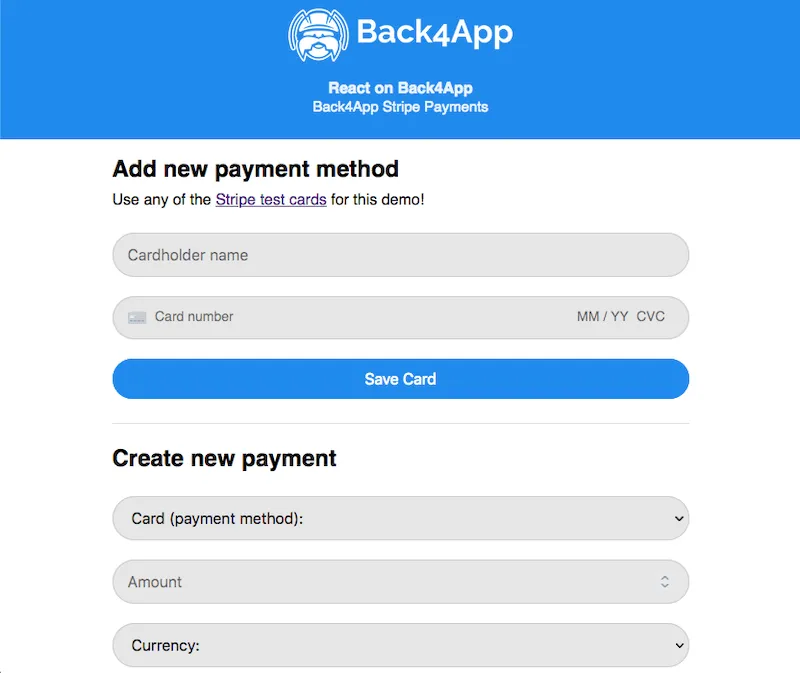
Test the app using any kind of local HTTP server, like the http-server node package. After signing up, your app should look like this:
Conclusion
With the guide described above, you got to use Stripe with a Cloud Code function in Back4App as well as integrate payments to a simple JavaScript app!
In case you face any trouble while integrating Stripe or a function doesn’t work, please contact our team via chat!