Basic Queries
React Native에서 Parse를 사용한 쿼리
소개
이 가이드에서는 Parse에서 기본 쿼리를 수행하고 이러한 쿼리를 사용하여 React Native 구성 요소를 구현합니다. Back4App과 React Native를 사용하여 현실적인 데이터를 설정하고 쿼리하는 방법을 배웁니다.
전제 조건
이 튜토리얼을 완료하려면 다음이 필요합니다:
- Back4App에 연결된 React Native 앱을 생성해야 합니다.
목표
React Native 앱에서 Back4App에 저장된 데이터를 쿼리합니다.
1 - Parse.Query 클래스 이해하기
모든 Parse 쿼리 작업은 Parse.Query 객체 유형을 사용하며, 이는 앱 전반에 걸쳐 데이터베이스에서 특정 데이터를 검색하는 데 도움이 됩니다. Parse.Query는 검색 메서드(예: Parse.Query.find 또는 Parse.Query.get 호출 후에만 해결되므로, 쿼리를 설정하고 실제로 호출되기 전에 여러 수정자를 연결할 수 있습니다.
새로운 Parse.Query, 원하는 Parse.Object 하위 클래스를 매개변수로 전달해야 하며, 이는 쿼리 결과를 포함할 것입니다. 아래에서 볼 수 있는 예제 쿼리에서는 가상의 Profile 하위 클래스가 쿼리되고 있습니다.
1   // This will create your query
2   let parseQuery = new Parse.Query("Profile");
3   // The query will resolve only after calling this method
4   let queryResult = await parseQuery.find();
자세한 내용은 Parse.Query 클래스에 대해 공식 문서에서 여기에서 확인하세요..
2 - Back4App에 데이터 저장하기
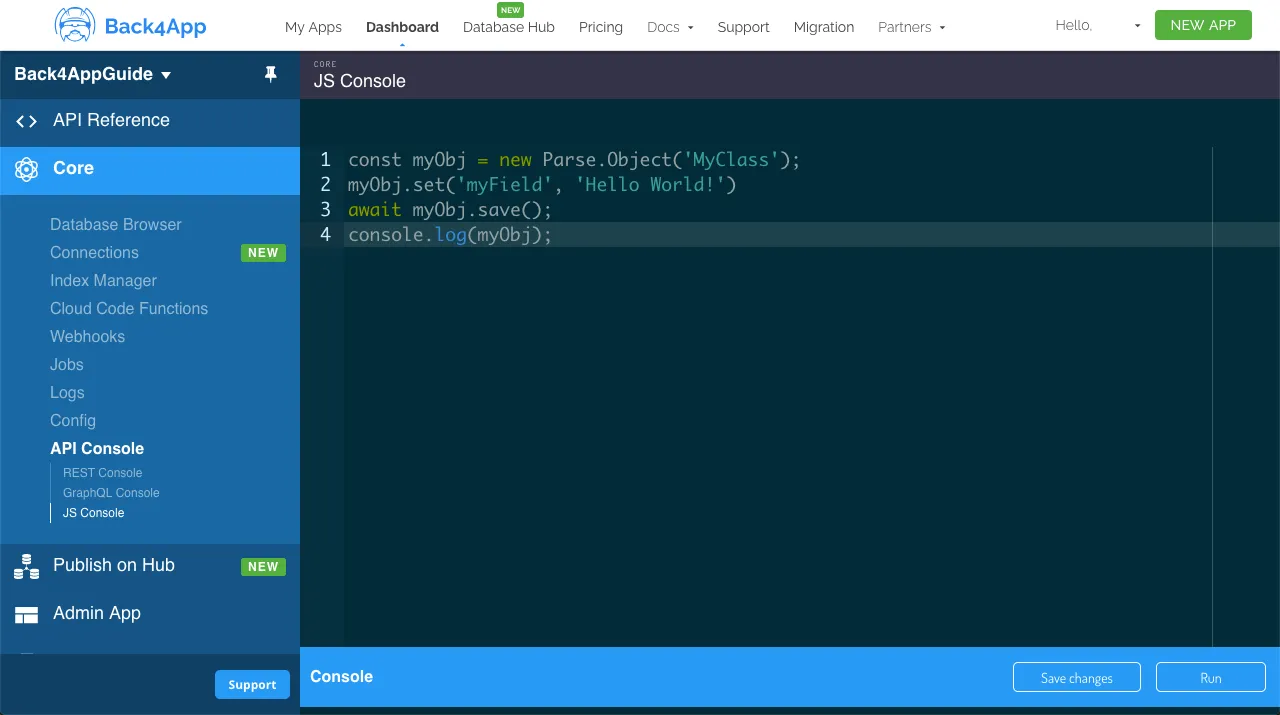
이 가이드에서 쿼리의 대상이 될 Profile 클래스를 생성해 보겠습니다. Parse JS 콘솔에서는 JavaScript 코드를 직접 실행하여 JS SDK 명령을 사용하여 애플리케이션 데이터베이스 내용을 쿼리하고 업데이트할 수 있습니다. 아래 코드를 JS 콘솔에서 실행하고 Back4App에 데이터를 삽입하세요.
대시보드에서 JS 콘솔은 다음과 같이 보입니다:
사용자 Profile 클래스를 다음 예제 내용으로 생성하세요:
1	// Add Profile objects and create table
2	// Adam Sandler
3	let Profile = new Parse.Object('Profile');
4	Profile.set('name', 'Adam Sandler');
5	Profile.set('birthDay', new Date('09/09/1966'));
6	Profile.set('friendCount', 2);
7	Profile.set('favoriteFoods', ['Lobster', 'Bread']);
8	await Profile.save();
9
10	// Adam Levine
11	Profile = new Parse.Object('Profile');
12	Profile.set('name', 'Adam Levine');
13	Profile.set('birthDay', new Date('03/18/1979'));
14	Profile.set('friendCount', 52);
15	Profile.set('favoriteFoods', ['Cake', 'Bread']);
16	await Profile.save();
17
18	// Carson Kressley
19	Profile = new Parse.Object('Profile');
20	Profile.set('name', 'Carson Kressley');
21	Profile.set('birthDay', new Date('11/11/1969'));
22	Profile.set('friendCount', 12);
23	Profile.set('favoriteFoods', ['Fish', 'Cookies']);
24	await Profile.save();
25
26	// Dan Aykroyd
27	Profile = new Parse.Object('Profile');
28	Profile.set('name', 'Dan Aykroyd');
29	Profile.set('birthDay', new Date('07/01/1952'));
30	Profile.set('friendCount', 66);
31	Profile.set('favoriteFoods', ['Jam', 'Peanut Butter']);
32	await Profile.save();
33
34	// Eddie Murphy
35	Profile = new Parse.Object('Profile');
36	Profile.set('name', 'Eddie Murphy');
37	Profile.set('birthDay', new Date('04/03/1961'));
38	Profile.set('friendCount', 49);
39	Profile.set('favoriteFoods', ['Lettuce', 'Pepper']);
40	await Profile.save();
41
42	// Fergie
43	Profile = new Parse.Object('Profile');
44	Profile.set('name', 'Fergie');
45	Profile.set('birthDay', new Date('03/27/1975'));
46	Profile.set('friendCount', 55);
47	Profile.set('favoriteFoods', ['Lobster', 'Shrimp']);
48	await Profile.save();
49
50	console.log('Success!');
3 - 데이터 쿼리
이제 클래스가 채워졌으므로, 기본 쿼리를 수행할 수 있습니다. 이름으로 결과를 필터링하는 것부터 시작하겠습니다. 이는 문자열 유형 필드로, Profile에서 이름 아담을 포함하는 값을 검색합니다. Parse.Query.contains 메서드를 사용합니다:
1	// Create your query
2	let parseQuery = new Parse.Query('Profile');
3
4	// `contains` is a basic query method that checks if string field
5	// contains a specific substring
6	parseQuery.contains('name', 'Adam');
7
8	// The query will resolve only after calling this method, retrieving
9	// an array of `Parse.Objects`
10	let queryResults = await parseQuery.find();
11
12	// Let's show the results
13	for (let result of queryResults) {
14	  // You access `Parse.Objects` attributes by using `.get`
15	  console.log(result.get('name'));
16	};
이제 숫자 유형 필드로 쿼리해 보겠습니다 friendCount을 사용하여 또 다른 일반 쿼리 메서드인 Parse.Query.greaterThan을 사용합니다. 이 경우, 친구 수가 20보다 큰 Profiles를 원합니다.
1	// Create your query
2	let parseQuery = new Parse.Query('Profile');
3
4	// `greaterThan` is a basic query method that does what it
5	// says on the tin
6	parseQuery.greaterThan('friendCount', 20);
7
8	// The query will resolve only after calling this method, retrieving
9	// an array of `Parse.Objects`
10	let queryResults = await parseQuery.find();
11
12	// Let's show the results
13	for (let result of queryResults) {
14	  // You access `Parse.Objects` attributes by using `.get`
15	  console.log(`name: ${result.get('name')}, friend count: ${result.get('friendCount')}`);
16	};
다른 반복적인 쿼리 메서드는 Parse.Query.ascending와 Parse.Query.descending, 쿼리를 정렬하는 역할을 합니다. 이 정렬은 대부분의 데이터 유형에서 수행할 수 있으므로, 날짜 필드 birthDay를 기준으로 쿼리를 정렬해 보겠습니다.
1	// Create your query
2	let parseQuery = new Parse.Query('Profile');
3
4	// `descending` and `ascending` can and should be chained
5	// with other query methods to improve your queries
6	parseQuery.descending('birthDay');
7
8	// The query will resolve only after calling this method, retrieving
9	// an array of `Parse.Objects`
10	let queryResults = await parseQuery.find();
11
12	// Let's show the results
13	for (let result of queryResults) {
14	  // You access `Parse.Objects` attributes by using `.get`
15	  console.log(`name: ${result.get('name')}, birthday: ${result.get('birthDay')}`);
16	};
앞서 언급했듯이, 더 정교한 결과를 얻기 위해 쿼리 메서드를 연결할 수 있으며, 연결해야 합니다. 그러면 이전 예제를 단일 쿼리 요청으로 결합해 보겠습니다:
1	// Create your query
2	let parseQuery = new Parse.Query('Profile');
3
4	parseQuery.contains('name', 'Adam');
5	parseQuery.greaterThan('friendCount', 20);
6	parseQuery.descending('birthDay');
7
8	// The query will resolve only after calling this method, retrieving
9	// an array of `Parse.Objects`
10	let queryResults = await parseQuery.find();
11
12	// Let's show the results
13	for (let result of queryResults) {
14	  // You access `Parse.Objects` attributes by using `.get`
15	  console.log(`name: ${result.get('name')}, friend count: ${result.get('friendCount')}, birthday: ${result.get('birthDay')}`);
16	};
4 - React Native 컴포넌트에서 쿼리하기
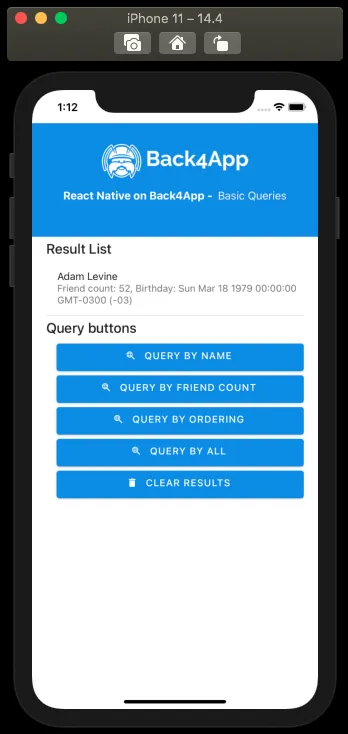
이제 React Native의 구성 요소 내에서 예제 쿼리를 사용해 보겠습니다. 결과를 보여주는 목록과 쿼리를 호출하는 4개의 버튼이 있는 간단한 인터페이스를 가지고 있습니다. 구성 요소 코드가 이렇게 배치되어 있습니다. doQuery 함수는 이전의 예제 코드 형식을 포함하고 있습니다.
1	import React, {useState} from 'react';
2	import {Alert, Image, View, ScrollView, StyleSheet} from 'react-native';
3	import Parse from 'parse/react-native';
4	import {
5	  List,
6	  Title,
7	  Button as PaperButton,
8	  Text as PaperText,
9	} from 'react-native-paper';
10
11	export const BookList = () => {
12	  // State variable
13	  const [queryResults, setQueryResults] = useState(null);
14
15	  const doQueryByName = async function () {
16	    // Create our Parse.Query instance so methods can be chained
17	    // Reading parse objects is done by using Parse.Query
18	    const parseQuery = new Parse.Query('Profile');
19
20	    // `contains` is a basic query method that checks if string field
21	    // contains a specific substring
22	    parseQuery.contains('name', 'Adam');
23
24	    try {
25	      let profiles = await parseQuery.find();
26	      setQueryResults(profiles);
27	      return true;
28	    } catch (error) {
29	      // Error can be caused by lack of Internet connection
30	      Alert.alert('Error!', error.message);
31	      return false;
32	    }
33	  };
34
35	  const doQueryByFriendCount = async function () {
36	    // Create our Parse.Query instance so methods can be chained
37	    // Reading parse objects is done by using Parse.Query
38	    const parseQuery = new Parse.Query('Profile');
39
40	    // `greaterThan` is a basic query method that does what it
41	    // says on the tin
42	    parseQuery.greaterThan('friendCount', 20);
43
44	    try {
45	      let profiles = await parseQuery.find();
46	      setQueryResults(profiles);
47	      return true;
48	    } catch (error) {
49	      // Error can be caused by lack of Internet connection
50	      Alert.alert('Error!', error.message);
51	      return false;
52	    }
53	  };
54
55	  const doQueryByOrdering = async function () {
56	    // Create our Parse.Query instance so methods can be chained
57	    // Reading parse objects is done by using Parse.Query
58	    const parseQuery = new Parse.Query('Profile');
59
60	    // `descending` and `ascending` can and should be chained
61	    // with other query methods to improve your queries
62	    parseQuery.descending('birthDay');
63
64	    try {
65	      let profiles = await parseQuery.find();
66	      setQueryResults(profiles);
67	      return true;
68	    } catch (error) {
69	      // Error can be caused by lack of Internet connection
70	      Alert.alert('Error!', error.message);
71	      return false;
72	    }
73	  };
74
75	  const doQueryByAll = async function () {
76	    // Create our Parse.Query instance so methods can be chained
77	    // Reading parse objects is done by using Parse.Query
78	    const parseQuery = new Parse.Query('Profile');
79
80	    parseQuery.contains('name', 'Adam');
81	    parseQuery.greaterThan('friendCount', 20);
82	    parseQuery.descending('birthDay');
83
84	    try {
85	      let profiles = await parseQuery.find();
86	      setQueryResults(profiles);
87	      return true;
88	    } catch (error) {
89	      // Error can be caused by lack of Internet connection
90	      Alert.alert('Error!', error.message);
91	      return false;
92	    }
93	  };
94
95	  const clearQueryResults = async function () {
96	    setQueryResults(null);
97	    return true;
98	  };
99
100	  return (
101	    <>
102	      <View style={Styles.header}>
103	        <Image
104	          style={Styles.header_logo}
105	          source={ {
106	            uri:
107	              'https://blog.back4app.com/wp-content/uploads/2019/05/back4app-white-logo-500px.png',
108	          } }
109	        />
110	        <PaperText style={Styles.header_text}>
111	          <PaperText style={Styles.header_text_bold}>
112	            {'React Native on Back4App - '}
113	          </PaperText>
114	          {' Basic Queries'}
115	        </PaperText>
116	      </View>
117	      <ScrollView style={Styles.wrapper}>
118	        <View>
119	          <Title>{'Result List'}</Title>
120	          {/* Book list */}
121	          {queryResults !== null &&
122	            queryResults !== undefined &&
123	            queryResults.map((profile) => (
124	              <List.Item
125	                key={profile.id}
126	                title={profile.get('name')}
127	                description={`Friend count: ${profile.get(
128	                  'friendCount',
129	                )}, Birthday: ${profile.get('birthDay')}`}
130	                titleStyle={Styles.list_text}
131	                style={Styles.list_item}
132	              />
133	            ))}
134	          {queryResults === null ||
135	          queryResults === undefined ||
136	          (queryResults !== null &&
137	            queryResults !== undefined &&
138	            queryResults.length <= 0) ? (
139	            <PaperText>{'No results here!'}</PaperText>
140	          ) : null}
141	        </View>
142	        <View>
143	          <Title>{'Query buttons'}</Title>
144	          <PaperButton
145	            onPress={() => doQueryByName()}
146	            mode="contained"
147	            icon="search-web"
148	            color={'#208AEC'}
149	            style={Styles.list_button}>
150	            {'Query by name'}
151	          </PaperButton>
152	          <PaperButton
153	            onPress={() => doQueryByFriendCount()}
154	            mode="contained"
155	            icon="search-web"
156	            color={'#208AEC'}
157	            style={Styles.list_button}>
158	            {'Query by friend count'}
159	          </PaperButton>
160	          <PaperButton
161	            onPress={() => doQueryByOrdering()}
162	            mode="contained"
163	            icon="search-web"
164	            color={'#208AEC'}
165	            style={Styles.list_button}>
166	            {'Query by ordering'}
167	          </PaperButton>
168	          <PaperButton
169	            onPress={() => doQueryByAll()}
170	            mode="contained"
171	            icon="search-web"
172	            color={'#208AEC'}
173	            style={Styles.list_button}>
174	            {'Query by all'}
175	          </PaperButton>
176	          <PaperButton
177	            onPress={() => clearQueryResults()}
178	            mode="contained"
179	            icon="delete"
180	            color={'#208AEC'}
181	            style={Styles.list_button}>
182	            {'Clear Results'}
183	          </PaperButton>
184	        </View>
185	      </ScrollView>
186	    </>
187	  );
188	};
189
190	// These define the screen component styles
191	const Styles = StyleSheet.create({
192	  header: {
193	    alignItems: 'center',
194	    paddingTop: 30,
195	    paddingBottom: 50,
196	    backgroundColor: '#208AEC',
197	  },
198	  header_logo: {
199	    height: 50,
200	    width: 220,
201	    resizeMode: 'contain',
202	  },
203	  header_text: {
204	    marginTop: 15,
205	    color: '#f0f0f0',
206	    fontSize: 16,
207	  },
208	  header_text_bold: {
209	    color: '#fff',
210	    fontWeight: 'bold',
211	  },
212	  wrapper: {
213	    width: '90%',
214	    alignSelf: 'center',
215	  },
216	  list_button: {
217	    marginTop: 6,
218	    marginLeft: 15,
219	    height: 40,
220	  },
221	  list_item: {
222	    borderBottomWidth: 1,
223	    borderBottomColor: 'rgba(0, 0, 0, 0.12)',
224	  },
225	  list_text: {
226	    fontSize: 15,
227	  },
228	});
렌더링 및 모든 쿼리 함수로 쿼리한 후 컴포넌트가 어떻게 보여야 하는지입니다:
결론
이 가이드를 마치면서, Parse에서 기본 데이터 쿼리가 어떻게 작동하는지와 React Native 앱에서 Back4App으로 이를 수행하는 방법을 배웠습니다. 다음 가이드에서는 Parse.Query 이 클래스에서 사용할 수 있는 모든 메서드를 사용하여 전체 잠재력을 탐색할 것입니다.