Geoqueries
리액트 네이티브 지리정보를 사용하여 Parse에서 지리 쿼리 수행하기
소개
이 가이드에서는 리액트 네이티브 지리정보를 사용하여 Parse에서 지리 쿼리를 수행합니다. 이러한 쿼리를 사용하여 리액트 네이티브 컴포넌트를 구현하고 Back4App 및 리액트 네이티브를 사용하여 현실적인 데이터를 설정하고 쿼리하는 방법을 배웁니다.
전제 조건
이 튜토리얼을 완료하려면 다음이 필요합니다:
- Back4App에 연결된 리액트 네이티브 앱이 필요합니다.
- 이 가이드에서 제공하는 화면 레이아웃을 테스트/사용하려면react-native-paper를 설정해야 합니다.라이브러리와 react-native-geolocation-service도 필요합니다.
목표
Back4App에 저장된 지리 포인트와 리액트 네이티브 지리정보를 사용하여 지리 쿼리를 수행합니다.
1 - Parse.Query 클래스 이해하기
모든 Parse 쿼리 작업은 Parse.Query 객체 유형을 사용하며, 이는 앱 전반에 걸쳐 데이터베이스에서 특정 데이터를 검색하는 데 도움이 됩니다. Parse.Query는 검색 메서드(예: Parse.Query.find 또는 Parse.Query.get 호출 후에만 해결되므로, 쿼리를 설정하고 실제로 호출되기 전에 여러 수정자를 연결할 수 있습니다.
새로운 Parse.Query를 생성하려면, 원하는 Parse.Object 서브클래스를 매개변수로 전달해야 합니다. 이 서브클래스는 쿼리 결과를 포함하게 됩니다. 아래에서 볼 수 있는 예제 쿼리에서는 가상의 Profile 서브클래스가 쿼리되고 있습니다.
1   // This will create your query
2   let parseQuery = new Parse.Query("Profile");
3   // The query will resolve only after calling this method
4   let queryResult = await parseQuery.find();
다음에 대해 더 읽어보세요: Parse.Query 클래스 공식 문서에서 여기.
2 - Back4App에 데이터 저장하기
이 가이드에서 쿼리의 대상이 될 City 클래스를 생성해 보겠습니다. Parse JS 콘솔에서는 JavaScript 코드를 직접 실행하여 JS SDK 명령을 사용하여 애플리케이션 데이터베이스 내용을 쿼리하고 업데이트할 수 있습니다. 아래 코드를 JS 콘솔에서 실행하고 Back4App에 데이터를 삽입하세요.
대시보드에서 JS 콘솔은 다음과 같이 보입니다:
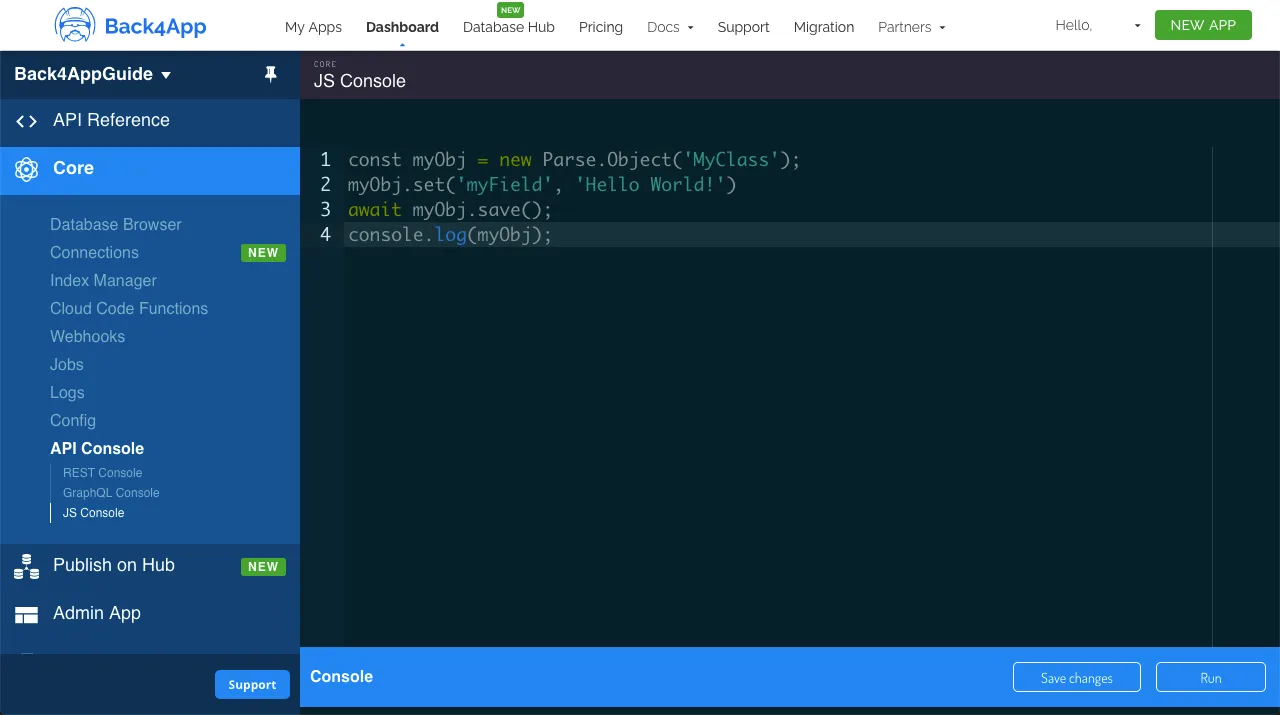
계속해서 다음 예제 내용을 사용하여 City 클래스를 생성하세요:
1	// Add City objects and create table
2	// Note how GeoPoints are created, passing latitude and longitude as arguments
3	// Montevideo
4	City = new Parse.Object('City');
5	City.set('name', 'Montevideo - Uruguay');
6	City.set('location', new Parse.GeoPoint(-34.85553195363169, -56.207280375137955));
7	await City.save();
8
9	// Brasília
10	City = new Parse.Object('City');
11	City.set('name', 'Brasília - Brazil');
12	City.set('location', new Parse.GeoPoint(-15.79485821477289, -47.88391074690196));
13	await City.save();
14
15	// Bogotá
16	City = new Parse.Object('City');
17	City.set('name', 'Bogotá - Colombia');
18	City.set('location', new Parse.GeoPoint(4.69139880891712, -74.06936691331047));
19	await City.save();
20
21	// Mexico City
22	City = new Parse.Object('City');
23	City.set('name', 'Mexico City - Mexico');
24	City.set('location', new Parse.GeoPoint(19.400977162618933, -99.13311378164776));
25	await City.save();
26
27	// Washington, D.C.
28	City = new Parse.Object('City');
29	City.set('name', 'Washington, D.C. - USA');
30	City.set('location', new Parse.GeoPoint(38.930727220189944, -77.04626261880388));
31	await City.save();
32
33	// Ottawa
34	City = new Parse.Object('City');
35	City.set('name', 'Ottawa - Canada');
36	City.set('location', new Parse.GeoPoint(45.41102167733425, -75.695414598736));
37	await City.save();
38
39	console.log('Success!');
3 - 데이터 쿼리
이제 클래스가 채워졌으므로, GeoPoint 쿼리를 수행할 수 있습니다. 자, 킹스턴(자메이카)에서 가장 가까운 결과를 정렬해 보겠습니다 (위도 18.01808695059913, 경도 -76.79894232253473), 도시 결과를 얻기 위해 Parse.Query.near 메서드를 사용합니다:
1	// Create your query
2	let parseQuery = new Parse.Query('City');
3
4	// Create our GeoPoint for the query
5	let kingstonGeoPoint = new Parse.GeoPoint(18.018086950599134, -76.79894232253473);
6
7	// `near` will order results based on distance between the GeoPoint type field from the class and the GeoPoint argument
8	parseQuery.near('location', kingstonGeoPoint);
9
10	// The query will resolve only after calling this method, retrieving
11	// an array of `Parse.Objects`
12	let queryResults = await parseQuery.find();
13
14	// Let's show the results
15	for (let result of queryResults) {
16	  // You access `Parse.Objects` attributes by using `.get`
17	  console.log(result.get('name'));
18	};
이제 Parse.Query.withinKilometers 메서드를 사용하여 쿼리해 보겠습니다. 이 메서드는 GeoPoint 필드가 최대 거리 내에 있는 모든 결과를 검색합니다. 킹스턴을 다시 참조로 사용하고 거리 제한은 3000km로 설정하겠습니다.
1	// Create your query
2	let parseQuery = new Parse.Query('City');
3
4	// Create our GeoPoint for the query
5	let kingstonGeoPoint = new Parse.GeoPoint(18.018086950599134, -76.79894232253473);
6
7	// You can also use `withinMiles` and `withinRadians` the same way,
8	// but with different measuring unities
9	parseQuery.withinKilometers('location', kingstonGeoPoint, 3000);
10
11	// The query will resolve only after calling this method, retrieving
12	// an array of `Parse.Objects`
13	let queryResults = await parseQuery.find();
14
15	// Let's show the results
16	for (let result of queryResults) {
17	  // You access `Parse.Objects` attributes by using `.get`
18	  console.log(result.get('name'));
19	};
또 다른 유용한 쿼리 메서드는Parse.Query.withinPolygon, 이는 지정된 다각형 내에 있는 GeoPoint 필드 값을 가진 결과를 쿼리합니다. 이 다각형은 최소 세 개의 GeoPoints로 구성된 배열로 이루어져 있습니다. 다각형 경로가 열려 있으면, Parse가 마지막 점과 첫 번째 점을 연결하여 자동으로 닫습니다.
이 예제에서는 대략 남미 대륙을 포함하는 간단한 다각형을 사용하며, 이는 바다에 있는 5개의 먼 GeoPoints로 구성됩니다.
1	// Create your query
2	let parseQuery = new Parse.Query('City');
3
4	// Create our GeoPoint polygon for the query
5	let geoPoint1 = new Parse.GeoPoint(15.822238344514378, -72.42845934415942);
6	let geoPoint2 = new Parse.GeoPoint(-0.7433770196268968, -97.44765968406668);
7	let geoPoint3 = new Parse.GeoPoint(-59.997149373299166, -76.52969196322749);
8	let geoPoint4 = new Parse.GeoPoint(-9.488786415007201, -18.346101586021952);
9	let geoPoint5 = new Parse.GeoPoint(15.414859532811047, -60.00625459569375);
10
11	// Note that the polygon is merely an array of GeoPoint objects and that the first and last are not connected, so Parse connects them for you
12	parseQuery.withinPolygon('location', [geoPoint1, geoPoint2, geoPoint3, geoPoint4, geoPoint5]);
13
14	// The query will resolve only after calling this method, retrieving
15	// an array of `Parse.Objects`
16	let queryResults = await parseQuery.find();
17
18	// Let's show the results
19	for (let result of queryResults) {
20	  // You access `Parse.Objects` attributes by using `.get`
21	  console.log(result.get('name'));
22	};
4 - React Native 컴포넌트에서의 쿼리
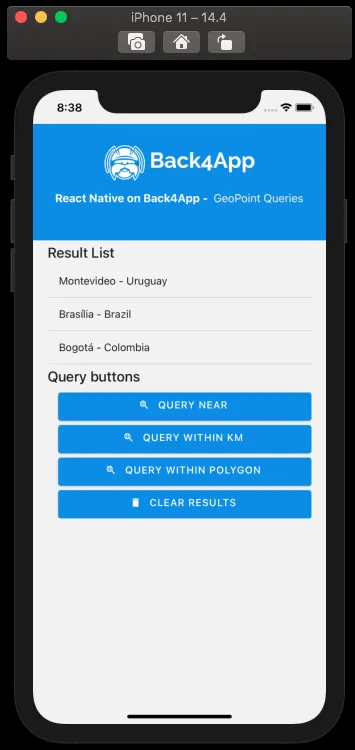
이제 React Native의 컴포넌트 내에서 예제 쿼리를 사용해 보겠습니다. 결과를 보여주는 목록과 쿼리를 호출하는 3개의 버튼이 있는 간단한 인터페이스를 가지고 있습니다. 이 컴포넌트는 또한 react-native-geolocation-service를 사용하여 장치의 현재 위치를 가져옵니다. 따라서 쿼리는 실제 데이터를 사용할 것입니다.
이것이 구성 요소 코드가 배치되는 방식입니다. doQuery 함수는 이전의 예제 코드 형식을 포함하고 있습니다.
1	import React, {FC, ReactElement, useState} from 'react';
2	import {
3	  Alert,
4	  Image,
5	  View,
6	  PermissionsAndroid,
7	  Platform,
8	  ScrollView,
9	  StyleSheet,
10	} from 'react-native';
11	import Parse from 'parse/react-native';
12	import {
13	  List,
14	  Title,
15	  Button as PaperButton,
16	  Text as PaperText,
17	} from 'react-native-paper';
18	import Geolocation from 'react-native-geolocation-service';
19
20	export const QueryList: FC<{}> = ({}): ReactElement => {
21	  // State variable
22	  const [queryResults, setQueryResults] = useState(null);
23
24	  // This function asks for location permission on iOS and Android
25	  const requestLocationPermissions = async () => {
26	    if (Platform.OS === 'ios') {
27	      // iOS can be asked always, since the OS handles if user already gave permission
28	      await Geolocation.requestAuthorization('whenInUse');
29	    } else if (Platform.OS === 'android') {
30	      let permissionCheck: boolean = await PermissionsAndroid.check(
31	        PermissionsAndroid.PERMISSIONS.ACCESS_FINE_LOCATION,
32	      );
33	      // Only asks for permission on Android if not given before
34	      if (permissionCheck !== true) {
35	        await PermissionsAndroid.request(
36	          PermissionsAndroid.PERMISSIONS.ACCESS_FINE_LOCATION,
37	          {
38	            title: 'Location Permission Request',
39	            message:
40	              'This app needs you permission for using your location for querying GeoPoints in Parse!',
41	            buttonPositive: 'OK',
42	          },
43	        );
44	      }
45	    }
46	  };
47
48	  const doQueryNear = async function (): Promise<boolean> {
49	    // Request location permissions
50	    await requestLocationPermissions();
51	    // Get current location and create the GeoPoint for the query
52	    Geolocation.getCurrentPosition(
53	      async (currentPosition: {
54	        coords: {latitude: number; longitude: number};
55	      }) => {
56	        // Create our GeoPoint
57	        let currentLocationGeoPoint: Parse.GeoPoint = new Parse.GeoPoint(
58	          currentPosition.coords.latitude,
59	          currentPosition.coords.longitude,
60	        );
61
62	        // Create our query
63	        let parseQuery: Parse.Query = new Parse.Query('City');
64
65	        // `near` will order results based on distance between the GeoPoint type field from the class and the GeoPoint argument
66	        parseQuery.near('location', currentLocationGeoPoint);
67
68	        try {
69	          let results: [Parse.Object] = await parseQuery.find();
70	          // Set query results to state variable
71	          setQueryResults(results);
72	        } catch (error) {
73	          // Error can be caused by lack of Internet connection
74	          Alert.alert('Error!', error.message);
75	        }
76	      },
77	      _error => {
78	        Alert.alert(
79	          'Error!',
80	          'This app needs your location permission to query this!',
81	        );
82	      },
83	      {enableHighAccuracy: true, timeout: 15000, maximumAge: 10000},
84	    );
85	    return true;
86	  };
87
88	  const doQueryWithinKilometers = async function (): Promise<boolean> {
89	    // Request location permissions
90	    await requestLocationPermissions();
91	    // Get current location and create the GeoPoint for the query
92	    Geolocation.getCurrentPosition(
93	      async (currentPosition: {
94	        coords: {latitude: number; longitude: number};
95	      }) => {
96	        // Create our GeoPoint
97	        let currentLocationGeoPoint: Parse.GeoPoint = new Parse.GeoPoint(
98	          currentPosition.coords.latitude,
99	          currentPosition.coords.longitude,
100	        );
101
102	        // Create our query
103	        let parseQuery: Parse.Query = new Parse.Query('City');
104
105	        // You can also use `withinMiles` and `withinRadians` the same way,
106	        // but with different measuring unities
107	        parseQuery.withinKilometers('location', currentLocationGeoPoint, 3000);
108
109	        try {
110	          let results: [Parse.Object] = await parseQuery.find();
111	          // Set query results to state variable
112	          setQueryResults(results);
113	        } catch (error) {
114	          // Error can be caused by lack of Internet connection
115	          Alert.alert('Error!', error.message);
116	        }
117	      },
118	      _error => {
119	        Alert.alert(
120	          'Error!',
121	          'This app needs your location permission to query this!',
122	        );
123	      },
124	      {enableHighAccuracy: true, timeout: 15000, maximumAge: 10000},
125	    );
126	    return true;
127	  };
128
129	  const doQueryWithinPolygon = async function (): Promise<boolean> {
130	    // Create our GeoPoint polygon points
131	    let geoPoint1: Parse.GeoPoint = new Parse.GeoPoint(
132	15.822.238.344.514.300,00
133	-7.242.845.934.415.940,00
134	    );
135	    let geoPoint2: Parse.GeoPoint = new Parse.GeoPoint(
136	      -0.7433770196268968,
137	-9.744.765.968.406.660,00
138	    );
139	    let geoPoint3: Parse.GeoPoint = new Parse.GeoPoint(
140	-59.997.149.373.299.100,00
141	-7.652.969.196.322.740,00
142	    );
143	    let geoPoint4: Parse.GeoPoint = new Parse.GeoPoint(
144	-9.488.786.415.007.200,00
145	-18.346.101.586.021.900,00
146	    );
147	    let geoPoint5: Parse.GeoPoint = new Parse.GeoPoint(
148	15.414.859.532.811.000,00
149	-6.000.625.459.569.370,00
150	    );
151
152	    // Create our query
153	    let parseQuery: Parse.Query = new Parse.Query('City');
154
155	    // Note that the polygon is merely an array of GeoPoint objects and that the first and last are not connected, so Parse connects them for you
156	    parseQuery.withinPolygon('location', [
157	      geoPoint1,
158	      geoPoint2,
159	      geoPoint3,
160	      geoPoint4,
161	      geoPoint5,
162	    ]);
163
164	    try {
165	      let results: [Parse.Object] = await parseQuery.find();
166	      // Set query results to state variable
167	      setQueryResults(results);
168	    } catch (error) {
169	      // Error can be caused by lack of Internet connection
170	      Alert.alert('Error!', error.message);
171	    }
172	  };
173
174	  const clearQueryResults = async function (): Promise<boolean> {
175	    setQueryResults(null);
176	    return true;
177	  };
178
179	  return (
180	    <>
181	      <View style={Styles.header}>
182	        <Image
183	          style={Styles.header_logo}
184	          source={ {
185	            uri:
186	              'https://blog.back4app.com/wp-content/uploads/2019/05/back4app-white-logo-500px.png',
187	          } }
188	        />
189	        <PaperText style={Styles.header_text}>
190	          <PaperText style={Styles.header_text_bold}>
191	            {'React Native on Back4App - '}
192	          </PaperText>
193	          {' GeoPoint Queries'}
194	        </PaperText>
195	      </View>
196	      <ScrollView style={Styles.wrapper}>
197	        <View>
198	          <Title>{'Result List'}</Title>
199	          {/* Query list */}
200	          {queryResults !== null &&
201	            queryResults !== undefined &&
202	            queryResults.map((result: Parse.Object) => (
203	              <List.Item
204	                key={result.id}
205	                title={result.get('name')}
206	                titleStyle={Styles.list_text}
207	                style={Styles.list_item}
208	              />
209	            ))}
210	          {queryResults === null ||
211	          queryResults === undefined ||
212	          (queryResults !== null &&
213	            queryResults !== undefined &&
214	            queryResults.length <= 0) ? (
215	            <PaperText>{'No results here!'}</PaperText>
216	          ) : null}
217	        </View>
218	        <View>
219	          <Title>{'Query buttons'}</Title>
220	          <PaperButton
221	            onPress={() => doQueryNear()}
222	            mode="contained"
223	            icon="search-web"
224	            color={'#208AEC'}
225	            style={Styles.list_button}>
226	            {'Query Near'}
227	          </PaperButton>
228	          <PaperButton
229	            onPress={() => doQueryWithinKilometers()}
230	            mode="contained"
231	            icon="search-web"
232	            color={'#208AEC'}
233	            style={Styles.list_button}>
234	            {'Query Within KM'}
235	          </PaperButton>
236	          <PaperButton
237	            onPress={() => doQueryWithinPolygon()}
238	            mode="contained"
239	            icon="search-web"
240	            color={'#208AEC'}
241	            style={Styles.list_button}>
242	            {'Query Within Polygon'}
243	          </PaperButton>
244	          <PaperButton
245	            onPress={() => clearQueryResults()}
246	            mode="contained"
247	            icon="delete"
248	            color={'#208AEC'}
249	            style={Styles.list_button}>
250	            {'Clear Results'}
251	          </PaperButton>
252	        </View>
253	      </ScrollView>
254	    </>
255	  );
256	};
257
258	// These define the screen component styles
259	const Styles = StyleSheet.create({
260	  header: {
261	    alignItems: 'center',
262	    paddingTop: 30,
263	    paddingBottom: 50,
264	    backgroundColor: '#208AEC',
265	  },
266	  header_logo: {
267	    height: 50,
268	    width: 220,
269	    resizeMode: 'contain',
270	  },
271	  header_text: {
272	    marginTop: 15,
273	    color: '#f0f0f0',
274	    fontSize: 16,
275	  },
276	  header_text_bold: {
277	    color: '#fff',
278	    fontWeight: 'bold',
279	  },
280	  wrapper: {
281	    width: '90%',
282	    alignSelf: 'center',
283	  },
284	  list_button: {
285	    marginTop: 6,
286	    marginLeft: 15,
287	    height: 40,
288	  },
289	  list_item: {
290	    borderBottomWidth: 1,
291	    borderBottomColor: 'rgba(0, 0, 0, 0.12)',
292	  },
293	  list_text: {
294	    fontSize: 15,
295	  },
296	});
렌더링 후 쿼리 함수 중 하나를 쿼리한 후 컴포넌트가 어떻게 보여야 하는지입니다:
결론
이 가이드의 끝에서, 당신은 GeoPoint 데이터 쿼리가 Parse에서 어떻게 작동하는지와 React Native 앱에서 Back4App에서 이를 수행하는 방법을 배웠습니다. 다음 가이드에서는 Parse에서 사용자를 생성하고 관리하는 방법을 확인할 것입니다.