Geoqueries
Using React geolocation to perform geoqueries with Parse
Introduction
In this guide, you will perform geoqueries in Parse using the React geolocation. You will implement a React component using these queries and learn how to set up and query realistic data using Back4App and React.
Prerequisites
To complete this tutorial, you will need:
Goal
Perform Geoqueries using GeoPoints stored on Back4App and React geolocation.
1 - Understanding the Parse.Query class
Any Parse query operation uses the Parse.Query object type, which will help you retrieve specific data from your database throughout your app. It is crucial to know that a Parse.Query will only resolve after calling a retrieve method (like Parse.Query.find or Parse.Query.get), so a query can be set up and several modifiers can be chained before actually being called.
To create a new Parse.Query, you need to pass as a parameter the desired Parse.Object subclass, which is the one that will contain your query results. An example query can be seen below, in which a fictional Profile subclass is being queried.
1	// This will create your query
2	let parseQuery = new Parse.Query("Profile");
3	// The query will resolve only after calling this method
4	let queryResult = await parseQuery.find();
You can read more about the Parse.Query class here at the official documentation.
2 - Save some data on Back4App
Let’s create a City class, which will be the target of our queries in this guide. On Parse JS Console it is possible to run JavaScript code directly, querying and updating your application database contents using the JS SDK commands. Run the code below from your JS Console and insert the data on Back4App.
Here is how the JS Console looks like in your dashboard:
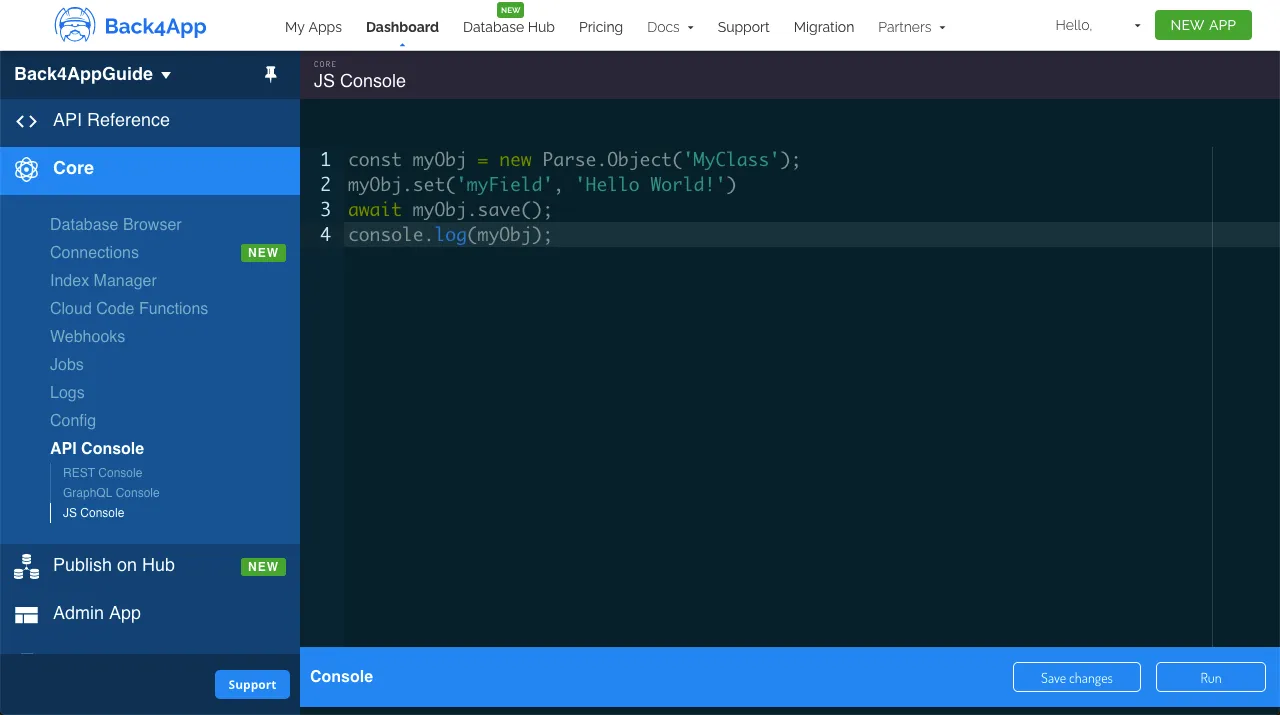
Go ahead and create the Cityc class with the following example content:
1	// Add City objects and create table
2	// Note how GeoPoints are created, passing latitude and longitude as arguments
3	// Montevideo
4	var City = new Parse.Object('City');
5	City.set('name', 'Montevideo - Uruguay');
6	City.set('location', new Parse.GeoPoint(-34.85553195363169, -56.207280375137955));
7	await City.save();
8
9	// Brasília
10	City = new Parse.Object('City');
11	City.set('name', 'Brasília - Brazil');
12	City.set('location', new Parse.GeoPoint(-15.79485821477289, -47.88391074690196));
13	await City.save();
14
15	// Bogotá
16	City = new Parse.Object('City');
17	City.set('name', 'Bogotá - Colombia');
18	City.set('location', new Parse.GeoPoint(4.69139880891712, -74.06936691331047));
19	await City.save();
20
21	// Mexico City
22	City = new Parse.Object('City');
23	City.set('name', 'Mexico City - Mexico');
24	City.set('location', new Parse.GeoPoint(19.400977162618933, -99.13311378164776));
25	await City.save();
26
27	// Washington, D.C.
28	City = new Parse.Object('City');
29	City.set('name', 'Washington, D.C. - USA');
30	City.set('location', new Parse.GeoPoint(38.930727220189944, -77.04626261880388));
31	await City.save();
32
33	// Ottawa
34	City = new Parse.Object('City');
35	City.set('name', 'Ottawa - Canada');
36	City.set('location', new Parse.GeoPoint(45.41102167733425, -75.695414598736));
37	await City.save();
38
39	console.log('Success!');
3 - Query the data
Now that you have a populated class, we can now perform some GeoPoint queries in it. Let’s begin by ordering City results by the nearest from Kingston in Jamaica (latitude 18.01808695059913 and longitude -76.79894232253473), using the Parse.Query.near method:
1	// Create your query
2	let parseQuery = new Parse.Query('City');
3
4	// Create our GeoPoint for the query
5	let kingstonGeoPoint = new Parse.GeoPoint(18.018086950599134, -76.79894232253473);
6
7	// `near` will order results based on distance between the GeoPoint type field from the class and the GeoPoint argument
8	parseQuery.near('location', kingstonGeoPoint);
9
10	// The query will resolve only after calling this method, retrieving
11	// an array of `Parse.Objects`
12	let queryResults = await parseQuery.find();
13
14	// Let's show the results
15	for (let result of queryResults) {
16	  // You access `Parse.Objects` attributes by using `.get`
17	  console.log(result.get('name'));
18	};
Let’s now query using the method Parse.Query.withinKilometers, which will retrieve all results whose GeoPoint field is located within the max distance. Kingston will be used once again as a reference and the distance limit will be 3000 km.
1	// Create your query
2	let parseQuery = new Parse.Query('City');
3
4	// Create our GeoPoint for the query
5	let kingstonGeoPoint = new Parse.GeoPoint(18.018086950599134, -76.79894232253473);
6
7	// You can also use `withinMiles` and `withinRadians` the same way,
8	// but with different measuring unities
9	parseQuery.withinKilometers('location', kingstonGeoPoint, 3000);
10
11	// The query will resolve only after calling this method, retrieving
12	// an array of `Parse.Objects`
13	let queryResults = await parseQuery.find();
14
15	// Let's show the results
16	for (let result of queryResults) {
17	  // You access `Parse.Objects` attributes by using `.get`
18	  console.log(result.get('name'));
19	};
Another useful query method is Parse.Query.withinPolygon, which will query results whose GeoPoint field value is within the specified polygon, composed of an array of GeoPoints (at least three). If the polygon path is open, it will be closed automatically by Parse connecting the last and first points.
For this example, you will be using a simple polygon that roughly contains the South American continent, composed of 5 distant GeoPoints in the ocean.
1	// Create your query
2	let parseQuery = new Parse.Query('City');
3
4	// Create our GeoPoint polygon for the query
5	let geoPoint1 = new Parse.GeoPoint(15.822238344514378, -72.42845934415942);
6	let geoPoint2 = new Parse.GeoPoint(-0.7433770196268968, -97.44765968406668);
7	let geoPoint3 = new Parse.GeoPoint(-59.997149373299166, -76.52969196322749);
8	let geoPoint4 = new Parse.GeoPoint(-9.488786415007201, -18.346101586021952);
9	let geoPoint5 = new Parse.GeoPoint(15.414859532811047, -60.00625459569375);
10
11	// Note that the polygon is merely an array of GeoPoint objects and that the first and last are not connected, so Parse connects them for you
12	parseQuery.withinPolygon('location', [geoPoint1, geoPoint2, geoPoint3, geoPoint4, geoPoint5]);
13
14	// The query will resolve only after calling this method, retrieving
15	// an array of `Parse.Objects`
16	let queryResults = await parseQuery.find();
17
18	// Let's show the results
19	for (let result of queryResults) {
20	  // You access `Parse.Objects` attributes by using `.get`
21	  console.log(result.get('name'));
22	};
4 - Query from a React component
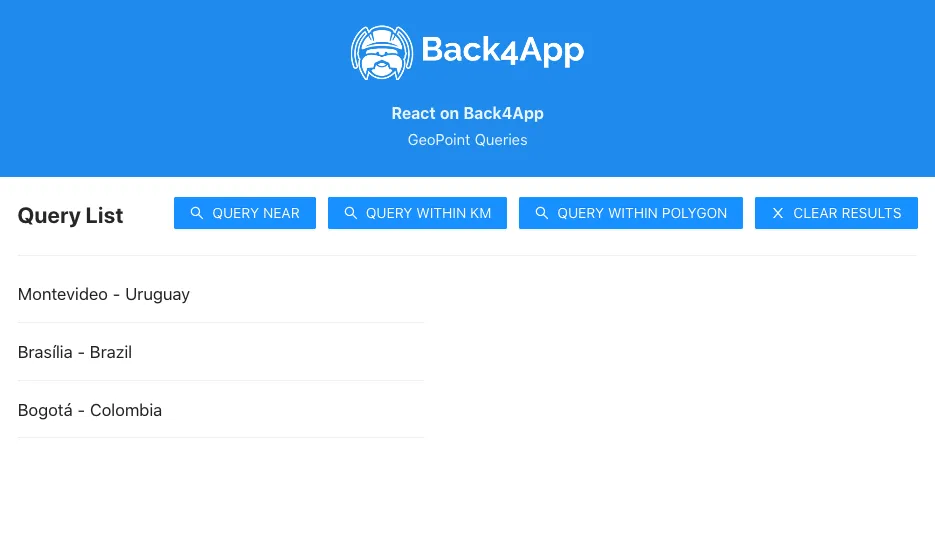
Let’s now use our example queries inside a component in React, with a simple interface having a list showing results and also 3 buttons for calling the queries. The component also retrieves the device’s current location using the navigator.geolocation JavaScript API, so the queries will be using real data, provided that the user didn’t disabled location access in the browser.
This is how the component code is laid out, note the doQuery functions, containing the example code form before.
1	import React, { useState, FC, ReactElement } from 'react';
2	import './App.css';
3	import { Button, Divider } from 'antd';
4	import { CloseOutlined, SearchOutlined } from '@ant-design/icons';
5	const Parse = require('parse/dist/parse.min.js');
6
7	type LocationObject = {latitude: number, longitude: number};
8
9	export const QueryGeo: FC<{}> = (): ReactElement => {
10	  // State variable
11	  const [queryResults, setQueryResults] = useState<Parse.Object[]>();
12
13	  const doQueryNear = async function (): Promise<boolean> {
14	    // Check if geolocation API is available in the browser
15	    if ("geolocation" in navigator) {
16	      // Get current location and create the GeoPoint for the query
17	      navigator.geolocation.getCurrentPosition(async function (position) {
18	        const currentPosition: LocationObject = { latitude: position.coords.latitude, longitude: position.coords.longitude };
19	        // Create our GeoPoint
20	        let currentLocationGeoPoint: Parse.GeoPoint = new Parse.GeoPoint(
21	          currentPosition.latitude,
22	          currentPosition.longitude,
23	        );
24
25	        // Create our query
26	        let parseQuery: Parse.Query = new Parse.Query('City');
27
28	        // `near` will order results based on distance between the GeoPoint type field from the class and the GeoPoint argument
29	        parseQuery.near('location', currentLocationGeoPoint);
30
31	        try {
32	          let results: Parse.Object[] = await parseQuery.find();
33	          // Set query results to state variable
34	          setQueryResults(results);
35	          return true;
36	        } catch (error) {
37	          // Error can be caused by lack of Internet connection
38	          alert(`Error! ${error.message}`);
39	        }
40	      }, function (_error: any) {
41	        alert("You need to allow geolocation to retrieve your location on the browser to test this. If you are on an Apple OS, enable it on your system preferences.");
42	      });
43	    } else {
44	      alert("Geolocation services are not supported by your browser.");
45	    }
46	    return false;
47	  };
48
49	  const doQueryWithinKilometers = async function (): Promise<boolean> {
50	    // Check if geolocation API is available in the browser
51	    if ("geolocation" in navigator) {
52	      // Get current location and create the GeoPoint for the query
53	      navigator.geolocation.getCurrentPosition(async function (position) {
54	        const currentPosition: LocationObject = { latitude: position.coords.latitude, longitude: position.coords.longitude };
55	      // Create our GeoPoint
56	      let currentLocationGeoPoint: Parse.GeoPoint = new Parse.GeoPoint(
57	        currentPosition.latitude,
58	        currentPosition.longitude,
59	      );
60
61	      // Create our query
62	      let parseQuery: Parse.Query = new Parse.Query('City');
63
64	      // You can also use `withinMiles` and `withinRadians` the same way,
65	      // but with different measuring unities
66	      parseQuery.withinKilometers('location', currentLocationGeoPoint, 3000);
67
68	      try {
69	        let results: Parse.Object[] = await parseQuery.find();
70	        // Set query results to state variable
71	        setQueryResults(results);
72	      } catch (error) {
73	          // Error can be caused by lack of Internet connection
74	          alert(`Error! ${error.message}`);
75	        }
76	      }, function (_error: any) {
77	        alert("You need to allow geolocation to retrieve your location on the browser to test this. If you are on an Apple OS, enable it on your system preferences.");
78	      });
79	    } else {
80	      alert("Geolocation services are not supported by your browser.");
81	    }
82	    return false;
83	  };
84
85	  const doQueryWithinPolygon = async function (): Promise<boolean> {
86	    // Create our GeoPoint polygon points
87	    // In React TypeScript types ('@types/parse'), Parse.Query.withinPolygon expects
88	    // an array of number arrays, so you need to change the declarations
89	    let geoPoint1: number[] = [
90	-7.242.845.934.415.940,00
91	15.822.238.344.514.300,00
92	    ];
93	    let geoPoint2: number[] = [
94	-9.744.765.968.406.660,00
95	      -0.7433770196268968,
96	    ];
97	    let geoPoint3: number[] = [
98	-7.652.969.196.322.740,00
99	-59.997.149.373.299.100,00
100	    ];
101	    let geoPoint4: number[] = [
102	-18.346.101.586.021.900,00
103	-9.488.786.415.007.200,00
104	    ];
105	    let geoPoint5: number[] = [
106	-6.000.625.459.569.370,00
107	15.414.859.532.811.000,00
108	    ];
109
110	    // Create our query
111	    let parseQuery: Parse.Query = new Parse.Query('City');
112
113	    // Note that the polygon is merely an array of GeoPoint objects and that the first and
114	    // last are not connected, so Parse connects them for you
115	    parseQuery.withinPolygon('location', [
116	      geoPoint1,
117	      geoPoint2,
118	      geoPoint3,
119	      geoPoint4,
120	      geoPoint5,
121	    ]);
122
123	    try {
124	      let results: Parse.Object[] = await parseQuery.find();
125	      // Set query results to state variable
126	      setQueryResults(results);
127	    } catch (error) {
128	      // Error can be caused by lack of Internet connection
129	      alert(`Error! ${error}`);
130	      return false;
131	    }
132	    return true;
133	  };
134
135	  const clearQueryResults = async function (): Promise<boolean> {
136	    setQueryResults(undefined);
137	    return true;
138	  };
139
140	  return (
141	    <div>
142	      <div className="header">
143	        <img
144	          className="header_logo"
145	          alt="Back4App Logo"
146	          src={
147	            'https://blog.back4app.com/wp-content/uploads/2019/05/back4app-white-logo-500px.png'
148	          }
149	        />
150	        <p className="header_text_bold">{'React on Back4App'}</p>
151	        <p className="header_text">{'GeoPoint Queries'}</p>
152	      </div>
153	      <div className="container">
154	        <div className="flex_between">
155	          <h2 className="heading">{'Query List'}</h2>
156	          <div className="flex">
157	            <Button
158	              onClick={() => doQueryNear()}
159	              type="primary"
160	              className="heading_button"
161	              color={'#208AEC'}
162	              icon={<SearchOutlined />}
163	            >
164	              QUERY NEAR
165	            </Button>
166	            <Button
167	              onClick={() => doQueryWithinKilometers()}
168	              type="primary"
169	              className="heading_button"
170	              color={'#208AEC'}
171	              icon={<SearchOutlined />}
172	            >
173	              QUERY WITHIN KM
174	            </Button>
175	            <Button
176	              onClick={() => doQueryWithinPolygon()}
177	              type="primary"
178	              className="heading_button"
179	              color={'#208AEC'}
180	              icon={<SearchOutlined />}
181	            >
182	              QUERY WITHIN POLYGON
183	            </Button>
184	            <Button
185	              onClick={() => clearQueryResults()}
186	              type="primary"
187	              className="heading_button"
188	              color={'#208AEC'}
189	              icon={<CloseOutlined />}
190	            >
191	              CLEAR RESULTS
192	            </Button>
193	          </div>
194	        </div>
195	        <Divider />
196	        <div className="flex_between">
197	          <div className="flex_child">
198	            {/* Query list */}
199	            {queryResults !== undefined &&
200	              queryResults.map((result: Parse.Object, index: number) => (
201	                <div className="list_item" key={`${index}`}>
202	                  <p className="list_item_title">{`${result.get('name')}`}</p>
203	                </div>
204	              ))}
205	            {queryResults !== undefined &&
206	            queryResults.length <= 0 ? (
207	              <p>{'No results here!'}</p>
208	            ) : null}
209	          </div>
210	        </div>
211	      </div>
212	    </div>
213	  );
214	};
Also add these classes to you App.css file to fully render the component layout:
1	html {
2	  box-sizing: border-box;
3	  outline: none;
4	  overflow: auto;
5	}
6
7	*,
8	*:before,
9	*:after {
10	  margin: 0;
11	  padding: 0;
12	  box-sizing: inherit;
13	}
14
15	h1,
16	h2,
17	h3,
18	h4,
19	h5,
20	h6 {
21	  margin: 0;
22	  font-weight: bold;
23	}
24
25	p {
26	  margin: 0;
27	}
28
29	body {
30	  margin: 0;
31	  background-color: #fff;
32	}
33
34	.container {
35	  width: 100%;
36	  max-width: 900px;
37	  margin: auto;
38	  padding: 20px 0;
39	  text-align: left;
40	}
41
42	.header {
43	  align-items: center;
44	  padding: 25px 0;
45	  background-color: #208AEC;
46	}
47
48	.header_logo {
49	  height: 55px;
50	  margin-bottom: 20px;
51	  object-fit: contain;
52	}
53
54	.header_text_bold {
55	  margin-bottom: 3px;
56	  color: rgba(255, 255, 255, 0.9);
57	  font-size: 16px;
58	  font-weight: bold;
59	}
60
61	.header_text {
62	  color: rgba(255, 255, 255, 0.9);
63	  font-size: 15px;
64	}
65
66	.heading {
67	  font-size: 22px;
68	}
69
70	.flex {
71	  display: flex;
72	}
73
74	.flex_between {
75	  display: flex;
76	  justify-content: space-between;
77	}
78
79	.flex_child {
80	  flex: 0 0 45%;
81	}
82
83	.heading_button {
84	  margin-left: 12px;
85	}
86
87	.list_item {
88	  padding-bottom: 15px;
89	  margin-bottom: 15px;
90	  border-bottom: 1px solid rgba(0,0,0,0.06);
91	  text-align: left;
92	}
93
94	.list_item_title {
95	  color: rgba(0,0,0,0.87);
96	  font-size: 17px;
97	}
This is how the component should look like after rendering and querying one of the query functions:
Conclusion
At the end of this guide, you learned how GeoPoint data queries work on Parse and how to perform them on Back4App from a React application. In the next guide, you will check how to create and manage users in Parse.