React로 Parse와 Live Query를 사용한 슬랙 클론 개발
리액트 슬랙 클론 앱
소개
이 가이드에서는 슬랙 클론 앱을 만들면서 Parse React hook의 유용한 상황을 계속 탐구할 것입니다. 이 앱은 회원가입/로그인, 채널 및 실시간 채팅과 같은 기본 기능을 갖추고 있습니다. 또한, 리액트 컴포넌트는 라이브 쿼리를 사용한 실시간 알림의 유용성, 사용자 관리 기능 및 쿼리(관계형)를 수행할 수 있는 유연성을 강조합니다.
언제든지 Vercel에서 슬랙 클론 앱을 빠르게 배포할 수 있습니다:
전제 조건
이 튜토리얼을 완료하려면 다음이 필요합니다:
- 이 프로젝트를 클론하거나 GitHub 리포지토리를 통해 다운로드하여 가이드와 함께 실행할 수 있습니다. README 파일의 지침을 따라 로컬 환경에서 성공적으로 설정하세요:
목표
@parse/react hook
1 - 템플릿에서 Parse 앱 만들기
이 애플리케이션은 두 개의 데이터베이스 클래스로 구성됩니다: 채널 및 메시지, Parse 사용자 클래스에 대한 포인터를 포함합니다. 앱과 데이터베이스 클래스를 처음부터 만들기보다는 Back4App 데이터베이스 허브. “데이터베이스 복제” 버튼을 클릭하고 로그인하여 앱을 생성하세요. 복제 방법에 대한 자세한 내용은 앱 복제 가이드를 확인하세요.
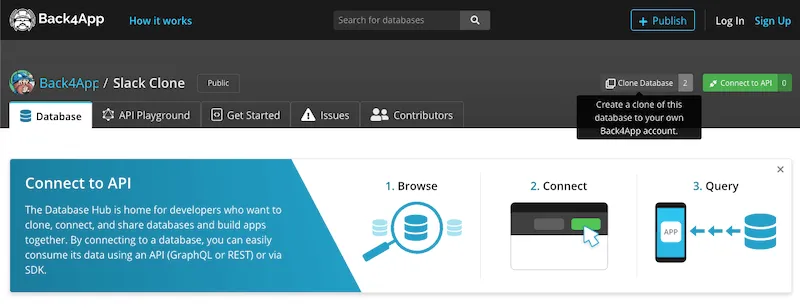
이제 귀하의 앱은 Back4App에서 Slack 클론을 만들기 위해 필요한 완전한 백엔드 구조를 갖추었습니다.
2 - 실시간 쿼리 활성화
앱과 클래스를 생성했으므로 실시간 쿼리(라이브 쿼리)를 활성화해야 합니다. Back4App 대시보드로 이동하여 앱 설정 > 서버 설정 > 서버 URL 및 라이브 쿼리. Back4App 서브도메인을 활성화한 후, 메시지 및 채널 클래스를 선택하여 라이브 쿼리를 활성화할 수 있습니다. 그 후 변경 사항을 저장하세요.
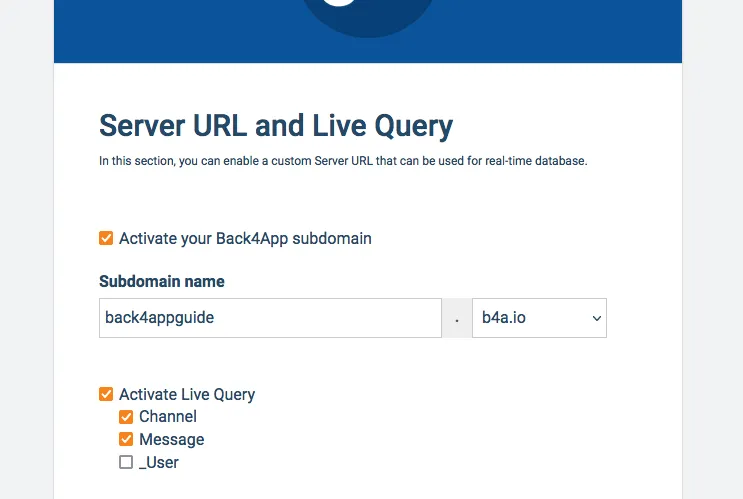
위의 URL은 귀하의 라이브 쿼리 URL입니다. Parse 훅을 올바르게 초기화하기 위해 복사해 두세요.
이제 핵심 React 구성 요소로 들어가 보겠습니다: ChannelList, MessageList, 그리고 Home.
3 - 목록 구성 요소
채널 목록 ChannelList 와 MessageList 구성 요소는 @parse/react 훅을 사용하여 라이브 쿼리를 통해 사용자 데이터를 검색합니다. 이들은 React LiveChat 가이드와 동일한 패턴 구조를 가지고 있습니다. 이들은 초기 매개변수( props 객체를 통해 검색된)로 인스턴스화되어 동적으로 라이브 쿼리 쿼리를 구성합니다. 그들의 쿼리와 클래스 간의 관계를 살펴보세요:
1	// Note that Parse.Object coming from props need to be changed into pointers
2	// to be able to be used by Parse, since React changes the object structure
3	// when passing down parameters to child components
4
5	// channelList.js
6
7	const ownerQuery = new Parse.Query("Channel");
8	ownerQuery.equalTo("owner", props.currentUser.toPointer());
9	const membersQuery = new Parse.Query("Channel");
10	membersQuery.containedIn("members", [props.currentUser.toPointer()]);
11	// Creates the OR query
12	const parseQuery = Parse.Query.or(ownerQuery, membersQuery);
13	// Set results ordering
14	parseQuery.ascending("name");
15	// Include all pointer fields
16	parseQuery.includeAll();
17
18	// messageList.js
19
20	const parseQuery = new Parse.Query("Message");
21	// Get messages that involve both nicknames
22	parseQuery.equalTo("channel", props.currentChannel.toPointer());
23	// Set results ordering
24	parseQuery.ascending("createdAt");
25	// Include nickname fields, to enable name getting on list
26	parseQuery.includeAll();
이 쿼리는 클래스 데이터에 변경이 있을 때마다 실행되므로, 채널의 다른 사용자가 메시지를 보내면 실시간으로 그곳에 나타나는 것을 볼 수 있습니다.
4 - 홈 컴포넌트
이 홈 컴포넌트는 주요 애플리케이션 화면으로 작동하며, 목록 컴포넌트는 필요할 때 조건부로 렌더링되고 인스턴스화됩니다. 아래에서 컴포넌트 코드를 확인할 수 있습니다. 채널을 생성하고 사용자 초대하는 함수들을 살펴보세요.
1	import React, { useEffect, useState } from "react";
2	import "./App.css";
3	import { Modal } from "antd";
4	import { useHistory } from "react-router-dom";
5	import Parse from "parse";
6	import { ChannelList } from "./ChannelList";
7	import { MessageList } from "./MessageList";
8	import { MemberList } from "./MemberList";
9
10	export const Home = () => {
11	  const history = useHistory();
12
13	  // State variables holding input values and flags
14	  const [currentUser, setCurrentUser] = useState(null);
15	  const [isCreateChannelModalVisible, setIsCreateChannelModalVisible] =
16	    useState(false);
17	  const [createChannelInput, setCreateChannelInput] = useState("");
18	  const [currentChannel, setCurrentChannel] = useState(null);
19
20	  // This effect hook runs at every render and checks if there is a
21	  // logged in user, redirecting to Login screen if needed
22	  useEffect(() => {
23	    const checkCurrentUser = async () => {
24	      try {
25	        const user = await Parse.User.currentAsync();
26	        if (user === null || user === undefined) {
27	          history.push("/");
28	        } else {
29	          if (currentUser === null) {
30	            setCurrentUser(user);
31	          }
32	        }
33	        return true;
34	      } catch (_error) {}
35	      return false;
36	    };
37	    checkCurrentUser();
38	  });
39
40	  // Logout function
41	  const doLogout = async () => {
42	    // Logout
43	    try {
44	      await Parse.User.logOut();
45	      // Force useEffect execution to redirect back to Login
46	      setCurrentUser(null);
47	      return true;
48	    } catch (error) {
49	      alert(error);
50	      return false;
51	    }
52	  };
53
54	  // Makes modal visible
55	  const showCreateChannelModal = () => {
56	    setIsCreateChannelModalVisible(true);
57	  };
58
59	  // Clear input and hide modal on cancel
60	  const handleCreateChannelModalCancel = () => {
61	    setCreateChannelInput("");
62	    setIsCreateChannelModalVisible(false);
63	  };
64
65	  // Creates a channel based on input from modal
66	  const doCreateChannel = async () => {
67	    const channelName = createChannelInput;
68
69	    if (channelName === "") {
70	      alert("Please inform your new channel name!");
71	      return false;
72	    }
73
74	    // Creates a new Parse.Object instance and set parameters
75	    const Channel = new Parse.Object("Channel");
76	    Channel.set("name", channelName);
77	    Channel.set("owner", currentUser);
78	    // Members is an array of Parse.User objects, so .add() should be used to
79	    // concatenate the value inside the array
80	    Channel.add("members", currentUser);
81
82	    // Clears input value and hide modal
83	    setCreateChannelInput("");
84	    setIsCreateChannelModalVisible(false);
85
86	    try {
87	      // Save object on Parse server
88	      const saveResult = await Channel.save();
89	      // Set the created channel as the active channel,
90	      // showing the message list for this channel
91	      setCurrentChannel(saveResult);
92	      alert(`Success on creating channel ${channelName}`);
93	      return true;
94	    } catch (error) {
95	      alert(error);
96	      return false;
97	    }
98	  };
99
100	  // Changes the active channel and shows the message list for it
101	  // This is called using a callback in the ChannelList component
102	  const doSelectChannel = (channel) => {
103	    setCurrentChannel(null);
104	    setCurrentChannel(channel);
105	  };
106
107	  // Settings current channel to null hides the message list component
108	  // This is called using a callback in the MessageList component
109	  const doClearCurrentChannel = () => {
110	    setCurrentChannel(null);
111	  };
112
113	  return (
114	    <div className="grid">
115	      <div className="organizations">
116	        <div className="organization">
117	          <picture className="organization__picture">
118	            <img
119	              className="organization__img"
120	              src="https://scontent.fsqx1-1.fna.fbcdn.net/v/t1.6435-9/29136314_969639596535770_8356900498426560512_n.png?_nc_cat=103&ccb=1-5&_nc_sid=973b4a&_nc_ohc=D9actPSB8DUAX-zaA7F&_nc_ht=scontent.fsqx1-1.fna&oh=96679a09c5c4524f0a6c86110de697b6&oe=618525F9"
121	              alt=""
122	            />
123	          </picture>
124	          <p className="organization__title">Back4App</p>
125	        </div>
126	        <button className="button-inline" onClick={doLogout}>
127	          <svg
128	            className="button-inline__icon"
129	            xmlns="http://www.w3.org/2000/svg"
130	            width="24"
131	            height="24"
132	            viewBox="0 0 24 24"
133	            fill="none"
134	            stroke="currentColor"
135	            strokeWidth="2"
136	            strokeLinecap="round"
137	            strokeLinejoin="round"
138	          >
139	            <polyline points="9 10 4 15 9 20"></polyline>
140	            <path d="M20 4v7a4 4 0 0 1-4 4H4"></path>
141	          </svg>
142	          <span className="button-inline__label">Log out</span>
143	        </button>
144	      </div>
145	      <div className="channels">
146	        {/* Action buttons (new channel and logout) */}
147	        <div>
148	          <Modal
149	            title="Create new channel"
150	            visible={isCreateChannelModalVisible}
151	            onOk={doCreateChannel}
152	            onCancel={handleCreateChannelModalCancel}
153	            okText={"Create"}
154	          >
155	            <>
156	              <label>{"Channel Name"}</label>
157	              <input
158	                type={"text"}
159	                value={createChannelInput}
160	                placeholder={"New Channel Name"}
161	                onChange={(event) => setCreateChannelInput(event.target.value)}
162	              ></input>
163	            </>
164	          </Modal>
165	        </div>
166	        <div className="channels-header" onClick={showCreateChannelModal}>
167	          <p className="channels-header__label">Channels</p>
168	          <svg
169	            className="channels-header__icon"
170	            xmlns="http://www.w3.org/2000/svg"
171	            height="24px"
172	            viewBox="0 0 24 24"
173	            width="24px"
174	            fill="#000000"
175	          >
176	            <path d="M0 0h24v24H0z" fill="none" />
177	            <path d="M19 13h-6v6h-2v-6H5v-2h6V5h2v6h6v2z" />
178	          </svg>
179	        </div>
180	        {/* Channel list component, instantiated only when the user is successfully fetched */}
181	        {currentUser !== null && (
182	          <ChannelList
183	            currentUser={currentUser}
184	            selectChannelCallback={doSelectChannel}
185	          />
186	        )}
187	      </div>
188	      <div className="messages">
189	        {/* Message list component, instantiated only when there is a selected channel */}
190	        {currentUser !== null && currentChannel !== null && (
191	          <MessageList
192	            currentUser={currentUser}
193	            currentChannel={currentChannel}
194	            closeChannelCallback={doClearCurrentChannel}
195	          />
196	        )}
197	      </div>
198	      <div className="info">
199	        {/* Member list component, instantiated only when there is a selected channel */}
200	        {currentUser !== null && currentChannel !== null && (
201	          <MemberList
202	            currentUser={currentUser}
203	            currentChannel={currentChannel}
204	            closeChannelCallback={doClearCurrentChannel}
205	          />
206	        )}
207	      </div>
208	    </div>
209	  );
210	};
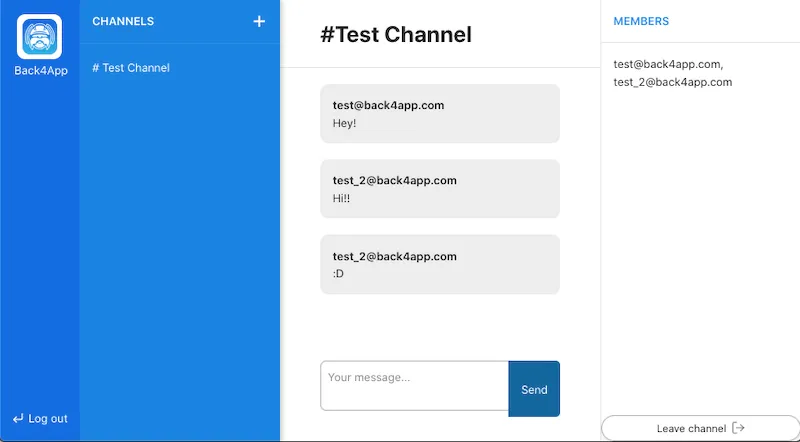
사용자가 활성 채널을 변경하거나 새 채널을 생성하거나 메시지를 보내는 등 Live Query 구성 요소를 동적으로 인스턴스화하는 이 접근 방식은 이를 재사용할 수 있게 해줍니다. 전체 앱이 어떻게 보일지 여기에 있습니다.
5 - Vercel에 배포하기
언제든지 아래 링크를 클릭하여 Vercel에 애플리케이션을 배포할 수 있습니다:
다음 사항을 확인하세요: Application ID, Client Key 및 LiveQuery URL. 키는 앱 설정 -> 보안 및 키로 가서 복사하세요. Live Query URL는 2단계로 가서 복사할 수 있습니다.
결론
이 가이드의 끝에서, Parse에서 라이브 쿼리를 위한 Parse React 훅 사용과 Back4App의 데이터베이스 허브 사용에 대해 더 많이 배웠습니다.