React에서 Parse를 사용한 기본 CRUD 구현 가이드
리액트 CRUD 튜토리얼
소개
Parse에 데이터를 저장하는 것은 Parse.Object 클래스를 중심으로 구성됩니다. 각 Parse.Object는 JSON 호환 데이터의 키-값 쌍을 포함합니다. 이 데이터는 스키마가 없으므로 각 Parse.Object에 어떤 키가 존재하는지 미리 지정할 필요가 없습니다. 원하는 키-값 쌍을 설정하면, 우리의 백엔드가 이를 저장합니다.
또한 애플리케이션의 필요에 따라 데이터 유형을 지정하고 숫자, 부울, 문자열, 날짜 및 시간, 목록, 지리 포인터, 그리고 객체, 저장하기 전에 JSON으로 인코딩합니다. Parse는 또한 포인터 및 관계와 같은 유형을 사용하여 관계형 데이터를 저장하고 쿼리하는 것을 지원합니다.
이 가이드에서는 CRUD 예제 앱을 통해 기본 데이터 작업을 수행하는 방법을 배우게 되며, 이를 통해 리액트에서 Parse 서버 데이터베이스에서 데이터를 생성, 읽기, 업데이트 및 삭제하는 방법을 보여줍니다. 먼저 각 CRUD 작업에 대한 구성 요소 함수를 생성하고, 나중에 전체 화면 레이아웃에서 이를 사용하여 할 일 목록 앱을 완성합니다.
전제 조건
이 튜토리얼을 완료하려면 다음이 필요합니다:
목표
Parse를 사용하여 React에서 기본 CRUD 애플리케이션을 구축합니다.
1 - 데이터 객체 생성
Parse 데이터베이스에서 데이터를 관리하는 첫 번째 단계는 데이터가 있는 것입니다. 이제 createTodo 함수를 만들어 보겠습니다. 이 함수는 Parse.Object의 새로운 인스턴스를 생성합니다. 할 일은 작업을 설명하는 제목 (string)과 작업이 완료되었는지를 나타내는 done(boolean) 필드를 가집니다.
1   const createTodo = async function () {
2     // This value comes from a state variable
3     const newTodoTitleValue = newTodoTitle;
4     // Creates a new Todo parse object instance
5     let Todo = new Parse.Object('Todo');
6     Todo.set('title', newTodoTitleValue);
7     Todo.set('done', false);
8     // After setting the to-do values, save it on the server
9     try {
10      await Todo.save();
11      // Success
12      alert('Success! To-do created!');
13      // Refresh to-dos list to show the new one (you will create this function later)
14      readTodos();
15      return true;
16    } catch (error) {
17      // Error can be caused by lack of Internet connection
18      alert(`Error! ${error.message}`);
19      return false;
20    };
21  };
데이터베이스에 Todo 테이블(또는 서브클래스)이 아직 없다면, Parse는 이를 자동으로 생성하고 Parse.Object 인스턴스 내에 설정된 모든 열을 추가합니다. Parse.Object.set() 메서드를 사용하여 두 개의 인수를 받습니다: 필드 이름과 설정할 값입니다.
2 - 데이터 객체 읽기
데이터베이스에 일부 데이터를 생성한 후, 이제 애플리케이션은 서버에서 데이터를 읽고 사용자에게 보여줄 수 있습니다. 계속해서 readTodos 함수를 생성하세요. 이 함수는 Parse.Query를 수행하고, 결과를 상태 변수에 저장합니다.
1   const readTodos = async function () {
2     // Reading parse objects is done by using Parse.Query
3     const parseQuery = new Parse.Query('Todo');
4     try {
5       let todos = await parseQuery.find();
6       // Be aware that empty or invalid queries return as an empty array
7       // Set results to state variable
8       setReadResults(todos);
9       return true;
10    } catch (error) {
11      // Error can be caused by lack of Internet connection
12      alert(`Error! ${error.message}`);
13      return false;
14    };
15  };
쿼리에 많은 제약 조건과 정렬을 적용할 수 있지만, 지금은 모든 저장된 Todo 객체를 검색하는 이 간단한 쿼리에 집중하겠습니다.
3 - 데이터 객체 업데이트
업데이트하는 Parse.Object 인스턴스는 새 인스턴스를 만드는 것과 매우 유사하지만, 이 경우에는 이전에 생성된 objectId를 할당한 다음 새 값을 설정한 후 저장해야 합니다.
1   const updateTodo = async function (todoId, done) {
2     // Create a new Todo parse object instance and set todo id
3     let Todo = new Parse.Object('Todo');
4     Todo.set('objectId', todoId);
5     // Set new done value and save Parse Object changes
6     Todo.set('done', done);
7     try {
8       await Todo.save();
9       // Success
10      alert('Success! To-do updated!');
11      // Refresh to-dos list
12      readTodos();
13      return true;
14    } catch (error) {
15      // Error can be caused by lack of Internet connection
16      alert(`Error! ${error.message}`);
17      return false;
18    };
19  };
이 예제 앱은 할 일 목록을 나타내므로, 업데이트 함수는 추가 인수인 done 값을 사용합니다. 이 값은 특정 작업이 완료되었는지를 나타냅니다.
4 - 데이터 객체 삭제
데이터 객체를 삭제하려면, .destroy() 메서드를 호출해야 합니다. Parse.Object 인스턴스에서 이를 나타냅니다. 이 작업은 되돌릴 수 없으므로 주의하세요.
1	const deleteTodo = async function (todoId: string): Promise<boolean> {
2	  // Create a new Todo parse object instance and set todo id
3	  let Todo: Parse.Object = new Parse.Object('Todo');
4	  Todo.set('objectId', todoId);
5	  // .destroy should be called to delete a parse object
6	  try {
7	    await Todo.destroy();
8	    alert('Success! To-do deleted!');
9	    // Refresh to-dos list to remove this one
10	    readTodos();
11	    return true;
12	  } catch (error: any) {
13	    // Error can be caused by lack of Internet connection
14	    alert(`Error! ${error.message}`);
15	    return false;
16	  };
17	};
이제 이 네 가지 함수를 완전한 컴포넌트에서 사용하여 테스트하고 모든 CRUD 작업이 제대로 작동하는지 확인해 보겠습니다.
5 - React 컴포넌트에서 CRUD 사용하기
여기 스타일이 적용된 사용자 인터페이스 요소( Ant Design 포함), 상태 변수 및 CRUD 함수 호출을 포함한 전체 컴포넌트 코드가 있습니다. TodoList.js/TodoList.tsx라는 파일에 별도의 컴포넌트를 생성해야 합니다. src 디렉토리에 다음 코드를 포함하거나 이를 직접 주요 애플리케이션 파일(App.js/App.tsx)에 추가하세요.
1   import React, { useState, FC, ReactElement } from 'react';
2   import './App.css';
3   import { Button, Input, List } from 'antd';
4   import {
5     CheckOutlined,
6     CloseOutlined,
7     PlusOutlined,
8     RedoOutlined,
9   } from '@ant-design/icons';
10  const Parse = require('parse/dist/parse.min.js');
11
12  export const TodoList: FC<{}> = (): ReactElement => {
13    // State variables
14    const initialReadResults: Parse.Object[] = [];
15    const [readResults, setReadResults] = useState(initialReadResults);
16    const [newTodoTitle, setNewTodoTitle] = useState('');
17
18    // Functions used by the screen components
19    const createTodo = async function (): Promise<boolean> {
20      // This value comes from a state variable
21      const newTodoTitleValue: string = newTodoTitle;
22      // Creates a new Todo parse object instance
23      let Todo: Parse.Object = new Parse.Object('Todo');
24      Todo.set('title', newTodoTitleValue);
25      Todo.set('done', false);
26      // After setting the to-do values, save it on the server
27      try {
28        await Todo.save();
29        // Success
30        alert('Success! To-do created!');
31        // Refresh to-dos list to show the new one (you will create this function later)
32        readTodos();
33        return true;
34      } catch (error: any) {
35        // Error can be caused by lack of Internet connection
36        alert('Error!' + error.message);
37        return false;
38      }
39    };
40
41    const readTodos = async function (): Promise<boolean> {
42      // Reading parse objects is done by using Parse.Query
43      const parseQuery: Parse.Query = new Parse.Query('Todo');
44      try {
45        let todos: Parse.Object[] = await parseQuery.find();
46        // Be aware that empty or invalid queries return as an empty array
47        // Set results to state variable
48        setReadResults(todos);
49        return true;
50      } catch (error: any) {
51        // Error can be caused by lack of Internet connection
52        alert('Error!' + error.message);
53        return false;
54      }
55    };
56
57    const updateTodo = async function (todoId: string, done: boolean): Promise<boolean> {
58      // Create a new to-do parse object instance and set todo id
59      let Todo: Parse.Object = new Parse.Object('Todo');
60      Todo.set('objectId', todoId);
61      // Set new done value and save Parse Object changes
62      Todo.set('done', done);
63      try {
64        await Todo.save();
65        // Success
66        alert('Success! To-do updated!');
67        // Refresh todos list
68        readTodos();
69        return true;
70      } catch (error: any) {
71        // Error can be caused by lack of Internet connection
72        alert('Error!' + error.message);
73        return false;
74      }
75    };
76
77    const deleteTodo = async function (todoId: string): Promise<boolean> {
78      // Create a new Todo parse object instance and set todo id
79      let Todo: Parse.Object = new Parse.Object('Todo');
80      Todo.set('objectId', todoId);
81      // .destroy should be called to delete a parse object
82      try {
83        await Todo.destroy();
84        alert('Success! To-do deleted!');
85        // Refresh to-dos list to remove this one
86        readTodos();
87        return true;
88      } catch (error: any) {
89        // Error can be caused by lack of Internet connection
90        alert('Error!' + error.message);
91        return false;
92      }
93    };
94
95    return (
96      <div>
97        <div className="header">
98          <img
99            className="header_logo"
100           alt="Back4App Logo"
101           src={
102             'https://blog.back4app.com/wp-content/uploads/2019/05/back4app-white-logo-500px.png'
103           }
104         />
105         <p className="header_text_bold">{'React on Back4App'}</p>
106         <p className="header_text">{'To-do List'}</p>
107       </div>
108       <div className="container">
109         <div className="flex_between">
110           <h2 className="list_heading">Todo List</h2>
111           {/* To-do read (refresh) button */}
112           <Button
113             type="primary"
114             shape="circle"
115             color={'#208AEC'}
116             onClick={readTodos}
117             icon={<RedoOutlined />}
118           ></Button>
119         </div>
120         <div className="new_todo_wrapper flex_between">
121           {/* Todo create text input */}
122           <Input
123             value={newTodoTitle}
124             onChange={(event: {target: {value: string}}) => setNewTodoTitle(event.target.value)}
125             placeholder="New Todo"
126             size="large"
127           />
128           {/* Todo create button */}
129           <Button
130             type="primary"
131             className="create_todo_button"
132             color={'#208AEC'}
133             size={'large'}
134             onClick={createTodo}
135             icon={<PlusOutlined />}
136           >
137             Add
138           </Button>
139         </div>
140         <div>
141           {/* Todo read results list */}
142           {readResults !== null &&
143             readResults !== undefined &&
144             readResults.length > 0 && (
145               <List
146                 dataSource={readResults}
147                 renderItem={(item: Parse.Object) => (
148                   <List.Item className="todo_item">
149                     <p
150                       className={
151                         item.get('done') === true
152                           ? 'todo_text_done'
153                           : 'todo_text'
154                       }
155                     >
156                       {item.get('title')}
157                     </p>
158                     <div className="flex_row">
159                       {/* Todo update button */}
160                       {item.get('done') !== true && (
161                         <Button
162                           type="primary"
163                           shape="circle"
164                           className="todo_button"
165                           onClick={() => updateTodo(item.id, true)}
166                           icon={
167                             <CheckOutlined className="todo_button_icon_done" />
168                           }
169                         ></Button>
170                       )}
171                       {/* Todo delete button */}
172                       <Button
173                         type="primary"
174                         shape="circle"
175                         className="todo_button"
176                         onClick={() => deleteTodo(item.id)}
177                         icon={
178                           <CloseOutlined className="todo_button_icon_remove" />
179                         }
180                       ></Button>
181                     </div>
182                   </List.Item>
183                 )}
184               />
185             )}
186         </div>
187       </div>
188     </div>
189   );
190 };
또한, 다음 CSS 스타일을 App.css 파일의 끝에 추가하세요:
1   /* ... */
2   /* Your other styles */
3
4   /* Back4App Guide Styles */
5
6   html {
7	   box-sizing: border-box;
8	   outline: none;
9	   overflow: auto;
10  }
11
12  *,
13  *:before,
14  *:after {
15	  margin: 0;
16	  padding: 0;
17	  box-sizing: inherit;
18  }
19
20  h1,
21  h2,
22  h3,
23  h4,
24  h5,
25  h6 {
26    margin: 0;
27  }
28
29  p {
30    margin: 0;
31  }
32
33  body {
34	  margin: 0;
35	  background-color: #fff;
36  }
37
38  .container {
39    width: 100%;
40    max-width: 600px;
41    margin: auto;
42    padding: 20px 0;
43  }
44
45  .wrapper {
46    width: '90%';
47    align-self: 'center';
48  }
49
50  .header {
51    align-items: center;
52    padding: 25px 0;
53    background-color: #208AEC;
54  }
55
56  .header_logo {
57    height: 55px;
58    margin-bottom: 20px;
59    object-fit: contain;
60  }
61
62  .header_text_bold {
63    margin-bottom: 3px;
64    color: rgba(255, 255, 255, 0.9);
65    font-size: 16px;
66    font-weight: bold;
67  }
68
69  .header_text {
70    color: rgba(255, 255, 255, 0.9);
71    font-size: 15px;
72  }
73
74  .flex_row {
75    display: flex;
76  }
77
78  .flex_between {
79    display: flex;
80    align-items: center;
81    justify-content: space-between;
82  }
83
84  .list_heading {
85    font-weight: bold;
86  }
87
88  .new_todo_wrapper {
89    margin-top: 20px;
90    margin-bottom: 10px;
91  }
92
93  .new_todo_wrapper > input {
94    margin-right: 20px;
95  }
96
97  .todo_item {
98    border-bottom-width: 1;
99    border-bottom-color: 'rgba(0, 0, 0, 0.12)';
100  }
101
102  .todo_text {
103    font-size: 15px;
104  }
105
106  .todo_text_done {
107    color: rgba(0, 0, 0, 0.3);
108    font-size: 15px;
109    text-decoration-line: line-through;
110  }
111
112  .todo_button {
113    width: 32px;
114    height: 32px;
115    margin-left: 5px;
116    background-color: transparent;
117    border-radius: 50px;
118    border: none;
119    cursor: pointer;
120  }
121
122  .todo_button:hover,
123  .todo_button:focus {
124    background-color: rgba(0, 0, 0, 0.1);
125  }
126
127  .todo_button_icon_done {
128    color: #52c41a;
129    font-size: 16px;
130  }
131
132  .todo_button_icon_remove {
133    color: #f5222d;
134    font-size: 16px;
135  }
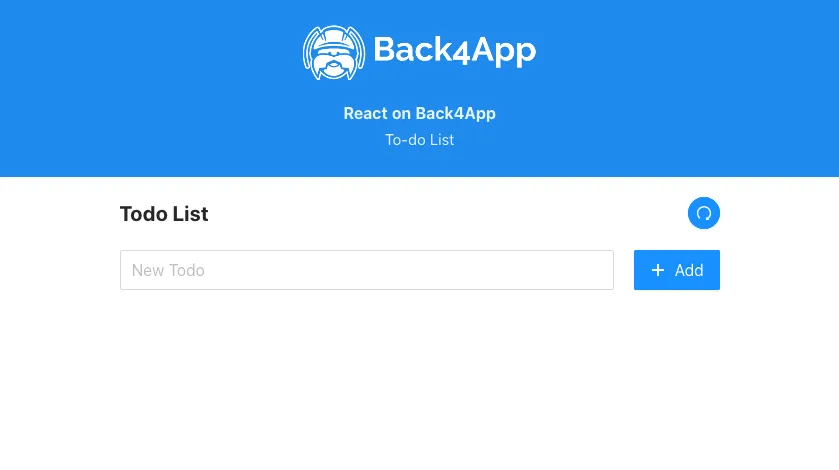
구성 요소가 제대로 설정되었다면, 앱을 실행한 후 다음과 같은 화면을 보게 될 것입니다:
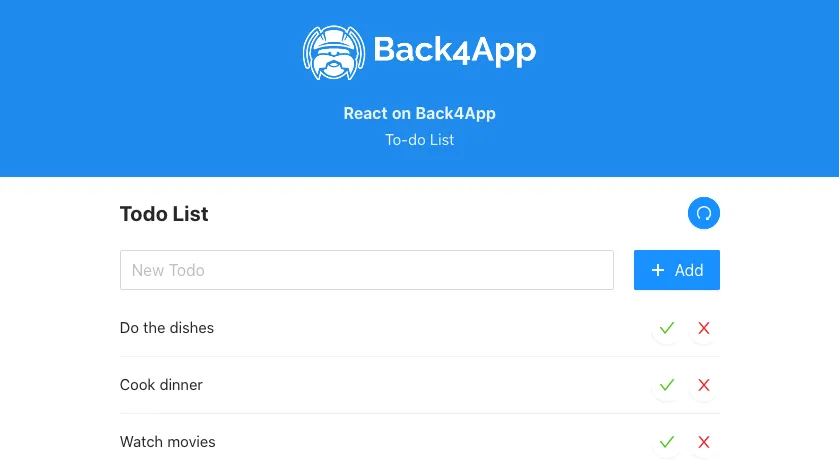
입력 상자에 제목을 하나씩 입력하고 추가 버튼을 눌러 할 일을 추가하세요. 모든 작업이 성공적으로 생성된 후, createTodo 함수가 readTodos 함수를 트리거하여 작업 목록을 자동으로 새로 고칩니다. 이제 다음과 같은 상당한 할 일 목록이 있어야 합니다:
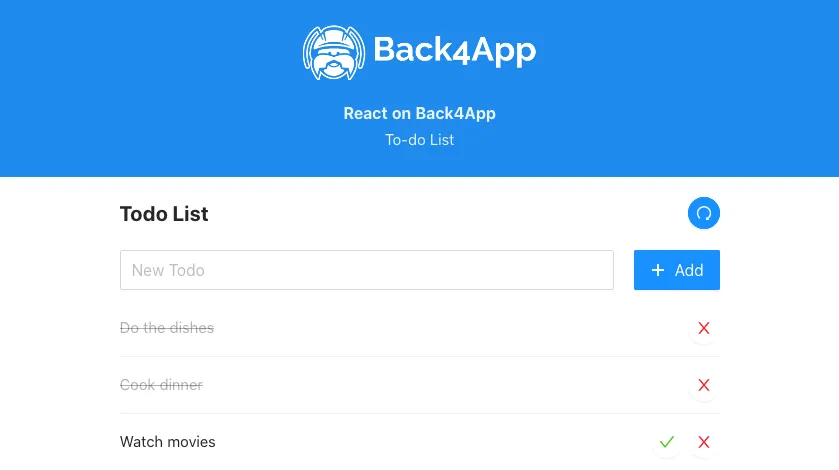
이제 체크마크를 클릭하여 작업을 완료로 표시할 수 있으며, 이로 인해 해당 작업의 완료 값이 true로 업데이트되고 왼쪽의 아이콘 상태가 변경됩니다.
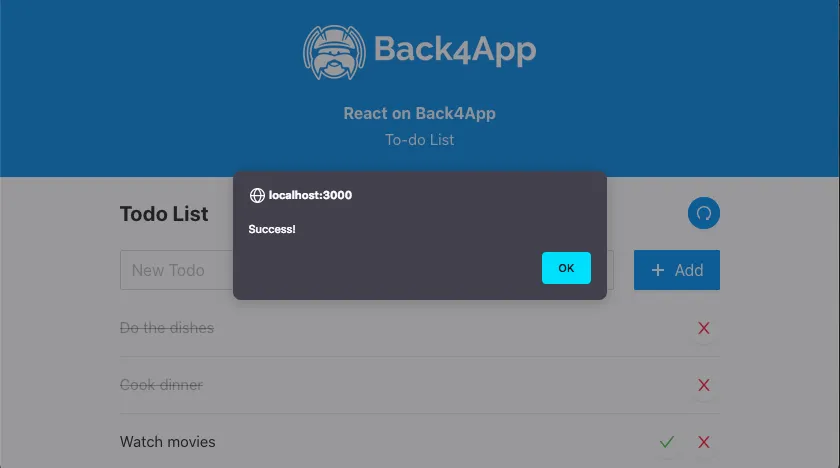
이제 남은 데이터 작업은 삭제 작업입니다. 이는 할 일 목록 객체의 가장 오른쪽에 있는 쓰레기통 아이콘을 눌러 수행할 수 있습니다. 객체를 성공적으로 삭제한 후에는 다음과 같은 경고 메시지를 받게 됩니다:
결론
이 가이드를 마치면서, React에서 Parse를 사용하여 기본 데이터 작업(CRUD)을 수행하는 방법을 배웠습니다. 다음 가이드에서는 Parse에서 지원하는 데이터 유형과 이를 사용하는 방법을 보여드리겠습니다.