리액트 네이티브와 GraphQL을 통한 고급 CRUD 구현
리액트 네이티브 GraphQL CRUD 튜토리얼
소개
GraphQL을 사용하여 Back4App에서 데이터를 관리하는 것은 모든 유형의 애플리케이션에 강력한 옵션으로, 쿼리를 가속화하고 가장 복잡한 쿼리를 단순화합니다. Back4App은 GraphQL 구성에 대한 일반적인 규칙을 사용하며 개발 환경 설정을 돕기 위한 훌륭한 도구를 제공합니다.
이 가이드에서는 CRUD 예제 앱을 통해 기본 데이터 작업을 수행하는 방법을 배우게 되며, 이를 통해 React Native에서 GraphQL과 Relay를 사용하여 Parse 서버 데이터베이스에서 데이터를 생성, 읽기, 업데이트 및 삭제하는 방법을 보여줍니다.
먼저 각 CRUD 작업에 대한 구성 요소 함수를 생성한 후, 이를 전체 화면 레이아웃에서 사용하여 할 일 목록 앱을 만들 것입니다.
언제든지 GitHub 리포지토리를 통해 이 프로젝트에 접근하여 스타일과 전체 코드를 확인할 수 있습니다.
사전 요구 사항
- Back4App에 생성되고 연결된 리액트 네이티브 앱;
- 기본 구현으로 자바스크립트를 사용할 것입니다.
목표
Parse, GraphQL 및 Relay를 사용하여 React Native에서 기본 CRUD 애플리케이션을 구축합니다.
1 - Todo 클래스 생성
이 첫 번째 단계에서는 애플리케이션이 작동할 클래스를 정의해야 합니다. Todo 클래스는 작업을 설명하는 제목(string) 필드와 작업이 완료되었는지를 나타내는 done(boolean) 필드만 필요합니다. 클래스가 없다면, GraphQL 요리책의 가이드를 따라 데이터베이스에 클래스를 생성하기 위해 일반 변형을 사용할 수 있습니다. 또한 Back4App의 대시보드를 사용하여 데이터베이스 브라우저 자체 또는 JS 또는 GraphQL 콘솔에서 클래스를 생성할 수 있습니다.
이 새로운 클래스를 생성한 후, 대시보드에서 schema.json 파일을 다운로드하고 애플리케이션의 data 디렉토리에 저장하는 것을 잊지 마세요. 이는 Relay 컴파일러가 쿼리, 변형 등에서 자동으로 유형을 생성하는 데 필요합니다.
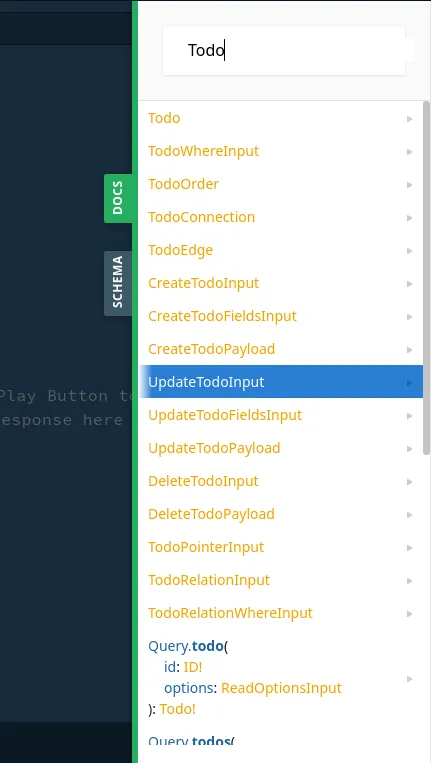
이 시점에서 Back4App 대시보드에는 클래스 객체에 대한 CRUD 변형이 자동으로 생성됩니다. 이를 보려면 GraphQL 콘솔로 이동하여 문서 탭을 열고 Todo:를 검색할 수 있습니다.
2 - 객체 쿼리 및 렌더링
이제 Back4App 서버에서 목록 쿼리를 수행하고, 객체에 대한 연결을 설정하며, 변경될 때마다 목록 내용을 자동으로 렌더링하고 업데이트하는 컴포넌트를 생성해 보겠습니다.
다음 코드를 사용하여 TodoListQueryRenderer.js라는 이름의 새 파일을 src 디렉토리에 생성하세요:
1	import React from 'react';
2	import { View, Text } from 'react-native';
3	import { graphql, QueryRenderer } from 'react-relay';
4
5	// prerequisite: properly configured relay environment
6	import environment from '../../relay/environment';
7
8	// This will be created in the next steps
9	import TodoList from './TodoList';
10
11	const TodoListQueryRenderer = () => {
12	    return (
13	        // The QueryRenderer acts as a wrapper to any code, providing query results to
14	        // the child components and updating them as needed
15	        // Note that the query is using a fragment called TodoList_query,
16	        // which will be created in the next steps
17	        <QueryRenderer
18	            environment={environment}
19	            query={graphql`
20	            query TodoListQueryRendererQuery {
21	              ...TodoList_query
22	            }
23	          `}
24	            variables={null}
25	            render={({ error, props }) => {
26	                if (error) {
27	                    return (
28	                        <View>
29	                            <Text>{error.message}</Text>
30	                        </View>
31	                    );
32	                } else if (props) {
33	                    return <TodoList query={props} />;
34	                }
35	                return (
36	                    <View>
37	                        <Text>Loading...</Text>
38	                    </View>
39	                );
40	            }}
41	        />
42	    );
43	}
44
45	export default TodoListQueryRenderer;
3 - 목록 구성 요소 및 객체의 조각 만들기
이제 QueryRenderer에서 가져온 데이터를 렌더링할 목록 구성 요소를 만들어 보겠습니다. 이 구성 요소는 현재 각 노드를 렌더링하는 맵 기능을 포함하는 간단한 스크롤 뷰만 포함할 것입니다. src 디렉토리에 다음과 같은 새 파일을 만드세요.TodoList.js 그리고 다음 코드를 추가하세요:
1	import React, {useState} from 'react';
2	import {
3	  View,
4	  SafeAreaView,
5	  Image,
6	  ScrollView,
7	  StatusBar,
8	  StyleSheet,
9	  TouchableOpacity,
10	} from 'react-native';
11
12	import {
13	  List,
14	  Text as PaperText,
15	  Button as PaperButton,
16	  TextInput as PaperTextInput,
17	} from 'react-native-paper';
18	import {createFragmentContainer} from 'react-relay';
19
20	const TodoList = props => {
21	  const [newTodoTitle, setNewTodoTitle] = useState('');
22
23	  const {query} = props;
24	  const {todos} = query;
25
26	  const renderTodos = () => {
27	    if (!todos) {
28	      return null;
29	    }
30
31	    return todos.edges.map(({node: todo}) => (
32	      <List.Item
33	        key={todo.id}
34	        title={todo.title}
35	        titleStyle={todo.done ? Styles.todo_text_done : Styles.todo_text}
36	        style={Styles.todo_item}
37	        right={props => (
38	          <>
39	            {!todo.done && (
40	              <TouchableOpacity onPress={() => updateTodo(todo.id, true)}>
41	                <List.Icon {...props} icon="check" color={'#4CAF50'} />
42	              </TouchableOpacity>
43	            )}
44
45	            <TouchableOpacity onPress={() => deleteTodo(todo.id)}>
46	              <List.Icon {...props} icon="close" color={'#ef5350'} />
47	            </TouchableOpacity>
48	          </>
49	        )}
50	      />
51	    ));
52	  };
53
54	  return (
55	    <>
56	      <StatusBar backgroundColor="#208AEC" />
57	      <SafeAreaView style={Styles.container}>
58	        <View style={Styles.header}>
59	          <PaperText style={Styles.header_text_bold}>
60	            {'React Native on Back4App'}
61	          </PaperText>
62	          <PaperText style={Styles.header_text}>{'Product Creation'}</PaperText>
63	        </View>
64	        <View style={Styles.create_todo_container}>
65	        </View>
66	        <ScrollView style={Styles.todo_list}>{renderTodos()}</ScrollView>
67	      </SafeAreaView>
68	    </>
69	  );
70	};
71
72	const TodoListFragmentContainer = createFragmentContainer(TodoList, {
73	  query: graphql`
74	    fragment TodoList_query on Query {
75	      todos(first: 50) @connection(key: "TodoList_todos", filters: []) {
76	        edges {
77	          node {
78	            id
79	            title
80	            done
81	          }
82	        }
83	      }
84	    }
85	  `,
86	});
2단계의 쿼리 렌더러는 TodoList_query라는 데이터 조각을 기대하므로, 파일 끝에 리스트 컴포넌트에도 추가했습니다. GraphQL 조각은 컴포넌트가 렌더링하는 데 필요한 데이터를 호출하고 반환해야 할 내용을 지정하는 구조라는 점을 기억하세요.
4 - 객체 생성하기
Back4App GraphQL 데이터베이스에서 데이터를 관리하는 첫 번째 단계는 그 위에 데이터를 갖는 것입니다. 우리는 이를 위해 새로운 Todo를 생성하는 뮤테이션을 사용하여 리스트 컴포넌트에서 호출할 함수를 만들어야 합니다.
뮤테이션부터 시작하겠습니다. 따라서 CreateTodoMutation.js라는 새 파일을 src/mutations 디렉토리에 생성하고 다음 코드를 포함시킵니다:
1	import { commitMutation, graphql } from "react-relay";
2	import { ROOT_ID, ConnectionHandler } from 'relay-runtime';
3
4	const connectionCreateEdgeUpdater = (store, nodeId) => {
5	  const parentProxy = store.get(ROOT_ID);
6	  const todoConnection = ConnectionHandler.getConnection(parentProxy, 'TodoList_todos');
7
8	  const newTodo = store.get(nodeId);
9	  const edge = ConnectionHandler.createEdge(store, todoConnection, newTodo, 'TodoEdge');
10
11	  // No cursor provided, append the edge at the end.
12	  ConnectionHandler.insertEdgeAfter(todoConnection, edge);
13	}
14
15	const mutation = graphql`
16	  mutation CreateTodoMutation($input: CreateTodoInput!) {
17	    createTodo(input: $input) {
18	      todo {
19	        id
20	        title
21	        done
22	      }
23	    }
24	  }
25	`;
26
27	function commit({ environment, input, onCompleted, onError }) {
28	  const variables = { input };
29
30	  commitMutation(environment, {
31	    mutation,
32	    variables,
33	    onCompleted,
34	    onError,
35	    updater: (store) => {
36	      const todoId = store.getRootField('createTodo').getLinkedRecord('todo').getValue('id');
37
38	      connectionCreateEdgeUpdater(store, todoId)
39	    }
40	  });
41	}
Relay Modern은 변이 호출 후 데이터를 업데이트하는 데 사용할 수 있는 여러 API 엔드포인트를 제공합니다. 이 함수에서는 새로 생성된 Todo를 가져오고 프론트엔드에서 이미 존재하는 목록을 업데이트하기 위해 일부 기능을 사용했습니다. 이 접근 방식을 통해 우리는 새로운 요청에 소요될 시간을 절약하고, 사용자 인터넷, 과도한 데이터 요청 등을 피할 수 있습니다.
이제 다음 함수를 TodoList 컴포넌트에 추가하세요. 이 함수는 CreateTodoMutation을 호출하며, 나중에 버튼으로 참조됩니다.
1	const createTodo = () => {
2	    const input = {
3	        fields: {
4	            title: newTodoTitle,
5	            done: false,
6	        },
7	    };
8
9	    CreateTodoMutation.commit({
10	        environment,
11	        input: input,
12	        onCompleted: () => {
13	            Alert.alert('Success!', 'Todo created!');
14	            setNewTodoTitle('');
15	        },
16	        onError: (errors) => {
17	            Alert.alert('Error!', errors);
18	        },
19	    });
20	}
5 - 객체 업데이트하기
객체를 업데이트하는 것은 객체를 생성하는 것과 유사하지만, Relay Modern을 사용하여 객체를 업데이트할 때는 업데이트할 필드를 새 상태로 요청하기만 하면 됩니다.
새 파일을 생성하세요 UpdateTodoMutation.js 를 src/mutations 디렉토리에 다음 코드를 포함하여 생성하세요:
1	import { commitMutation, graphql } from "react-relay";
2
3	const mutation = graphql`
4	  mutation UpdateTodoMutation($input: UpdateTodoInput!) {
5	    updateTodo(input: $input) {
6	      todo {
7	        id
8	        title
9	        done
10	      }
11	    }
12	  }
13	`;
14
15	function commit({ environment, input, onCompleted, onError }) {
16	  const variables = { input };
17
18	  commitMutation(environment, {
19	    mutation,
20	    variables,
21	    onCompleted,
22	    onError,
23	  });
24	}
25
26	export default {
27	  commit,
28	};
이전 단계와 마찬가지로 다음 함수를TodoList 컴포넌트에 추가하세요. 이 함수는UpdateTodoMutation을 호출하며, 나중에 버튼으로 참조됩니다.
1	const updateTodo = (todoId, done) => {
2	    const input = {
3	        id: todoId,
4	        fields: {
5	            done,
6	        }
7	    }
8
9	    UpdateTodoMutation.commit({
10	        environment,
11	        input: input,
12	        onCompleted: () => {
13	            Alert.alert('Success!', 'Todo updated!');
14	        },
15	        onError: (errors) => {
16	            Alert.alert('Error!', errors);
17	        },
18	    });
19	}
6 - 객체 삭제하기
객체를 삭제할 때, Relay Store API를 사용하여 목록을 업데이트하고 프론트엔드에서 오래된 객체를 제거할 수 있습니다. 우리는 createTodo와 유사한 업데이트 콜백을 호출할 것입니다. 하지만 목록에서 제거할 할 일의 연결과 ID를 전달할 것입니다. 이렇게 하면 프론트엔드가 서버에 충실하게 업데이트됩니다.
다음 코드를 포함하는 DeleteTodoMutation.js라는 이름의 새 파일을 src/mutations 디렉토리에 생성하세요.
1	import { commitMutation, graphql } from "react-relay";
2	import { ROOT_ID, ConnectionHandler } from 'relay-runtime';
3
4	const connectionDeleteEdgeUpdater = (store, nodeId) => {
5	  const parentProxy = store.get(ROOT_ID);
6	  const connection = ConnectionHandler.getConnection(parentProxy, 'TodoList_todos');
7
8	  const newCount = connection.getValue('count');
9	  connection.setValue(newCount - 1, 'count');
10
11	  ConnectionHandler.deleteNode(connection, nodeId);
12	}
13
14	const mutation = graphql`
15	  mutation DeleteTodoMutation($input: DeleteTodoInput!) {
16	    deleteTodo(input: $input) {
17	      todo {
18	        id
19	      }
20	    }
21	  }
22	`;
23
24	function commit({ environment, input, onCompleted, onError }) {
25	  const variables = { input };
26
27	  commitMutation(environment, {
28	    mutation,
29	    variables,
30	    onCompleted,
31	    onError,
32	    updater: (store) => {
33	      connectionDeleteEdgeUpdater(store, input.id)
34	    }
35	  });
36	}
37
38	export default {
39	  commit,
40	};
이전 단계와 마찬가지로, 다음 함수를TodoList 컴포넌트에 추가하세요. 이 함수는DeleteTodoMutation을 호출하며, 나중에 버튼으로 참조됩니다.
1	const deleteTodo = (todoId) => {
2	    const input = {
3	        id: todoId,
4	    }
5
6	    DeleteTodoMutation.commit({
7	        environment,
8	        input: input,
9	        onCompleted: () => {
10	            Alert.alert('Success!', 'Todo deleted!');
11	        },
12	        onError: (errors) => {
13	            Alert.alert('Error!', errors);
14	        },
15	    });
16	}
7 - React Native 컴포넌트에서 CRUD 사용하기
이제 스타일이 적용된 사용자 인터페이스 요소, 상태 변수 및 CRUD 함수 호출로 TodoList 구성 요소 코드를 완성합시다.
1	import React, {useState} from 'react';
2	import {
3	  Alert,
4	  View,
5	  SafeAreaView,
6	  Image,
7	  ScrollView,
8	  StatusBar,
9	  StyleSheet,
10	  TouchableOpacity,
11	} from 'react-native';
12
13	import {
14	  List,
15	  Text as PaperText,
16	  Button as PaperButton,
17	  TextInput as PaperTextInput,
18	} from 'react-native-paper';
19	import {createFragmentContainer} from 'react-relay';
20	import CreateTodoMutation from './mutations/CreateTodoMutation';
21	import UpdateTodoMutation from './mutations/UpdateTodoMutation';
22	import DeleteTodoMutation from './mutations/DeleteTodoMutation';
23
24	import environment from '../../relay/environment';
25
26	const TodoList = props => {
27	  const [newTodoTitle, setNewTodoTitle] = useState('');
28
29	  const {query} = props;
30	  const {todos} = query;
31
32	  const createTodo = () => {
33	    const input = {
34	      fields: {
35	        title: newTodoTitle,
36	        done: false,
37	      },
38	    };
39
40	    CreateTodoMutation.commit({
41	      environment,
42	      input: input,
43	      onCompleted: () => {
44	        Alert.alert('Success!', 'Todo created!');
45	        setNewTodoTitle('');
46	      },
47	      onError: errors => {
48	        Alert.alert('Error!', errors);
49	      },
50	    });
51	  };
52
53	  const updateTodo = (todoId, done) => {
54	    const input = {
55	      id: todoId,
56	      fields: {
57	        done,
58	      },
59	    };
60
61	    UpdateTodoMutation.commit({
62	      environment,
63	      input: input,
64	      onCompleted: () => {
65	        Alert.alert('Success!', 'Todo updated!');
66	      },
67	      onError: errors => {
68	        Alert.alert('Error!', errors);
69	      },
70	    });
71	  };
72
73	  const deleteTodo = todoId => {
74	    const input = {
75	      id: todoId,
76	    };
77
78	    DeleteTodoMutation.commit({
79	      environment,
80	      input: input,
81	      onCompleted: () => {
82	        Alert.alert('Success!', 'Todo deleted!');
83	      },
84	      onError: errors => {
85	        Alert.alert('Error!', errors);
86	      },
87	    });
88	  };
89
90	  const renderTodos = () => {
91	    if (!todos) {
92	      return null;
93	    }
94
95	    return todos.edges.map(({node: todo}) => (
96	      <List.Item
97	        key={todo.id}
98	        title={todo.title}
99	        titleStyle={todo.done ? Styles.todo_text_done : Styles.todo_text}
100	        style={Styles.todo_item}
101	        right={props => (
102	          <>
103	            {!todo.done && (
104	              <TouchableOpacity onPress={() => updateTodo(todo.id, true)}>
105	                <List.Icon {...props} icon="check" color={'#4CAF50'} />
106	              </TouchableOpacity>
107	            )}
108
109	            <TouchableOpacity onPress={() => deleteTodo(todo.id)}>
110	              <List.Icon {...props} icon="close" color={'#ef5350'} />
111	            </TouchableOpacity>
112	          </>
113	        )}
114	      />
115	    ));
116	  };
117
118	  return (
119	    <>
120	      <StatusBar backgroundColor="#208AEC" />
121	      <SafeAreaView style={Styles.container}>
122	        <View style={Styles.header}>
123	          <Image
124	            style={Styles.header_logo}
125	            source={ {
126	              uri:
127	                'https://blog.back4app.com/wp-content/uploads/2019/05/back4app-white-logo-500px.png',
128	            } }
129	          />
130	          <PaperText style={Styles.header_text_bold}>
131	            {'React Native on Back4App'}
132	          </PaperText>
133	          <PaperText style={Styles.header_text}>{'Product Creation'}</PaperText>
134	        </View>
135	        <View style={Styles.create_todo_container}>
136	          {/* Todo create text input */}
137	          <PaperTextInput
138	            value={newTodoTitle}
139	            onChangeText={text => setNewTodoTitle(text)}
140	            label="New Todo"
141	            mode="outlined"
142	            style={Styles.create_todo_input}
143	          />
144	          {/* Todo create button */}
145	          <PaperButton
146	            onPress={() => createTodo()}
147	            mode="contained"
148	            icon="plus"
149	            color={'#208AEC'}
150	            style={Styles.create_todo_button}>
151	            {'Add'}
152	          </PaperButton>
153	        </View>
154	        <ScrollView style={Styles.todo_list}>{renderTodos()}</ScrollView>
155	      </SafeAreaView>
156	    </>
157	  );
158	};
159
160	const TodoListFragmentContainer = createFragmentContainer(TodoList, {
161	  query: graphql`
162	    fragment TodoList_query on Query {
163	      todos(first: 1000) @connection(key: "TodoList_todos", filters: []) {
164	        edges {
165	          node {
166	            id
167	            title
168	            done
169	          }
170	        }
171	      }
172	    }
173	  `,
174	});
175
176	const Styles = StyleSheet.create({
177	  container: {
178	    flex: 1,
179	    backgroundColor: '#FFF',
180	  },
181	  wrapper: {
182	    width: '90%',
183	    alignSelf: 'center',
184	  },
185	  header: {
186	    alignItems: 'center',
187	    paddingTop: 10,
188	    paddingBottom: 20,
189	    backgroundColor: '#208AEC',
190	  },
191	  header_logo: {
192	    width: 170,
193	    height: 40,
194	    marginBottom: 10,
195	    resizeMode: 'contain',
196	  },
197	  header_text_bold: {
198	    color: '#fff',
199	    fontSize: 14,
200	    fontWeight: 'bold',
201	  },
202	  header_text: {
203	    marginTop: 3,
204	    color: '#fff',
205	    fontSize: 14,
206	  },
207	  flex_between: {
208	    flexDirection: 'row',
209	    alignItems: 'center',
210	    justifyContent: 'space-between',
211	  },
212	  create_todo_container: {
213	    flexDirection: 'row',
214	    paddingLeft: 10,
215	    paddingRight: 10,
216	  },
217	  create_todo_input: {
218	    flex: 1,
219	    height: 38,
220	    marginBottom: 16,
221	    backgroundColor: '#FFF',
222	    fontSize: 14,
223	  },
224	  create_todo_button: {
225	    marginTop: 6,
226	    marginLeft: 15,
227	    height: 40,
228	  },
229	  todo_list: {
230	    paddingLeft: 10,
231	    paddingRight: 10,
232	  },
233	  todo_item: {
234	    borderBottomWidth: 1,
235	    borderBottomColor: 'rgba(0, 0, 0, 0.12)',
236	  },
237	  todo_text: {
238	    fontSize: 15,
239	  },
240	  todo_text_done: {
241	    color: 'rgba(0, 0, 0, 0.3)',
242	    fontSize: 15,
243	    textDecorationLine: 'line-through',
244	  },
245	});
246
247	export default TodoListFragmentContainer;
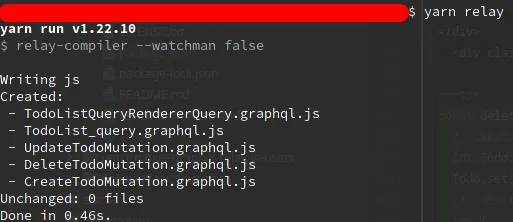
프로젝트를 실행하기 전에 yarn relay를 실행하고 Relay __generated__ 타입을 업데이트하는 것을 잊지 마세요:
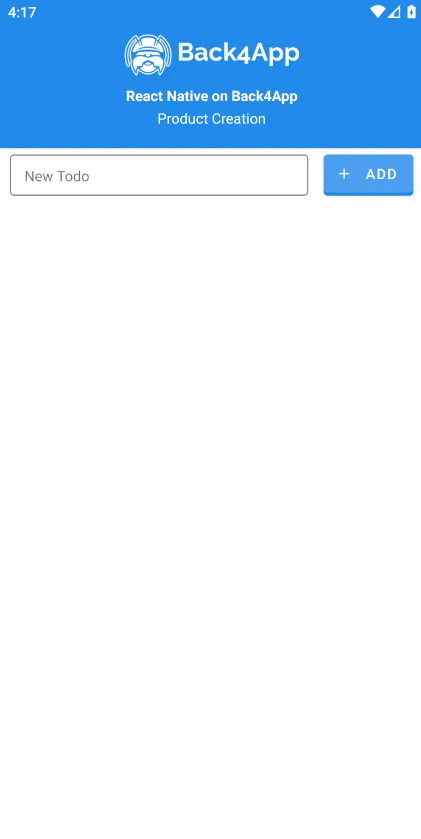
구성 요소가 제대로 설정되었다면, 앱을 빌드하고 실행한 후 다음과 같은 화면을 볼 수 있어야 합니다:
계속해서 입력 상자에 제목을 하나씩 입력하고 추가 버튼을 눌러 할 일을 추가하세요. 모든 성공적인 생성 후에 createTodo 함수가 Mutation의 업데이트 콜백을 트리거하여 작업 목록을 자동으로 새로 고칩니다. 이제 다음과 같은 상당한 할 일 목록이 있어야 합니다:
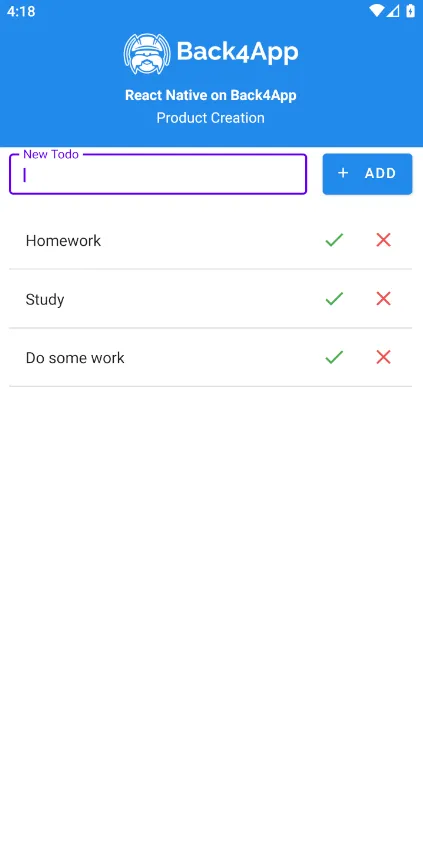
이제 체크마크를 클릭하여 작업을 완료로 표시할 수 있으며, 이로 인해 완료 값이 true로 업데이트되고 왼쪽의 아이콘 상태가 변경됩니다. 업데이트 함수 단계에서 언급한 바와 같이, Relay는 필드의 새 값으로 todo를 자동으로 업데이트합니다.완료.
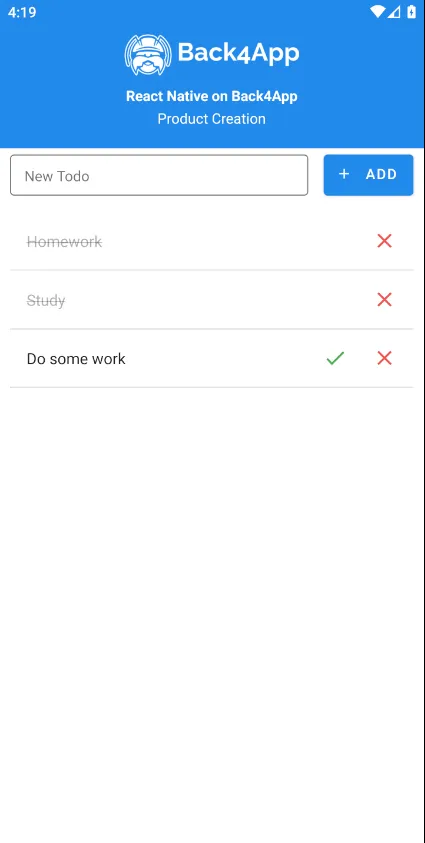
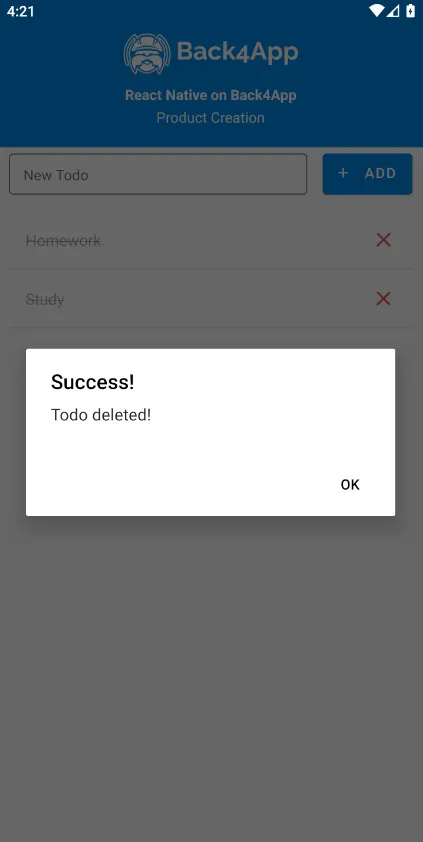
이제 남은 데이터 작업은 삭제 작업뿐이며, 이는 할 일 목록 객체의 가장 오른쪽에 있는 쓰레기통 아이콘을 눌러 수행할 수 있습니다. 객체를 성공적으로 삭제한 후에는 다음과 같은 경고 메시지를 받아야 합니다:
결론
이 가이드를 마치면서, React Native에서 GrapqhQL과 Relay Modern을 사용하여 기본 데이터 작업(CRUD)을 수행하는 방법과 프론트엔드를 업데이트하는 데 도움이 되는 Relay Connection API에 대해 배웠습니다.