React中用Parse实现用户密码重置功能详细指南
用户密码重置 for React
介绍
一旦你在系统中引入密码,用户就会忘记它们,这是一个事实。在这种情况下,Parse库提供了一种安全重置密码的方法。 与电子邮件验证一样,Parse已经为此准备好了实现,Parse.User.requestPasswordEmail。通过使用此方法,Parse将无缝处理密码重置的所有方面。
先决条件
要完成本教程,您需要:
目标
为使用Parse的React应用添加用户密码重置功能。
1 - 自定义密码重置邮件
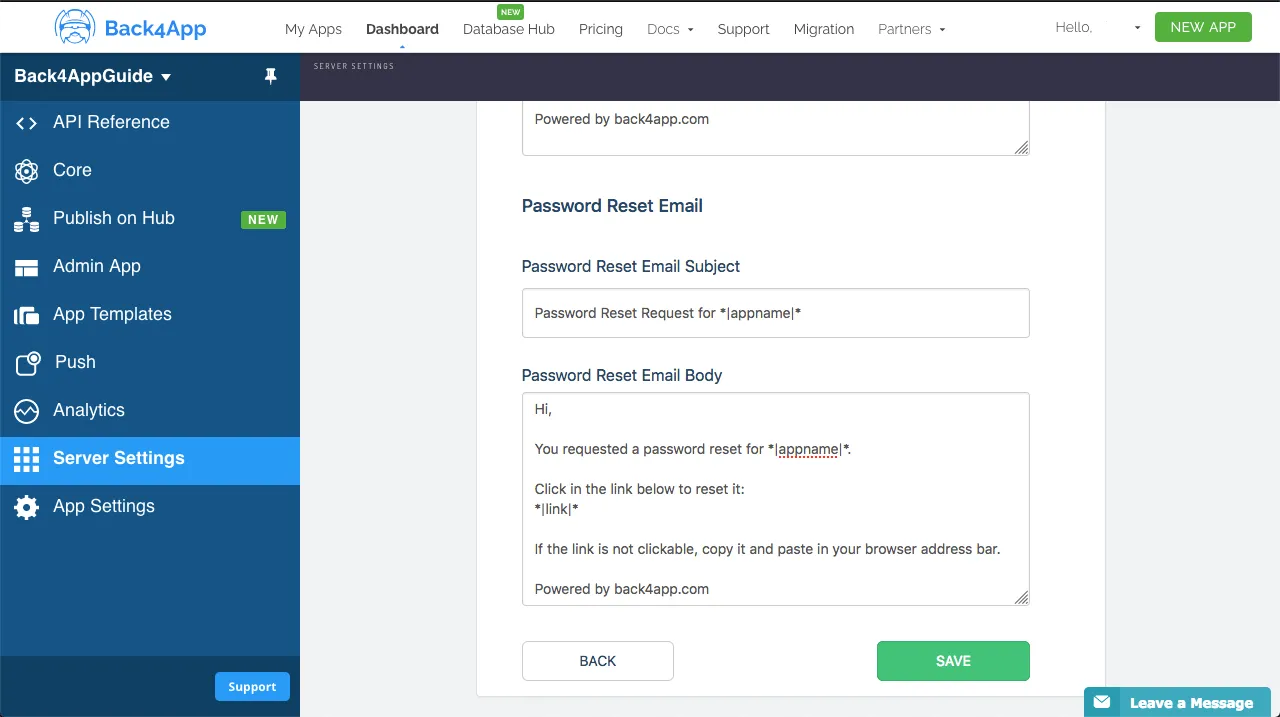
在调用 Parse.User.requestPasswordEmail 方法之前,您可以自定义用户在请求密码重置后收到的消息。登录到您的 Parse 应用程序仪表板,转到设置->验证邮件,并更改您的密码重置邮件主题或消息。确保您的用户会收到一封包含明确说明并表明确实来自您应用程序的电子邮件。
2 - 使用 requestPasswordEmail
调用 Parse.User.requestPasswordEmail 方法只需要您的用户帐户电子邮件作为参数,因此请继续将以下函数添加到您的密码重置组件中。记得为您的用户电子邮件添加一个文本输入到您的组件中。
1	const doRequestPasswordReset = async function (): Promise<boolean> {
2	  // Note that this value come from state variables linked to your text input
3	  const emailValue: string = email;
4	  try {
5	    await Parse.User.requestPasswordReset(emailValue);
6	    alert(`Success! Please check ${email} to proceed with password reset.`);
7	    return true;
8	  } catch(error: any) {
9	    // Error can be caused by lack of Internet connection
10	    alert(`Error! ${error}`);
11	    return false;
12	  }
13	};
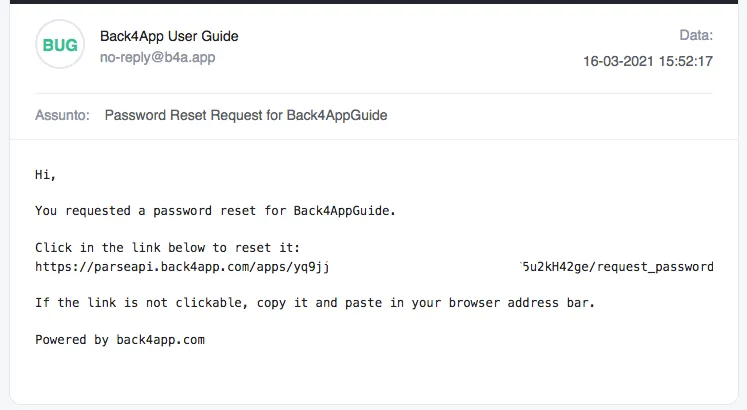
继续测试您的组件。在请求密码重置邮件后,您应该已经收到邮件,因此请检查您的收件箱。请注意,消息将包含您之前在 Parse 仪表板中设置的任何更改。
密码重置表单将如下所示:
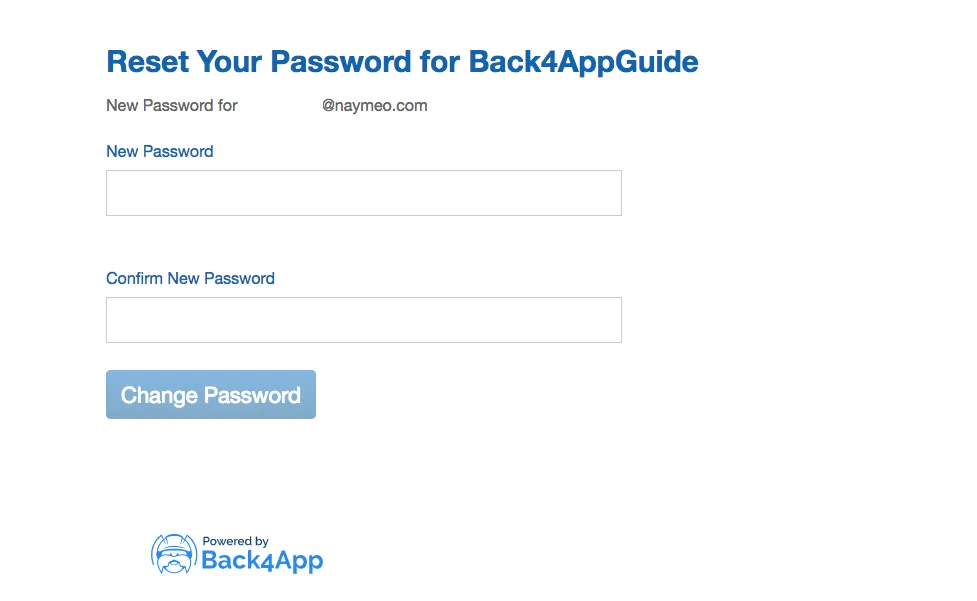
就是这样,在此表单中更改密码后,您的用户将能够再次登录到您的应用程序。
3 - 创建密码请求组件
如前所述,您应该创建一个包含步骤2中显示的功能的组件,并且还要有一个文本输入字段,用于您的用户帐户电子邮件,以便在您的应用中启用密码重置。以下是该组件的完整示例。如果您愿意,可以将其插入到我们之前指南的用户登录项目中。
1	import React, { useState, FC, ReactElement } from 'react';
2	import './App.css';
3	import { Button, Divider, Input } from 'antd';
4	const Parse = require('parse/dist/parse.min.js');
5
6	export const UserPasswordReset: FC<{}> = (): ReactElement => {
7	  // State variables
8	  const [email, setEmail] = useState('');
9
10	  // Functions used by the screen components
11	  const doRequestPasswordReset = async function (): Promise<boolean> {
12	    // Note that this value come from state variables linked to your text input
13	    const emailValue: string = email;
14	    try {
15	      await Parse.User.requestPasswordReset(emailValue);
16	      alert(`Success! Please check ${email} to proceed with password reset.`);
17	      return true;
18	    } catch(error: any) {
19	      // Error can be caused by lack of Internet connection
20	      alert(`Error! ${error}`);
21	      return false;
22	    }
23	  };
24
25	  return (
26	    <div>
27	      <div className="header">
28	        <img
29	          className="header_logo"
30	          alt="Back4App Logo"
31	          src={
32	            'https://blog.back4app.com/wp-content/uploads/2019/05/back4app-white-logo-500px.png'
33	          }
34	        />
35	        <p className="header_text_bold">{'React on Back4App'}</p>
36	        <p className="header_text">{'User Password Reset'}</p>
37	      </div>
38	      <div className="container">
39	        <h2 className="heading">{'Request password reset email'}</h2>
40	        <Divider />
41	        <div className="form_wrapper">
42	          <Input
43	            value={email}
44	            onChange={(event) => setEmail(event.target.value)}
45	            placeholder="Your account email"
46	            size="large"
47	            className="form_input"
48	          />
49	        </div>
50	        <div className="form_buttons">
51	          <Button
52	            onClick={() => doRequestPasswordReset()}
53	            type="primary"
54	            className="form_button"
55	            color={'#208AEC'}
56	            size="large"
57	          >
58	            Request password reset
59	          </Button>
60	        </div>
61	      </div>
62	    </div>
63	  );
64	};
将这些类添加到您的 App.css 文件中,以完全渲染组件布局元素:
1	@import '~antd/dist/antd.css';
2
3	.App {
4	  text-align: center;
5	}
6
7	html {
8	  box-sizing: border-box;
9	  outline: none;
10	  overflow: auto;
11	}
12
13	*,
14	*:before,
15	*:after {
16	  margin: 0;
17	  padding: 0;
18	  box-sizing: inherit;
19	}
20
21	h1,
22	h2,
23	h3,
24	h4,
25	h5,
26	h6 {
27	  margin: 0;
28	  font-weight: bold;
29	}
30
31	p {
32	  margin: 0;
33	}
34
35	body {
36	  margin: 0;
37	  background-color: #fff;
38	}
39
40	.container {
41	  width: 100%;
42	  max-width: 500px;
43	  margin: auto;
44	  padding: 20px 0;
45	  text-align: left;
46	}
47
48	.header {
49	  align-items: center;
50	  padding: 25px 0;
51	  background-color: #208AEC;
52	}
53
54	.header_logo {
55	  height: 55px;
56	  margin-bottom: 20px;
57	  object-fit: contain;
58	}
59
60	.header_text_bold {
61	  margin-bottom: 3px;
62	  color: rgba(255, 255, 255, 0.9);
63	  font-size: 16px;
64	  font-weight: bold;
65	}
66
67	.header_text {
68	  color: rgba(255, 255, 255, 0.9);
69	  font-size: 15px;
70	}
71
72	.heading {
73	  font-size: 22px;
74	}
75
76	.form_wrapper {
77	  margin-top: 20px;
78	  margin-bottom: 10px;
79	}
80
81	.form_input {
82	  margin-bottom: 20px;
83	}
84
85	.form_button {
86	  width: 100%;
87	}
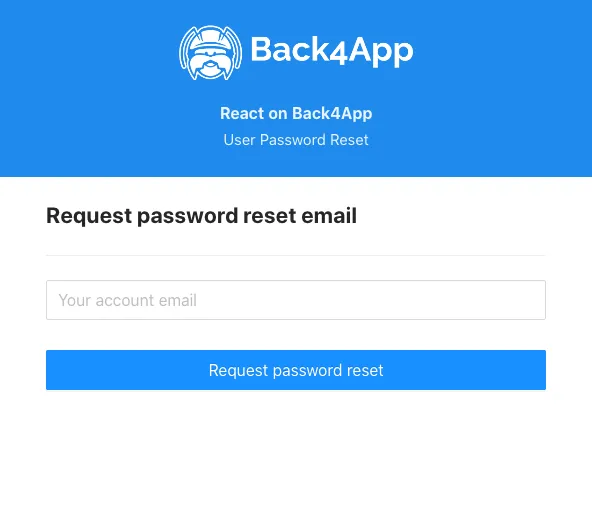
该组件应在屏幕上呈现如下:
结论
在本指南的最后,您学习了如何允许您的 Parse 用户在 React 中重置他们的密码。在下一个指南中,我们将向您展示如何执行有用的用户查询。