在 Flutter 中使用 Parse 的 GeoPoint 技术进行地理查询开发
使用 Flutter 地理定位在 Parse 上执行地理查询
介绍
在本指南中,您将了解 Parse 上的 GeoPoint 数据类型以及如何使用 Flutter 地理定位在 Parse 中执行地理查询。您将创建一个应用程序,该应用程序将执行地理查询并使用 Parse Geopoints 来检索记录。
我们不会解释 Flutter 应用程序代码,因为本指南的主要重点是 Flutter 与 Parse 的结合。
先决条件
要完成本教程,您需要:
- 在 Back4App 上创建的应用程序。
- 一个连接到 Back4app 的 Flutter 应用程序。
- 一个运行 Android 或 iOS 的设备(或虚拟设备)。
- 为了运行此指南示例,您应该正确设置插件 Geolocator。请不要忘记在项目中添加 Android 和 iOS 的权限,以便访问设备位置 {: .btn target=”_blank” rel=”nofollow noreferer noopener”}。仔细阅读设置 Android 和 iOS 项目的说明。
目标
使用存储在 Back4App 上的地理点和 Flutter 地理位置执行地理查询。
GeoPoint 数据类型
Parse 允许您将现实世界的纬度和经度坐标与对象关联。将一个 ParseGeoPoint 添加到一个 ParseObject 将使查询能够考虑对象与参考点的接近性。此功能使您能够轻松地做一些事情,例如找出哪个用户离另一个用户最近,或者哪些地方离用户最近。
要将一个点与对象关联,您首先需要创建一个 ParseGeoPoint。下面您可以找到一个纬度为 40.0 度和经度为 -30.0 度的地理点。
这个点随后作为常规字段存储在对象中,像其他任何数据类型(字符串、数字、日期等)一样
** 注意:目前一个类中只能有一个键是 ParseGeoPoint
1 - QueryBuilder 类
任何 Parse 查询操作都使用 QueryBuilder 对象类型,这将帮助您在整个应用程序中从数据库中检索特定数据。要创建一个新的 QueryBuilder,您需要将所需的 ParseObject 子类作为参数传递,这个子类将包含您的查询结果。
了解一个非常重要的事情,即 QueryBuilder 只有在调用检索方法 query 后才会解析,因此可以在实际调用之前设置查询并链接多个修饰符。您可以在 QueryBuilder 类的 官方文档中了解更多信息.
在 Back4App 上使用 JavaScript 控制台
在您的 Back4App 应用程序仪表板中,您会找到一个非常有用的 API 控制台,您可以直接在其中运行 JavaScript 代码。在本指南中,您将使用它来存储 Back4App 中的数据对象。在您的应用程序主仪表板上,转到 Core->API Console->Javascript.
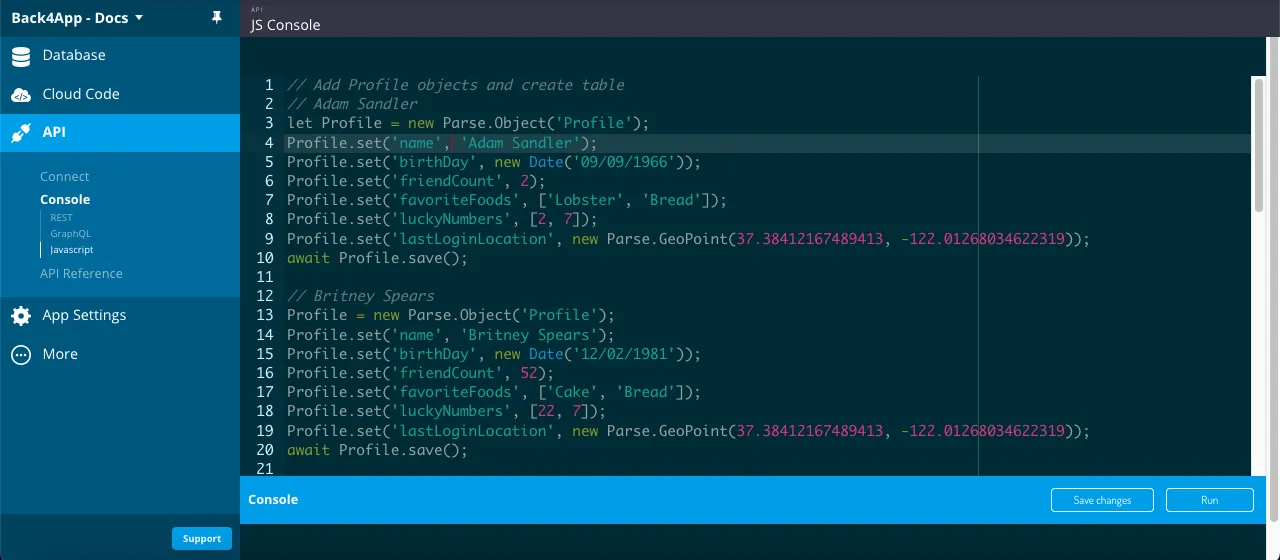
2 - 在 Back4app 上保存数据
要在本指南中运行查询,您首先需要用一些数据填充您的应用程序。让我们创建一个 City 类,这将是我们在本指南中查询的目标。以下是 Parse.Object 类的创建代码,请在您的 API 控制台中运行它:
1   // Add City objects and create table
2   // Note how GeoPoints are created, passing latitude and longitude as arguments
3   // Montevideo
4   City = new Parse.Object('City');
5   City.set('name', 'Montevideo - Uruguay');
6   City.set('location', new Parse.GeoPoint(-34.85553195363169, -56.207280375137955));
7   await City.save();
8
9   // Brasília
10  City = new Parse.Object('City');
11  City.set('name', 'Brasília - Brazil');
12  City.set('location', new Parse.GeoPoint(-15.79485821477289, -47.88391074690196));
13  await City.save();
14
15  // Bogotá
16  City = new Parse.Object('City');
17  City.set('name', 'Bogotá - Colombia');
18  City.set('location', new Parse.GeoPoint(4.69139880891712, -74.06936691331047));
19  await City.save();
20
21  // Mexico City
22  City = new Parse.Object('City');
23  City.set('name', 'Mexico City - Mexico');
24  City.set('location', new Parse.GeoPoint(19.400977162618933, -99.13311378164776));
25  await City.save();
26
27  // Washington, D.C.
28  City = new Parse.Object('City');
29  City.set('name', 'Washington, D.C. - USA');
30  City.set('location', new Parse.GeoPoint(38.930727220189944, -77.04626261880388));
31  await City.save();
32
33  // Ottawa
34  City = new Parse.Object('City');
35  City.set('name', 'Ottawa - Canada');
36  City.set('location', new Parse.GeoPoint(45.41102167733425, -75.695414598736));
37  await City.save();
38
39  // Tokyo
40  City = new Parse.Object('City');
41  City.set('name', 'Tokyo - Japan');
42  City.set('location', new Parse.GeoPoint(35.6897, 139.6922));
43  await City.save();
44
45  // Mumbai
46  City = new Parse.Object('City');
47  City.set('name', 'Mumbai - India');
48  City.set('location', new Parse.GeoPoint(18.9667, 72.8333));
49  await City.save();
50
51  // Shanghai
52  City = new Parse.Object('City');
53  City.set('name', 'Shanghai - China');
54  City.set('location', new Parse.GeoPoint(31.1667, 121.4667));
55  await City.save();
56
57  // New York
58  City = new Parse.Object('City');
59  City.set('name', 'New York - USA');
60  City.set('location', new Parse.GeoPoint(40.6943, -73.9249));
61  await City.save();
62
63  // Moscow
64  City = new Parse.Object('City');
65  City.set('name', 'Moscow - Russia');
66  City.set('location', new Parse.GeoPoint(55.7558, 37.6178));
67  await City.save();
68
69  // Paris
70  City = new Parse.Object('City');
71  City.set('name', 'Paris - France');
72  City.set('location', new Parse.GeoPoint(48.8566, 2.3522));
73  await City.save();
74
75  // Paris
76  City = new Parse.Object('City');
77  City.set('name', 'London - United Kingdom');
78  City.set('location', new Parse.GeoPoint(51.5072, -0.1275));
79  await City.save();
80
81  // Luanda
82  City = new Parse.Object('City');
83  City.set('name', 'Luanda - Angola');
84  City.set('location', new Parse.GeoPoint(-8.8383, 13.2344));
85  await City.save();
86
87  // Johannesburg
88  City = new Parse.Object('City');
89  City.set('name', 'Johannesburg - South Africa');
90  City.set('location', new Parse.GeoPoint(-26.2044, 28.0416));
91  await City.save();
92
93  console.log('Success!');
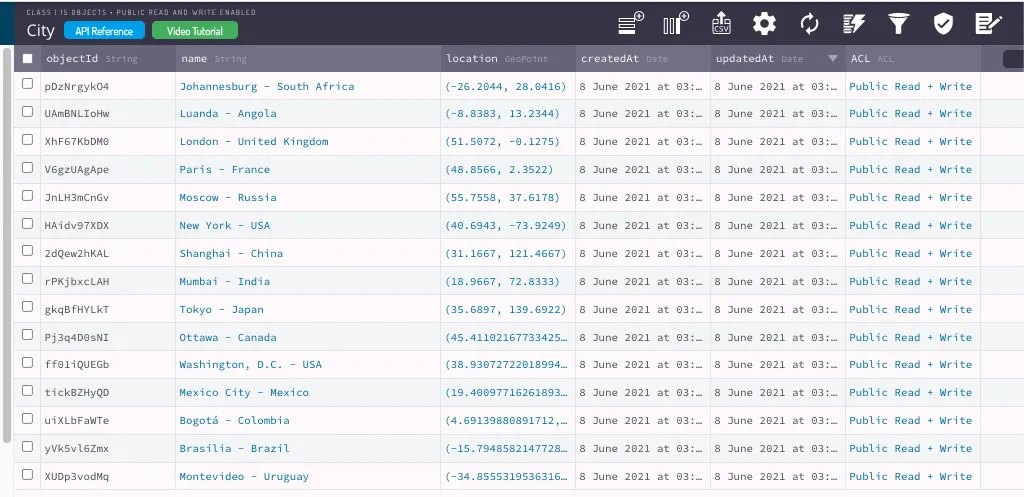
运行此代码后,您现在应该在数据库中拥有一个 城市 类。您的新类应如下所示:
现在让我们来看看每个 QueryBuilder 方法的示例,以及它们的简要说明。
3 - 查询数据
现在您有了一个填充的类,我们可以在其中执行一些 GeoPoint 查询。
让我们开始按距离达拉斯(美国,纬度32.779167, 经度-96.808891)最近的城市排序结果,使用 城市 方法:
1       // Create your query
2       final QueryBuilder<ParseObject> parseQuery =
3           QueryBuilder<ParseObject>(ParseObject('City'));
4
5       // Create our GeoPoint for the query
6       final dallasGeoPoint =
7           ParseGeoPoint(latitude: 32.779167, longitude: -96.808891);
8
9       // `whereNear` will order results based on distance between the GeoPoint
10      // type field from the class and the GeoPoint argument
11      parseQuery.whereNear('location', dallasGeoPoint);
12
13      // The query will resolve only after calling this method, retrieving
14      // an array of `ParseObjects`, if success
15      final ParseResponse apiResponse = await parseQuery.query();
16
17      if (apiResponse.success && apiResponse.results != null) {
18        // Let's show the results
19        for (var o in apiResponse.results! as List<ParseObject>) {
20          print(
21              'City: ${o.get<String>('name')} - Location: ${o.get<ParseGeoPoint>('location')!.latitude}, ${o.get<ParseGeoPoint>('location')!.longitude}');
22        }
23      }
现在让我们使用方法 在公里内, 这将检索所有GeoPoint字段位于最大距离内的结果(以公里为单位)。 达拉斯将再次作为参考,距离限制为3000公里。
1       // Create your query
2       final QueryBuilder<ParseObject> parseQuery =
3           QueryBuilder<ParseObject>(ParseObject('City'));
4
5       // Create our GeoPoint for the query
6       final dallasGeoPoint =
7           ParseGeoPoint(latitude: 32.779167, longitude: -96.808891);
8
9       // You can also use `withinMiles` and `withinRadians` the same way,
10      // but with different measuring unities
11      parseQuery.whereWithinKilometers('location', dallasGeoPoint, 3000);
12     //parseQuery.whereWithinMiles('location', dallasGeoPoint, 3000);
13
14      // The query will resolve only after calling this method, retrieving
15      // an array of `ParseObjects`, if success
16      final ParseResponse apiResponse = await parseQuery.query();
17
18      if (apiResponse.success && apiResponse.results != null) {
19        // Let's show the results
20        for (var o in apiResponse.results! as List<ParseObject>) {
21          print(
22              'City: ${o.get<String>('name')} - Location: ${o.get<ParseGeoPoint>('location')!.latitude}, ${o.get<ParseGeoPoint>('location')!.longitude}');
23        }
24      }
现在让我们使用方法 whereWithinMiles, 该方法将检索所有其 GeoPoint 字段位于最大距离(以英里为单位)内的结果。 达拉斯将再次作为参考,距离限制为 3000 英里。
1       // Create your query
2       final QueryBuilder<ParseObject> parseQuery =
3           QueryBuilder<ParseObject>(ParseObject('City'));
4
5       // Create our GeoPoint for the query
6       final dallasGeoPoint =
7           ParseGeoPoint(latitude: 32.779167, longitude: -96.808891);
8
9       // You can also use `whereWithinKilometers` and `whereWithinRadians` the same way,
10      parseQuery.whereWithinMiles('location', dallasGeoPoint, 3000);
11
12      // The query will resolve only after calling this method, retrieving
13      // an array of `ParseObjects`, if success
14      final ParseResponse apiResponse = await parseQuery.query();
15
16      if (apiResponse.success && apiResponse.results != null) {
17        // Let's show the results
18        for (var o in apiResponse.results! as List<ParseObject>) {
19          print(
20              'City: ${o.get<String>('name')} - Location: ${o.get<ParseGeoPoint>('location')!.latitude}, ${o.get<ParseGeoPoint>('location')!.longitude}');
21        }
22      }
4 - 从 Flutter 查询
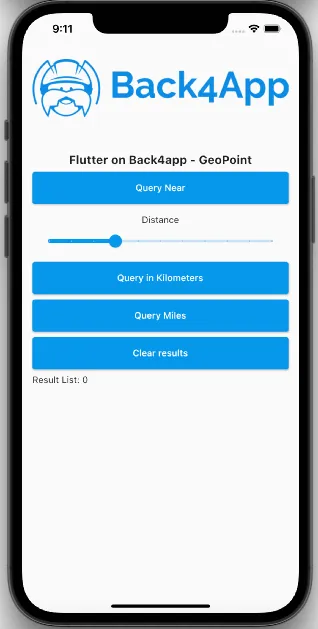
现在让我们在 Flutter 应用中使用我们的示例查询,界面简单,包含一个显示结果的列表和三个用于调用查询的按钮。
该应用还使用 Geolocator 插件(请按照说明操作)来获取设备的当前位置,因此查询将使用真实数据。
打开你的 Flutter 项目,去到 main.dart 文件,清理所有代码,并用以下内容替换它:
1   import 'package:flutter/cupertino.dart';
2   import 'package:flutter/material.dart';
3   import 'package:geolocator/geolocator.dart';
4   import 'package:parse_server_sdk_flutter/parse_server_sdk.dart';
5
6   void main() async {
7     WidgetsFlutterBinding.ensureInitialized();
8
9     final keyApplicationId = 'YOUR_APP_ID_HERE';
10    final keyClientKey = 'YOUR_CLIENT_KEY_HERE';
11
12    final keyParseServerUrl = 'https://parseapi.back4app.com';
13
14    await Parse().initialize(keyApplicationId, keyParseServerUrl,
15        clientKey: keyClientKey, debug: true);
16
17    runApp(MaterialApp(
18      title: 'Flutter - GeoPoint',
19      debugShowCheckedModeBanner: false,
20      home: HomePage(),
21    ));
22  }
23
24  class HomePage extends StatefulWidget {
25    @override
26    _HomePageState createState() => _HomePageState();
27  }
28
29  class _HomePageState extends State<HomePage> {
30    List<ParseObject> results = <ParseObject>[];
31    double selectedDistance = 3000;
32
33    Future<Position> getCurrentPosition() async {
34      bool serviceEnabled;
35      LocationPermission permission;
36
37      // Test if location services are enabled.
38      serviceEnabled = await Geolocator.isLocationServiceEnabled();
39      if (!serviceEnabled) {
40        return Future.error('Location services are disabled.');
41      }
42
43      permission = await Geolocator.checkPermission();
44      if (permission == LocationPermission.denied) {
45        permission = await Geolocator.requestPermission();
46        if (permission == LocationPermission.denied) {
47          return Future.error('Location permissions are denied');
48        }
49      }
50
51      if (permission == LocationPermission.deniedForever) {
52        return Future.error(
53            'Location permissions are permanently denied, we cannot request permissions.');
54      }
55
56      // When we reach here, permissions are granted and we can
57      // continue accessing the position of the device.
58      return await Geolocator.getCurrentPosition();
59    }
60
61    void doQueryNear() async {
62      // Create your query
63      final QueryBuilder<ParseObject> parseQuery =
64          QueryBuilder<ParseObject>(ParseObject('City'));
65
66      // Get current position from device
67      final position = await getCurrentPosition();
68
69      final currentGeoPoint = ParseGeoPoint(
70          latitude: position.latitude, longitude: position.longitude);
71
72      // `whereNear` will order results based on distance between the GeoPoint
73      // type field from the class and the GeoPoint argument
74      parseQuery.whereNear('location', currentGeoPoint);
75
76      // The query will resolve only after calling this method, retrieving
77      // an array of `ParseObjects`, if success
78      final ParseResponse apiResponse = await parseQuery.query();
79
80      if (apiResponse.success && apiResponse.results != null) {
81        // Let's show the results
82        for (var o in apiResponse.results! as List<ParseObject>) {
83          print(
84              'City: ${o.get<String>('name')} - Location: ${o.get<ParseGeoPoint>('location')!.latitude}, ${o.get<ParseGeoPoint>('location')!.longitude}');
85        }
86
87        setState(() {
88          results = apiResponse.results as List<ParseObject>;
89        });
90      } else {
91        setState(() {
92          results.clear();
93        });
94      }
95   }
96
97    void doQueryInKilometers() async {
98      // Create your query
99      final QueryBuilder<ParseObject> parseQuery =
100         QueryBuilder<ParseObject>(ParseObject('City'));
101
102     // Get current position from device
103     final position = await getCurrentPosition();
104
105     final currentGeoPoint = ParseGeoPoint(
106         latitude: position.latitude, longitude: position.longitude);
107
108     // You can also use `whereWithinMiles` and `whereWithinRadians` the same way,
109     // but with different measuring unities
110     parseQuery.whereWithinKilometers(
111         'location', currentGeoPoint, selectedDistance);
112
113     // The query will resolve only after calling this method, retrieving
114     // an array of `ParseObjects`, if success
115     final ParseResponse apiResponse = await parseQuery.query();
116
117     if (apiResponse.success && apiResponse.results != null) {
118       // Let's show the results
119       for (var o in apiResponse.results! as List<ParseObject>) {
120         print(
121             'City: ${o.get<String>('name')} - Location: ${o.get<ParseGeoPoint>('location')!.latitude}, ${o.get<ParseGeoPoint>('location')!.longitude}');
122       }
123
124       setState(() {
125         results = apiResponse.results as List<ParseObject>;
126       });
127     } else {
128       setState(() {
129         results.clear();
130       });
131     }
132   }
133
134   void doQueryInMiles() async {
135     // Create your query
136     final QueryBuilder<ParseObject> parseQuery =
137         QueryBuilder<ParseObject>(ParseObject('City'));
138
139     // Get current position from device
140     final position = await getCurrentPosition();
141
142     final currentGeoPoint = ParseGeoPoint(
143         latitude: position.latitude, longitude: position.longitude);
144
145     // You can also use `whereWithinKilometers` and `whereWithinRadians` the same way,
146     parseQuery.whereWithinMiles('location', currentGeoPoint, selectedDistance);
147
148     // The query will resolve only after calling this method, retrieving
149     // an array of `ParseObjects`, if success
150     final ParseResponse apiResponse = await parseQuery.query();
151
152     if (apiResponse.success && apiResponse.results != null) {
153     // Let's show the results
154       for (var o in apiResponse.results! as List<ParseObject>) {
155         print(
156             'City: ${o.get<String>('name')} - Location: ${o.get<ParseGeoPoint>('location')!.latitude}, ${o.get<ParseGeoPoint>('location')!.longitude}');
157       }
158
159       setState(() {
160         results = apiResponse.results as List<ParseObject>;
161       });
162     } else {
163       setState(() {
164         results.clear();
165       });
166     }
167   }
168
169   void doClearResults() async {
170     setState(() {
171       results = [];
172     });
173   }
174
175   @override
176   Widget build(BuildContext context) {
177     return Scaffold(
178         body: Padding(
179       padding: const EdgeInsets.all(16.0),
180       child: Column(
181         crossAxisAlignment: CrossAxisAlignment.stretch,
182         children: [
183           Container(
184             height: 200,
185             child: Image.network(
186                 'https://blog.back4app.com/wp-content/uploads/2017/11/logo-b4a-1-768x175-1.png'),
187           ),
188           Center(
189             child: const Text('Flutter on Back4app - GeoPoint',
190                 style: TextStyle(fontSize: 18, fontWeight: FontWeight.bold)),
191           ),
192           SizedBox(
193             height: 8,
194           ),
195           Container(
196             height: 50,
197             child: ElevatedButton(
198                 onPressed: doQueryNear,
199                 child: Text('Query Near'),
200                 style: ElevatedButton.styleFrom(primary: Colors.blue)),
201           ),
202           SizedBox(
203             height: 16,
204           ),
205           Center(child: Text('Distance')),
206           Slider(
207             value: selectedDistance,
208             min: 0,
209             max: 10000,
210             divisions: 10,
211             onChanged: (value) {
212               setState(() {
213                 selectedDistance = value;
214               });
215             },
216             label: selectedDistance.toStringAsFixed(0),
217           ),
218           SizedBox(
219             height: 8,
220           ),
221           Container(
222             height: 50,
223             child: ElevatedButton(
224                 onPressed: doQueryInKilometers,
225                 child: Text('Query in Kilometers'),
226                 style: ElevatedButton.styleFrom(primary: Colors.blue)),
227           ),
228           SizedBox(
229             height: 8,
230           ),
231           Container(
232             height: 50,
233             child: ElevatedButton(
234                 onPressed: doQueryInMiles,
235                 child: Text('Query Miles'),
236                 style: ElevatedButton.styleFrom(primary: Colors.blue)),
237           ),
238           SizedBox(
239             height: 8,
240           ),
241           Container(
242             height: 50,
243             child: ElevatedButton(
244                 onPressed: doClearResults,
245                 child: Text('Clear results'),
246                 style: ElevatedButton.styleFrom(primary: Colors.blue)),
247           ),
248           SizedBox(
249             height: 8,
250           ),
251           Text(
252             'Result List: ${results.length}',
253           ),
254           Expanded(
255             child: ListView.builder(
256                 itemCount: results.length,
257                 itemBuilder: (context, index) {
258                   final o = results[index];
259                   return Container(
260                     padding: const EdgeInsets.all(4),
261                     decoration:
262                         BoxDecoration(border: Border.all(color: Colors.black)),
263                     child: Text(
264                         '${o.get<String>('name')} \nLocation: ${o.get<ParseGeoPoint>('location')!.latitude}, ${o.get<ParseGeoPoint>('location')!.longitude}'),
265                   );
266                 }),
267           )
268         ],
269       ),
270     ));
271   }
272 }
在您的应用程序仪表板中找到您的应用程序 ID 和客户端密钥凭据,网址为 Back4App 网站.
在 main.dart 中更新您的代码,使用您项目的 ApplicationId 和 ClientKey 的值在 Back4app.
- keyApplicationId = 应用程序 ID
- keyClientKey = 客户端密钥
运行项目,应用程序将如图所示加载.
结论
在本指南的最后,您了解了 GeoPoint 数据查询在 Parse 上的工作原理,以及如何从 Flutter 应用程序在 Back4App 上执行这些查询.