如何在Back4App中集成Stripe API和云函数
使用云函数进行Stripe集成
介绍
在本指南中,我们将向您展示如何将Back4App中的托管后端与Stripe API集成。在Back4App上构建它的最佳架构选择是使用一个非常强大的功能,称为 云函数. 一旦您完成了与Stripe的云函数集成,您将能够在所有前端项目(Web、iOS、Android)中使用此集成。本指南提供了一个完整的Stripe集成示例。
先决条件
目标
在Web项目中使用Back4App云函数集成Stripe。
什么是Stripe?
Stripe 是一家在25个国家运营的科技公司,允许个人和企业通过互联网接受支付。Stripe专注于提供在线支付系统所需的技术、欺诈预防和银行基础设施。
本教程将引导您完成创建函数并将Stripe API集成到您的Parse Server中的Web应用程序的步骤。
更具体地说,在本指南中,我们将创建一个环境,用户可以在其中登录或注册,注册信用卡,并通过Stripe Payments生成示例购买。此外,您将被指导如何设置整个过程以及测试与服务器和Stripe API的连接是否正常工作。
1 - 创建一个Stripe账户
访问Stripe并点击注册以 创建一个账户。在那里,您只需提供您的个人信息以及您的账户所属国家。
接下来,验证您的Stripe账户(您将收到一封包含Stripe验证链接的电子邮件)。点击该链接,然后按照步骤确认您的Stripe电子邮件地址。
2 - 设置您的数据库类
在为步骤1配置Stripe环境后,前往您的Back4App应用仪表板,以便设置您的数据库。此步骤不是强制性的,因为当云函数尝试创建新对象时,Parse会自动创建类,但我们将逐步讲解将创建哪些字段以及原因。
将有两个类来保存您的应用程序与Stripe相关的数据: PaymentMethod 和 Payment:
以下是课程的布局方式:
- 支付方式
- 类型(字符串):其值将始终为“card”;
- 卡片(对象):将保存有关注册卡的完整Stripe数据;
- stripeID(字符串):引用此支付方式在Stripe后端的ID;
- 用户(指向Parse.User的指针):直接引用此支付方式所属的用户。
- 支付
- 数据(对象):将保存有关支付的完整Stripe数据;
- 用户(指向Parse.User的指针):直接引用此支付所属的用户。
我们还将在您的应用程序默认 用户 类中添加两个新的 字符串 值列,分别称为 setupSecret 和 customerId,将包含与 用户 相关的Stripe ID。
3 - 实现云代码
让我们在应用中配置 云代码函数,安装Stripe模块并部署代码。
如果你想更好地理解云代码环境,请查看 这份指南.
3.1 - 获取你的Stripe密钥
现在,打开你的Stripe仪表板,导航到顶部的 开发者 页面,然后在左侧菜单中选择 API密钥。在该部分,你将能够看到你的 可发布密钥 和你的 秘密密钥。
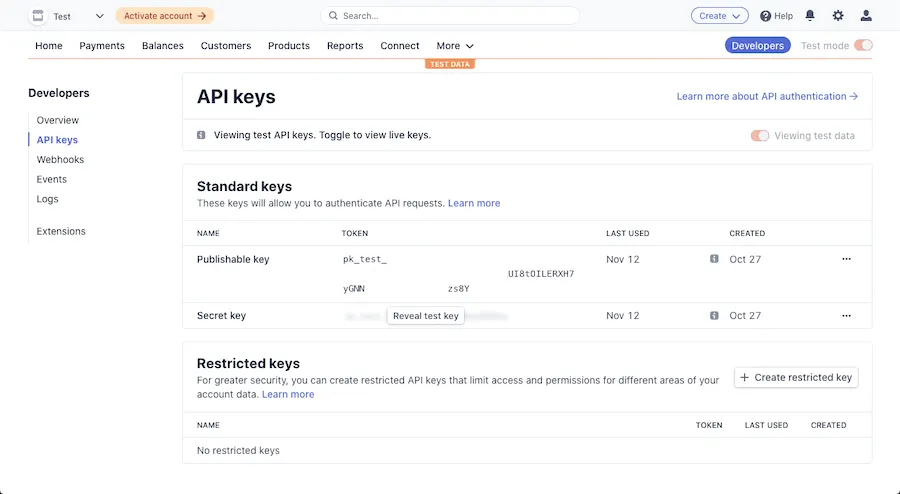
请记下这些密钥,因为您稍后会需要它们。
3.2 - 云代码文件
在您的计算机上,创建以下文件,这些文件将负责安装模块并将您的云代码函数添加到 Back4App。
1   {
2     "dependencies": {
3       "stripe": "*"
4     }
5   }
将以下代码添加到新文件中,并不要忘记在顶部粘贴您的 Stripe 秘密密钥。
1   const STRIPE_SECRET_KEY =
2     "YOUR_STRIPE_SECRET_KEY";
3   const stripe = require("stripe")(STRIPE_SECRET_KEY);
4
5   // Stripe needs an unique customer id to create payments, so after
6   // signing up, this function should be called to do this operation
7   Parse.Cloud.define("createStripeCustomer", async (request) => {
8     // Get Parse.User object
9     const userQuery = new Parse.Query(Parse.User);
10    userQuery.equalTo("objectId", request.params.userId);
11    let user = await userQuery.first();
12
13    const customer = await stripe.customers.create({ email: user.get("email") });
14    // Creates an stripe setupIntent, that will enable the stripe lib to perform
15    // a singel operation related to payments
16    const intent = await stripe.setupIntents.create({
17      customer: customer.id,
18    });
19    // Set and save the stripe ids to the Parse.User object
20    user.set({
21      customerId: customer.id,
22      setupSecret: intent.client_secret,
23    });
24    return await user.save(null, { useMasterKey: true });
25  });
26
27  // Creates new payment method for a registered customer
28  Parse.Cloud.define("addNewPaymentMethod", async (request) => {
29    // Get Parse.User object
30    const userQuery = new Parse.Query(Parse.User);
31    userQuery.equalTo("objectId", request.params.userId);
32    let user = await userQuery.first();
33
34    // Retrieve complete stripe payment method by its id
35    const stripePaymentMethod = await stripe.paymentMethods.retrieve(
36      request.params.paymentMethodId
37    );
38
39    // Create a new SetupIntent so the customer can add a new method next time.
40      const intent = await stripe.setupIntents.create({
41      customer: `${stripePaymentMethod.customer}`,
42    });
43    user.set("setupSecret", intent.client_secret);
44    user = await user.save(null, { useMasterKey: true });
45
46    // Creates a new Parse object in the PaymentMethod class
47    let PaymentMethod = new Parse.Object("PaymentMethod");
48    PaymentMethod.set({
49      user: user,
50      type: "card",
51      stripeId: stripePaymentMethod.id,
52      card: stripePaymentMethod.card,
53    });
54    PaymentMethod.save();
55    return true;
56  });
57
58  // Creates a new payment using a valid payment method
59  Parse.Cloud.define("createNewPayment", async (request) => {
60    // Get Parse.User object
61    const userQuery = new Parse.Query(Parse.User);
62    userQuery.equalTo("objectId", request.params.userId);
63    let user = await userQuery.first();
64
65    const { amount, currency, payment_method } = request.params.paymentData;
66
67    // Look up the Stripe customer id.
68    const customer = user.get("customerId");
69
70    // Create a charge using an unique idempotency key
71    // to protect against double charges.
72    const idempotencyKey = new Date().getTime();
73    const payment = await stripe.paymentIntents.create(
74      {
75        amount,
76        currency,
77        customer,
78        payment_method,
79        off_session: false,
80        confirm: true,
81        confirmation_method: "manual",
82      },
83      { idempotencyKey }
84    );
85    // If the result is successful, write it back to the database.
86    let Payment = new Parse.Object("Payment");
87    Payment.set({
88      user: user,
89      data: payment,
90    });
91    await Payment.save();
92
93    return true;
94  });
4 - 将函数上传到云代码
访问 Back4App 网站,登录后找到您的应用。之后,点击 仪表板 链接,您将进入如下所示的页面。要部署您的云代码,请点击 + 添加 按钮,找到您在上一步中创建的 main.js 和 package.json 文件,然后点击 部署 按钮。
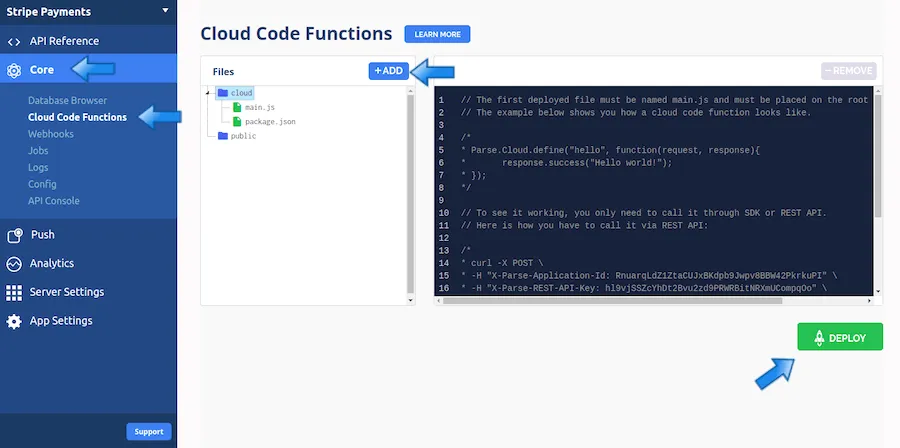
您刚刚配置了可以在任何平台上使用的云代码函数!查看 部署和调用函数 指南以了解如何调用它们。在下一步中,您将处理一个调用它们的 JavaScript 项目。
5 - 将 JavaScript 应用与云代码集成
现在您将看到一个简单的 HTML 页面示例,包含 JavaScript,具有三个主要功能:在 Parse 上登录或注册用户,创建有效的支付方式(信用卡),以及创建新的支付,向这些属于用户的方式收费。
继续在您的计算机上创建一个新目录,并在其中创建一个新的 HTML 文件,文件内容如下:
1   <!DOCTYPE html>
2   <html lang="en">
3
4   <head>
5       <meta charset="UTF-8" />
6       <meta name="viewport" content="width=device-width, initial-scale=1.0" />
7       <title>Back4App Stripe Payments</title>
8       <link rel="stylesheet" href="app.css">
9   </head>
10
11  <body>
12      <header class="header">
13          <img class="header_logo"
14              src="https://blog.back4app.com/wp-content/uploads/2019/05/back4app-white-logo-500px.png" alt="">
15          <p class="header_text_bold">React on Back4App</p>
16          <p class="header_text">Back4App Stripe Payments</p>
17      </header>
18      <section id="auth">
19          <div class="container">
20              <div class="form_wrapper">
21                  <form id="auth-signin-form">
22                      <h2 class="form_heading">Sign In</h2>
23                      <input class="form_input" type="email" name="email" placeholder="Email" required />
24                      <input class="form_input" type="password" name="password" placeholder="Password" required />
25                      <button class="form_button" type="submit">
26                          Sign in
27                      </button>
28                      <a class="form_hint" id="signup-toggle" href="#">Don't have an account yet? Sign up instead.</a>
29                  </form>
30                  <form id="auth-signup-form" hidden>
31                      <h2 class="form_heading">Sign Up</h2>
32                      <input class="form_input" type="email" name="email" placeholder="Email" required />
33                      <input class="form_input" type="password" name="password" placeholder="Password" required />
34                      <button class="form_button" type="submit">
35                          Sign up
36                      </button>
37                      <a class="form_hint" id="signin-toggle" href="#">Already have an account? Sign in instead.</a>
38                  </form>
39              </div>
40          </div>
41      </section>
42      <section id="content" style="display: none;">
43          <div class="container">
44              <div>
45                  <h2 class="form_heading">Add new payment method</h2>
46                  <p>
47                      Use any of the
48                      <a href="https://stripe.com/docs/testing#international-cards" target="_blank">Stripe test cards</a>
49                      for this demo!
50                  </p>
51                  <form class="form" id="payment-method-form">
52                      <input class="form_input" type="text" name="name" placeholder="Cardholder name" required />
53                      <div class="card_element_wrapper">
54                          <div id="card-element"></div>
55                      </div>
56                      <button class="form_button">Save Card</button>
57                  </form>
58              </div>
59              <div>
60                  <h2 class="form_heading">Create new payment</h2>
61                  <form class="form" id="payment-form">
62                      <select class="form_input" name="payment-method" required>
63                          <option disabled selected>Card (payment method):</option>
64                      </select>
65                      <div>
66                          <input class="form_input" name="amount" type="number" min="1" max="99999999"
67                              placeholder="Amount" required />
68                          <select class="form_input" name="currency">
69                              <option disabled selected>Currency:</option>
70                              <option value="usd">USD</option>
71                              <option value="brl">BRL</option>
72                              <option value="eur">EUR</option>
73                          </select>
74                      </div>
75                      <button class="form_button">Charge selected card</button>
76                  </form>
77              </div>
78              <div class="form">
79                  <h2 class="form_heading">Payments</h2>
80                  <ul id="payments-list"></ul>
81              </div>
82              <button type="button" id="signout">
83                  Sign out
84              </button>
85          </div>
86      </section>
87      <script type="text/javascript" src="https://npmcdn.com/parse/dist/parse.min.js"></script>
88      <script type="text/javascript" src="https://js.stripe.com/v3/"></script>
89      <script type="text/javascript" src="index.js"></script>
90  </body>
91
92  </html>
在此文件中,您将找到两个主要部分,第一个是身份验证部分,如果用户尚未登录,将默认呈现该部分。登录后,将显示支付部分,其中包含负责在Stripe上创建数据的所有表单,并与Back4App上的Cloud Code函数进行通信。
我们现在需要创建一个包含将所有内容结合在一起的代码的JavaScript函数,称为 index.js:
1   // Define and initialize Parse and Stripe libs
2   const PARSE_APP_ID = "YOUR_PARSE_ID";
3   const PARSE_JS_KEY = "YOUR_PARSE_JS_KEY";
4   Parse.initialize(PARSE_APP_ID, PARSE_JS_KEY);
5   Parse.serverURL = "https://parseapi.back4app.com/";
6
7   const STRIPE_PUBLISHABLE_KEY = "YOUR_STRIPE_PUBLISHABLE_KEY";
8   const stripe = Stripe(STRIPE_PUBLISHABLE_KEY);
9
10  // Holds the currentUser complete Parse object
11  let currentUser = null;
12  const setCompleteCurrentUser = async () => {
13    // Called when user is already signed in, completing
14    // the currentUser object with the full one
15    currentUser = await new Parse.Query(Parse.User)
16      .equalTo("objectId", Parse.User.current().id)
17      .first();
18    // Retrieve and render user cards and payments
19    retrieveCurrentUserPaymentMethods();
20    retrieveCurrentUserPayments();
21  };
22
23  const retrieveCurrentUserPaymentMethods = async () => {
24    // Query and render user PaymentMethods
25    const PMQuery = new Parse.Query("PaymentMethod");
26    PMQuery.equalTo("user", Parse.User.current());
27    paymentMethods = await PMQuery.find();
28    renderPaymentMethodOptions(paymentMethods);
29  };
30
31  const retrieveCurrentUserPayments = async () => {
32    // Query and render user Payments
33    const paymentsQuery = new Parse.Query("Payment");
34    paymentsQuery.equalTo("user", Parse.User.current());
35    payments = await paymentsQuery.find();
36    renderPayments(payments);
37  };
38
39  const renderPaymentMethodOptions = async (paymentMethods) => {
40    for (let paymentMethod of paymentMethods) {
41      const optionId = `card-${paymentMethod.get("stripeId")}`;
42      let optionElement = document.getElementById(optionId);
43
44      // Add a new option if one doesn't exist yet.
45      if (!optionElement) {
46        optionElement = document.createElement("option");
47        optionElement.id = optionId;
48        document
49          .querySelector("select[name=payment-method]")
50          .appendChild(optionElement);
51      }
52
53      optionElement.value = paymentMethod.get("stripeId");
54      optionElement.text = `${paymentMethod.get("card").brand} •••• ${
55        paymentMethod.get("card").last4
56      } | Expires ${paymentMethod.get("card").exp_month}/${
57        paymentMethod.get("card").exp_year
58      }`;
59    }
60  };
61
62  const renderPayments = (payments) => {
63    for (let payment of payments) {
64      let liElement = document.getElementById(`payment-${payment.id}`);
65      if (!liElement) {
66        liElement = document.createElement("li");
67        liElement.id = `payment-${payment.id}`;
68      }
69
70      const paymentData = payment.get("data");
71      let content = "";
72      if (
73        paymentData.status === "new" ||
74        paymentData.status === "requires_confirmation"
75      ) {
76        content = `Creating Payment for ${formatAmount(
77          paymentData.amount,
78          paymentData.currency
79        )}`;
80      } else if (paymentData.status === "succeeded") {
81        const card = paymentData.charges.data[0].payment_method_details.card;
82        content = `Payment for ${formatAmount(
83          paymentData.amount,
84          paymentData.currency
85        )} on ${card.brand} card •••• ${card.last4} ${paymentData.status}!`;
86      } else {
87        content = `Payment for ${formatAmount(
88          paymentData.amount,
89          paymentData.currency
90        )} ${paymentData.status}`;
91      }
92      liElement.innerText = content;
93      document.querySelector("#payments-list").appendChild(liElement);
94    }
95  };
96
97  // Checks if user is already signed in on Parse
98  if (Parse.User.current() !== null) {
99    setCompleteCurrentUser();
100   // Hide auth screen and show payment fields
101   document.getElementById("auth").style.display = "none";
102   document.getElementById("content").style.display = "block";
103 }
104
105 // Toggle signin and signup forms
106 document
107   .querySelector("#signup-toggle")
108   .addEventListener("click", async (_event) => {
109     document.getElementById("auth-signin-form").style.display = "none";
110     document.getElementById("auth-signup-form").style.display = "block";
111     clearAuthFormFields();
112   });
113 document
114   .querySelector("#signin-toggle")
115   .addEventListener("click", async (_event) => {
116     document.getElementById("auth-signup-form").style.display = "none";
117     document.getElementById("auth-signin-form").style.display = "block";
118     clearAuthFormFields();
119   });
120
121  // Clear auth form fields
122 const clearAuthFormFields = () => {
123   document
124     .querySelector("#auth")
125     .querySelectorAll("input")
126     .forEach((input) => (input.value = ""));
127 };
128
129 // Handle auth forms
130 document
131   .querySelector("#auth-signin-form")
132   .addEventListener("submit", async (event) => {
133     event.preventDefault();
134     toggleAllButtonsEnabled(false);
135     const form = new FormData(event.target);
136     const email = form.get("email");
137     const password = form.get("password");
138
139    // Try to signin on Parse
140     try {
141       let user = await Parse.User.logIn(email, password);
142       if (user !== null) {
143         currentUser = user;
144         // Hide auth screen and show payment fields
145         document.getElementById("auth").style.display = "none";
146         document.getElementById("content").style.display = "block";
147         clearAuthFormFields();
148       }
149     } catch (error) {
150       alert(error);
151     }
152     toggleAllButtonsEnabled(true);
153   });
154
155 document
156   .querySelector("#auth-signup-form")
157   .addEventListener("submit", async (event) => {
158     event.preventDefault();
159     toggleAllButtonsEnabled(false);
160     const form = new FormData(event.target);
161     const email = form.get("email");
162     const password = form.get("password");
163
164     // Try to signup on Parse
165     try {
166       let user = await Parse.User.signUp(email, password, { email: email });
167       // Cloud code to create Stripe user and intent
168       user = await Parse.Cloud.run("createStripeCustomer", { userId: user.id });
169       if (user !== null) {
170         currentUser = user;
171         // Hide auth screen and show payment fields
172         document.getElementById("auth").style.display = "none";
173         document.getElementById("content").style.display = "block";
174         clearAuthFormFields();
175       }
176     } catch (error) {
177       alert(error);
178     }
179     toggleAllButtonsEnabled(true);
180   });
181
182 // Signout from Parse
183 document.querySelector("#signout").addEventListener("click", async (_event) => {
184   await Parse.User.logOut();
185   currentUser = null;
186   // Show auth screen and hide payment fields
187   document.getElementById("auth").style.display = "block";
188   document.getElementById("content").style.display = "none";
189 });
190
191 // Creates stripe card UI element
192 const elements = stripe.elements();
193 const cardElement = elements.create("card");
194 cardElement.mount("#card-element");
195
196 // Handle add new card form
197 document
198   .querySelector("#payment-method-form")
199   .addEventListener("submit", async (event) => {
200    event.preventDefault();
201     toggleAllButtonsEnabled(false);
202     if (!event.target.reportValidity()) {
203       return;
204     }
205    const form = new FormData(event.target);
206     const cardholderName = form.get("name");
207
208     const result = await stripe.confirmCardSetup(
209       currentUser.get("setupSecret"),
210       {
211         payment_method: {
212           card: cardElement,
213           billing_details: {
214             name: cardholderName,
215           },
216         },
217       }
218     );
219
220     if (result.error) {
221       alert(result.error.message);
222       toggleAllButtonsEnabled(true);
223       return null;
224     }
225
226     let setupIntent = result.setupIntent;
227
228     // Cloud code to add new payment method
229     let cloudCodeResult = await Parse.Cloud.run("addNewPaymentMethod", {
230       userId: currentUser.id,
231       paymentMethodId: setupIntent.payment_method,
232     });
233
234     toggleAllButtonsEnabled(true);
235     alert("Success on creating a new payment method!");
236
237     // Update payment method options
238     retrieveCurrentUserPaymentMethods();
239   });
240
241 // Handles new payment form
242 document
243   .querySelector("#payment-form")
244   .addEventListener("submit", async (event) => {
245     event.preventDefault();
246     toggleAllButtonsEnabled(false);
247     const form = new FormData(event.target);
248     const amount = Number(form.get("amount"));
249     const currency = form.get("currency");
250     // Gets selected card option id
251     const paymentMethod = form.get("payment-method");
252     const paymentData = {
253       payment_method: paymentMethod,
254       currency,
255       amount: formatAmountForStripe(amount, currency),
256       status: "new",
257     };
258     // Cloud code to create new payment
259     let cloudCodeResult = await Parse.Cloud.run("createNewPayment", {
260       userId: currentUser.id,
261       paymentData: paymentData,
262     });
263
264     toggleAllButtonsEnabled(true);
265     alert("Success on creating a new payment!");
266
267     retrieveCurrentUserPayments();
268   });
269
270 // Helper functions
271 const toggleAllButtonsEnabled = (enabledValue) => {
272   document
273     .querySelectorAll("button")
274     .forEach((button) => (button.disabled = !enabledValue));
275 };
276
277 const formatAmount = (amount, currency) => {
278   amount = zeroDecimalCurrency(amount, currency)
279     ? amount
280     : (amount / 100).toFixed(2);
281   return new Intl.NumberFormat("en-US", {
282     style: "currency",
283     currency,
284   }).format(amount);
285 };
286
287 // Format amount for Stripe
288 const formatAmountForStripe = (amount, currency) => {
289   return zeroDecimalCurrency(amount, currency)
290     ? amount
291     : Math.round(amount * 100);
292 };
293
294 // Check if we have a zero decimal currency
295 // https://stripe.com/docs/currencies#zero-decimal
296 const zeroDecimalCurrency = (amount, currency) => {
297   let numberFormat = new Intl.NumberFormat(["en-US"], {
298     style: "currency",
299     currency: currency,
300     currencyDisplay: "symbol",
301   });
302   const parts = numberFormat.formatToParts(amount);
303   let zeroDecimalCurrency = true;
304   for (let part of parts) {
305     if (part.type === "decimal") {
306       zeroDecimalCurrency = false;
307     }
308   }
309   return zeroDecimalCurrency;
310 };
确保将您的 Stripe 可发布密钥以及您的 Parse 应用 ID 和 JS 密钥添加到文件顶部。这些是检查和理解此脚本的一些关键元素:
- 检查在首次加载脚本时使用 Parse.User.current 方法以呈现页面的正确部分;
- 表单提交操作监听器将在 Parse 上执行操作,例如登录或注册,并调用云代码函数以创建与 Stripe 相关的对象并保存在您的 Back4App 数据库中;
- 用于在 Parse 上查询以检索当前用户的 “retrieve” 和 “return” 方法的 Payment 和 PaymentMethod 对象。
在测试应用之前,请在名为 app.css 的 CSS 文件中添加以下样式表,放在同一目录下:
1   /* Back4App Guide */
2
3   *,
4   *:before,
5   *:after {
6     margin: 0;
7     padding: 0;
8     box-sizing: inherit;
9   }
10
11  html {
12    font-family: sans-serif;
13    box-sizing: border-box;
14    outline: none;
15    overflow: auto;
16  }
17
18  body {
19    margin: 0;
20    background-color: #fff;
21  }
22
23  h1,
24  h2,
25  h3,
26  h4,
27  h5,
28  h6 {
29    margin: 0;
30  }
31
32  p {
33    margin: 0;
34  }
35
36  .container {
37    width: 100%;
38    max-width: 600px;
39    margin: auto;
40    padding: 20px 0;
41  }
42
43  .wrapper {
44   width: '90%';
45    align-self: 'center';
46  }
47
48  .header {
49    display: flex;
50    flex-direction: column;
51    align-items: center;
52    padding: 25px 0;
53    background-color: #208AEC;
54  }
55
56  .header_logo {
57    height: 55px;
58    margin-bottom: 20px;
59    object-fit: contain;
60  }
61
62  .header_text_bold {
63    margin-bottom: 3px;
64    color: rgba(255, 255, 255, 0.9);
65    font-size: 16px;
66    font-weight: bold;
67  }
68
69  .header_text {
70    color: rgba(255, 255, 255, 0.9);
71    font-size: 15px;
72  }
73
74  .flex_row {
75    display: flex;
76  }
77
78  .flex_between {
79    display: flex;
80    align-items: center;
81    justify-content: space-between;
82  }
83
84  .form_wrapper {
85    margin-top: 20px;
86    margin-bottom: 10px;
87  }
88
89  .form_heading {
90    margin-bottom: 10px;
91  }
92
93  .form {
94    padding-bottom: 25px;
95    margin: 25px 0;
96    border-bottom: 1px solid rgba(0, 0, 0, 0.12);
97  }
98
99  .form_input {
100   display: block;
101   width: 100%;
102   height: 46px;
103   padding: 0 15px;
104   background-color: #e6e6e6;
105   border: 1px solid #ccc;
106   border-radius: 999px;
107   margin-bottom: 20px;
108   font-size: 16px;
109 }
110
111 .form_button {
112   display: block;
113   width: 100%;
114   height: 42px;
115   padding: 0 15px;
116   background-color: #208AEC;
117   border: 1px solid #208AEC;
118   border-radius: 999px;
119   color: #fff;
120   font-size: 16px;
121   cursor: pointer;
122 }
123
124  .form_hint {
125   display: block;
126   margin-top: 20px;
127   color: rgba(0, 0, 0, 0.5);
128   font-size: 16px;
129   text-align: center;
130   text-decoration-color: rgba(0, 0, 0, 0.4);
131 }
132
133 .card_element_wrapper {
134   padding: 13px 15px;
135   margin-bottom: 20px;
136   background-color: #e6e6e6;
137   border: 1px solid #ccc;
138   border-radius: 999px;
139 }
使用任何类型的本地 HTTP 服务器测试应用程序,例如 http-server node 包. 注册后,您的应用程序应该看起来像这样:
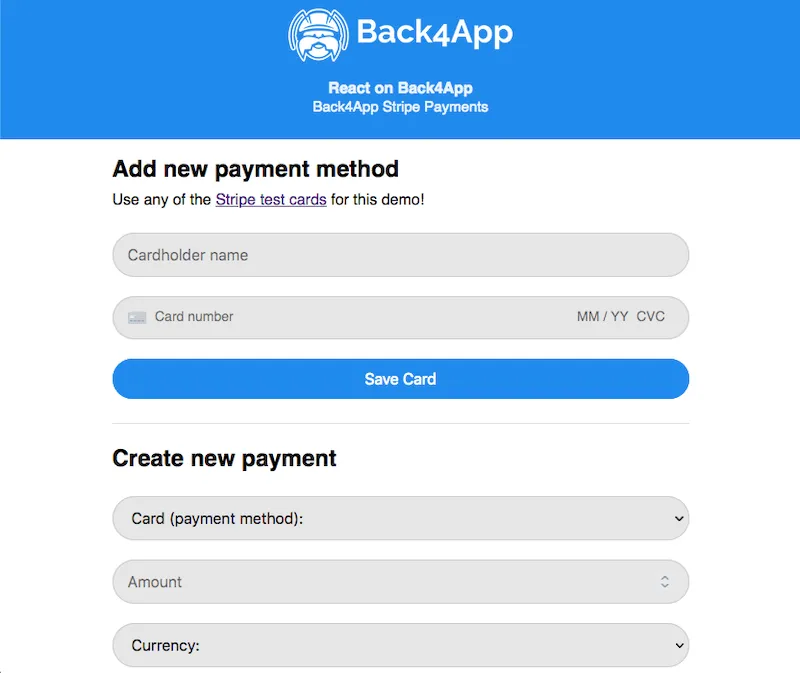
结论
通过上述指南,您可以在 Back4App 中使用 Stripe 和 Cloud Code 函数,并将支付集成到一个简单的 JavaScript 应用程序中!
如果在集成 Stripe 或某个功能无法正常工作时遇到任何问题,请通过聊天与我们的团队联系!