# How to Publish Your App Without the App Stores, Using Back4app
Your app can be on someone's home screen this afternoon, with an icon and no address bar, and nobody has to approve it. Three files do it — and one of them is the one everybody leaves out.
URL: https://www.back4app.com/blog/publish-your-app-without-the-app-stores
Published: 2026-10-28 · Tested: 2026-10-27
Tested on: Browser: Chrome 155.0.8059.85 on macOS, arm64 · App: three static files, no build step · Harness: Node 22 over the DevTools protocol · Backend: Back4app, free plan
Publisher: Back4app Engineering
You finished the app. Now you want it on a phone, and the two front doors both have a queue.
Google Play asks personal developer accounts for a closed test: at least **12 testers**, opted in **continuously for 14 days**, before you may even apply for production access. That application review then "usually takes seven days or less".
Apple asks a different question, and guideline 4.2 states it plainly: your app "should include features, content, and UI that elevate it beyond a repackaged website".
There is a third door, and it has no queue at all. A web app can sit on the home screen with its own icon, open full screen with no address bar, and keep working with no connection. This guide builds one, then proves both halves of that claim against a real browser.
## Watch it instead
The app stores are number 13 in our countdown of what actually goes wrong for people building with AI.
## What are the stores actually asking for?
Two different things, which is why the same app can stall at both for unrelated reasons.
Google's is arithmetic. Developers with personal accounts created after 13 November 2023 must run a closed test with "a minimum of 12 testers who have been opted in continuously for at least 14 days". Opting out resets the clock for that person, so the twelve have to stay. Organization accounts skip the test entirely.
Apple's is editorial. Guideline 4.2.2 adds that apps "shouldn't primarily be marketing materials, advertisements, web clippings, content aggregators, or a collection of links". A site wrapped in a native shell is the exact case the sentence describes, so a reviewer reading it has already been told what to look for.
The web route asks for none of that. It also asks for no money, no account and no appeal process, because there is nobody to appeal to.
## What makes a web page installable?
A manifest file. That is genuinely the whole mechanism: a small JSON document that tells the browser what the app is called, which icon to use and that it should open in its own window.
```json
{
"name": "Shift Notes",
"short_name": "Shift Notes",
"start_url": "./index.html",
"scope": "./",
"display": "standalone",
"background_color": "#F4F4EF",
"theme_color": "#0A1220",
"icons": [
{ "src": "icons/icon-192.png", "sizes": "192x192", "type": "image/png", "purpose": "any" },
{ "src": "icons/icon-512.png", "sizes": "512x512", "type": "image/png", "purpose": "any" },
{ "src": "icons/icon-maskable-512.png", "sizes": "512x512", "type": "image/png", "purpose": "maskable" }
]
}
```
Link it from the page and you are done with this part:
```html
```
`display: standalone` is the line that removes the address bar. Without it you get a bookmark; with it you get something a person will describe as an app, because the thing on screen has no browser in it.
## What does the browser really require?
Less than the checklists say. We asked Chrome itself, one change at a time, using its own installability verdict rather than a blog post's summary.
| What we changed | Chrome's verdict |
| --- | --- |
| icons at `192` and `512` | installable |
| only a `192` icon | installable |
| only a `512` icon | installable |
| no icons at all | `manifest-missing-suitable-icon, no-acceptable-icon` |
| `display: browser` | `manifest-display-not-supported` |
| no `short_name` | installable |
So one suitable icon is enough, and the much-repeated "you need 192 and 512" is advice about how your icon looks on different screens, not a condition of installing.
One more thing worth knowing before you start fixing things. With three faults present at once — no `short_name`, no large icon and `display: browser` — Chrome named exactly one: `manifest-display-not-supported`. It reports the blocker it hit, not an audit. Fix it and the next one appears.
How we measured: each row is one edit to the manifest, then a fresh Chrome profile driven over the DevTools protocol, reading `Page.getInstallabilityErrors` on the loaded page. The script is in [the repo](https://github.com/templates-back4app/installable-web-app).
## How do you make it work with no connection?
A service worker, which is a script the browser keeps even when your page is closed. On install it copies the app's shell into a cache; afterwards it answers requests from that cache first.
```js
const VERSION = 'shift-notes-v1';
const SHELL = ['./', './index.html', './manifest.webmanifest', './icons/icon-192.png', './icons/icon-512.png'];
self.addEventListener('install', (e) => {
e.waitUntil(caches.open(VERSION).then((c) => c.addAll(SHELL)).then(() => self.skipWaiting()));
});
self.addEventListener('fetch', (e) => {
if (e.request.method !== 'GET') return;
e.respondWith(
caches.match(e.request, { ignoreSearch: true })
.then((hit) => hit || fetch(e.request).catch(() => caches.match('./index.html')))
);
});
```
Register it from the page, once it has loaded:
```js
if ('serviceWorker' in navigator) {
addEventListener('load', () => navigator.serviceWorker.register('sw.js'));
}
```
The `catch` on the last line matters more than it looks. When the network is gone and the request was a navigation, it hands back the cached page instead of letting the browser show its own error — which is exactly the difference the next section measures.
## Does it actually survive losing the network?
Yes, and we checked it the hard way. Cutting the browser's network is not enough on its own, because a server that is still running can still be answering from somewhere. So the test cuts the network **and stops the server**, then confirms from outside the browser that the origin is really dead before reloading.
```text
✓ Chrome reports no installability errors none
✓ a service worker is active state=activated
✓ the page is controlled by it controller=true
✓ the shell is in the cache 5 entries
✓ the origin is genuinely gone ECONNREFUSED
✓ it still renders with the server stopped h1="Shift Notes"
✓ it is still interactive offline form and list present
first load 4430 bytes over the wire, 18 ms to load event
offline reload 0 bytes over the wire
```
Fourteen checks, all passing, stable across three consecutive runs. The number that carries the claim is the last one: **0 bytes** over the wire on a full reload, while a plain `fetch` to the same origin from outside the browser comes back `ECONNREFUSED`.
How we measured: Node 22 drives a real Chrome over the DevTools protocol, with a fresh profile each run. `Network.emulateNetworkConditions` puts the page offline, the static server is closed rather than paused, and the reload is a normal one, not a cache-only load.
## What happens if you skip the service worker?
Chrome installs the app anyway — and that is the trap. We deleted one line, the registration, and ran the same checks.
Chrome's installability verdict did not change: **no errors**. It would still offer to install it, still give it an icon, still open it full screen with no address bar.
Then the offline reload landed on Chrome's own error page. Our script reads the first heading on the page, and it came back `h1="Press space to play"` — the dinosaur game. The reload also pulled **184,663 bytes** over a connection that was supposed to be dead, because that error page is itself a page.
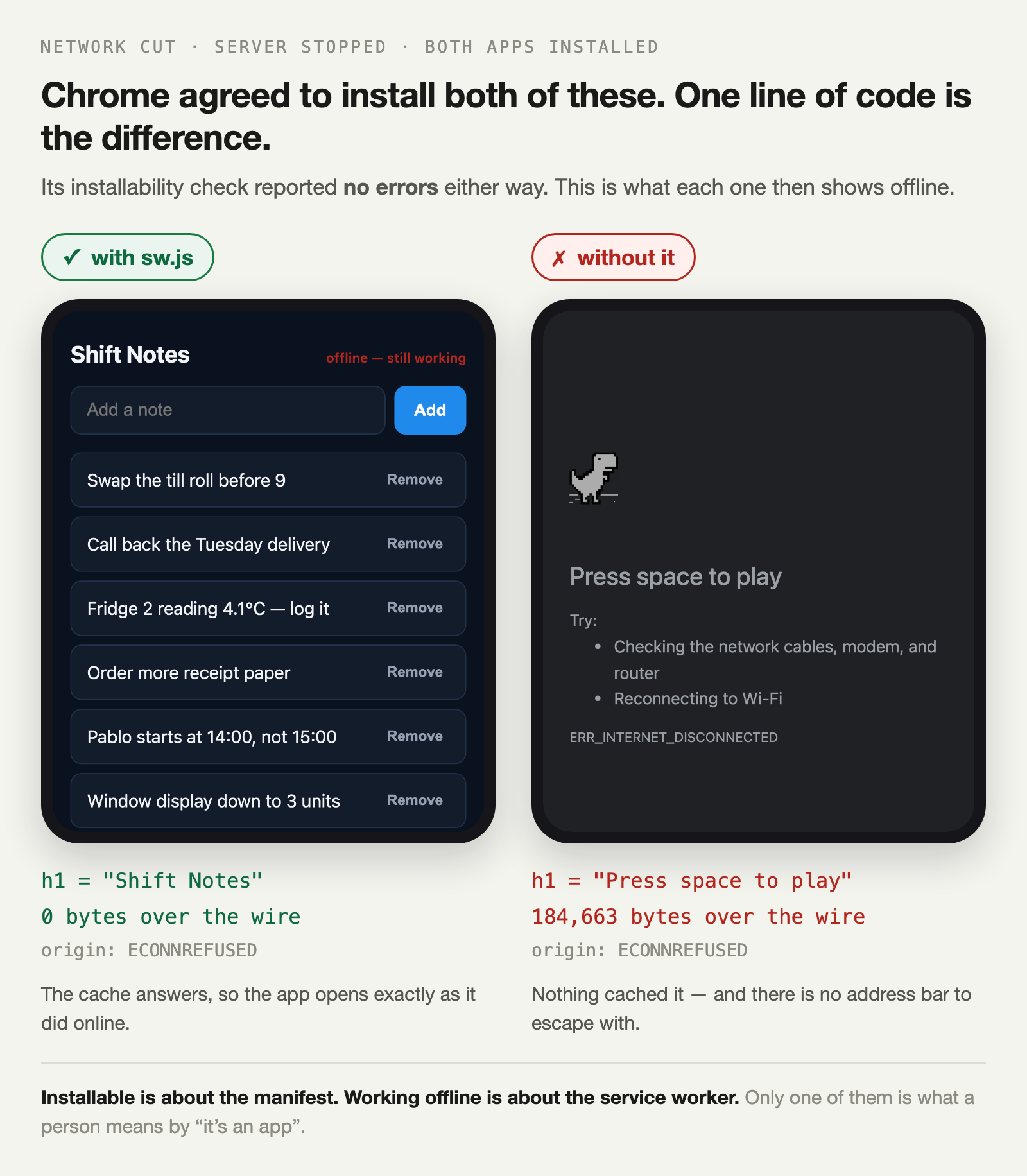
So the service worker is not the optional polish step. It is the file that makes the install honest.
## What does this cost you on an iPhone?
Three concrete things, and you should know them before you promise anyone a smooth install.
There is no install prompt. Safari shows no banner and fires no event you can hook; the reader has to open the Share menu and choose **Add to Home Screen**. That means your app has to ask for it in its own interface, at a moment when the reader already wants it.
Push notifications work, but only afterwards. They arrived in iOS 16.4 and only for a web app already on the Home Screen — a site in a Safari tab cannot receive push, whatever permission it holds. Background sync is still not available, so anything that must happen while the app is closed needs to happen on your server instead.
None of that stops the app working. It changes what you can promise: an icon, a full-screen window and offline use are yours; silent background behaviour is not.
## When should you use a store anyway?
When one of four things is true, and it is worth being honest about them before you commit.
You need the store's payment system, because selling digital goods inside an iOS app is not something you can route around. You need deep hardware access — Bluetooth peripherals, background location, health data. You are counting on store search to find you users. Or your buyer's procurement process simply requires a listing.
If none of those is true, the store is mostly a gate you are asking to be let through. And if one of them becomes true later, the backend you build now does not change — the same accounts and the same API serve a native client whenever you write one.
## Where does the backend come in?
The moment two people need the same data. The app in the repo keeps notes in `localStorage`, which is honest for a demo and wrong for a product: it is per-device, per-browser, invisible to you, and gone when someone clears their cache.
That is the same wall the store route hits, just without the review queue in front of it. Accounts, a database, file storage and an API are what turn the thing on the home screen into something two phones can share.
A managed backend covers that without changing the three files you just wrote: sign-up and login, a database with per-record permissions, and REST and GraphQL endpoints your page can call with `fetch`.
[Adding sign-up and login](https://www.back4app.com/blog/add-signup-login-password-reset-without-an-auth-server) is the next step, and it is the same work whether this ends up in a store or never does.
## How do you put it online?
Serve the folder over HTTPS. That is the only hard requirement, and it is not negotiable: a service worker will not register over plain HTTP anywhere except `localhost`, so without a certificate the offline half simply does not exist.
Any static host with HTTPS will do, and a container will too — [hosting a static site in a container](https://www.back4app.com/blog/host-a-static-website-in-a-container) measures that route end to end, including the file that serves it.
Then check the thing you shipped rather than the thing you wrote. Install it from the browser, turn the network off, and reload. If you see your app, you are done. If you see a dinosaur, your service worker is not registered.
## What should you do first?
Open your app's folder and add the manifest. It is the smallest change with the largest visible effect — one file and one ``, and the browser starts offering to install something that used to be a bookmark.
Then add the service worker, because the install without it is a promise you have not kept. Then run the checks against a real browser instead of a checklist, since the checklist was wrong about icons and silent about the thing that actually breaks.
The stores will still be there if you need them. The difference is that this route puts your app on a home screen today, and nobody has to say yes.